Nera NWC Voyager Manuel utilisateur


3
USER GUIDE
NWC Voyager
CONTENTS
OPERATION FROM PC .............................5
Starting up ......................................................... 5
Phone book ....................................................... 7
- capacity ........................................................... 7
- abbreviated dialing ........................................... 7
- adding or editing entries ................................... 7
- saving entries to/from PC................................. 8
Traffic Log .......................................................... 9
Traffic log settings ............................................ 11
Traffic log printout viewer -
normal calls (Cct) ............................................. 13
Traffic log printout viewer -
Mobile Packet Data Service calls (MPDS) ....... 15
Traffic log output to serial printer ...................... 15
CONFIGURATION FROM PC...................16
Menu functions................................................. 16
Function reference list...................................... 17
Access level .................................................... 18
- changing the PIN code ................................... 18
- functions requiring owner level ........................ 19
- shifting to owner level ..................................... 19
- changing owner level password ....................... 19
Selecting default Net service provider .............. 20
Phone setup..................................................... 22
- setting call duration limit ................................ 22
- message indication ........................................ 23
- setting time zone ........................................... 24
- setting date and time ..................................... 24
Advanced functions .......................................... 25
Access control ................................................. 26
- restricted dialing ............................................ 26
- checking the dialing setup ............................. 26
- restricted dialing setup ................................... 27
- access code .................................................. 28
- restricted SIM usage ...................................... 29
- setting SIM restrictions .................................. 29
Configuration menu .......................................... 30
- ISDN protocol configuration ........................... 30
- net service providers ...................................... 31
- set diagnostics .............................................. 32
Information available ........................................ 33
- miscellaneous version Id information ............. 33
- network status information ............................. 33
Customize menu .............................................. 34
- paid functions ................................................ 34
- phone name setup ......................................... 34
Routing of incoming calls ................................. 35
- routing of incoming calls (examples) .............. 36
MSN configuration ............................................ 37
- Nera ISDN Handset ....................................... 38
- ISDN port ....................................................... 40
- RS-232 port ................................................... 42
- USB port ........................................................ 43
Saving and reloading configurations ................. 44
Print handling setup ......................................... 46
Mobile Packet Data Service ............................. 47
SYSTEM DESCRIPTION ......................... 48


5
USER GUIDE
NWC Voyager
Starting up
•Switch ON NWC Voyager.
For location of the ON/OFF switch, see "Switch-
ing ON" in Getting Started.
•Turn ON the PC and click
Start > Programs > vtLite Mobile.
Note! VtLite can only be used on one PC at a time.
1The satellite search program is initialized.
See also "Satellite search" in Getting Started.
2 NWC Voyager starts searching for last used
satellite/elevation (Ocean Region) as default. If not
found the system searches for the 2nd last used.
3When receiving a satellite signal, a signal strength
bar will appear in the search window.
The longer the signal bar or higher the signal
strength indicator value, the better the signal quality.
The maximum marker indicates the highest signal
strength achieved during the current search.
Note! It is recommended that the signal strength
reading (S/N=Signal/Noise ratio) should be at least
535. The antenna will automatically fine-tune to the
best signal and accept it.
Clicking Seek starts the search again, see also step 5.
If required, select a specific satellite by clicking New.
See also "Selecting default Net provider" in
Getting Started.
1
2
3
OPERATION FROM PC

6
OPERATION FROM PC CONT’DUSER GUIDE
NWC Voyager
4NWC Voyager automatically searches available
spot beams and selects the strongest one.
5The system only searches for the two last used
satellites.
Clicking Seek opens the New search satellite
window, allowing the "oldest" of the two last used
satellite regions to be replaced, leaving the selected
one on top of list.
6The equipment is ready for use when the
Main window appears.
To make a connection, see "Making a call" in
Getting Started.
5
S/N=Signal/Noise ratio
6
4

7
USER MANUAL OPERATION FROM PC CONT’D
USER GUIDE
NWC Voyager
Phone book
Adding and editing entries can also be done from the
handset, see OPERATION FROM HANDSET in
Getting Started.
Phone book capacity
MCU SIM card
(Data vary with card type)
Phone numbers: 100 entries 100 entries
Number length: 19 digits 19 digits
Name length: 29 characters 12 characters
Entry numbers: 0 - 99 100 and up
The SIM card entries and "MCU" entries merge when
the card is inserted. The list is sorted by name.
Abbreviated dialing (prefix 23)
1Clicking Book opens the Phone book.
2Scroll through list œ/‘to wanted entry.
Example: dialing
2 3 5
1
on the telephone or
keypad fetches and sends the telephone number
stored under short number entry 15.
Adding or editing entries
3Clicking New (window 2) opens the window used
to add an entry to the book.
Use Del to modify. Save stores the new entry.
3
2
1

8
OPERATION FROM PC CONT’DUSER GUIDE
NWC Voyager
5
4Clicking Edit (window 2on previous page) opens
the window allowing changes to be made in the
Phone book.
Use Del to modify. Remov erases the entry.
Note! The book is also used with the restriction “Dial
from book only”, see "Restricted dialing setup".
Netwk = Net provider
Another Net provider may be selected when dialing
this number from the phone book. If no selection, the
system uses the default one.
Terrestrial network
It is possible to change Terrestrial network for the
selected Net provider (00 is most common).Call your
Net provider for more information.
Saving entries to/from PC
(owner level only, see "Shifting to owner level")
5Click File to save phone book, or replace the
stored one.
4

9
USER MANUAL OPERATION FROM PC CONT’D
USER GUIDE
NWC Voyager
1
2
3
4
# Tagged for printout* Calls not yet printed
Traffic Log
This function logs all outgoing and incoming calls
both with and without SIM card inserted. Incoming
calls may be logged as well.
Up to 100 calls can be logged:
Circuit switched calls (Cct) including:
•4.8 - 64 speech
•3.1 kHz Audio (e.g. G3 fax)
•64 kbps UDI data
Packet switched data calls (Mpds) including:
•Mobile Packet Data Service calls
The NWC Voyager owner may set the log output
mode as follows, (see "Traffic log settings"):
•paused
•cleared (stops logging and clears the log)
•enabled
•automatic printout to RS-232A
•automatic printout to RS-232B
Traffic log readout
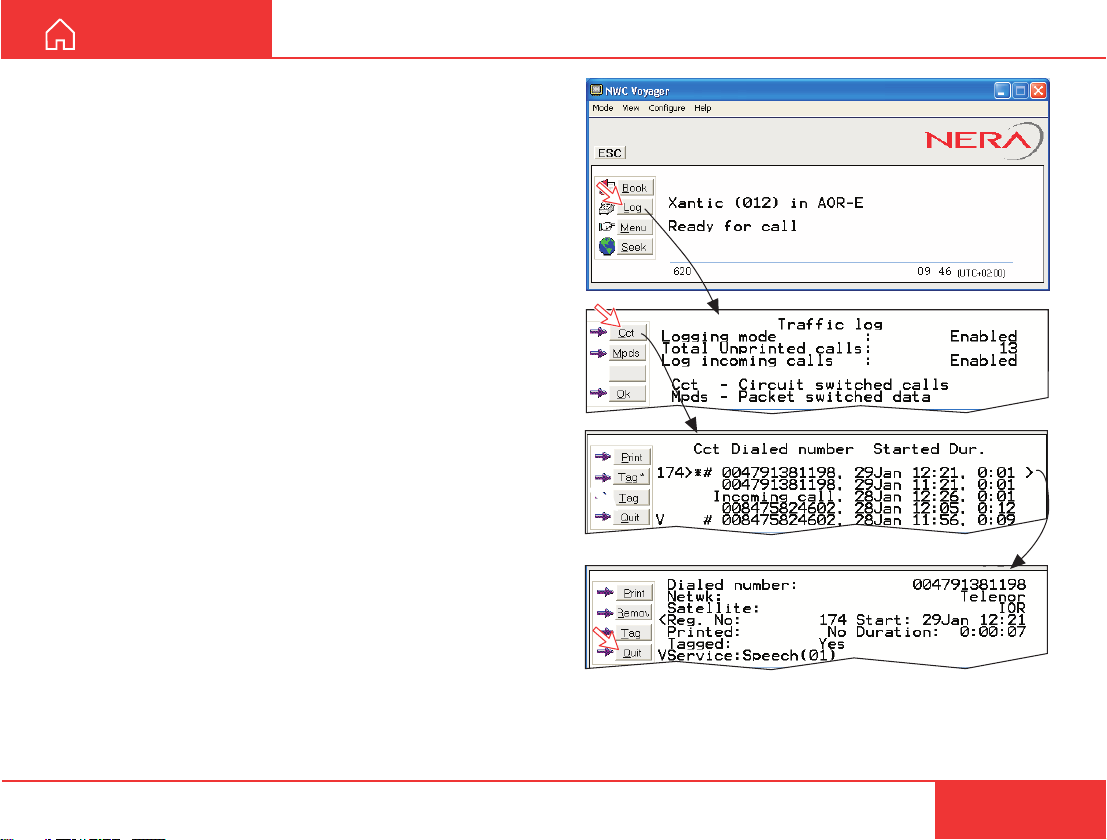
1 Clicking Log opens the Traffic log window.
2The Traffic log window shows whether the logging is
enabled, whether incoming calls are logged, and the
total number of unprinted calls (MPDS and Cct calls).
Circuit switched calls:
Clicking Cct displays the list of calls.
3Scroll œ/‘to wanted call record and press ’to
display details of the selected call.
4The call details include data such as dialed
number, start of the call, duration, service and termi-
nal Id.
Quit reverts to main window.

10
OPERATION FROM PC CONT’DUSER GUIDE
NWC Voyager
Mobile Packet Data Service calls:
5Clicking Mpds displays the list of Mobile Packet
Data Service calls.
6The call list include data such as Net provider, start
of the call and duration.
Scroll œ/‘to wanted call record and press ’to
display details of the selected call.
7The call details include data such as Rx/Tx in
bytes, forward frames received, etc.
Quit reverts to main window.
#
Tagged for printout
Forward errors
in the MPDS
system
Forward
frames
received
Tx Rx in
Bytes
Peak and average
number of users on the
same channel.
Example: 4 active users.
Time adjustment
of slot due to
location on earth
Lost synchro-
nisation
Clear cause
level1 level2
(0 500=
normal clear)
MPDS network used (HomeLes)
No. of 5 and
20ms slots
used
Error in frames
Tx Rx direction
5
7
6
Table des matières
Autres manuels Nera Radio