Neoi NeoIDesc 601 Manuel du propriétaire

(NEOI Group SINGAPORE –Neoi Technology Turkey – Neoi Technology HONG KONG –
NEOI Technology Deutschlan )
NeoIDesc 601
Quick User Manual – An roi 2.2
For Full User Manual, see Manual store on MID
or go to http://www.neoi-technology.com/manuals/
Support [email protected] , support@neoi. e
Or go to http://www.neoi. e ; http://ww.neoi-technology.com
Neoi Technology Pte. Ltd., 9 Temasek Blvd., #19-05, S ntec Tower 2, Singapore 038989.
Phone:+65-68389029 – S pport Line Global: +65-65249086
info@neoi-technology.com http://neoi.de

2
NOTE:A NOTE indicates important information that helps you make
better use of your device.
Notes, Cautions, and Warnings
CAUTION: A CAUTION indicates potential damage to hardware or
loss of data if instructions are not followed.
Information in this document is subject to change without notice
____________________
WARNING: A WARNING indicates a potential for property damage,
personal injury or death.

3
1 For Your Safety. . . . . . . . . . . . . . . . . . . . . . . . . . . .5
2 Device’s Features. . . . . . . . . . . . . . . . . . . . . . . . . . . .6
3 Setting Up Your Device . . . . . . . . . . . . . . . . . . . . . . . . .9
Getting Your Device Ready for Use . . . . . . . . . . . . . . . . 9
Turning On Your Device. . . . . . . . . . . . . . . . . . . . . . 11
Turning Off Your Device . . . . . . . . . . . . . . . . . . . . . 11
Turning Off the Screen. . . . . . . . . . . . . . . . . . . . . . . 11
Charging the Battery . . . . . . . . . . . . . . . . . . . . . . . .12
4 Understanding Your Device . . . . . . . . . . . . . . . . . . . . . .13
Home Screen. . . . . . . . . . . . . . . . . . . . . . . . . . . 17
Applications, Widgets, and Shortcuts. . . . . . . . . . . . . 21
Status Bar . . . . . . . . . . . . . . . . . . . . . . . . . . . . . 28
Adjusting Volume . . . . . . . . . . . . . . . . . . . . . . . . . 33
5 Using Your Device . . . . . . . . . . . . . . . . . . . . . . . . . . .34
Calling . . . . . . . . . . . . . . . . . . . . . . . . . . . . . . . 34
Call Log . . . . . . . . . . . . . . . . . . . . . . . . . . . 37
Contacts . . . . . . . . . . . . . . . . . . . . . . . . . . . . . . 38
Messaging. . . . . . . . . . . . . . . . . . . . . . . . . . . . 40
Input Methods . . . . . . . . . . . . . . . . . . . . . . . . . . . 45
Contents

4
6 Web Browser . . . . . . . . . . . . . . . . . . . . . . . 47
7 Settings. . . . . . . . . . . . . . . . . . . . . . . . . . 48
8 E-mail. . . . . . . . . . . . . . . . . . . . . . . . . . 53
9Applications . . . . . . . . . . . . . . . . . . . . . . . . 57
Camera. . . . . . . . . . . . . . . . . . . . . . . 57
Photos . . . . . . . . . . . . .. . . . . . . . . . . 59
Videos . . . . . . . . . . . .. . . . . . . . . . . . 62
Music. . . . . . . . . . . . . . . .. . . . . . . . . 63
Calendar . . . . . . . . . . . . . . . . . . . . . . 65
Alarm Clock. . . . . . . . . .. . . . . . . . . . . . 68
Calculator. . . . . . . . . . . . . . . .. . . . . . . . . . .70
Notepad . . . . . . . . . . . . . . . . . . . . . . . 71
11 USB Connections . . . . . . . . . . . . . . . . . . . . . . 72
12 Reset . . . . . . . . . . . . . . . . . . . . . . . . . . . . . . . . .72
13 Automatic Update . . . . . . . . . . . . . . . . . . . . . .73
13 Original Accessories . . . . . . . . . . . . . . . . . . . . . . 74
14 Battery Information . . . . . . . . . . . . . . . . . . . . 75
15 Care and Maintenance . . . . . . . . . . . . . . . . . . 76
16 Important Safety Information . . . . . . . . . . . . . . . 76

5
For Your Safety
Read these simple guidelines. Not following them may be dangerous or illegal. Read
the complete user guide for further information.
SWITCH ON SAFELY
Do not switch the device on when wireless device use is
prohibited or when it may cause interference or danger.
ROAD SAFETY COMES FIRST
Obey all local laws. Always keep your hands free to operate
the vehicle while driving. Your first consideration while driving
should be road safety.
INTERFERENCE
All wireless devices may be susceptible to interference, which
could affect performance.
SWITCH OFF IN HOSPITALS
Follow any restrictions. Switch the device off near medical
equipment.
SWITCH OFF IN AIRCRAFT
Follow any restrictions. Wireless devices can cause
interference in aircraft.
SWITCH OFF WHEN REFUELING
Do not use the device at a refueling point. Do not use near
fuel or chemicals.
SWITCH OFF NEAR BLASTING
Follow any restrictions. Do not use the device where blasting
is in progress.
QUALIFIED SERVICE
Only qualified personnel may install or repair this product.
ENHANCEMENTS AND BATTERIES
Use only approved enhancements and batteries. Do not
connect incompatible products.
WATER-RESISTANCE
Your device is not water-resistant. Keep it dry.
MAKE BACK-UP COPIES
Remember to make back-up copies or keep a written record
of all important information stored in your device.
CONNECT ANY OTHER DEVICE
When connecting to any other device, read its user’s manual
for detailed safety instructions. Do not connect incompatible
products.
EMERGENCY CALLS
Ensure the phone function of the device is switched on and in
service. Enter the emergency number, and then press the call
key. Give your location.

1
Device’s Features
1
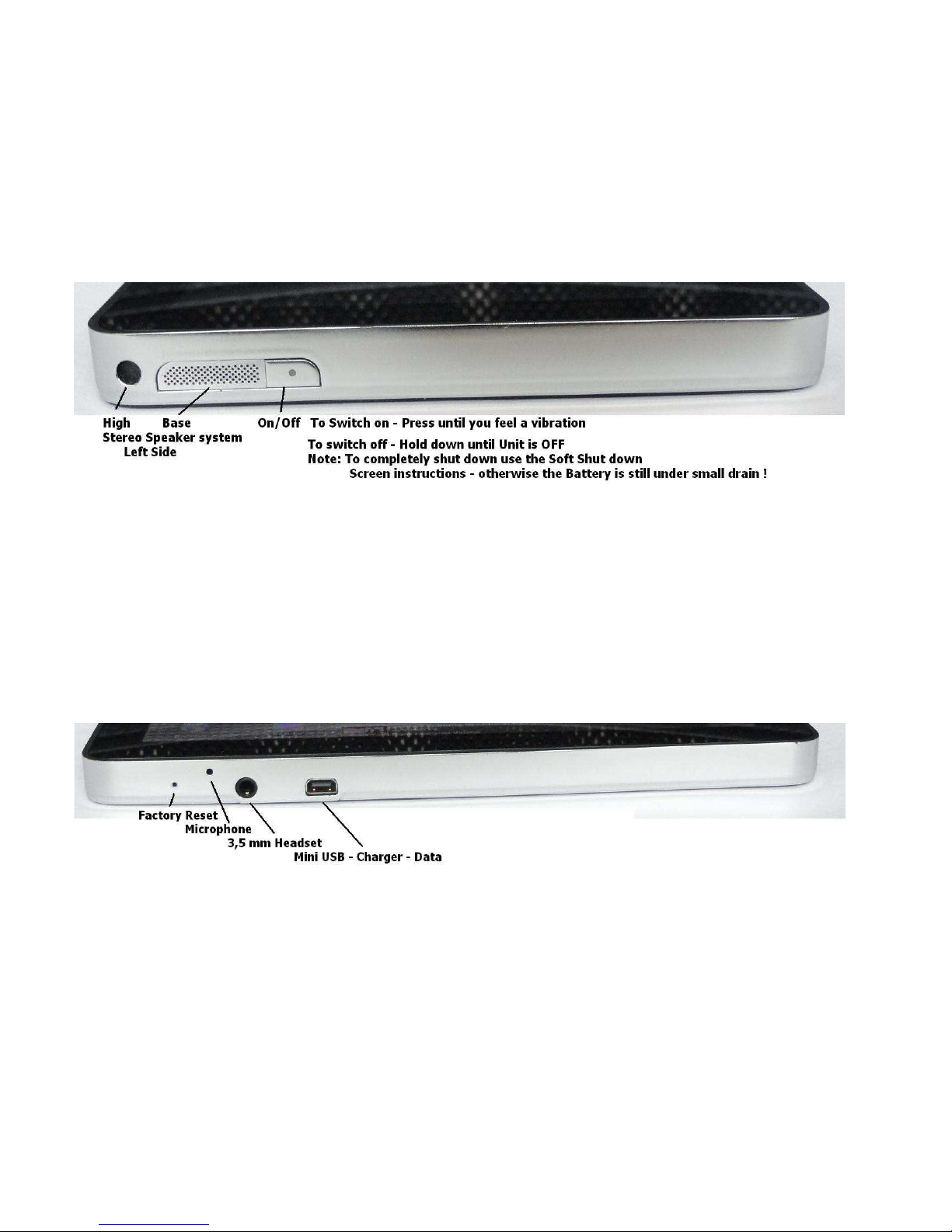
Power and Sleep
• If the device is off, press and hold the button to power on the device.
• If the device is on, but the screen is off, press the button to turn on the screen.
• If both the device and the screen are on,
> Press the button to turn the screen off.
> Press and hold the button for two seconds to select one of these options:

2
• Silent mode: The device does not vibrate and disables all sounds except
for alarms.
• Airplane mode: Select to disable all wireless connections.
• Power off: Press and hold the button for four seconds to turn off the
device.
2. Reset button
> If the device is on, press the button to turn off the device.
3. Headphone connector
> Connects to headphones.
4. Ca era lens Front / Back
> Captures pictures and videos. ront Camera 0.3 MP for Video Conference,
> Back Side 5 MP for High resolution Pictures and Video
>

3
7. Volu e adjusting button
• While playing media such as music tracks or video clips:
> Press to increase or decrease media volume by one level.
> Press and hold to continuously increase or decrease the media volume.
• In all other situations:
> Press to increase or decrease the ringer volume by one level.
> Press and hold to continuously increase or decrease the ringer volume.
8. Micro SD card slot
> Micro SD card connector. Please pay attention to the card’s direction.
9. SIM card slot
> SIM card connector Please pay attention to the card’s direction.
10. USB/charging connector
• Connects to a USB cable to transfer files to a computer.
• Connects to a charger to charge the device.
11. Microphone
• Use for voice calls.

4
2. Reset button
> If the device is on, press the button to turn off the device.
3. Headphone connector
> Connects to headphones.
4. Ca era lens Front / Back
> Captures pictures and videos. ront Camera 0.3 MP for Video Conference,
> Back Side 5 MP for High resolution Pictures and Video

7
Getting Your Device Ready for Use
1 Insert the SIM card
Insert the SIM card in the illustrated direction.
NOTE: Don’t insert or re ove the SIM card while the device is on. Please insert
or re ove the SIM card while the device is off.
2
Install the icro SD card
Slide the micro SD card into
the micro SD card holder.
3 Charge the device
NOTE: Charge the battery in an environmental temperature between 0°C and 45°C.
The battery is not fully charged when first unpacked.
a. Plug the supplied USB cable into the USB connector on the device.
b. Plug the USB wall charger adaptor into a power outlet and charge the
device till the battery is fully charged.
c. NOTE: To charge the device using a co puter isn’t supported.
Autres manuels pour NeoIDesc 601
1
Table des matières
Autres manuels Neoi Comprimé