
NEC VERSA MINIDOCK 6000 Manuel utilisateur

First Printing — July 1997
Copyright 1997 Copyright 1997
NEC Computer Systems Division NEC Corporation
Packard Bell NEC, Inc. 7-1 Shiba 5-Chome, Minato-Ku
1414 Massachusetts Avenue Tokyo 108-01, Japan
Boxborough, MA 01719
All Rights Reserved All Rights Reserved
PROPRIETARY NOTICE AND LIABILITY DISCLAIMER
The information disclosed in this document, including all designs and related materials, is the
valuable property of NEC Computer Systems Division, Packard Bell NEC (NECCSD,
PBNEC) and/or its licensors. NECCSD and/or its licensors, as appropriate, reserve all pat-
ent, copyright and other proprietary rights to this document, including all design, manufactur-
ing, reproduction, use, and sales rights thereto, except to the extent said rights are expressly
granted to others.
The NECCSD product(s) discussed in this document are warranted in accordance with the
terms of the Warranty Statement accompanying each product. However, actual performance
of each such product is dependent upon factors such as system configuration, customer data,
and operator control. Since implementation by customers of each product may vary, the
suitability of specific product configurations and applications must be determined by the
customer and is not warranted by NECCSD.
To allow for design and specification improvements, the information in this document is
subject to change at any time, without notice. Reproduction of this document or portions
thereof without prior written approval of NECCSD is prohibited.
NEC is a registered trademark of NEC Corporation; Versa is a U.S. registered trademark of NEC Technologies, Inc.;
MiniDock 6000 is a U.S. trademark of NEC Technologies, Inc.; all are used under license by NEC Computer Systems
Division (NECCSD) Packard Bell NEC, Inc.
All other product, brand, or trade names used in this publication are the trademarks or registered trademarks of their respective
trademark owners.

Using this Guide v
Using this Guide
The NEC Versa®MiniDock™ 6000 User’s Guide gives you the information
you need to maximize the use of your MiniDock. Read this guide to become
familiar with the NEC MiniDock 6000 and its features. For specific infor-
mation, see the following chapters.
Chapter 1 introduces you to MiniDock 6000 capabilities and features.
This chapter also describes the correct operating and storage environment
for the MiniDock and how to care for the unit.
Chapter 2 provides instructions for docking and undocking an NEC
Versa on the MiniDock.
Chapter 3 explains setting up the software to use your MiniDock and
NEC Versa together.
Chapter 4 details how to connect external devices and add options to the
MiniDock.
Chapter 5 directs you through basic troubleshooting procedures to help
you solve problems that may arise.
Appendix A provides MiniDock specifications.
Appendix B provides connector pinouts.
This document, the quick setup sheet, your NEC Versa user’s guide, and
Windows documentation provide all the information you need to effectively
use the NEC MiniDock 6000.

vi Using this Guide
TEXT SETUP
To make this guide as easy to use as possible, text is set up as follows.
Warnings, cautions, and notes are set up in the following format.
!
WARNING
Warnings alert you to situations that can cause personal injury or
harm.
!
CAUTION
Cautions indicate situations that can damage system hardware or
software.
NOTE
Notes give particularly important information about the topic
being discussed.
Names of keys are printed as they appear on the keyboard, for example,
Ctrl, Alt, or Enter.
Text that you must type or keys that you must press are presented in bold
type. For example, type dir and press Enter.
RELATED DOCUMENTS
See the following documents for information related to the NEC MiniDock
6000 and NEC Versa operation:
The NEC MiniDock 6000 Quick Setup sheet.
Your NEC Versa user’s guide.
The Microsoft®Windows and other operating system documentation that
came with your NEC Versa.
Manuals and setup instructions for any devices that you are connecting
to the MiniDock.

Contents iii
Contents
Using this Guide ....................................................................................................v
Text Setup..........................................................................................vi
Related Documents.............................................................................vi
1 Introducing the NEC MiniDock 6000
Carton Contents..................................................................................1-1
MiniDock Features .............................................................................1-2
Front and Top................................................................................1-2
Left Side........................................................................................1-4
Right Side......................................................................................1-6
Back..............................................................................................1-7
The Right Environment.......................................................................1-8
Operating Environment..................................................................1-9
Storage Environment......................................................................1-9
MiniDock 6000 Care ..........................................................................1-9
Precautions....................................................................................1-9
Routine Care .................................................................................1-10
Battery Charging ................................................................................1-10
2 Docking and Undocking
Connecting the Power Cable................................................................2-1
Preparing the NEC Versa for Docking.................................................2-4
Docking the NEC Versa......................................................................2-6
Undocking the NEC Versa..................................................................2-11
3 Setting Up and Using the Software
Using the Setup Utility........................................................................3-1
4 Adding Options and Connecting Peripherals
Using the MiniDock VersaBay II ........................................................4-2
Installing a Device in the VersaBay II.............................................4-2
Removing a Device from the VersaBay II.......................................4-3
PC Card Slot......................................................................................4-4
Installing a PC Card ......................................................................4-5

iv Contents
Removing a PC Card.....................................................................4-6
Windows 95 Systems................................................................4-6
Windows for Workgroups Systems ...........................................4-6
Windows NT Systems...............................................................4-7
Connecting External Devices...............................................................4-7
External Monitor ...........................................................................4-7
External Monitor Stand.............................................................4-8
Parallel Devices.............................................................................4-9
External Keyboard and Mouse.......................................................4-10
USB Devices .................................................................................4-12
External Audio Options..................................................................4-13
External FDD Connector ...............................................................4-14
Serial Devices................................................................................4-15
MIDI/Game Devices......................................................................4-16
5 Solving Problems
Problem Checklist...............................................................................5-1
Troubleshooting..................................................................................5-1
Replacing the Battery.....................................................................5-2
Battery Precautions...................................................................5-5
Battery Disposal.......................................................................5-5
If You Need Help................................................................................5-6
A Specifications and Environment
B Pin Assignments
Keyboard and Mouse Ports .................................................................B-1
Serial Port ..........................................................................................B-2
Parallel Port........................................................................................B-3
Monitor Port.......................................................................................B-4
USB Port............................................................................................B-5
Docking Port ......................................................................................B-6
Introducing the NEC MiniDock 6000 1-1
Introducing the
NEC MiniDock 6000
The NEC MiniDock™ 6000 docking solution lets you maximize your NEC
Versa®capabilities without minimizing its portability. Connect an external
monitor and keyboard to the ports on the back of the MiniDock, install your
CD-ROM reader in the MiniDock VersaBay II, attach your joystick to the
MIDI/Game port, and you're ready to work hard or play! Undock the NEC
Versa from the MiniDock and you're ready for the road.
This chapter introduces MiniDock features, guides you to setting up in the
correct environment, and describes how to take care of the unit.
CARTON CONTENTS
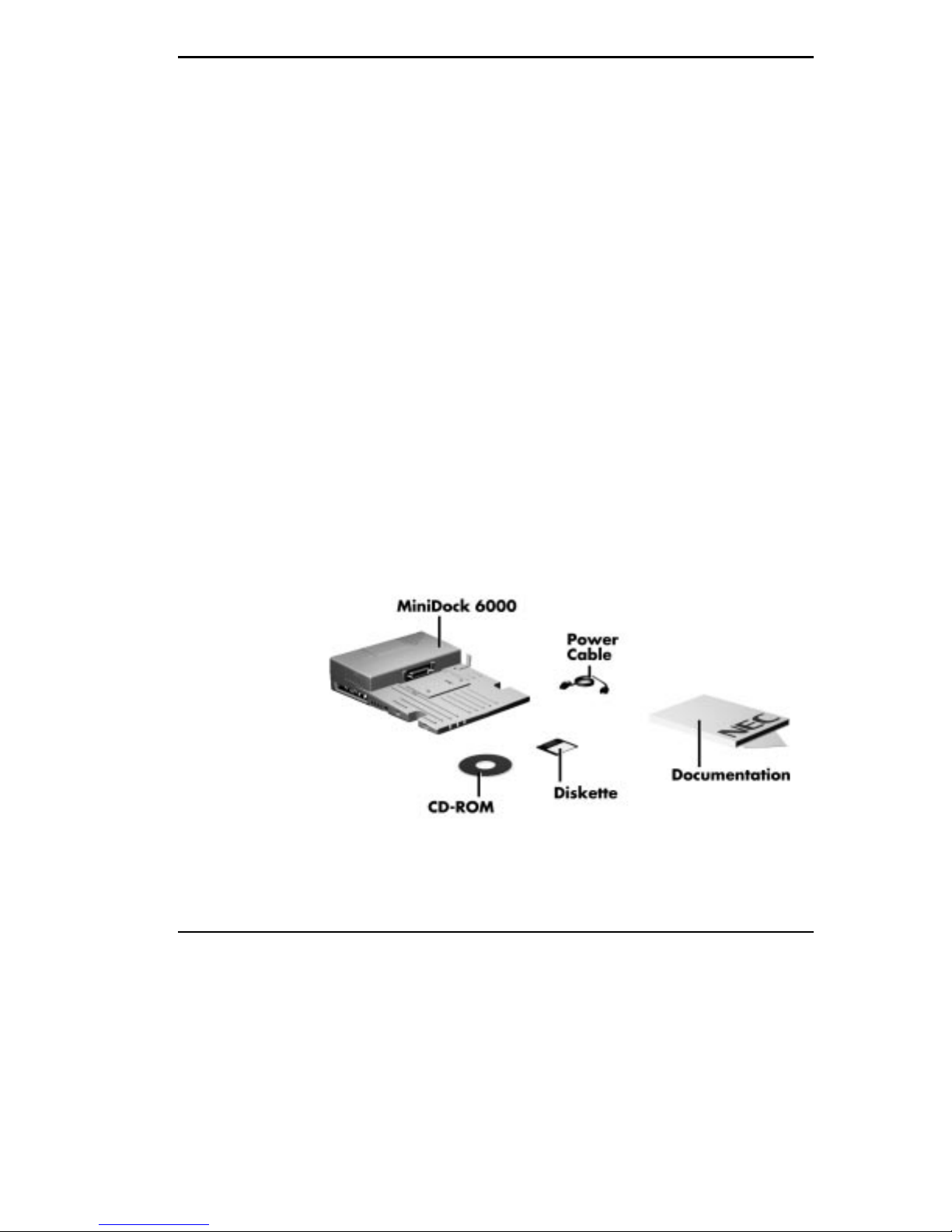
Carefully unpack and check the contents of the MiniDock 6000 carton.
Make sure you have the hardware components shown in the following figure
and that they are in good condition. If anything is damaged or missing, con-
tact your dealer immediately.
Carton Contents
1
1-2 Introducing the NEC MiniDock 6000
Always use the power cable that ships with the MiniDock. If you need to
replace the cable, follow these standards:
In North America, the cable should be rated for 120 volts (V), 7amps(A).
The plug is a NEMA 5-15P. Use an SVT or SJT 18/3 AWG cable that is
less than 15 feet (4.5 m) long. Use connector type IEC320.
In Europe, the cable should be rated for 230 V (220-240 V), 10A. The
plug is country-specific. Use an H05VV-F or H05VVH2-F cable that is
less than 15 feet (4.5 m) long. Use connector type EN60320.
MiniDock FEATURES
MiniDock features are found on every surface of the unit. To become famil-
iar with these features, read each of the following sections.
Front and Top
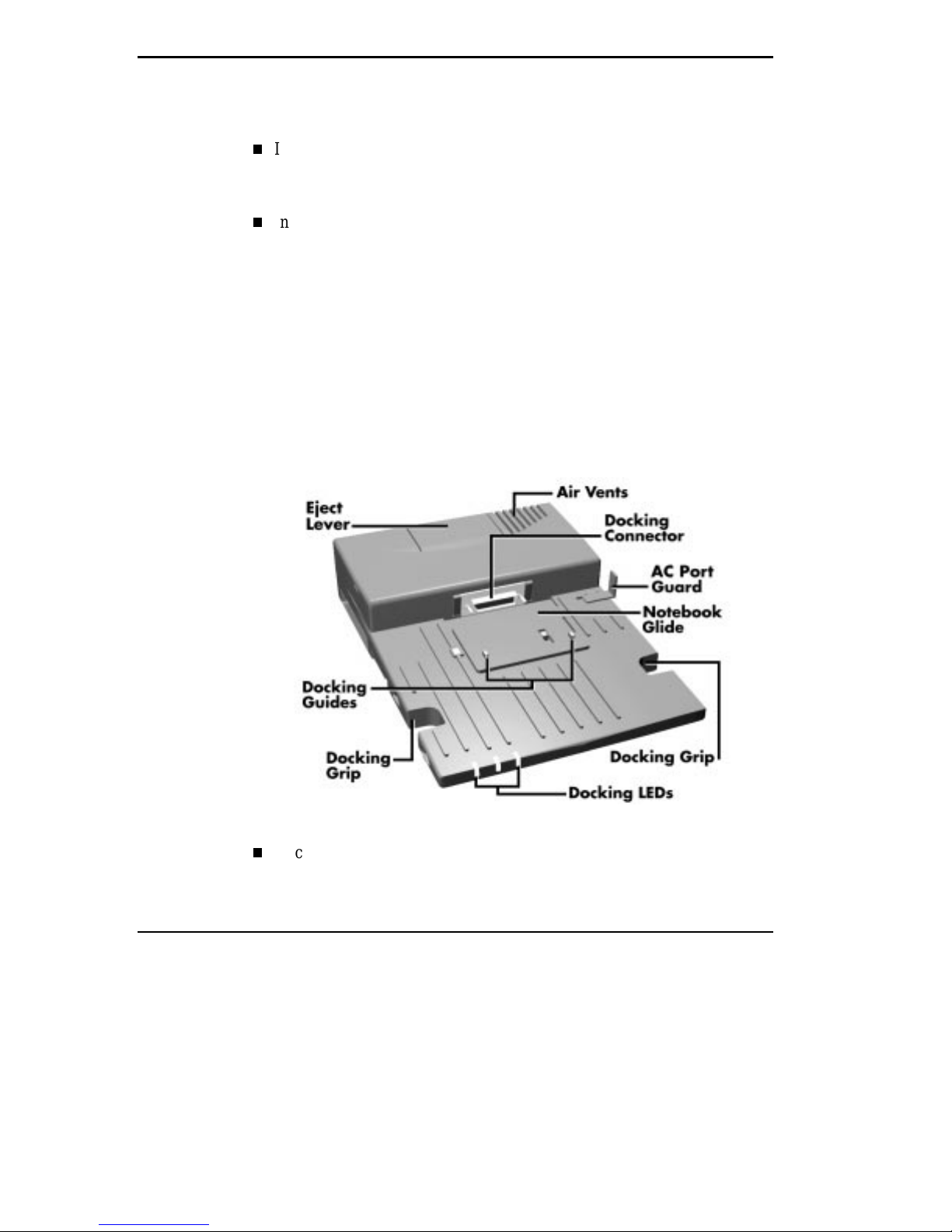
The following figure shows the features found on the front and top of the
MiniDock. Descriptions of these features follow the figure.
Front and top features
Docking Guides — The docking guides on the glide panel ensure that
your NEC Versa is aligned properly for docking. These guides fit into
specially placed notches on the bottom of the notebook computer.

Introducing the NEC MiniDock 6000 1-3
Eject Lever — The Eject lever disconnects the NEC Versa from the
MiniDock docking connector. Before pressing the Eject lever, you must
prepare your system for undocking by pressing the undocking button or
the power button on the side of the MiniDock. (See Chapter 2, “Docking
and Undocking,” for details about undocking procedures.)
Air Vents — These vents allow the MiniDock to cool properly. Keep the
vents free of paper and debris to allow for proper air circulation.
Docking Connector — This connector fits the expansion port on your
NEC Versa to allow for docking.
AC Port Guard — The adjustable AC port guard keeps you from acci-
dentally docking the NEC Versa while it is still plugged into the AC
adapter. When the notebook is docked, the MiniDock supplies power to
run the system and charges the battery installed in the NEC Versa.
Notebook Glide — This panel allows your notebook computer to glide
easily towards the docking connector during docking and away from the
connector while undocking.
Docking Grips — The docking grips give you the leverage you need to
connect the expansion port on the notebook computer to the docking con-
nector on the MiniDock.
Docking LEDs — These LEDs inform you of the current docking status,
IDE drive access, and diskette drive access. LEDs are shown in the fol-
lowing figure and LED states are described after the figure.
MiniDock LEDs

1-4 Introducing the NEC MiniDock 6000
Docking Status – When power is on to the MiniDock, this LED
lights as follows:
– Steady green when the NEC Versa is properly docked, powered
up, and locked onto the MiniDock.
– Blinks green while processing an undocking request.
– Steady Amber when power to the MiniDock is on but no note-
book computer is docked; when the computer is docked but not
powered on; or an eject request was accepted and the computer is
ready for undocking.
IDE Drive Access – lights green when a CD-ROM, hard disk, or
SuperDisk™ LS-120 drive installed in the MiniDock or NEC Versa
is accessed.
Diskette Drive Access – lights green when a standard diskette drive
installed in the NEC Versa or MiniDock VersaBay II is accessed.
Also lights green when a diskette drive connected via an external
FDD connector cable is accessed.
Left Side Features found on the left-hand side of the MiniDock 6000 are shown in the
following figure. Features are described after the figure.

Introducing the NEC MiniDock 6000 1-5
Left side features
PC Card Slots — The PC card slots let you install two Type II PC cards,
one Type III PC card, or one Type III card in the top slot and one Type
II card in the bottom slot for use while docked.
MIDI/Game Port — This port supports MIDI/game devices, such as a
joystick or MIDI keyboard.
Serial Port — The serial port lets you connect serial devices to the
MiniDock.
External FDD Connector — This port lets you connect an optional
External FDD cable directly to the MiniDock.
Audio Ports — These ports give you the option of connecting external
audio devices including: a microphone, headphones, or speakers. You can
also connect other audio devices to use as an output device or input
source.
Volume Control — This knob gives you control over the volume of ex-
ternal speakers or headphones attached to the MiniDock.
Autres manuels pour VERSA MINIDOCK 6000
1
Table des matières
Autres manuels NEC Accessoires informatiques

NEC
NEC VERSA MEDIADOCK - SERVICE Manuel utilisateur

NEC
NEC IE-703217-G1-EM1 Manuel utilisateur

NEC
NEC POWERMATE DESKTOP - INSTALLATION ZIP DRIVE Manuel utilisateur

NEC
NEC VERSA DOCKING STATION 6000 Manuel utilisateur

NEC
NEC VERSA DOCK - SERVICE Manuel d'utilisation

NEC
NEC VERSA DOCK - SERVICE Manuel utilisateur

NEC
NEC VERSA DOCK - SERVICE Manuel utilisateur

NEC
NEC VERSA MINIDOCK 6000 Manuel utilisateur

NEC
NEC N8101-616F Manuel utilisateur


