
NEC N411I - MANUAL 2 Manuel utilisateur

NEC Mobile Suite User Guide for N411i Rev 1.0 6/May/2005
NEC Mobile Suite User Guide
Ver:1.01 6, May, 2005

NEC Mobile Suite User Guide for N411i Rev 1.0 6/May/2005
CONTENTS
1PREFACE................................................................................................................................4
1.1Glossary and Definitions....................................................................................................4
1.2Typographical Conventions...............................................................................................4
2INTRODUCTION...................................................................................................................5
2.1Purpose...............................................................................................................................5
2.2Scope..................................................................................................................................5
2.3System Requirements.........................................................................................................6
2.3.1Minimum PC Requirements.......................................................................................6
3INSTALLATION & CONFIGURATION............................................................................7
3.1Installation..........................................................................................................................7
3.2Configuration...................................................................................................................14
4APPLICATION Functionality.............................................................................................14
4.1Phone Selection................................................................................................................15
4.2The Communication Service - systray icon.....................................................................15
4.3Start using NEC Mobile Suite..........................................................................................17
4.3.1Backup/Restore ........................................................................................................18
4.3.1.1Backup...............................................................................................................18
4.3.1.2Restore...............................................................................................................19
4.3.2Multimedia Resource Manager – MRM...................................................................20
4.3.2.1Controls..............................................................................................................21
4.3.2.1.1Resource selection icons.............................................................................21
4.3.2.1.2PC Area.......................................................................................................21
4.3.2.1.3Phone Area..................................................................................................21
4.3.2.1.4Preview Area...............................................................................................21
4.3.2.1.5Pop-up menu...............................................................................................21
4.3.2.1.7Transfer UP Button.....................................................................................21
4.3.2.1.8Transfer DOWN Button..............................................................................22
4.3.2.1.9Get List Button............................................................................................22
4.3.2.1.10Get list with image preview......................................................................22
4.3.2.1.11Transfer Button.........................................................................................22
4.3.2.1.12Delete Button ...........................................................................................22
4.3.2.1.13New Folder Button....................................................................................23
4.3.2.2Features..............................................................................................................24
4.3.2.2.1Upload to Phone..........................................................................................24
4.3.2.2.2Download to PC..........................................................................................24
4.3.2.2.3Upload and Download................................................................................25
4.3.2.2.4Marking Resources.....................................................................................26
4.3.2.3Menus.................................................................................................................28
4.3.2.3.1File menu.....................................................................................................28
4.3.2.3.2View menu..................................................................................................29
4.3.3Personal Information Manager - PIM.......................................................................30
4.3.3.1PIM selection icons ...........................................................................................30
4.3.3.1.1Action buttons.............................................................................................30
4.3.3.2Contacts..............................................................................................................31
4.3.3.2.1Groups area.................................................................................................31
4.3.3.2.2Contacts area...............................................................................................32
4.3.3.2.3Details area..................................................................................................32
4.3.3.3Schedule ............................................................................................................33

NEC Mobile Suite User Guide for N411i Rev 1.0 6/May/2005
4.3.3.3.1Viewer.........................................................................................................33
4.3.3.3.2Settings........................................................................................................34
4.3.3.4ToDo..................................................................................................................35
4.3.3.4.1Viewer.........................................................................................................35
4.3.3.4.2Settings........................................................................................................35
4.3.3.5Notepad..............................................................................................................37
4.3.3.5.1Settings........................................................................................................37
4.3.3.5.2Viewer.........................................................................................................37
4.3.3.6Bookmark...........................................................................................................38
4.3.3.6.1Settings........................................................................................................38
4.3.3.6.2Viewer.........................................................................................................38
4.3.3.7File Menu...........................................................................................................39
4.3.3.7.1Importing a CSV File..................................................................................41
4.3.3.7.2Exporting a CSV File..................................................................................44
5KEYBOARD SHORTCUTS................................................................................................47

NEC Mobile Suite User Guide for N411i Rev 1.0 6/May/2005
1 PREFACE
1.1 Glossary and Definitions
Term Description
CSV Comma Separated Values
DRM Digital Rights Management
MRM Multimedia Resource Manager
PC Personal Computer
PIM Personal Information Manager
Resources Files of a given type
1.2 Typographical Conventions
In this document the following typographical conventions will be used to aid clarity.
<ESC> Angle brackets mean press the key with the given label. In this case this is the
Esc key.
Ctrl+<X> Plus means hold the first key down whilst depressing the next key, then
release them all.
[Cancel] Square brackets mean the command button with the given label, in this case “Cancel”.
a:\setup Bold fixed point text indicates some information which needs to be entered by the user.
Exception Normal fixed point text Indicates some message/output produced by the application.
var-name Italic fixed point text indicates the position where a user defined name can be entered.
File This means use the mouse to click on the windows menu bar or pop-up menu option
with the given label, in this case “File”.
File | Open This means use the mouse to click on the menu bar option “File”. Then click on the
option “Open” which will be displayed in the pop-up menu displayed as a result of
clicking on “File”.

NEC Mobile Suite User Guide for N411i Rev 1.0 6/May/2005
2 INTRODUCTION
The NEC Mobile Suite is an application that provides the user an interface to interact with the Phone.
The NEC Mobile Suite contains three modules that deal with specific type of data, the
Backup/Restore, the MRM - Multimedia Resource Manager and the PIM - Personal Information
Manager.
The Backup/Restore allows the user to make a backup of all the phone’s data (images, melodies,
contacts, sms, etc) and at any time restore them to the phone again. MRM will enable the user to
download (from Phone to PC) and upload (from PC to Phone) Images, Melodies, Movies and MP3,
whilst PIM will allow the user to manage the Phone Book, Schedule, ToDo, Notepad and depending on
the user’s phone model the Bookmark’s.
Section 4will describe in a comprehensive way all the features of this application.
2.1 Purpose
This document describes in detail the NEC Mobile Suite environment, all its features and how the user
accesses them. It is intended to describe to the user how to do a specific operation.
2.2 Scope
This document has three main sections that will help the user to understand the purpose of this
application, how to make it run and what features it provides.
The sections are as follows:
Introduction
Gives the user an idea of what is the application and what does it offer.
Installation and Configuration
Helps the user to install and configure the application, guiding the user throughout the process
until its ready.
Application Functionality
Explains in detail all the features and options available, so that the user can understand the
environment, interpret it and take full advantage of what the application has to offer.
NOTE: The sections Troubleshooting and Appendix are currently blank.

NEC Mobile Suite User Guide for N411i Rev 1.0 6/May/2005
2.3 System Requirements
2.3.1 Minimum PC Requirements
Operating Systems
NEC Mobile Suite can run on the following operating systems
•Microsoft Windows 2000 (SP4)
•Microsoft Windows XP Pro (SP1)
•Microsoft Windows XP Home Edition (SP1)
Minimum required by the operating system
•NEC Mobile Suite requires processor with clock speed of > 350 MHz.
•64 MB RAM is required.
Recommendation
•CPU clock speed of > 1GMHz.
•256 MB RAM.
Available Disk Space
The amount of disk space required to install the NEC Mobile Suite is 10 MB.
Monitor
A monitor with following features is recommended:
•Screen resolution of 800 x 600
•256 colours
Logging Lead
USB
Note:
Install the USB/Modem driver before a NMS setup.

NEC Mobile Suite User Guide for N411i Rev 1.0 6/May/2005
3 INSTALLATION & CONFIGURATION
3.1 Installation
To initiate the installation process please double-click on the “setup.exe” file.
The first screen that will appear is the Choose Setup Language.
The user just has to choose the language (be aware that the installation language will also be the one
used in the application itself) and press [Next].
The next one is the Preparing to Install followed by the Welcome screen. Press [Next].

NEC Mobile Suite User Guide for N411i Rev 1.0 6/May/2005
NOTE: The installation process can be cancelled by clicking on the [Cancel] button.
Pressing [Next] will lead you to the Licence Agreement screen. Read it carefully before pressing [I
accept the terms of the license agreement] and [Next] if you agree and want to proceed with the
installation or [No] if you do not agree and want to abort the installation. [Back] returns to the previous
screen.

NEC Mobile Suite User Guide for N411i Rev 1.0 6/May/2005
Now the user will be asked to enter some personal information
NOTE: The first option will install the NEC Mobile Suite for all users, i.e. all users that log in will be able
to use it.
Press [Next].
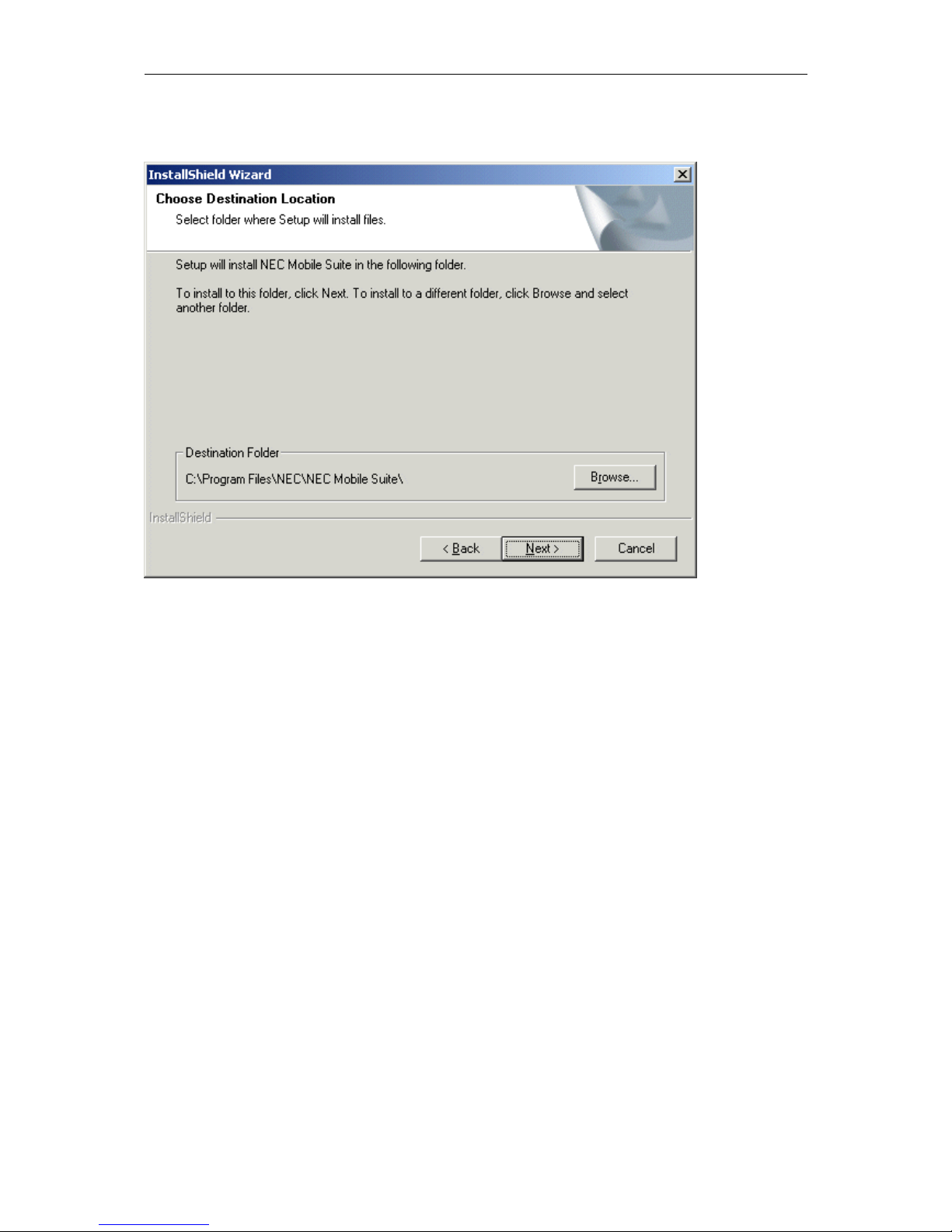
NEC Mobile Suite User Guide for N411i Rev 1.0 6/May/2005
On this screen the user can either select the installation directory by clicking on the [Browse] button or
use the default directory. Press [Next].
Autres manuels pour N411I - MANUAL 2
1
Table des matières
Autres manuels NEC Téléphone portable

NEC
NEC N600i Manuel utilisateur

NEC
NEC 338 Manuel utilisateur

NEC
NEC DECT M166 Manuel utilisateur

NEC
NEC G566d Manuel utilisateur

NEC
NEC N6207 Manuel utilisateur

NEC
NEC N-05C Manuel utilisateur

NEC
NEC N343i Manuel utilisateur

NEC
NEC A232 Manuel utilisateur

NEC
NEC N600i Manuel utilisateur

NEC
NEC N331i Manuel utilisateur

NEC
NEC Mobile Phone Manuel utilisateur
NEC
NEC My Digi Manuel utilisateur

NEC
NEC e808y Manuel utilisateur

NEC
NEC N500i Manuel utilisateur

NEC
NEC 525 Manuel utilisateur

NEC
NEC N411I - MANUAL 2 Manuel utilisateur

NEC
NEC N412I - 2 Manuel utilisateur

NEC
NEC 515 Manuel utilisateur
NEC
NEC e122 Manuel utilisateur

NEC
NEC N8 Manuel utilisateur


