MyDepots H.264 Network Embedded DVR Manuel utilisateur

Visionari Limited Liability Company Visionari Copyright(1.5)2010Version
http://www.mydepots.com
1
Manual for Remote View & Control-Router UPNP Supported
H.264 Network
Embedded DVR
INSTRUCTION MANUAL FOR REMOTE VIEW&CONTROL
---------------- Router UPNP Supported----------------

Visionari Limited Liability Company Visionari Copyright(1.5)2010Version
http://www.mydepots.com
2
Manual for Remote View & Control-Router UPNP Supported
Content
Zone A: Setting on DVR interface
Step 1: Plug network line into DVR’s LAN…………………………………………………P3
Step 2~4: Coming into DVR’s network setting interface………..……………………….P3~4
Step 4-1: Setting for 【TYPE】…………………………………………………………….P4
Step 4-1-1~4-1-2: Getting clues for 【IP Addr】&【AUTO DHCP】…………………..P5
Step 4-2: Setting for 【MEDIA PORT】&【WEB PORT】………………………………..P5
Step 4-3: Finding out【DNS】IP………………………………………………………..…..P6
Step 4-4: Restarting DVR system after setting………………………………………………P6
Zone B: Setting on your router
Step 4-5~4-6: Setting on your router…………….. …………………………………………P7
Step 4-7: Checking 【UPNP】status……………………………………………………..…P7
Step 4-8: Methods to Visit DVR…………………….. …………………………………..….P8
Zone C: Setting on remote view interface
Step 4-8-1~4-8-3: How to visit DVR through WAN IP…………………...………….…P8~9
Step 4-9~4-9-4: How to set【DDNS】on DVR interface……………………………….P9~10
Step 4-9-5~4-9-15: How to register for【DDNS】……………………………………. P11~15
Step 4-9-16: Filling 【DDNS】registered clues on DVR interface……………….….……P16
Step 4-9-17~4-9-18: How to visit DVR through 【DDNS】………………………… P16~17
Step 4-9-19: Final scene when Realizing remote view ………………………….…….. P17
Step 5: Setting on remote view interface………………………………………………. P18
Step 6~6-1: Setting visiting password on remote view interface……………….......P18
Attention here: all data below is cited from writer’s local network situation (system fault
parameter is exception), please adjust according to your actual environment.


Visionari Limited Liability Company Visionari Copyright(1.5)2010Version
http://www.mydepots.com
3
Manual for Remote View & Control-Router UPNP Supported
Zone A: Setting on DVR interface
Step 1: Plug network cable line into LAN, assure the light is on, indicating network is normal.
Figure (1)
Figure 1
Step 2:Coming into DVR’s main menu, select 【ADVANCE】, Press【Enter】
Figure 2
Step 3:select 【NETWORK】, Press【Enter】
Figure 3

Visionari Limited Liability Company Visionari Copyright(1.5)2010Version
http://www.mydepots.com
4
Manual for Remote View & Control-Router UPNP Supported
Step 4: You’ll find interface as below and you need fill them accordingly.
Figure 4
Step 4-1:
【TYPE】: Here’re 3 options, you need firstly check whether your router support “UPNP”, if yes,
please select it and follow next steps(if not, please get reference from another manual under
【STATIC】mode)
Figure 4-1

Visionari Limited Liability Company Visionari Copyright(1.5)2010Version
http://www.mydepots.com
5
Manual for Remote View & Control-Router UPNP Supported
Step 4-1-1: when set 【TYPE】as 【DHCP】, at the same time you need set 【UPNP】
as 【OPEN】, in this way, immediately, DVR system will automatically obtain 【IP Addr】
and 【AUTO DHCP】like below,Attention here:
【IPAddr】: Refers to DVR IP address
【AUTO DHCP】: Refers to DNS IP address
Figure 4-1-1
Step 4-1-2: After short while, you’ll find interface result as below:
Figure 4-1-2
Step 4-2:
【MEDIA PORT】: It’s for video transmission via IE, please keep it as default.
【WEB PORT:】: It means “set up the port of IE browser via HTTP”,please input any port
number(But please don’t use system default port 00080, it’s a must to change another), provided
that it’s a 5-digit number and not used by any other device in your wireless environment, i. e, here
assumed we set it as 【09001】.

Visionari Limited Liability Company Visionari Copyright(1.5)2010Version
http://www.mydepots.com
6
Manual for Remote View & Control-Router UPNP Supported
Step 4-3:
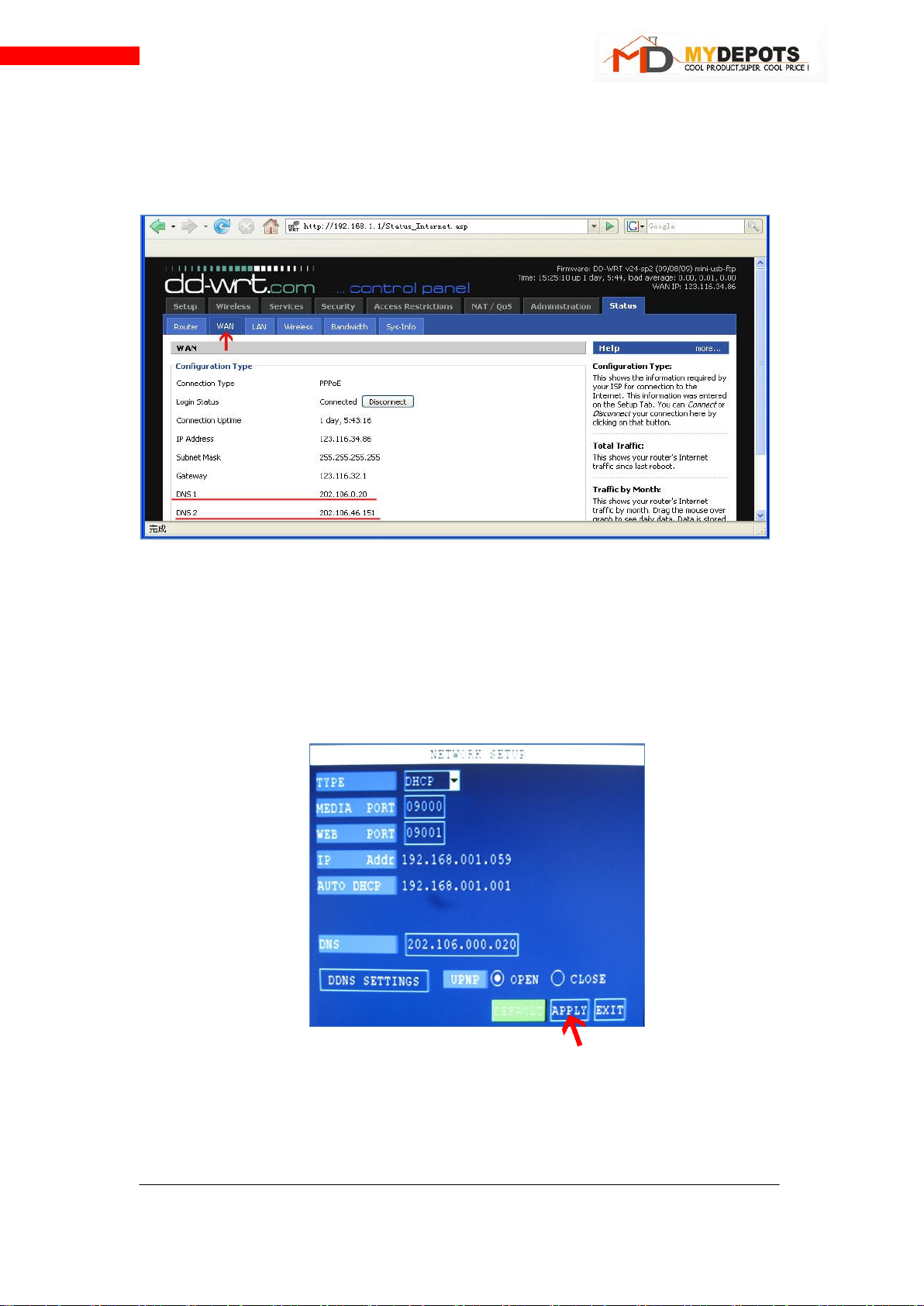
【DNS】: you need fill local DNS IP exactly, first input your router’s IP in IE’s address bar, and
land your router’s managing interface, then find 【WAN】, maybe you’ll find two clues for it,
whichever you choose to fill into DVR’s interface, it’s ok!
Figure 4-3
Step 4-4: Writer selects DNS1 to fill, then finish inputting completely. But it’s always
necessary to remember to click 【APPLY】, then 【EXIT】, at this time, DVR system will
restart, if not, please restart manually.
Figure 4-4

Visionari Limited Liability Company Visionari Copyright(1.5)2010Version
http://www.mydepots.com
7
Manual for Remote View & Control-Router UPNP Supported
Zone B: Setting on your router
Step 4-5: Set for your router(Memo: please operate accordingly as your used), input your
router’s IP in Browser’s address bar, and land your router’s managing interface, then find
【UPNP】
Figure 4-5
Step 4-6: To select 【UPNP Service】as Enable,
Figure 4-6
Step 4-7: Check UPNP’s status
Equally, land your router’s managing interface, inspect setting list for UPNP, check whether
DVR’s web port, media port, even mobile port are automatically added here or not.
Figure 4-7

Visionari Limited Liability Company Visionari Copyright(1.5)2010Version
http://www.mydepots.com
8
Manual for Remote View & Control-Router UPNP Supported
Step 4-8: Visiting DVR through WAN IP or DDNS IP
Attention here:
Since WAN IP always change out of your care, so we strongly suggest you visit DVR
through DDNS, of course, it’s precondition is that Step 7 is normal, which indicates
your dvr network is without problem.
Zone C: Setting on remote view interface
Step 4-8-1: Visiting DVR through WAN IP, you need inputting address as:
【http://】+【Your router’s WAN’s IP address】+【:】+【web port】(Must input completely)
Maybe you would ask how to get my router’s WAN IP? Still you need get on your router’s
managing interface like below(Attention: it’s just writer’s router’s IP interface, please check yours
accordingly)
Figure 4-8-1
Step 4-8-2: as you could see how writer operated address correctly.
Figure 4-8-2

Visionari Limited Liability Company Visionari Copyright(1.5)2010Version
http://www.mydepots.com
9
Manual for Remote View & Control-Router UPNP Supported
Step 4-8-3: Of course, for first visiting, system will ask you to installActiveX, please follow.
Figure 4-8-3
Step 4-9: Visiting DVR through DDNS: which means you could also visiting your DVR
though Dynamic Domain Name Server. But similarly, you need finish corresponding setting.
Go to this interface, and click 【DDNS SETTINGS】.
Figure 4-9
Step 4-9-1: select 【DDNS】as 【ON】
Figure 4-9-1

Visionari Limited Liability Company Visionari Copyright(1.5)2010Version
http://www.mydepots.com
10
Manual for Remote View & Control-Router UPNP Supported
4-9-2:Now you’ll see figure 4-9-2, here’re 3 options for 【SERVICE】
Figure 4-9-2
Step 4-9-3:【SERVICE】: here we recommend to select 【dyndns】
Figure 4-9-3
4-9-4:【HOST NAME】&【USER NAME】& 【PASSWORD】: you have to get them
through registration on www.dyndns.com, The following steps present you how to catch
clues for the three.
Autres manuels pour H.264 Network Embedded DVR
3
Autres manuels MyDepots DVR