Mopar Navus Manuel utilisateur

Owner’s Manual

© Copyright 2005 Garmin Ltd. or its subsidiaries
Garmin International, Inc.
1200 East 151st Street,
Olathe, Kansas 66062, U.S.A.
Tel. 913/397.8200 or 800/800.1020
Fax 913/397.8282
Garmin (Europe) Ltd.
Unit 5, The Quadrangle, Abbey Park Industrial
Estate, Romsey, SO51 9DL, U.K.
Tel. 44/0870.8501241
Fax 44/0870.8501251
Garmin Corporation
No. 68, Jangshu 2nd Road, Shijr, Taipei County,
Taiwan
Tel. 886/2.2642.9199
Fax 886/2.2642.9099
All rights reserved. Except as expressly provided herein, no part of this manual may be reproduced, copied, transmitted, disseminated, downloaded or
stored in any storage medium, for any purpose without the express prior written consent of DaimlerChrysler Motors Company, LLC and Garmin.
Information in this document is subject to change without notice. DaimlerChrysler Corporation reserves the right to change or improve its products and
to make changes in the content without obligation to notify any person or organization of such changes or improvements. Visit the Garmin Web site at
www.garmin.com/products/navus for current updates and supplemental information concerning the use and operation of this unit.
Garmin® and AutoLocate® are registered trademarks of Garmin Ltd. or its subsidiaries and may not be used without the express permission of Garmin.
Navus™ is a trademark of DaimlerChrysler Corporation.
March 2005 Part Number 190-00539-00 Rev. A Printed in Taiwan

i
INTRODUCTION > PREFACE
INTRODUCTION
Congratulations on purchasing the Navus™! To get the most out of
your new navigation system, take the time to go through this Owner’s
Manual and learn the operating procedures for your unit.
Your Navus Uses Safe Mode Technology
The Navus is equipped with a Safe Mode feature to improve driver
safety. When your vehicle is moving, Safe Mode disables all
functions that require significant operator attention and could become
a distraction while driving.
Quick Tips
• To find an address, page 26.
• To understand information on the Map page, pages 9–17.
• To use the Navus in “practice” (simulator) mode, page 8.
• To learn more about GPS, page 56.
• To learn safety information, pages 1–2.
Contact Garmin
If you should encounter any difficulty while using your Navus, or
if you have any questions, in the U.S.A. contact Garmin Product
Support at 913/397.8200 or 800/800.1020, Monday–Friday, 8 AM–5
PM Central Time; or by e-mail at [email protected]. In Europe,
contact Garmin (Europe) Ltd. at 44/0870.8501241.
For replacement parts or accessories, visit www.garmin.com
/products/navus.
Keep Your Navus’s Serial Number
Record the serial number in case your unit is lost, stolen, or needs
service. This 8-digit number is located below the Compact Flash (CF)
card on the passenger’s side of the unit. Open the CF door to view the
number. See page 61 for more information.
Serial Number: ___ ___ ___ ___ ___ ___ ___ ___

ii
INTRODUCTION > TABLE OF CONTENTS
Introduction ........................................................................................... i
Your Navus Uses Safe Mode Technology ...................................................................i
Quick Tips ...................................................................................................................i
Contact Garmin ...........................................................................................................i
Keep Your Navus’s Serial Number ..............................................................................i
Caring for Your Navus ...................................................................................................4
Cleaning the Touchscreen ..........................................................................................4
Cleaning the Casing ...................................................................................................4
Safety Guidelines ..........................................................................................................1
Getting Started ..................................................................................... 3
Introducing the Navus ....................................................................................................3
Navigation at a Glance ..................................................................................................4
Navus Basics .................................................................................................................6
Turning the Navus On and Off ...................................................................................6
Using the Keys ...........................................................................................................6
Using the Touchscreen ...............................................................................................7
Adjusting the Speaker Volume ...................................................................................7
Using the On-screen Keyboard ..................................................................................8
Practice Using the Navus in Simulator Mode .............................................................8
Navus Operation .................................................................................. 9
Learning How to Use the Map Page ..............................................................................9
Viewing the Map Page for the First Time ...................................................................9
Map Page Features .................................................................................................10
Driving and Routing Modes ......................................................................................16
Changing the Map View While Driving .....................................................................17
Looking Ahead on the Map Page .............................................................................17
Next Turn Page ............................................................................................................18
Current Route Page .....................................................................................................19
Trip Information Page ..................................................................................................20
Data Displayed on the Trip Information Page ..........................................................22
Finding Places and Routing to Them .............................................. 23
Finding Places to Visit .................................................................................................23
Route Preference Window .......................................................................................24
Other Ways to Find Places ......................................................................................24
Filtering Results .......................................................................................................25
Finding Addresses or Intersections .............................................................................26
Refining Your Search ...............................................................................................27
Finding Cities ...............................................................................................................28
Finding Exits ................................................................................................................28
Other Ways to Find Exits .........................................................................................29
Finding Waypoints .......................................................................................................29
Finding “Recent Finds” ................................................................................................30
Other Ways to find “Recent Finds” ...........................................................................30
Deleting Recent Finds ..............................................................................................30

iii
INTRODUCTION > TABLE OF CONTENTS
Planning a Trip Using Find Features ...........................................................................31
Planning and Modifying Routes ....................................................... 32
Planning a Route .........................................................................................................32
Saving a Route ........................................................................................................33
Deleting or Renaming a Saved Route .....................................................................34
Modifying a Route ........................................................................................................35
Recalculating a Route ..............................................................................................35
Adding a Detour .......................................................................................................35
Adding Extra Stops (Trip Itinerary) ...........................................................................36
Adding Avoidances ...................................................................................................38
Setting a HOME Waypoint ...........................................................................................40
Changing Your HOME Waypoint ..............................................................................41
Customizing Your Navus .................................................................. 42
Customizing the Map Page .........................................................................................42
Map Tab ...................................................................................................................43
Line, Point, City, and Area Tabs ...............................................................................43
Resetting Map Setup Default Settings .....................................................................44
Changing the Data Tabs ..............................................................................................45
Customizing the Overall Setup ....................................................................................48
Restoring your Navus’s Original Settings .................................................................48
General Tab ..............................................................................................................49
Guidance Tab ...........................................................................................................50
Routing Tab ..............................................................................................................50
Time Tab ..................................................................................................................53
Language Tab ..........................................................................................................54
Display Tab ...............................................................................................................54
Customizing the Trail Logs ..........................................................................................55
Appendix ............................................................................................ 56
What is GPS? ..............................................................................................................56
The GPS Information Page ......................................................................................56
Satellite Status .........................................................................................................58
“Poor Satellite Reception” Menu ..............................................................................59
GPS Information Page Options ................................................................................59
Driving with Dead Reckoning ...................................................................................60
Installing the CF Card ..................................................................................................61
Viewing Map Information .............................................................................................62
Purchasing Additional Map Data .............................................................................63
Viewing Software Information ......................................................................................63
FCC Compliance ........................................................................................................64
Software License Agreement .......................................................................................65
The Mopar Warranty Difference ..................................................................................66

iv
INTRODUCTION > CARING FOR YOUR NAVUS
Caring for Your Navus
The Navus is constructed of high quality materials and does not
require user maintenance other than cleaning.
Cleaning the Touchscreen
The Navus touchscreen is intended primarily for finger operation.
Although a PDA stylus may also be used to operate the touchscreen,
never attempt this while operating a vehicle. Never use a hard or
sharp object to operate the touchscreen or damage may result. Use a
clean, dry lens cloth to remove dust from the touchscreen. Carefully
wipe the display to prevent scratches. Water, isopropyl alcohol, or
eyeglass cleaner can be used if needed. If they are used, apply the
liquid to the cloth and then gently wipe the touchscreen with the
moistened cloth.
Cleaning the Casing
The outer casing of your Navus is constructed of high quality
materials and does not require user maintenance other than cleaning.
Clean the outer casing using a cloth dampened with a mild detergent
solution and then wipe dry. Avoid chemical cleaners and solvents that
may damage plastic components.

1
INTRODUCTION > SAFETY GUIDELINES
Safety Guidelines
Ensure that all persons read this manual carefully before using the
navigation system. It contains instructions on how to use the system
in a safe and effective manner.
WARNING: Please read and obey the following safety
precautions. Failure to do so may result in an accident
involving injury or property damage.
• Consider practicing the unit’s operation by using the “simulator
mode” prior to actual use. See page 8 for instructions.
• When in actual use, carefully compare indications from the Navus
to all available navigation sources, including the information from
other street signs, visual sightings, and maps. For safety, always
resolve any discrepancies before continuing navigation.
• Do not input destinations, change settings, or access any functions
that require prolonged use of the unit’s controls or remote control
while you are driving. Pull over in a safe and legal manner and
location before you attempt such operations.
• Do not use the navigation system to route you to emergency
services such as police and fire stations or hospitals and clinics.
Not all emergency service locations are contained in the database.
Please use your judgment and ask for directions in such situations.
• When driving, minimize the amount of time you spend viewing
the screen. Glance at the screen only when necessary and safe to
do so. If prolonged viewing of the screen is necessary, pull over at
a safe location.
• Road conditions and regulations take precedence over information
contained on the map display. Observe actual traffic restrictions
and circumstances while driving.
• Situations may occur where the navigation system erroneously
displays the vehicle’s location. Use your own driving judgment
in this situation, taking into account current driving conditions.
Please be aware that in this situation, the navigation system
should automatically correct the vehicle’s position within a few
minutes.

2
INTRODUCTION > SAFETY GUIDELINES
• Stop use immediately if a problem occurs. Failure to do so
may cause injury or damage to the product. Return it to your
authorized DaimlerChrysler dealer for service.
• Make certain the volume level of the monitor is set to a level that
still allows you to hear outside traffic and emergency vehicles.
• The map database is designed to provide you with route
suggestions and does not take into account the relative safety of
a suggested route or factors that may affect the time required to
reach your destination. The system does not reflect road closures
or construction, road characteristics (such as type of road surface,
slope or grade, weight or height restrictions), traffic congestion,
weather conditions, or any other factors that may affect the safety
or timing of your driving experience. Use your own personal
judgment if the navigation system is unable to provide you with
an alternate route.
• The map database supplied with the product contains the most
recent map data that was available to us at the time of production.
We use Navteq data sources. Some communities may contain
inaccurate or incomplete data to some degree. Because the map
data may not be perfect, consider verifying the unit’s map with
your actual surroundings to confirm that you are arriving at the
exact destination.
• The Global Positioning System (GPS) is operated by the United
States government, which is solely responsible for its accuracy
and maintenance. The system is subject to changes which could
affect the accuracy and performance of all GPS equipment. The
Navus is a precision navigation system; any navigation system
can be misused or misinterpreted and, therefore, become unsafe.
• This product is intended to be used only as a navigational aid and
must not be used for any purpose requiring precise measurement
of direction, distance, location, or topography.
If you have any questions about the operation of the navigation
system, please contact a local DaimlerChrysler dealer or call 1-800-
800-1020.

3
GETTING STARTED > INTRODUCING THE NAVUS
GETTING STARTED
Introducing the Navus
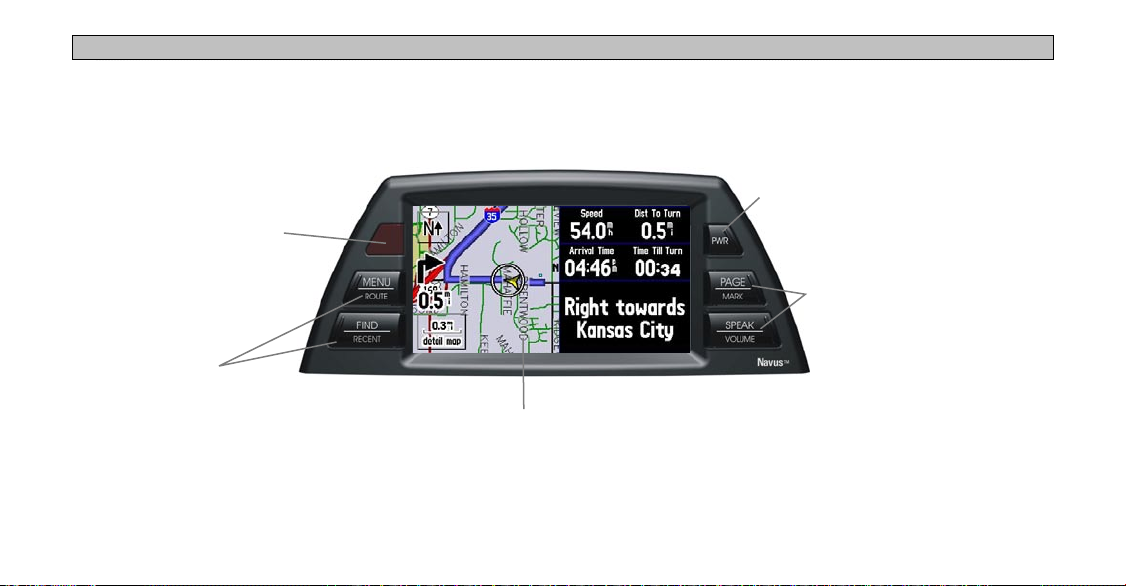
Infrared Window
Receives signals from the
optional remote control.
Do not block if you are
using a remote.
Feature Keys
Used to perform specific tasks
such as opening the Menu
page and finding places. See
page 6 for more information.
Power Key
Press to turn the Navus
on or off.
Feature Keys
Used to perform specific
tasks such as opening a
page or activating the voice
announcement. See page 6
for more information.
TFT Color LCD Touchscreen Display
Provides detailed, on-screen mapping
information.

4
GETTING STARTED > NAVIGATION AT A GLANCE
Navigation at a Glance
The tutorial below guides you through the steps for finding a
restaurant in your area and then creating a route to it. If you have
never used the Navus or a navigation unit before, try this simple task.
You will see that using your Navus is fast and easy!
Step 1: Start up your vehicle or turn the key to the Accessory
position so that your Navus will turn on automatically. Once on,
the Navus looks for satellites. Make certain your Navus has an
unobstructed view of the sky as it looks for satellites. For example,
it cannot establish a fix if your vehicle is parked in a garage. When
your Navus has established a satellite fix, it displays a “Ready to
Navigate” message, as shown below.
Step 2: Press the FIND key. The Find menu appears.
Step 3: Touch Food & Drink, shown above. A list of eating
establishments near your current location appears on a page similar to
the one shown below:
Scroll bar
Table des matières
Autres manuels Mopar GPS