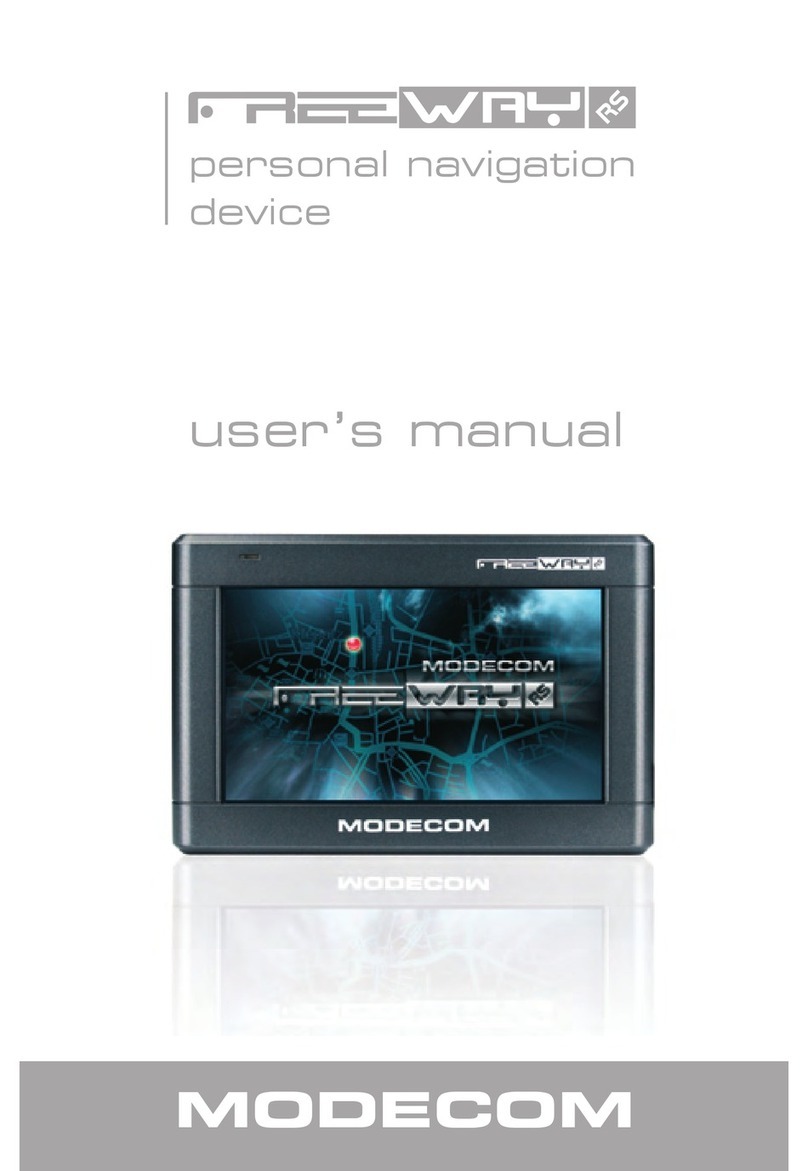
Modecom 5 GPS navigation Manuel utilisateur

1
5” GPS Navigation
MODECOM
user’s manual
5” GPS Navigation

www.modecom.eu
2
5” GPS Navigation
www.modecom.eu
2
5” GPS Navigation
Contents
1.1 Appearance 5
1.2 Power Supply & Charging 6
1.3 Basic Use 8
1.4 Accessories 10
1.5 System Main Interface and Major Functions 10
Chapter II GPS 11
2.1 Map 12
2.2 Navigation 12
2.3 Reception 12
Chapter III Media 13
3.1 Music Player 13
3.2 Video Player 16
3.3 Photo Browser 18
3.4 E-book Reader 20
Chapter IV Bluetooth 24
4.1 Pair 24
4.2 Outgoing call 26
4.3 Incoming Call 29
4.4 Dial Record 30
4.5 Redial 31
4.6 Settings 31
4.7Paired Device List 32

3
5” GPS Navigation
3
5” GPS Navigation
4.8Search 34
4.9Phonebook 36
Chapter V Games 37
5.1 Othello 37
5.2 DuiDuiPeng 38
5.3 Russia Block 39
Chapter VI Tools 39
6.1 Calculator 40
6.2 Unit 40
Chapter VII Settings 41
7.1 Summary 41
7.2 Volume 42
7.3 Backlight 43
7.4 Language 44
7.5 Date& Time 44
7.6 Calibration 45
7.7 System Info 46
7.8 FM Transmitter 46
7.9 USB 47
Chapter VIII GPS Info 51
Chapter IX Troubleshooting 52

www.modecom.eu
4
5” GPS Navigation
www.modecom.eu
4
5” GPS Navigation
Thanks for using MODECOM FreeWAY MX2!
MODECOM S.A rerves the rights of final interpretation of the manual.
The product is subject to change without notice. Please accept our
apology for your inconvenience.
Please back up your information in the GPS navigator. MODECOM
S.A assumes no responsibility for any loss caused by material loss.
The manual might contain a few mistakes though it has been checked.
If mistakes are found, please contact the MODECOM S.A customer
service center. Please read the instructions in this manual and use
only accessories of MODECOM to avoid unpredicted damage. Failure
to follow the instructions will invalidate warranty and might endanger
personnel safety, for which MODECOM assumes no responsibility.
Data of navigation electronic maps might be inconsistent with actual
traffic signals due to transportation development. Please follow traffic
regulations and signs and drive according to road situation. Operat-
ing the GPS navigator device while driving might cause serious ac-
cidents. MODECOM S.A assumes no responsibility for accidents and
loss due to improper use.
For information of software update and upgrade, please go to our
website www.modecom.eu
The pictures in the manual are subject to the material object.
With navigation as the major function, it also supports audio play,
video play, photo browsing and e-book reading.
AT840 CABA CPU with high performance and low power consumption•
Friendly user interface for simple operation•
Power management for longer and more stable operation•
Data transmission with computers via Mini USB•
Quality reception for accurate positioning and satisfactory navigation•
service
5” GPS Navigation

5
5” GPS Navigation
5
5” GPS Navigation
Leisure partner with audio/video/amusement functions•
You may use the GPS navigator anytime anywhere, for example
while driving, walking or cycling. Its navigation and amusement func-
tions will enrich your life and work!
To fully exert the functions of FreeWAY MX2 and to understand the
operation details, please read the manual carefully.
You may see the following supplemental information in the man-
ual.
[Note]: Explanation of relevant subjects
[Relevant Information]: Extra information of relevant subjects
[Attention]: Precautions or warnings of relevant subjects. Please
pay attention to this information and follow the instructions to avoid
devastating influence on yourself and others.
[*]: Optional function
This manual is applicable only to the FreeWAY MX2.
Chapter I Beginning Use
This chapter introduces the appearance, components and basic
operations of FreeWAY MX2.
1.1 Appearance
The effect figure below is subject to the material object.

www.modecom.eu
6
5” GPS Navigation
www.modecom.eu
6
5” GPS Navigation
SN Component Explanation
1 Power key Powering on/ off the device or enter sleep
mode
2 Stylus slot Location of the stylus
3 Speaker Playing sounds (such as navigation prompt
tones, music, etc.)
4 Indicator light Indicating the operating state of external
power supply
5 Earphone jack Connected with the stereophone
6 T-Flash card slot T-Flash card inside
7 AV-In port (option)
Use the AV-In cable to connect the naviga-
tor to a rear view camera via this port while
backing the vehicle. Refer to rear view cam-
era usage.
8 MINI USB port
Communicating with PC via MINI USB
cable, or connected to TMC, or used as the
charging port
9 Light sensor For automatic backlight adjustment
10 Reset key Restart the system
1.2 Power Supply & Charging
Charge the GPS navigator fully with the charger before first use.
1.2.1 Power Supply
The FreeWAY MX2 can be powered by the built-in battery or ex-
ternal power supply.
When the GPS navigator is unconnected to the charger, it is pow-
ered by the Li-polymer battery. The battery capacity icon in the
system main interface shows current residual battery capacity.
When the GPS navigator is connected to the charger, it is powered
by external power and the battery is charged.
[Attention] The GPS navigator adopts internal non-removable Li-
polymer battery. To avoid battery rupture, explosion, release of haz-

7
5” GPS Navigation
7
5” GPS Navigation
ardous substance or burn, do not unpack, pierce, strike on or discard
the battery in fire or water.
1.2.2 Charging by AC Adapter
Plug the USB terminal of the
AC adapter into the USB
port on the left side of the
GPS navigator and the other
to the power socket to sup-
ply power and charge the
GPS navigator.
[Note] The charging indi-
cator light is red during charging. Do not unplug the AC adapter until
the battery is fully charged and the indicator light turns green. Please
charge the GPS navigator when the battery is low or used up in suc-
ceeding use.
1.2.3 Charging by Car Charger
Plug one terminal of the car charger into the USB port on the left
side of the GPS navigator and the other to the charging port to supply
power and charge the GPS navigator.
[Note] Plug in the car
charger after the auto-
mobile is started to avoid
damage due to current
surge.

www.modecom.eu
8
5” GPS Navigation
www.modecom.eu
8
5” GPS Navigation
1.3 Basic Use
1.3.1 Powering on/off & Sleep
1.3.1.1 Powering on
Press the power key on the top side of the GPS navigator for at
least two seconds to power it on.
[Note] Great humidity fluctuation may lead to short circuit of the
GPS navigator. Power on the navigator after it has accommodated to
new environment.
1.3.1.2. Powering off & Sleep
Long press the power key to power off the GPS navigator. The
following interface will be prompted. If is selected, the navigator
will automatically resume the state before entering sleep mode when
powered on again.
1.3.2 Restarting the System
When the system does not response, press the reset key on the
back of the GPS navigator to restart the system.
[Relevant Information] The following situations might lead to no re-
sponse of the system.
1. Delay or stagnancy in interface switching;
2. Failure of function activation with overlong execution;

9
5” GPS Navigation
9
5” GPS Navigation
3. Failure to power on/off the GPS navigator by pressing the power key
[Note] Restarting the system by pressing the reset key will result in
loss of unsaved data. Please backup your data regularly.
1.3.3 Fixing the GPS Navigator with Mounting Kit
The mounting kit is composed of a cradle and a bracket as shown
below. To use the GPS navigator in an automobile, fix the mounting kit
on the dashboard under the front windshield.
Step 1: Install the cradle
onto the bracket via the four
sockets.
Step 2: Use the
two screws to
adjust the angle
and direction of
the PND Step 3: Pull the switch to make
flat the rubber sheet at the
bottom and then place the kit
in a proper position in the car
and pull the switch back to fix
the kit.
[Note] Do not place the GPS navigator in positions obstructing the
driver’s vision. Do not place it without fixing or in the place of air bag
or the area after the air bag is inflated.
1.3.4 Using T-FLASH Card
Copy mapping applications, map data and media files in a T-FLASH
card. Insert the card in the corresponding slot.
[Note]
1. Do not take out the T-FLASH card while a navigation program is
being run or a media file is being played.
2. To avoid drop or crash of the T-FLASH card, do not exert heavy
pressure on it or bend it.

www.modecom.eu
10
5” GPS Navigation
www.modecom.eu
10
5” GPS Navigation
3. Avoid using or storing the T-FLASH card in high temperature,
high humidity or direct sunlight. Keep the card away from liquid or
corrosive substance.
4. Mind the direction while inserting the T-FLASH card to avoid
damaging the slot or the card.
1.4 Accessories
Please find in the package the following accessories.
Car charger 1 pc User manual 1 pc
Poly bag 1 pc AV-In cable (Option) 1 pc
Stylus 1 pc USB cable 1 pc
Cradle 1 pc Bracket 1 pc
1.5 System Main Interface and Major
Functions
Long press the power key on the top side of the GPS navigator to
enter the system main interface shown below.
Ce manuel convient aux modèles suivants
1
Table des matières
Langues :
Autres manuels Modecom GPS

Modecom
Modecom FreeWay SX2 Manuel utilisateur

Modecom
Modecom FreeWAY SX2 HD Manuel utilisateur

Modecom
Modecom FREEWAY SX 7.0 Manuel utilisateur

Modecom
Modecom FreeWAY SX 7.2 IPS Manuel utilisateur

Modecom
Modecom FreeWay RS Manuel utilisateur

Modecom
Modecom FreeWAY MX4 Manuel utilisateur

Modecom
Modecom FreeWAY MX Manuel utilisateur

Modecom
Modecom FreeWay MX3 Manuel utilisateur

Modecom
Modecom FreeWay MX3 Manuel utilisateur

Modecom
Modecom FreeWay SX2 Manuel utilisateur