Mirage KP-iOS Manuel utilisateur

In-Wall Control Mount for iPod Touch

KP-iOS
2
INTRODUCTION
The Mirage KP-iOS is an in-wall system that
allows iPod touch®(4th generation) to become a
semi-permanent fixture in your wall. The system
allows you to use an iPod touch as a key panel
to control your Mirage Audio System via the
Mirage App and wireless communication. Before
installing and using the Mirage KP-iOS, please
read and follow all of the instructions in this
manual carefully.
System Capabilities:
*Charges iPod touch while it is mounted
via Cat5 cable connected to an Autonomic
Mirage Amplier.
*Mounts iPod touch in-wall.
*Provides additional long distance power only
up to 200’ using 18 awg wire if required.
*See chart for additional wiring specs.
KP-iOS Box Contents
1. Mounting System
(bezel, retainer, mounting frame)
1. Electronics: 30-pin Connector Board
1. Cut-Out Template
1. Instruction Manual
ReqUIReD TOOls
*#2 Phillips screwdriver
*Wire cutters and wire strippers
*RJ-45 cable crimp tool and modular
connectors
*Sheet rock saw
(for retrotting into an existing wall)
Wire Gauge Distance (Feet)
22awg 75
20awg 120
18awg 200

KP-iOS 3
seleCTINg aN INsTallaTION lOCaTION
The KP-iOS is designed for use in normal interior environments. When selecting an installation location
please consider the following:
*Do not use the KP-iOS outside or in a humid or wet environment. It is not waterproof or water-resistant.
*The KP-iOS cut-out must have enough depth within the wall cavity for the KP-iOS and its connections.
*The KP-iOS has screw mounting holes on both sides that allow it to be installed up against a stud.
*Check for a strong Wi-Fi signal at the mounting location using the iPod touch that is to be installed in
the KP-iOS.
CONTROl MOUNT ReaR CONNeCTIONs
Mirage Amplifier: RJ-45 jack connects to a Mirage Amplifier via Cat5 cable. The Cat5 cable receives DC power
from the Mirage Amplifier.
WIRINg CaT5/RJ-45 Cable
The Cat5 cable and RJ-45 connector used in iPort installations must be wired according to the
T568A (Straight-Through) Standard with cables wired identically at both ends.
To prepare the Cat5 cable and RJ-45 connector for KP-iOS installation:
1. Pull the Cat5 wire through the wall between the desired locations.
2. Use a stripper or knife to strip about 1” of the cable jacket off each end of the wire.
- Be careful not to nick any of the individual wires.
3. Untwist the wire pairs and spread them flat. Arrange them as shown in Figure 2.
4. Trim the ends of the individual wires to ½” in length, making sure that they are even with each other. Flatten
the wires against each other, leaving no space between them.
5. Hold the RJ-45 connector clip-side down and
insert the Cat5 wire ends firmly into the connec-
tor. Make sure that all the wires are flat all the
way to the very front of the connector.
6. Re-confirm that the color orientation matches
the diagram and that cable jacket fits against the
connector stop.
7. Firmly crimp the RJ-45 connector with the crimp
tool. Confirm that the connector is crimped firmly
and that all the wires are flat right up against the
front of the connector. If even one of these wires
are incorrect, cut the connector off the cable and
repeat steps 2 – 7 with a new RJ-45 connector. Figure 2: RJ-45 Connector

KP-iOS
4
1. Before making connections, run a length of Cat5 cable through the wall from the KP-iOS location
to the location of the Mirage Amplifier, as shown in Figure 3.
2. Install RJ-45 connectors on both ends of the Cat5 cable as explained in Figure 2: Cat5 / RJ-45
connector. The Cat5/RJ-45 cable pin assignment is:
3. Plug the Cat5 cable into the RJ-45 jack on the KP-iOS and the other end into one of the keypad
ports on a Mirage M-400 or M-800 amplifier, as shown in Figure 3.
Pin 1: +12v
Pin 2: Ground
Pin 3: Unused
Pin 4: Unused
Pin 5: Unused
Pin 6: Unused
Pin 7: Ground
Pin 8: +12v
INsTallaTION PRePaRaTION
The KP-iOS features an integral Roto-Lock mounting system for quick mounting directly into existing
walls. Once the hole is cut and the cables have been run, you can install the iPort into the wall in a
matter of seconds.
1. Determine the location for the KP-iOS and the wall plate.
2. Perform an obstruction survey to ensure there are no studs, conduit, pipes, heating ducts, or air
returns that will interfere with the KP-iOS.
- Note: You can mount the KP-iOS directly next to a wall stud on either side (see Step 8).
3. Find the cut-out template provided in the KP-iOS packaging. Position the template where the
KP-iOS is to be located and pencil an outline on the wall.
-Note: Be sure to confirm the installation of the KP-iOS at this time for either vertical (portrait)
or horizontal (landscape) orientation. Certain applications of the mounted iPod touch work only
in one orientation, so be sure to confirm the client’s requirements before cutting the hole.
- Note: If you are unsure about obstructions, drill a small hole in the center of the outline and
insert a coat hanger wire into the hole to feel around for possible obstructions.
4. Cut the opening using a drywall saw.
CONNeCTIONs aND INsTallaTION
Wire Type Distance (Feet)
Cat5 100

KP-iOS 5
Figure 3: KP-iOS System Connection
M-800
MIRAGE 8 ROOM
DIGITAL AMPLIFIER
Keypad Ports
21 3 4
POWER INTERNETWIRELESS
ETHERNET PORT

KP-iOS
6
4. Prior to placing the mounting frame into the
wall, pull a sufficient length of the Cat5 cable
and its attached RJ-45 connector through the
opening in the top of the mounting frame, as
shown in figure 4.
5. The retainer and bezel are pre-assembled
with internal packaging materials.
Disassemble by removing the four screws.
Discard the foam block and card insert.
6. Insert the KP-iOS mounting frame into the
opening in the wall.
Note: The Roto-Lock system can accommo-
date wall thickness of 3/8” to 3/4” and can
be extended to 1 1/4” with the removal of
the toggle caps.
7. Hand-tighten the four Roto-Lock screws on the
KP-iOS mounting frame as shown in Figure 5.
The Roto-Lock clamps will automatically
rotate into position behind the wall and
begin clamping the mount.
- Note: When you notice resistance on the
four screws, the KP-iOS has been clamped
successfully.
- IMPORTANT: Never over-tighten the
Roto-Lock screws.
8. If there is a wall stud up against one side of
the utility box that prevents one Roto-Lock
clamp from operating, secure the box by
hand-driving a 1½” #6 drywall screw (not
provided) through the hole on that side of
the chassis and into the wall stud.
- IMPORTANT: Do not over-tighten the
drywall screw.
Figure 5: Roto-Lock Screw Locations
Figure 4: Mounting Cradle Installation

KP-iOS 7
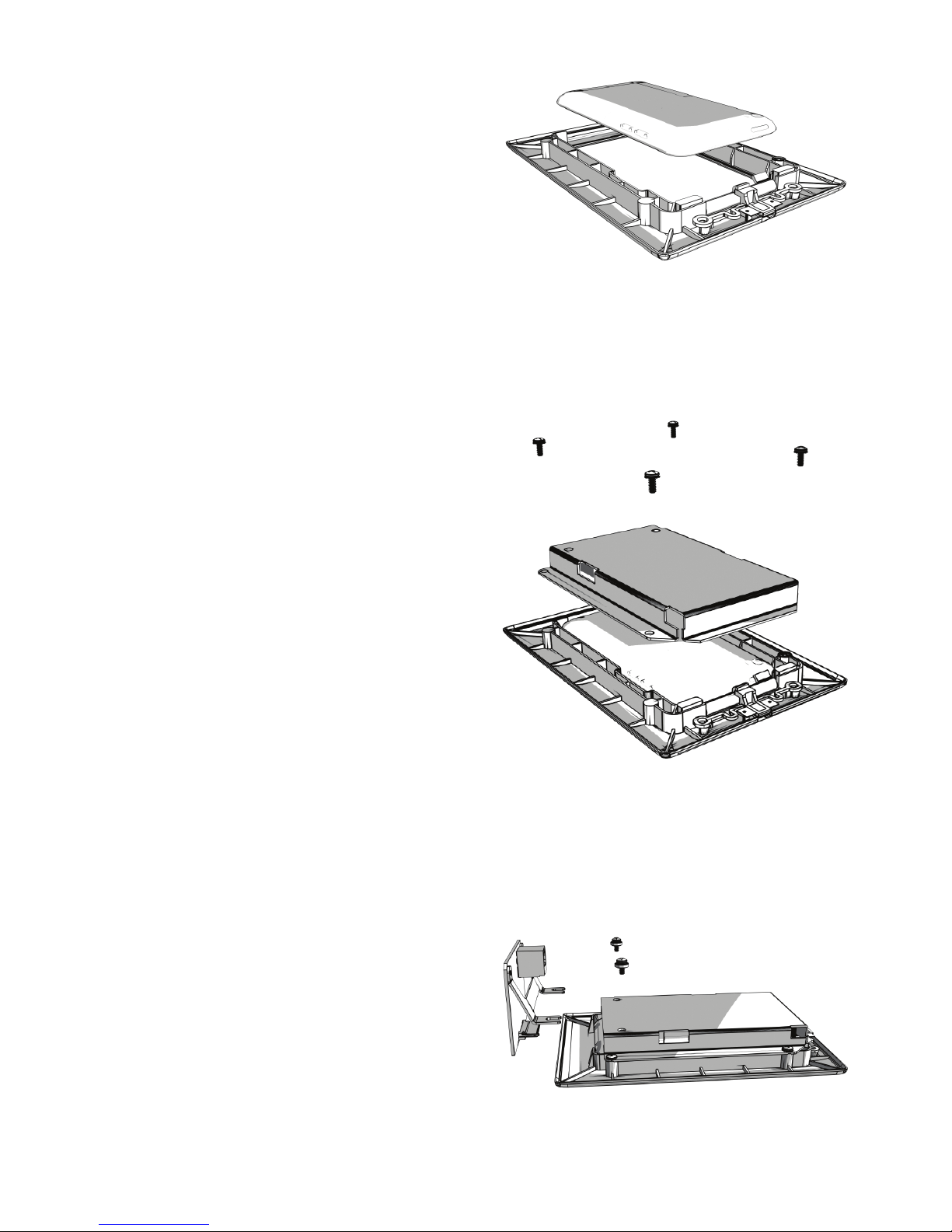
Figure 6: Insert iPod into Bezel
Figure 7: Attach Retainer
Figure 8: Attach Connector Board
9. Place iPod touch into bezel. Align power
button on iPod with Power Button on bezel.
(See Figure 6)
10. Place back plate over iPod and secure with
4 screws. The retainer has a foam pad to
hold the iPod touch very securly.
(See Figure 7)
11. Place the connector board into the iPod
touch and secure to retainer with 2 screws.
Connect RJ-45 Cable to connector.
(See Figure 8).

KP-iOS
8
Figure 9: Attaching Assembly
12. Attach the assembly to the mounting frame
as shown in Figure 9.
Note: To sync your iPod touch with your
computer, please follow the steps above in
reverse order to remove the iPod touch and
sync. Once your synchronization is complete,
reinstall the iPod touch and follow the steps to
reassemble.

KP-iOS 9
Figure 10: Bezel
POWER BUTTON
OPeRaTION
Once the KP-iOS is installed, the iPod
touch is now fully functional.
Use the iPod touch screen to choose: home
screen, applications,music, email.
A power on/off button is located on the edge of
the KP-iOS bezel as noted in figure 10.
Note: For questions regarding the touchscreen
functions of your iPod touch, please visit:
www.apple.com

KP-iOS
10
4.027in
102.29mm
5.969in
151.61mm
2.400in
60.96mm
2.190in
55.62mm
sPeCIfICaTIONs
5V 1A DC, regulated
4.027” x 5.969” x 2.4”
(102.29mm x 151.61mm x 60.9mm)
3.42” x 5.34”
(86.87mm x 135.64mm)
Power..................................................................
Dimensions (W x H x D).......................................
Cut-out Dimensions (W x H)................................
Table des matières