Mio F740s Series Manuel utilisateur

F740s Series
User Manual

Revision: R00
(4/2020)
Trademark
All brand and product names are trademarks or registered trademarks of their respective companies.
Disclaimer
Specications and documents are subject to change without notice.
Note
Not all models are available in all regions.
Not all features are available on all models.
Depending on the specic model purchased, the colour and look of your device and accessories may not
exactly match the graphics shown in this document. The screenshots and other presentations shown in
this document are for reference only.

2
1. Device Basics ..................................................................................4
Getting to Know Your Device........................................................................................ 4
Front-Side View....................................................................................................... 4
Rear-Side View ....................................................................................................... 4
Right-Side View....................................................................................................... 4
Bottom-Side View.................................................................................................... 4
Cradle...................................................................................................................... 5
Using a Micro-SIM Card............................................................................................... 5
Using a Memory Card .................................................................................................. 5
Charging the Battery .................................................................................................... 6
Extending the Battery Life ....................................................................................... 6
Using the Cradle........................................................................................................... 7
Turning the Device On and Off..................................................................................... 7
Turning On .............................................................................................................. 7
Sleep Mode ............................................................................................................. 8
Aeroplane Mode...................................................................................................... 8
Restarting the Device.............................................................................................. 8
Turning Off .............................................................................................................. 8
Shutting Down......................................................................................................... 8
2. Getting Started ................................................................................9
Using the Touch Screen ............................................................................................... 9
Rotating the Screen.................................................................................................... 10
Home Screen ............................................................................................................. 10
Home Button ......................................................................................................... 10
Status Bar ............................................................................................................. 10
Desktop ................................................................................................................. 10
Application Shortcuts and Widgets ....................................................................... 11
Favourites Tray ..................................................................................................... 11
Grouping Shortcuts in a Folder ............................................................................. 11
Changing the Wallpaper........................................................................................ 12
Quick Settings ............................................................................................................ 12
Your Apps ................................................................................................................... 12
App Permissions ................................................................................................... 12
Using the Keyboard.................................................................................................... 12
Basic Editing ......................................................................................................... 12
Adding Your Email Accounts ...................................................................................... 13
Removing an Account ........................................................................................... 14
3. Connectivity...................................................................................15
Cellular Data Connection ........................................................................................... 15
Wireless Network Connection .................................................................................... 15
Connecting to a Wireless Network ........................................................................ 15
Removing a Remembered Network ...................................................................... 15
Bluetooth .................................................................................................................... 15
Pairing with Another Bluetooth Device .................................................................. 15
Disconnecting a Bluetooth Connection ................................................................. 16
Table of Contents

3
4. Personalising Your Device ...........................................................17
Settings Menu ............................................................................................................ 17
Network & internet................................................................................................. 17
Connected devices................................................................................................ 18
Apps & notications............................................................................................... 18
Battery................................................................................................................... 18
Display .................................................................................................................. 18
Sound.................................................................................................................... 19
Storage.................................................................................................................. 19
Security & location ................................................................................................ 19
Accounts ............................................................................................................... 20
Accessibility........................................................................................................... 20
Digital Wellbeing & parental controls .................................................................... 20
Google................................................................................................................... 20
System .................................................................................................................. 20
About phone.......................................................................................................... 21
5. Reference .......................................................................................22
Troubleshooting.......................................................................................................... 22
Caring for the Device.................................................................................................. 22
Regulatory Information............................................................................................... 23
RCM ...................................................................................................................... 23
FCC....................................................................................................................... 23
IC........................................................................................................................... 24
CE ......................................................................................................................... 24
RF Exposure Information (SAR) ........................................................................... 25
WEEE.................................................................................................................... 25
Bluetooth ............................................................................................................... 25
Safety Precautions ..................................................................................................... 26

4
1. Device Basics
Getting to Know Your Device
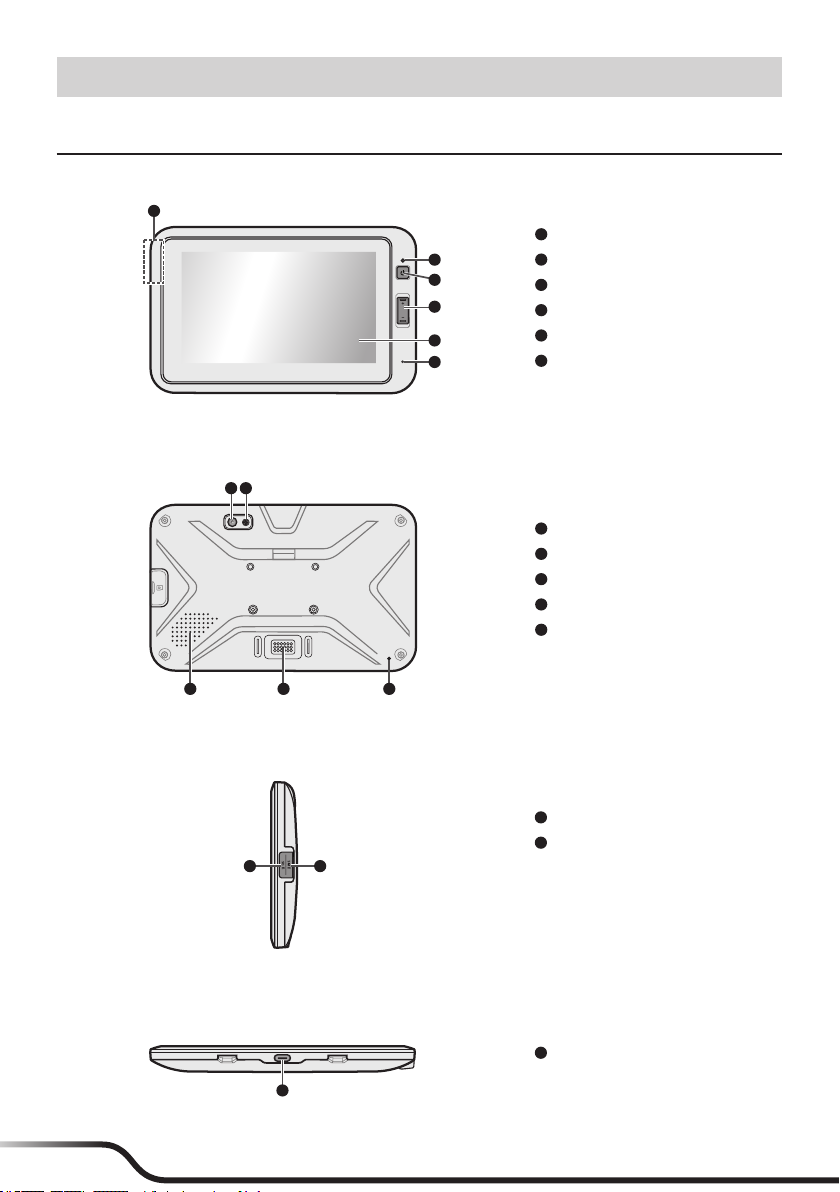
Front-Side View
1NFC sensor*
2Light sensor
3Power button
4Volume buttons
5Touch screen
6Microphone
* For selected models only.
SIMSD
1
2
3
4
6
5
Rear-Side View
1Camera lens*
2Flash LED*
3Speaker
4Dock connector
5Microphone
* For selected models only.
SIMSD
1 2
3 54
Right-Side View
1Memory card slot
2Micro-SIM card slot*
* For selected models only. To use cellular
services, you must have a subscription to the
function with a mobile phone network service.
SIMSD
1 2
Bottom-Side View
1USB Type C connector
1

5
Cradle
1Release button
2AMPS hole pattern (x4)
3USB port*
4Fleet port
5Headphone jack
6Dock connector
7Micro-B USB connector
* For selected models only.
1 2
34567
Using a Micro-SIM Card
The devices uses a Micro-SIM card.
Open the cover on the right side of the device to locate the Micro-SIM card slot. With its label side
facing the rear side of the device, hold the Micro-SIM card by the edges and gently insert it into the
slot. Note that inserting the card in the reverse direction may cause damage.
To remove a card, gently push the top edge of the card inwards to release it, and pull it out of the slot.
Using a Memory Card
Open the cover on the right side of the device to locate the memory card slot. With its label side facing
the rear side of the device, hold the MicroSD card by the edges and gently insert it into the slot.
To remove a MicroSD card, rst unmount it from the device: open the All Apps screen and tap Settings
Storage . Then gently push the top edge of the card inwards to release it, and pull it out of the
slot.
Note:
• Do not apply pressure to the center of the memory card.
• Inserting the card in the reverse direction may cause damage.
• The manufacturer does not guarantee the product's compatibilities with the storage cards from all manufacturers.
• If you encounter access problems with your memory card, please visit the website https://www.sdcard.org/downloads/formatter_4/ and use
the "SD Memory Card Formatter 5.0 for SD/SDHC/SDXC" tool to format your memory card.

6
Charging the Battery
Note:
• The AC charger may be sold separately.
• Use the specied charger for your device. Use of another type of charger will result in malfunction and/or danger.
When charging the battery for the very rst time, it is recommended to charge it for at least 8 hours
(using the AC charger).
CAUTION: For optimal performance of the lithium battery:
• Do not charge the battery where the temperature is high (for example, in direct sunlight).
• There is no need to fully discharge the battery.
• When storing the device for a long period of time, be sure to charge the device at least once every two weeks. Over
discharge of the device can affect the performance.
• Failure to follow the battery usage instructions could cause damage to your device, battery and even bodily injury or
property damage, and will void any warranty.
1. Push the tab outwards ( 1), insert the plug to the AC charger and then push the tap inwards to lock
the plug in place ( 2).
Note: The look of the charger plug varies depending on your region.
2. Connect the Type C connector of the USB cable to your device ( 3), and the other end to the AC
charger ( 4).
3. Plug the AC charger to a wall outlet ( 5).
❶❷
❸
❹
❺
❶
❷
❸
Extending the Battery Life
There are various ways to improve the device's battery life.
• Always fully charge the battery.
• Turn on Battery saver.
• Turn off unnecessary sounds, such as touch sounds.
• Close an app when you are not using it.
• Use a shorter timeout setting of the screen.
• Lower the brightness level of the screen.
• Turn off Bluetooth when you are not using it.
• Prevent the device from constantly scanning for available wireless networks.
• Enable Aeroplane mode to turn off all wireless transmission functions.
To change settings, open the All Apps screen and tap Settings.

7
Using the Cradle
Depending on your model, a cradle and/or a mount may be provided for your device. Follow the
illustrations to mount your device.
To install the cradle:
1
2
3
x 2
1. Line up and connect the dock connector on
the cradle to the dock connector on the device.
Magnets are incorporated to ensure proper
alignment.
2. If needed, you can secure the device to the
cradle with 2 screws.
To remove the cradle:
1
2
3
1. Remove the 2 screws (if installed) securing the
device to the cradle.
2. While pressing and holding the release button
on the cradle, pull the top of the device away
and lift the device out of the cradle in an upward
motion.
Features of the cradle:
• Install a vehicle mount equipped with the AMPS hole pattern
(may be sold separately).
x 4
• Charge the device via a 5V/2A car charger with a Micro-B USB cable (may be sold separately).
Note: The Micro-B USB connector on the cradle is intended only for charging, not for data transfer.
• Connect to a telematics box or vehicle battery (12V/24V) via a eet cable (may be sold separately).
• Connect an external USB storage device (such as a USB ash drive).
• Connect to the Ethernet via a USB-to-LAN adapter (not provided).
• Connect to headphones.
Turning the Device On and Off
Use the USB cable to connect to a power source to power the device.
The device’s battery is designed as a backup power source for short-term use only in the event when
the vehicle's power system is not available. It is not to be used as a sole source of power for prolonged
periods. Connect the device to an external power source whenever you can.
Turning On
1. The device turns on automatically when it is powered. Wait for the boot screen to display.
2. The Home screen will display and the device is in Lock mode by default. Drag the Lock icon ( )
upwards to unlock. The device is ready for use.

8
Sleep Mode
Your device will automatically switch off the screen after 1 minute (by default) of inactivity. You can
manually switch off the screen by pressing the Power button briey.
To resume the screen, press the Power button briey and then unlock the device by dragging the Lock
icon ( ) upwards.
Aeroplane Mode
When you are in an aeroplane or in the area where data transferring is not allowed, enable Aeroplane
mode. You will be able to use many of your device's applications, but all wireless radios, including
wireless networks and Bluetooth, on the device are turned off – it cannot send or receive data.
To enable Aeroplane mode: open the All Apps screen and tap Settings Network & internet
Advanced, then tap the Aeroplane mode switch to turn it on. The icon in the status bar indicates
that Aeroplane mode is on.
To disable Aeroplane mode: open the All Apps screen and tap Settings Network & internet
Advanced, then tap the Aeroplane mode switch to turn it off.
Note:
• You can enable WIFI and Bluetooth in Aeroplane mode.
• You can turn the Aeroplane mode on or off from the Quick Settings.
Restarting the Device
You may need to reset the device when the device is running slower or improperly. Press and hold the
Power button to display the options menu and tap Restart to restart the device.
Turning Off
To turn off the device, press and hold the Power button to display the options menu and tap Power off.
Shutting Down
If the device stops responding, you may need to shut down the device by pressing and holding the
Power button for 8 seconds.

9
2. Getting Started
Using the Touch Screen
To operate your device, touch the screen with your nger. You can perform the following actions:
• Tap: Touch the screen once with your nger to open items or select on-screen buttons or options.
• Tap and hold: Tap and hold on the desired item to open the pop-up menu that contains the
available options for the item.
• Drag: Tap and hold on the item and then move it to the target position without releasing your
nger.
• Slide/Swipe: Drag your nger vertically or horizontally across the screen.
• Drag to the left/right to switch to the next/previous item on the list.
• Drag to the top/bottom to scroll up/down the screen.
Note: Not all slide gestures are applicable to all applications.
• Two-nger gestures: Move your ngers apart or together on the screen to zoom in or out while
viewing a picture or a web page.
Note: Not all two-nger gestures are applicable to all applications.
Table des matières
Autres manuels Mio Comprimé