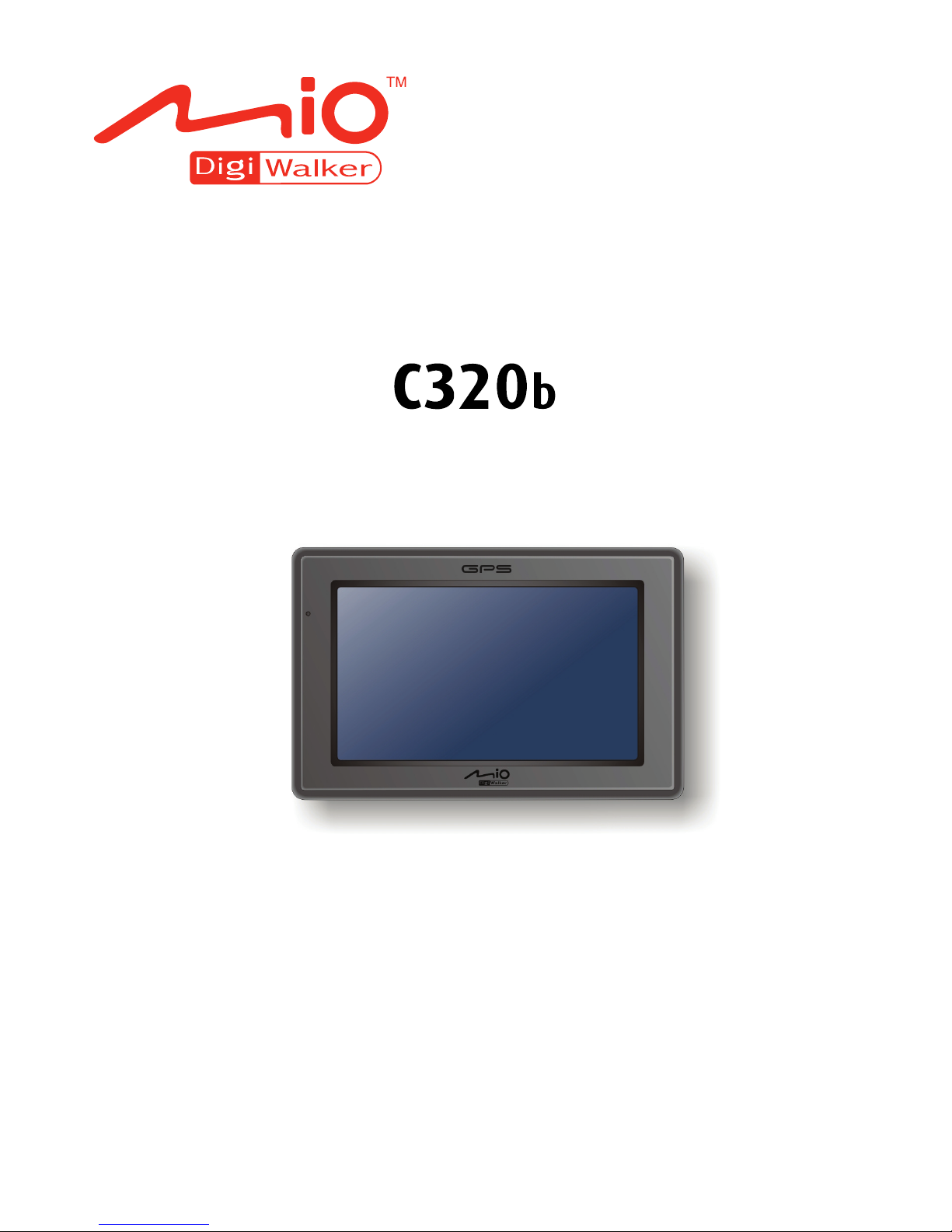
Mio C320b Manuel utilisateur

User’s Manual

R00 (EU)
Trademarks
All brand and product names are trademarks or registered trademarks of their
respective companies.
Disclaimer
Specifications and manuals are subject to change without notice. Mio Technology
assumes no liability for damage incurred directly or indirectly from errors,
omissions, or discrepancies between the device and the manuals.

Table of Contents
Precautions and Notices .......................................................................iii
1Getting Started..................................................................................1
1.1 Understanding Hardware Components................................................ 1
Front Components ............................................................................... 1
Back Components................................................................................ 2
Left-Side Components ......................................................................... 2
Top Components.................................................................................. 3
Bottom Components ............................................................................ 3
1.2 Performing the Initial Start Up.............................................................. 4
1.3 Charging the Battery via the USB Cable.............................................. 6
1.4 Using Your Device in a Vehicle............................................................ 7
Using the Device Holder ...................................................................... 7
Connecting the Car Charger ................................................................ 7
1.5 Operating Basics.................................................................................. 8
Turning On and Off .............................................................................. 8
Navigating on the Screen..................................................................... 9
Home Screen ....................................................................................... 9
1.6 Inserting a SD/SDHC/MMC Card....................................................... 10
2Audio................................................................................................11
2.1 Starting and Exiting Audio.................................................................. 11
2.2 Preparing the Audio Files for Your Device......................................... 12
2.3 Playing Audio Files............................................................................. 12
2.4 Playback Controls .............................................................................. 13
2.5 Displaying Lyrics ................................................................................ 15
Preparing the Lyrics Files for your Device ......................................... 15
Playing Songs with Lyrics .................................................................. 15
2.6 Using the Play Lists............................................................................ 16
Creating a Play List ............................................................................ 16
Opening a Play List ............................................................................ 17
2.7 Equalizer ............................................................................................ 18
2.8 Settings .............................................................................................. 19
i

3Settings............................................................................................21
3.1 Starting and Exiting Settings.............................................................. 21
3.2 Backlight............................................................................................. 22
3.3 Volume ............................................................................................... 23
3.4 Screen ................................................................................................ 24
3.5 Power ................................................................................................. 25
3.6 Date/Time........................................................................................... 26
3.7 Language ........................................................................................... 27
3.8 Restore............................................................................................... 28
4MioTransfer .....................................................................................29
4.1 Installing MioTransfer......................................................................... 29
4.2 Starting and Exiting MioTransfer........................................................ 30
4.3 Copying Multimedia Files to Your Device .......................................... 31
Managing Files................................................................................... 33
5Troubleshooting and Maintenance ...............................................35
5.1 Restart and Shut Down...................................................................... 35
Restarting Your Device ...................................................................... 35
Shutting Down Your Device ............................................................... 35
5.2 Troubleshooting ................................................................................. 36
Power Problems................................................................................. 36
Screen Problems................................................................................ 36
Connection Problems......................................................................... 37
GPS Problems.................................................................................... 37
5.3 Maintaining Your Device .................................................................... 38
6Regulatory Information ..................................................................39
6.1 Regulations Statements ..................................................................... 39
European Notice ................................................................................ 39
6.2 Safety Precautions ............................................................................. 40
About Charging .................................................................................. 40
About the Charger.............................................................................. 40
About the Battery ............................................................................... 40
ii

Precautions and Notices
zFor your own safety, do not operate the controls of the product while driving.
zUse this product prudently. The product is intended for use solely as a
navigation aid. It is not for precise measurement of direction, distance,
location or topography.
zThe calculated route is for reference only. It is the user’s responsibility to
follow the traffic signs and local regulations along the roads.
zWhen you get out of the car, do not leave your device on the dashboard
subjected to direct sunlight. Overheating of the battery can cause malfunction
and/or danger.
zGPS is operated by the United States government, which is solely responsible
for the performance of GPS. Any change to the GPS system can affect the
accuracy of all GPS equipments.
zGPS satellite signals cannot pass through solid materials (except glass). When
you are inside a tunnel or building, GPS positioning is not available.
zA minimum of 4 GPS satellite signals is needed to determine current GPS
position. Signal reception can be affected by situations such as bad weather or
dense overhead obstacles (e.g. trees and tall buildings).
zOther wireless devices in the vehicle might interfere with the reception of
satellite signals and cause the reception to be unstable.
iii

zA car holder is needed when using the device in a car. Be sure that you place
the device in an appropriate place, so as not to obstruct the driver’s view, or
deployment of airbags.
Do not mount where the driver’s
field of vision is blocked.
Do not place unsecured
on the dashboard.
Do not mount in front of
airbag panels.
Do not mount in front of an
airbag field of deployment.
iv

1 Getting Started
1.1 Understanding Hardware Components
NOTE: Depending upon the specific model purchased, the color of your device may not
exactly match the device shown in this manual.
Front Components
Ref Component Description
Displays the output of your device. Tap the screen with yo
nTouch Screen ur
fingertip to select menu commands or enter information.
oharging,
and turns green when the battery is fully charged.
Charge
Indicator
Glows bright amber to indicate that the battery is c
1

Back Components
Ref Component Description
nExternal GPS
Antenna
Connector
This connector (under rubber dust cover) allows use of an
optional external GPS antenna with magnetic mount, which may
be positioned on top of the car for better signal reception in areas
with poor reception.
oSpeaker Sends out music, sounds and voice.
Left-Side Components
2

Ref Component Description
nSD/SDHC/MMC
Slot
Accepts a SD (Secure Digital), SDHC (Secure Digital High
Capacity), or MMC (MultiMediaCard) card for accessing
data such as MP3 music.
oHeadphone
Connector
Connects to stereo headphones.
Top Components
Ref Component Description
nPower Button Turns on and off the device. (Pressing briefly or for a long
duration makes a difference. See Sections 1.6 and 5.1 for
information.)
Bottom Components
Ref Component Description
nMini-USB Connector Connects to the charger or USB cable.
oCradle Connector Connects to the cradle. (The cradle supplied with your
device depends on the model you purchased.)
3

1.2 Performing the Initial Start Up
1. For the initial start up, press the power button for 5 seconds to turn on your
device.
NOTE: For normal operation, briefly press the power button to turn on and off your device.
2. Your device turns on. Immediately charge your device as described in the
next section.
3. The “Switch Language” screen appears. Tap the arrow button to select the
desired language. Then, tap the button.
4. The “Date/Time” screen appears. Tap the appropriate arrow button to select
the time zone, date, and time. Then, tap the button.
4
Table des matières
Autres manuels Mio Système de navigation automobile

Mio
Mio Digiwalker C710 Manuel utilisateur

Mio
Mio MOOV 300-Series Manuel utilisateur

Mio
Mio MOOV 200-Series Manuel utilisateur

Mio
Mio DigiWalker C320 Manuel utilisateur

Mio
Mio Digiwalker C710 Manuel utilisateur

Mio
Mio combo 5107 lm Manuel utilisateur

Mio
Mio Moov series Manuel utilisateur

Mio
Mio DigiWalker C320 Manuel utilisateur

Mio
Mio SPIRIT 380 series Manuel utilisateur

Mio
Mio Combo 5207 LM Series Manuel utilisateur