
MindMe Pro SM Manuel utilisateur

Charging
It is a good idea to charge the MMPSM next to the wearer's bed. That way when the wearer goes to bed the
MMPSM can be placed on the charger and be fully charged, ready to go when the wearer gets up in the morning.
This method also helps in create a routine for the wearer as well as the carer.
Before using your MMPSM please charge the
device for2 - 3 hours.
MMPSM takes approx. 3 hours to fully charge
After charging to 100% the battery will last up to
24 - 48 hours, depending on usage
When MMPSM is fully charged the battery
progress bar on the screen will display 100%
When the battery charge falls below 20% the
MMPSM will send an alert to the contacts who
have the Aibeili Plus APP loaded on their mobile
phone
USER GUIDE - MindMe Pro SM
The MindMe Pro SM (MMPSM)
combines a mobile phone, screen, a
GPS device, and GPRS satellite
technologies to assist in tracking
and monitoring vulnerable
individuals in one easy to use
solution
The MMPSM may take up to 30 secs to boot up
The Digital screen will automatically turn off after
approx 30 secs (sleep mode), to conserve battery
life. Note: The device is still turned on when the
screen is in sleep mode.
To turn on/off the digital screen, quick press the
SOS button.
Starter Guide
P: 1300 776 907
W: www.mindme.com.au
Turning ON MMPSM
Press and hold down
the On & SOS button
for 5 secs. The digital
screen will turn on,
displaying time and
date, mobile signal
strength & battery
level
NOTE
1
Match the charging points on the back of
the MMPSM with the charging head on
the docking station. A magnetic pull will
secure the MMPSM to the docking station
NOTE
Charging
dock & cord
On & SOS
button. cancel
button
talking clock
button
Charging
point
SIM card
slot
Speaker
Microphone
Digital screen
On & SOS
button
Lanyard
attachment
bridge
Progress bar
appears when
charging
Charging
points
MindMe Pro SM Overview
Reset
button
Charging
head

Charging
head
USER GUIDE - MindMe Pro SM
Starter Guide
P: 1300 776 907
W: www.mindme.com.au
Using the MMPSM for the first time
2
Place device in the charger (ensure
the charging points on MMPSM and
base match up, you will feel a
magnetic pull). Charge for 2 - 3 hours
Thread lanyard string through the lanyard
attachment bridge on the MMPSM, then
thread the top end of lanyard through
and pull tight
Testing the MMPSM
Before conducting tests,
inform the assigned SOS
contacts that you will be
testing the MMPSM, as they
will receive a phone call
from your MMPSM.
NOTE
To turn on the MMPSM, press and hold
down the On & SOS button for 5 secs. The
digital screen will turn on, displaying time
and date. The MMPSM is operational
Charging Tips
Reset
button
We recommend conducting a thorough test of your MMPSM
before use to ensure that both the wearer and designated
SOS contacts are familiar with the device's operation in real-
life scenarios. Additionally, it is recommended to perform
periodic tests on the MMPSM to ensure its proper functionality.
To carry out testing the MMPSM follow the instructions outlined
in the following ‘Emergency Procedure’ section of the User
Guide
Refer to the charging tips provided below if your device is not establishing a proper connection with the charger:
Charging
points
Regularly use a clean, lint-free cloth to
wipe the charging points to prevent
the accumulation of grime
.
If the MMPSM loses all battery power prior
to being recharged, press the reset button
on the side of the device prior to re-
charging the device. Note: All programmed
information will remain unchanged
Place the charging dock in a facedown
position and press the back of the
charging head down to ensure that the
gold dots on the front are elevated
above the surface of the docking station
Cleaning Charging
Points
Device Reset Charging Dock
Lanyard
String
Lanyard
attachment
bridge
Charging
head/points
On & SOS
button

NOTE
Sends a notification to the contacts who
have downloaded the Aibeile Plus APP
confirming when and where the wearer has
breached the virtual perimeter (either out or
in of the perimeter)
USER GUIDE - MindMe Pro SM
Emergency contacts can be either
mobiles and landlines.
All emergency contacts can receive
an alert via the mobile APP, Aibeili
Plus (note: Emergency contact
needs to be logged into mobile APP
to receive alerts)
To cancel the SOS alert, quickly
press the SOS button.
Alert SMS is sent tothe 1st
emergency contact
(including the date, time,
google maps locationof
the MMPSM). Also sends an
alert to the mobile APP,
Aibeili Plus
If a false alert is detected, the
wearer can cancel the alert within 10
secs by quickly pressing the SOS
button.
For the MMPSM to register a fall it
needs to fall from a height of 1 meter
at a 45 degree angle and end with a
sudden hard impact
The MMPSM may not detect a fall if
the wearer falls on a soft surface i.e
a bed or couch
The GEO fenceperimeter can be set from a
minimum of 200m from the point location. i.e. 200m
circle around the house
If the GEO fencing feature has been requested
upon purchase, please contact MindMe on 1300 776
907 to assist with initial setup.
The Aibeile Plus APP will automatically check and
notify any breaches of the GEO fence every 10 mins
To get the most up to date location reading press
the locate icon on the map page of the mobile APP
NOTE
Starter Guide
P: 1300 776 907
W: www.mindme.com.au
Using the MMPSM
Emergency Procedure
Press and hold SOS
button for 5 - 10 seconds.
The digital screen will
change and an audible
ring will sound. This
initiates theemergency
procedure
3
Fall Detection Procedure
The wearer falls, the
MMPSM registers a
fall, the digital
screen will change
to show a fall has
been detected
NOTE
Call cycle begins. First
SOS contact # is called.
If the call is unanswered
within 12 secs, the call
moves to the next SOS
contact # in sequence of
order
GEO Fencing Procedure
Wearerbreaches thepre-set
GEO fence virtual
perimeter(eitherout or in of the
perimeter)
NOTE
Alert SMS is sent tothe 1st
emergency contact
(including the date, time,
google maps locationof
the MMPSM). Also sends an
alert to the mobile APP,
Aibeili Plus
Call cycle begins. First
SOS contact # is called.
If the call is unanswered
within 12 secs, the call
moves to the next SOS
contact # in sequence of
order

USER GUIDE - MindMe Pro SM
Starter Guide
P: 1300 776 907
W: www.mindme.com.au
4
Getting a GPS reading
Prior to using your device, the MMPSM will need to get an initial
satellite fix for GPS location. Turn on the MMPSM and either take the
MMPSM outdoors or place it near a window so the MMPSM can get a
fix on the overhead satellites. This could take up to 10 minutes.
This process must be completed
when turning on the MMPSM or if
the device has been reset to get
an accurate GPS location.
NOTE
Cancelling a false alert
In circumstances where the
SOS or fall alert has been
accidentally activated,
press the On & SOS button
to cancel the alarm.
Incoming call
When a pre-programmed
contact calls into the MMPSM,
the device will audibly ring 2
times and automatically
answer. To end the call quick
press the On & SOS button.
On & SOS
button
On & SOS
button
Audible time and date
To hear the time and date
audibly sound, press the
'taking clock button' 2
times in quick succession.
talking clock
button
The digital screen can be
temporarily turned off (sleep
mode) while the device is turned
on. Quick press the On & SOS
button and the screen will turn
black. NOTE: To turn the screen
back on follow the same procedure
Digital Screen
Digital
screen
To monitor and edit the settings on the MMPSM, you will need to download and log into the mobile APP (AIBEILE
Plus). Your username and login details are detailed on the ‘Settings and Login Information’ sheet provided.
MMPSM Mobile APP
Downloading & Log into MMPSM Mobile APP
Password
Area
Download the Aibeile Plus mobile
APP from the Apple Store or
Google Play
Open the Aibeile Plus app and follow the instructions below:
Enter the 'Login ID' and 'Password' which are detailed on
the 'Settings and Login Information sheet' provided
(PLEASE DO NOT use your own email address to login)
Ensure that 'Asia and Oceania' is selected in the 'Area'
field
Press 'Login', you will automatically be redirected to the
homepage which is a map showing the devices location
Login ID
Login
Abeile Plus is
designed for the
emergency contacts
to monitor and
change device
settings, the wearer
is NOT required to
download Aibeile
Plus to operate the
MMPSM.
NOTE
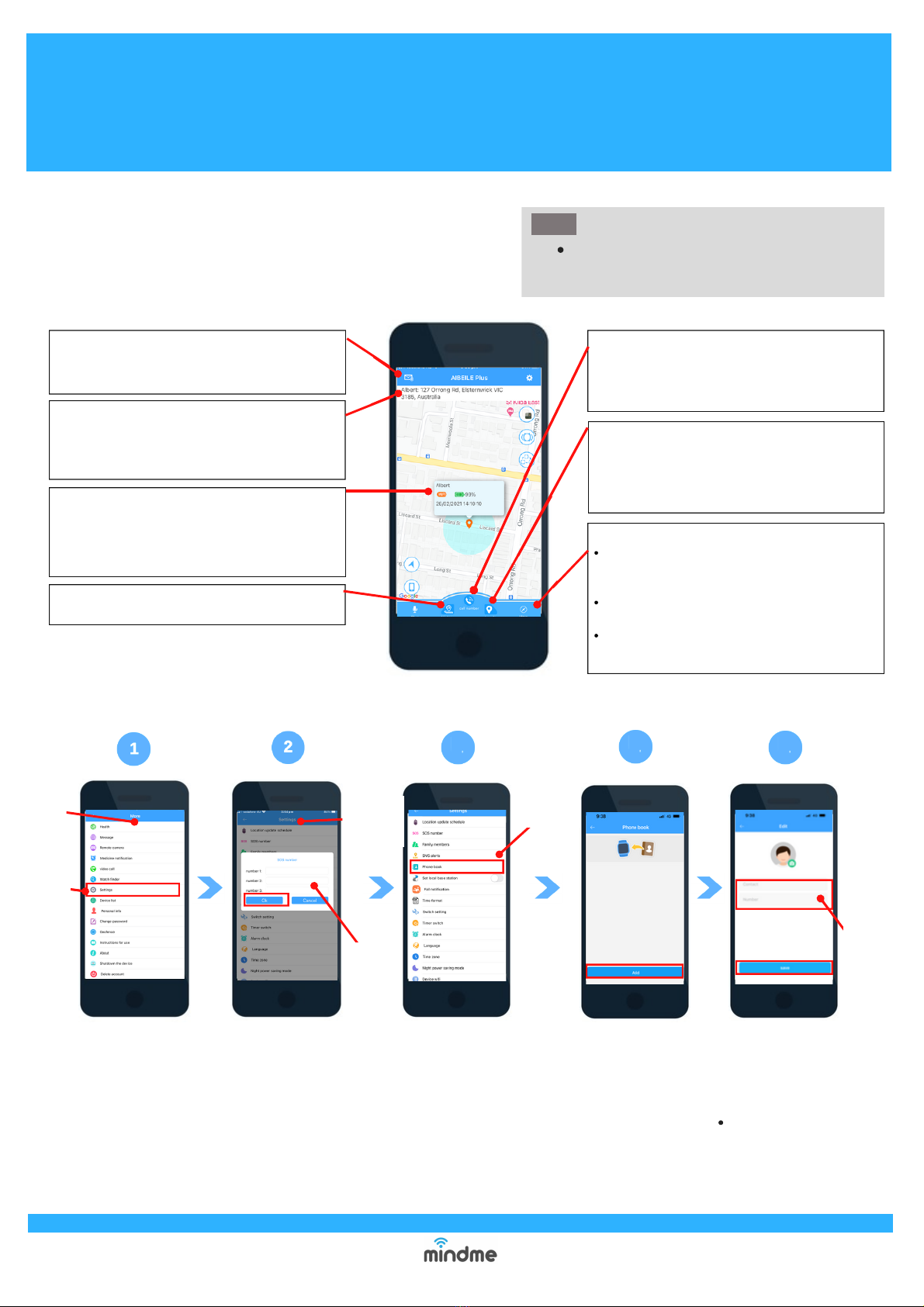
More: Press the icon to access features including:
Settings: Allows various settings/features to be
programmed including SOS #'s, fall detection &
phone book
GEO fence: Displays a pre-programmed GEO
fence or add a GEO fence
Medicine notifications: Displays a pre-
programmed or set up of medication reminders
Call number: Press the icon to make standard
phone call to the MMPSM. Once answered, a 2
way conversation can take place between the
caller and wearer.
Locate: Press the icon to update the current
location of MMPSM. The location may take up
to 30 secs to update. TIP: Press the locate icon
to get the real time GPS location on the
MMPSM.
Envelop Icon: Press this icon to view a list of
previous alerts that have been activated by the
MMPSM. Alert type, time and date will appear.
Enter
SOS #'s
USER GUIDE - MindMe Pro SM
Starter Guide
P: 1300 776 907
W: www.mindme.com.au
5
Address bar: Displays the address where the last
location registered for the MMPSM. The location
feature will automatically update every 10 mins and
when there is continuous movement of the device.
Mobile APPhome screen overview
History: Press the icon track the travel history of
the watch.
Below is an overview of some commonly used Aibeile Plus
features and settings to assist in managing the MMPSM
Locator dialogue box: A box showing the MMPSM
location will appear. It details the MMPSM current
battery level, the time and date that the MMPSM
last updated, and the method used to locate the
device either WIFI or GPS.
To change any settings or features, the
MMPSM will need to be turned on
NOTE
Changing Emergency Contact #'s
Select the 'More'
icon from the
homepage, then
select 'Settings'
from the list of
options
From the 'Settings' menu,
select the 'SOS number'
option. A pop up box will
appear, add or remove
emergency contact #'s as
required and press 'Ok'. A grey
pop up box displaying 'Set Ok'
will appear if the changes
have been successful.
More
menu
Settings
Settings
menu Phonebook
Enter
SOS
name &
#
Return to
'Settings' menu,
select
'Phonebook'
Press 'Add' icon
at the bottom of
the screen
Enter in the name and
contact # of the emergency
contact, click 'Save'.
Note:
Repeat this process for
each of the emergency
contacts.
345

USER GUIDE - MindMe Pro SM
Starter Guide
P: 1300 776 907
W: www.mindme.com.au
6
Changing fall sensitivity
From the 'Settings' menu,
select the 'fall notification'
option.
Select the 'Sensitivity' option. Then
select the desired sensitivity from
the drop down box (1 = most, 10 =
least sensitive, level 6 is
recommended), press 'Ok' and
'Save'. A grey pop up box
displaying 'Set Ok' will appear if
the changes have been successful.
To switch between 2 or more
devices, press icon on top right
hand side. A selection box with
the names of the device wearers
will appear. Select the name of
the wearer's device that you
would like to view
Multiple MindMe devices per
Aibeile Plus Account
Wearers that have the same
emergency contacts, will be
linked to the mobile APP via
the same login/account.
NOTE
To deactivate the fall
detection feature. Press the
green toggles (‘fall
notification’ & ‘fall
notification and call’). The
toggles will turn to a neutral
colour. Then press ‘Save’
NOTE
Table des matières


