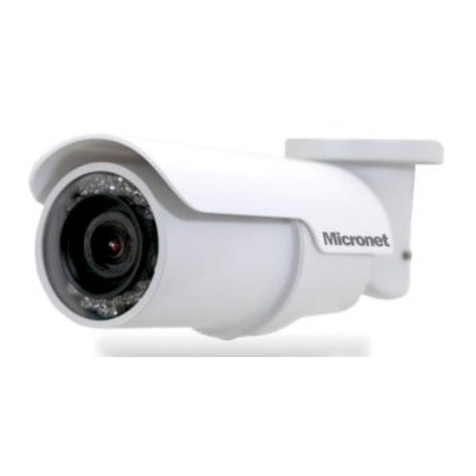
MicroNet SP5584HTM Manuel utilisateur

Micronet SP5584HTM
Micronet SP5584HTM
Full HD Mini Dome IP Camera
User Manual
Ver1.0

1
Table of Contents
1. Introduction............................................................................................................................. 3
1.1 Features ........................................................................................................................3
1.2 Package Contents ......................................................................................................... 4
2. Introduction............................................................................................................................. 5
2.1 Dimensions.................................................................................................................... 5
2.2 Connectors .................................................................................................................... 6
3. Installation............................................................................................................................... 7
4. System Requirements ............................................................................................................ 9
5. Deleting the Existing DC Viewer.......................................................................................... 10
6. Configuration & Operation................................................................................................... 13
6.1 Browser-based Viewer ................................................................................................ 13
6.2 Home Page ................................................................................................................. 15
6.3 System Settings .......................................................................................................... 17
6.3.1 Host Name and System Time...................................................................... 18
6.3.2 Security........................................................................................................ 20
6.3.3 Network........................................................................................................ 32
6.3.4 DDNS........................................................................................................... 43
6.3.5 Mail .............................................................................................................. 45
6.3.6 FTP.............................................................................................................. 46
6.3.7 HTTP ........................................................................................................... 47
6.3.8 Motion Detection.......................................................................................... 48
6.3.9 Tampering.................................................................................................... 53
6.3.10 Storage Management .................................................................................. 56
6.3.11 Recording .................................................................................................... 59
6.3.12 File Location ................................................................................................ 60
6.3.13 View Log File ............................................................................................... 61
6.3.14 View User Information ................................................................................. 62
6.3.15 View Parameters ......................................................................................... 64
6.3.16 Factory Default ............................................................................................ 65
6.3.17 Software Version ......................................................................................... 66
6.3.18 Software Upgrade........................................................................................ 67
6.3.19 Maintenance ................................................................................................ 70
6.4 Video and Audio Streaming Settings........................................................................... 72
6.4.1 Video Resolution and Rotate Type.............................................................. 72
6.4.2 Video Compression ..................................................................................... 76
6.4.3 Video OCX Protocol..................................................................................... 78
6.4.4 Video Frame Skip ........................................................................................ 79
6.4.5 Video Mask.................................................................................................. 80

2
6.4.6 Audio Mode and Bit Rate Settings............................................................... 82
6.5 Camera Settings.......................................................................................................... 84
6.5.1 Exposure...................................................................................................... 85
6.5.2 White Balance.............................................................................................. 87
6.5.3 Backlight ...................................................................................................... 88
6.5.4 Brightness.................................................................................................... 88
6.5.5 Sharpness.................................................................................................... 88
6.5.6 Contrast ....................................................................................................... 88
6.5.7 Saturation .................................................................................................... 89
6.5.8 Hue .............................................................................................................. 89
6.5.9 TV System ................................................................................................... 89
6.6 Logout ......................................................................................................................... 90
Appendix A: Technical Specifications........................................................................................ 91
Appendix B: Internet Security Settings ...................................................................................... 93
Appendix C: DC Viewer Download Procedure........................................................................... 97
Appendix D: Install UPnP Components...................................................................................... 99
Appendix E: IP Scan Utility........................................................................................................ 102

3
1. Introduction
Micronet SP5584HTM Full HD Mini dome IP Camera is capable of serving
real-time streaming and makes image quality more smoothly. In addition to
MJPEG real time streaming, the Full HD Mini Dome IP Camera develops
superior H.264 codec to apply for high resolution digital broadcast. Attributing to
the IP Camera’s flexible platform, the camera can be applied in various
installation locations, including shops, stores, schools, banks, factories and
SMB offices surveillance.
With Power over Ethernet (IEEE 802.3af) feature, the need of power outlets
could be totally eliminated; likewise installation and cabling cost would be
significantly reduced. Additionally, its light weight and compact size offer quick
and simple installation on the ceilings or walls of houses and vehicles.
1.1 Features
Progressive Scan CMOS Sensor
Full HD 1080p Video Quality
H.264 and MJPEG Compression
0.1 Lux @ F1.6
PoE (802.3af) Support
Micro SD Support
ONVIF Conformance
Motion Detection
Privacy Masks

4
1.2 Package Contents
Please check the package contents listed below.
Full HD Mini Dome IP Camera
Self-tapping
screws (×3)
Plastic Anchors
(×3)
Security Screw
(×1)
Rubber Washer (×1, Casing)
Rubber Washers (×3, Baseplate)
(Rugged Camera only)
Security Torx
Quick Guide
CD

5
2. Introduction
This chapter will provide the camera dimensions for reference before installation.
Definition of each connector on the camera’s PCB board will also be specified.
2.1 Dimensions
The Mini Dome IP Camera’s dimensions are shown below.

6
2.2 Connectors

7
3. Installation
Please follow the instructions below to complete installation of the camera.
The Ethernet connector, which is located in the rear of the camera, is shown
below:
PoE Connection
Before connecting the Ethernet Cable, please open the dome cover first.
Connect one end of the Ethernet cable to the network port on the camera, and
the other end to Power Sourcing Equipment (PSE) like hubs or routers.
Check the status of the link indicator and activity indicator LEDs; if the LEDs are
unlit, please check the connections.
Green Link Light indicates good network connection.
Orange Activity Light flashes for network activity indication.
NOTE: Please use the RJ-45 connector without the boot cover for the
Indoor IP Camera.

8
After connecting the Ethernet Cable, please reinstall the dome cover.

9
4. System Requirements
To perform the camera via web browser, please ensure your PC is in good
network connection and meet system requirements as described below.
Items System Requirement
Desktop/Laptop Intel®Pentium®M, 2.16 GHz or Intel®CoreTM2 Duo, 2.0
GHz, or above, 2 GB RAM or above
Operating System Windows VISTA/ Windows XP/ Windows 7
Web Browser Microsoft Internet Explorer 6.0 or later
Firefox, Chrome, Safari
Network Card 10/100/1000Base-T (10/100/1000 Mbps) operation
Viewer ActiveX control plug-in for Microsoft IE
Table des matières
Autres manuels MicroNet Caméra de sécurité