MicroNet SP907NL Manuel utilisateur

User’s Manual
11n Wireless LAN USB Adapter
Model No.: SP907NL
http://www.micronet.info

Table of Contents
Chapter 1 Introduction................................................................................. 1
1.1 Package Contents..........................................................................................1
1.2 Key Features .................................................................................................1
1.3 Safety Information........................................................................................2
1.4 System Requirements....................................................................................2
1.5 Specifications................................................................................................3
Chapter 2 Tour of Product........................................................................... 4
2.1 USB Adapter.................................................................................................4
2.1.1 LED Indication....................................................................................................4
Chapter 3 Configuration.............................................................................. 5
3.1 Drivers Installation........................................................................................5
3.2 Operating Configuration Utility....................................................................7
3.2.1 Scan for Other Wireless Devices....................................................................9
3.2.2 Connect to Access Point................................................................................11
3.2.3 Add Access Point to Profile...........................................................................14
3.2.4 Using Windows Zero Configuration..............................................................18
3.2.5 Profile Management........................................................................................21
3.2.6 Advanced Settings..........................................................................................25
3.2.7 View Network Statistics..................................................................................26
3.2.8 WMM Setting....................................................................................................27
3.2.9 WPS Configuration..........................................................................................28
3.2.10 Radio On/Off....................................................................................................31
3.2.11 About.................................................................................................................32
Chapter 4 Soft-AP Function ...................................................................... 33
4.1 Switch to AP Mode and Basic Configuration.............................................33
4.2 Security Setting...........................................................................................36
4.3 Access Control............................................................................................38
4.4 MAC Table .................................................................................................39
4.5 Event Log....................................................................................................40

4.6 Statistics......................................................................................................40
4.7 About...........................................................................................................41
Chapter 5 Troubleshooting ....................................................................... 43
Chapter 6 Glossary.................................................................................... 44

1
Chapter 1 Introduction
Micronet SP907NL, 11N Wireless LAN USB Adapter, delivers next generation high
speed at a more economical and affordable price tag. It is easily implemented for
medium-sized business to allow immediate access to high speed wireless
experience. It is compliant with IEEE 802.11n and backward compatible with IEEE
802.11b/g. The USB adapter supports MIMO (Multi-In, Multi-Out) technology,
which uses 1T1R (1 transceiver, 1 receiver) to enhance data rate and wireless
coverage. It is the part of the complete package of the new 11n high speed
wireless solution. Ideal installation is for both desktop computer and notebook with
USB 2.0/1.1 port.
1.1 Package Contents
Prior to the installation of the device, please verify the following items are in the
package:
ySP907NL 11n WLAN USB Adapter
yQuick Installation Guide
yManual CD
Note: Contact your dealer immediately if any of the above items are missing,
damaged, or if the unit does not work.
1.2 Key Features
yHigh-efficiency antenna expands the scope of your wireless network.
yHigh-speed data transfer rate of up to 150Mbps.
yQoS function: control the bandwidth required for different applications.
yCompatible with 802.11b/g/n wireless networks.
ySupports major encryption methods like WEP, WPA, and WPA2
encryption.

2
yWPS configuration for easier connection between adapter and AP/router.
Enable connection via pushing a button or entering an 8-digit code.
ySupport the commonly available interface USB 2.0 to allow convenient
installation.
1.3 Safety Information
In order to keep the safety of users, please read through the following safety
instructions:
yThis USB Adapter is designed for indoor use only.
yDo not put this device at or near hot or humid places. Also, do not leave
this device in the car in summer.
yThe USB Adapter is small enough to put in a child’s mouth, ear, or nose,
and it could cause serious or fatal injury.
yThere’s no user-serviceable part for the device. If users found the device
is not working properly, please contact the authorized dealer of purchase.
Do not disassemble the device, otherwise warranty will be void.
yIf the device falls into water, do not use it again before sending to the
dealer of purchase for inspection.
yIf users smell something strange, or even see some smoke coming out
from the network card, remove the power supply or switch the electrical
power off immediately, and call authorized for help.
1.4 System Requirements
yAn empty USB 2.0 port (USB 1.1 will degrade the performance
dramatically).
yWindows 2000, 2003, XP, or Vista operating system.
yCD-ROM drive.
yAt least 100MB of available disk space.

3
1.5 Specifications
Standards IEEE802.11b/ 802.11g / 802.11n
Interface USB 2.0/1.1
Frequency Band 2.4000 ~ 2.4835GHz
Data Rate z11b: 1/2/5.5/11Mbps
z11g: 6/9/12/24/36/48/54Mbps
z11n (20MHz): MCS0-7 (up to 72Mbps)
z11n (40MHz): MCS0-7 (up to 150Mbps)
Output Power z11n: 14dBm±1.5dBm
z11g: 14dBm±1.5dBm
z11b: 17dBm±1.5dBm
Security zWEP 64/128-bit
zWPA & WPA2
zCisco CCX Support
LED Indicators Link /Activity
Antenna Internal Antenna
MIMO Technology 1T1R MIMO Technology
Humidity 10~95% (Non-Condensing)
Temperature 32~104°F (0 ~ 40°C)
Operating System Windows 2000/XP/2003/Vista
Emission FCC, CE

4
Chapter 2 Tour of Product
2.1 USB Adapter
1. USB Connector: insert this side of the device into an available USB slot.
2. Connector Cab: for protecting device when not in use.
3. WPS button: located on the bottom side of the device for activating WPS
pairing mode.
4. Link/Activity LED: indicate device is in use or traffic activity is evident.
2.1.1 LED Indication
LED Status Operation
On Successful connection to AP
or Router
Flashing Transmitting data to AP or
Router
Link/Activity
Off No link to AP or Router/
WLAN function is disabled

5
Chapter 3 Configuration
3.1 Drivers Installation
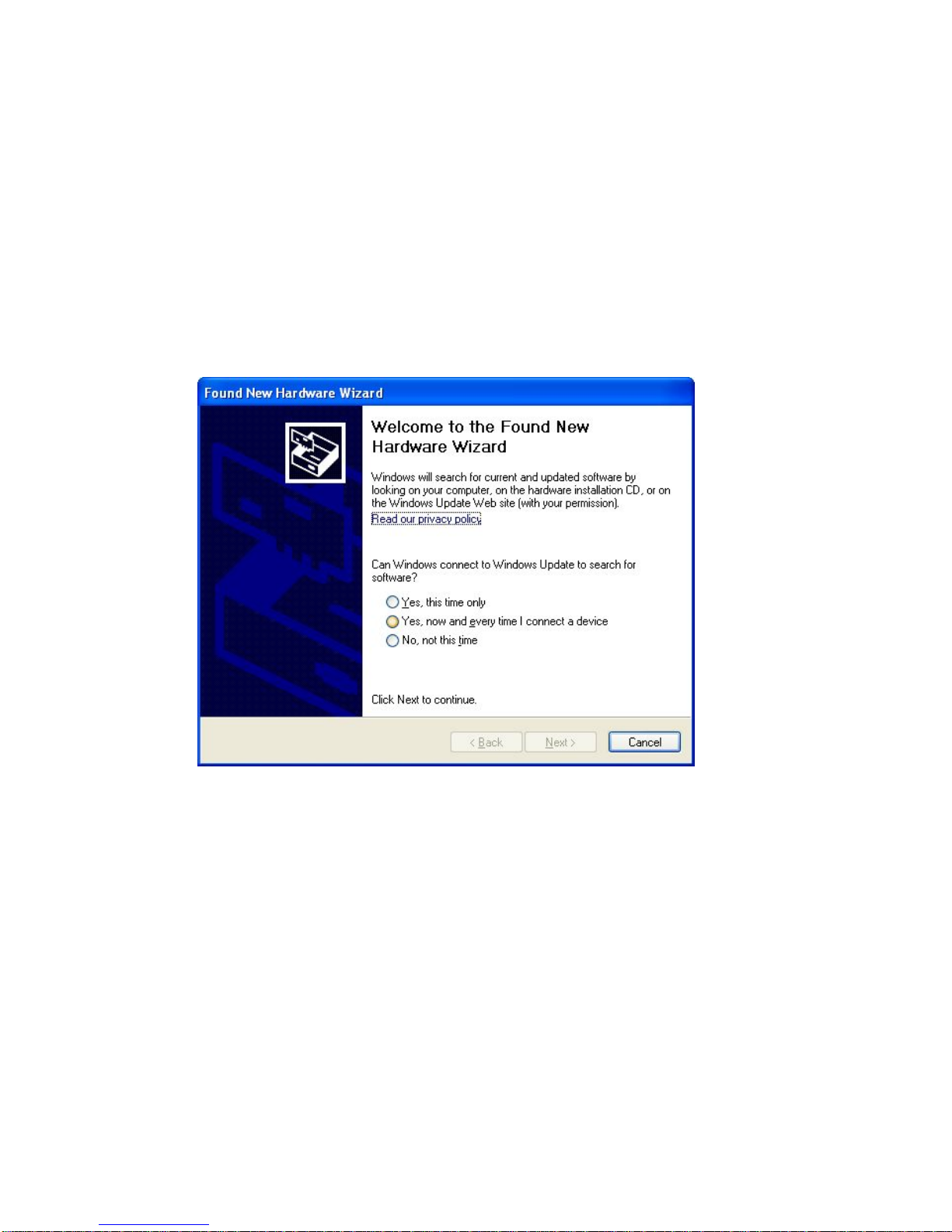
Step 1. Gently insert the USB adapter into an available USB slot. The following
message will appear, please press <Cancel>.
Step 2. Insert driver CD into the CD/DVD ROM drive of the computer, and
execute ‘Setup.exe’ program in ‘Utility’ folder. Read through the License
Agreement and select ‘I accept the terms of the license agreement’ then press
<Next> to proceed.

6
Step 3. It is recommended to select ‘Install driver and Ralink WALN Utility’ for
first-time installation. Otherwise select second option to update existing drivers.
Step 4. The following windows will appear, please press on ‘Install’ to start the
process.

7
Step 5. Click <Finish> to complete the driver installation process.
3.2 Operating Configuration Utility
After installation is complete, wireless configuration utility will be shown as an
icon at the lower-right corner of the windows desktop. Click on the icon using
right mouse key and select <Launch Config Utilities>.
Table des matières
Autres manuels MicroNet Adaptateur

MicroNet
MicroNet SP906GL Manuel utilisateur

MicroNet
MicroNet SP907NS Manuel utilisateur

MicroNet
MicroNet SP908GK Manuel utilisateur

MicroNet
MicroNet SP907GK Manuel utilisateur

MicroNet
MicroNet SP907G Manuel utilisateur

MicroNet
MicroNet SP907NP Manuel utilisateur

MicroNet
MicroNet SP907N Manuel utilisateur

MicroNet
MicroNet EtherFast 100Mbps Fiber-Optic Adapter SP2515... Manuel utilisateur

MicroNet
MicroNet M807GP Manuel utilisateur

MicroNet
MicroNet SP907BB Manuel utilisateur