
micmi WitGarage Manuel utilisateur

Installation
Manual


2
CONTENTS
Introduction..................................................................................... 3
Contents of the Box ........................................................................ 3
LED Indications ................................................................................4
Installation....................................................................................... 5
1) Check Compatibility................................................................ 5
2) Install Mobile App & Create Account..................................... 6
3) Add WitGarage Device to App ............................................... 6
4) Test sensor for Notification App .......................................... 11
5) Install WitGarage on Garage Door Opener........................... 12
6) WitGarage System Test........................................................ 13
WitGarage App Introductions........................................................14
WitGarage Alexa Skill Setup...........................................................16
WitGarage Google Home Setup.................................................... 21
3
INTRODUCTION
WitGarage is a companion device to an existing garage door opener
with two Wi-Fi configuration modes called “Smart Config” and “AP
Mode”, which can make your garage door smarter and securer. It
allows multiple users to control and monitor your garage door from
anywhere in the world. You can also control your garage door by voice
command.
The following tools may be used:
•
A Flathead screwdriver ---------------------------
•A Stepladder
------------------------------------
Warning: Please unplug the garage door opener before installation.
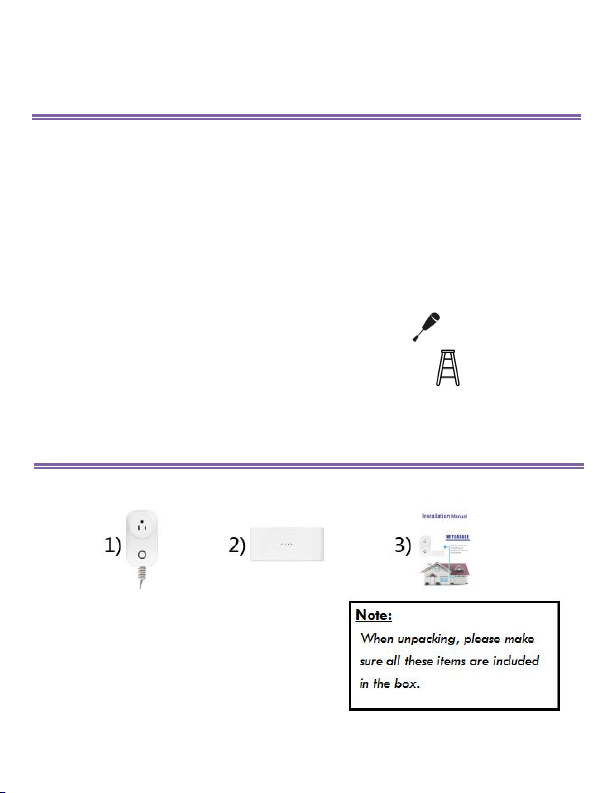
CONTENTS OF THE BOX
1) WitGarage Controller (GD801C)
2) WitGarage Sensor (GD801S)
3) Installation Manual

4
LED INDICATIONS
We have a tricolored LED Indicator with different indications.
(1) Blink Rapidly in Red (Twice every second)
The Wi-Fi has not been configured and the device is in “Smart Config”
configuration.
(2) Blink Slowly in Red (Once every two seconds)
The Wi-Fi has not been configured and the device is in “AP Mode”
configuration.
(3) Blink in Blue
Sensor has not been bound to Controller.
(4) Blink in Green
The Wi-Fi has been configured but the internet may not work. Please
check your router.
(5) Solid Green
Your WitGarage is all set.

5
INSTALLATION
Please follow the steps in order for an easier and quicker installation.
STEP 1
CH ECK COMPATIBILITY
Please kindly visit our website to check most of our compatible and
incompatible garage door openers:
Compatible models:https://micmi.com/compatible/
Incompatible models: https://micmi.com/incompatible/
If your model is in the compatible list, go to step 2.
If your model is in the incompatible list, your device may not be
compatible, so STOP and contact us.
If your model is not in both lists, then try to check the compatibility by
yourself.
How to Check the Compatibility by Yourself?
Take a wire with both ends stripped or a straightened-out paper clip
and put each end to the same terminals where the wall button wires are
terminated.
After that, can your garage door opener be activated?
-----Yes. It is compatible with WitGarage. Go to step 2.
-----No. It is incompatible with WitGarage. STOP and contact us.
Note: If you still don’t know how to do the compatibility test, please contact
our sales for help. You can also leave messages on our website or send us email
6
STEP 2
INSTALL MOBILE APP & CR EATE ACCOUNT
1) Download "WitGarage" app from Google Play Store/Apple
App Store;
2) Launch "WitGarage" app;
3) Create new account by tapping “Create New Account now” or
“Login” with Facebook or Twitter.
STEP 3
ADD WITGA RAGE DEVICE TO APP
Make sure your phone has connected to a Wi-Fi router or a Wi-Fi
hotspot with quick and stable internet access before you start next steps.
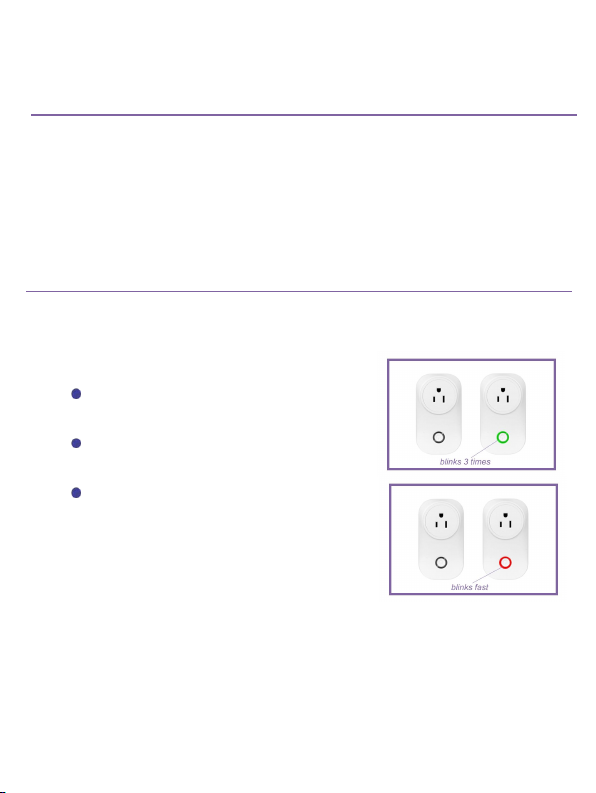
1. Power on controller
Plug in your controller,the LED
indicator will blink in green for 3 times;
About 5 seconds later, the LED
indicator will turn red and blink rapidly;
Now, controller is ready.

7
2. Add Your WitGarage to App
and Configure Wi-Fi
Launch WitGarage app
and login;
Tap “Add device” to
configure Wi-Fi (see the figure
below).
Note: WitGarage supports two
modes of Wi-Fi configuration:
“Smart Config” and “AP
Mode”. “Smart Config” is the
default mode, and the switches
between two modes can be
made by long pressing the LED
button.

8
Steps for “Smart Config” Settings (see figures below):
App connection has been set with “Smart Config”.

9
If you use Wi-Fi hotspot or your Wi-Fi router doesn’t work with
“Smart Config”, please try “AP Mode”
1) Long press the key of controller until the
LED indicator blinks slowly in red, then the
device switches to “AP Mode”
(see the right figure).
2) Launch WitGarage app, tap “Add device”, and then tap “AP
mode” on the right top of the page (see the figures below).
App connection has been set with “AP Mode”
Table des matières


