Copyright © 2009-2013 Micca, LTD. All rights reserved.
5 perating Instructions
After turning on the photo fra e, the ain enu
will display after a few seconds. If there is a
flash e ory card or USB flash drive inserted
into the photofra e, a slideshow will
auto atically begin plain. To get back to the
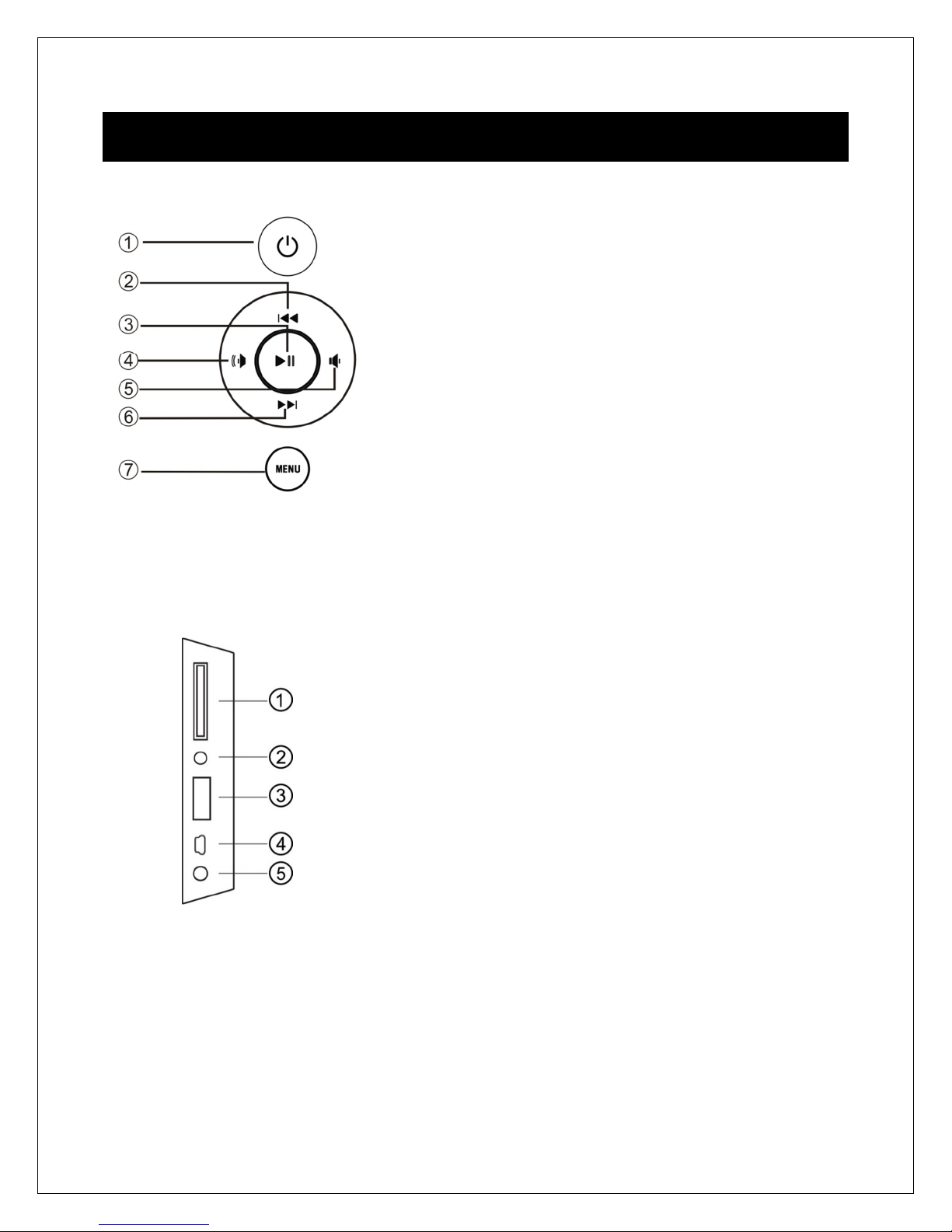
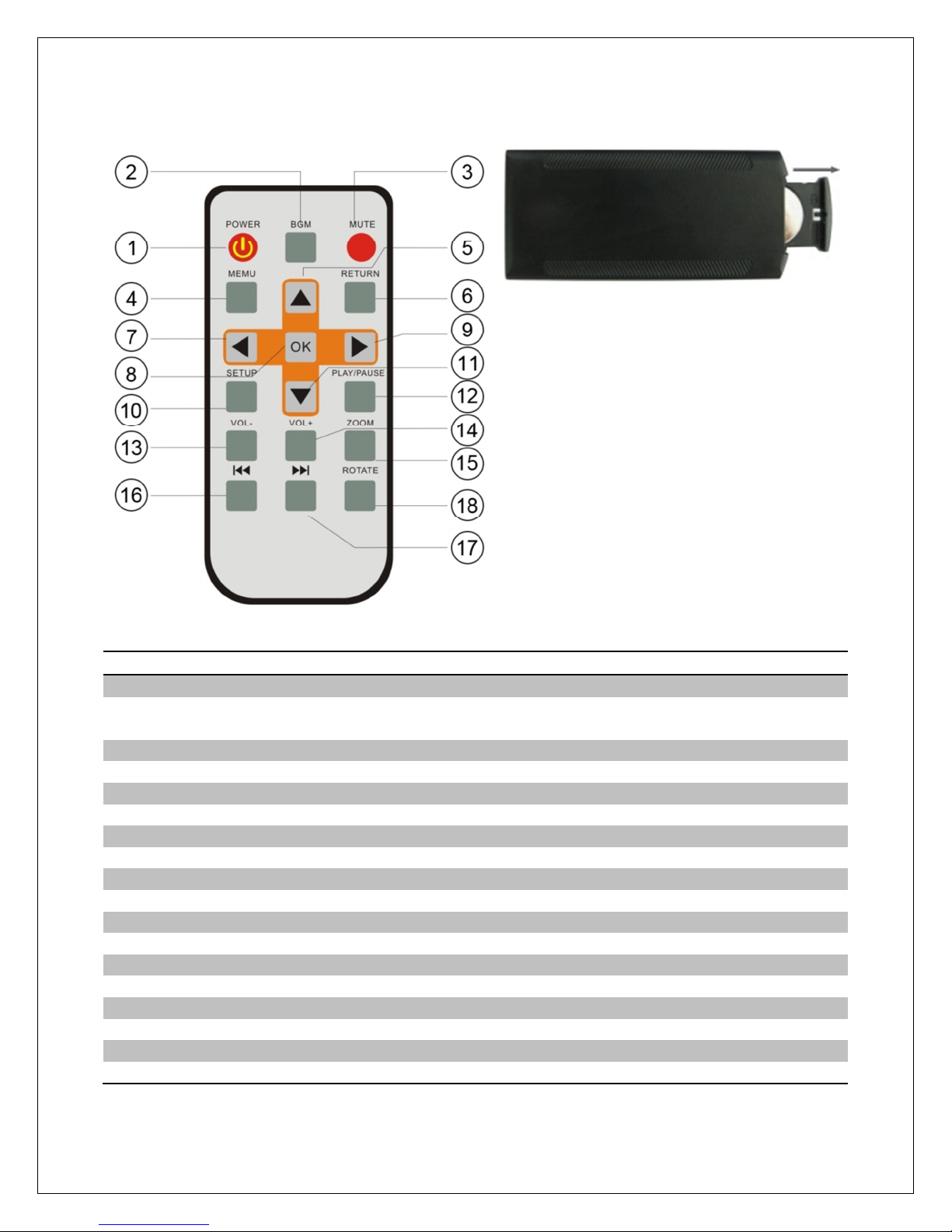
ain enu, press the “Menu” button on the
re ote control, or press the “Menu/Return”
button on the back of the photo fra e.
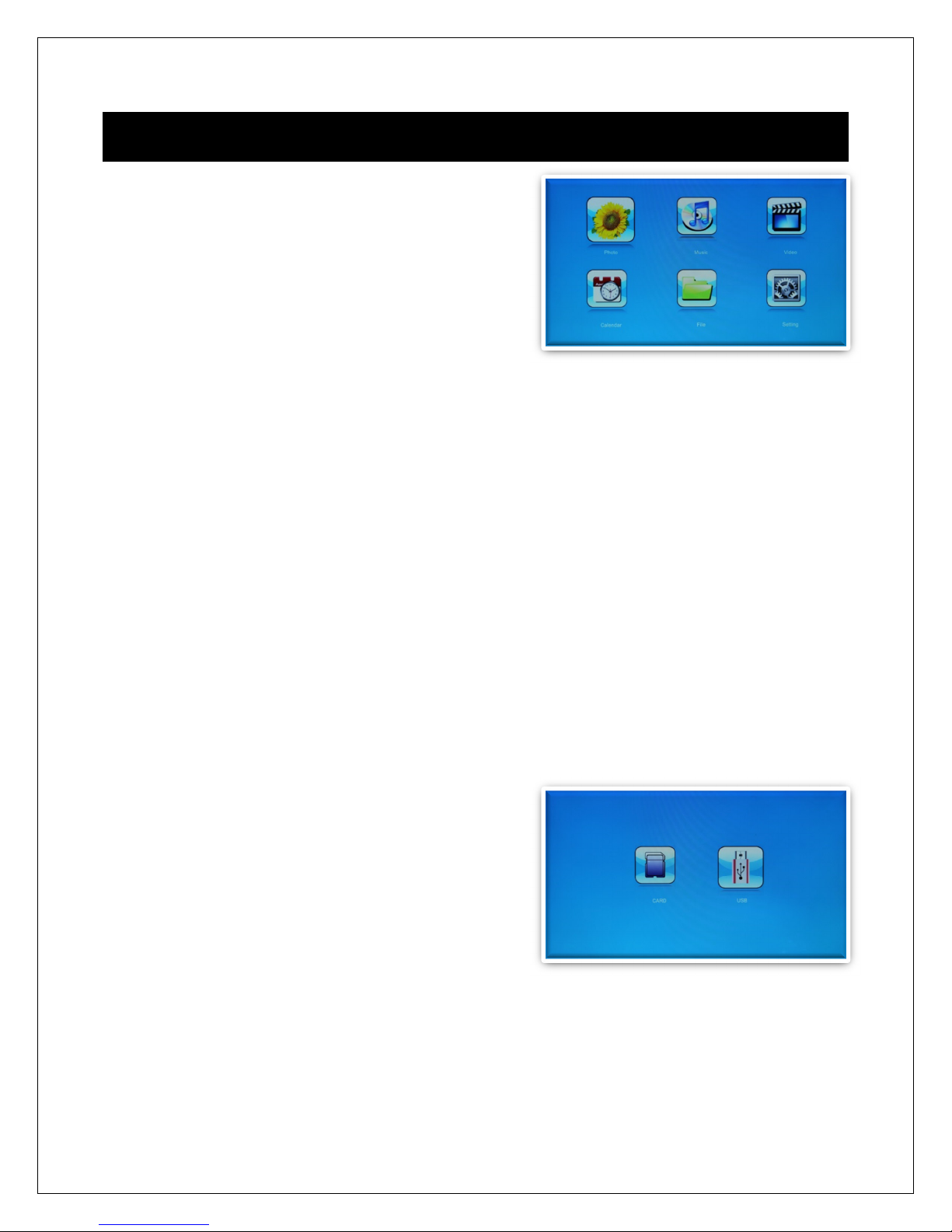
The ain enu contains icons for Photos, Music, Videos, File Operations, Calendar,
and Setup.
5.1 Flash Memory Cards and USB Flash Drives
The photo fra e supports SD/SDHC flash e ory cards and USB flash drives, both up
to 32GB in size. While the photo fra e can handle high resolution photos directly fro a
digital ca era, it is strongly reco ended to resize photos down to a lower resolution
of about one egapixel in size. This allows ore photos to be stored on the storage
device and s aller files results in ore responsive operation by the photo fra e.
The photo fra e co es with an 8GB icro USB storage drive that can be used to hold
photos, usic, or videos. The photo fra e does not have any internal storage.
5.2 Choosing Storage Device
When ore than one storage device is detected by the digital photo fra e, it is
necessary to select which storage device to use.
Once selected, all operations are on the
selected storage device. To perfor operations
on another storage device, it is necessary to
select it first.
To select a storage device, press the
“Menu/Return” button repeatedly until the
storage selection screen is shown. Highlight the
desired storage device and press “Play/Pause/Enter” to select it.