Mercury MW150U Manuel utilisateur

MW150U 11N Wireless USB Adapter
Rev:1.0.1 1910080007

11N Wireless USB Adapter I
Package contents
The following contents should be found in your box:
¾One MW150U 11N Wireless USB Adapter
¾Quick Installation Guide
¾One USB cable
¾One Resource CD for MW150U, including:
•Mercury Wireless Client Utility (MWCU) and Drivers
•User Guide
•Other Helpful Information
Conventions
The Adapter or MW150U, or device mentioned in this User guide stands for MW150U 11N
Wireless USB Adapter without any explanations.
Parameters provided in the pictures are just references for setting up the product, which may differ
from the actual situation.
You can set the parameters according to your demand.
NOTE:
Make sure that the package contains the above items. If any of the listed items are damaged or
missing, please contact with your distributor.

11N Wireless USB Adapter II
CONTENTS
Package contents...................................................................................................... I
Conventions............................................................................................................... I
Chapter 1. Introduction......................................................................................... 1
1.1 Overview of the product......................................................................................................1
1.2 Features..............................................................................................................................1
1.3 LED Status..........................................................................................................................2
Chapter 2. Installation Guide................................................................................ 3
2.1 Hardware Installation..........................................................................................................3
2.2 Software Installation............................................................................................................3
2.2.1 Overview.......................................................................................................................3
2.2.2 For Windows2000&XP.................................................................................................3
2.2.3 For Windows Vista&7 ...................................................................................................9
Chapter 3. Configuration Guide......................................................................... 13
3.1 For WindowsXP...............................................................................................................13
3.1.1 Current Status.............................................................................................................13
3.1.2 Profile Management....................................................................................................15
3.1.3 Diagnostics.................................................................................................................23
3.2 For Windows Vista............................................................................................................24
3.3 For Windows7..................................................................................................................27
Chapter 4. WPS configuration............................................................................ 29
4.1 PBC (Push Button Configuration) method ........................................................................29
4.2 PIN method.......................................................................................................................32
4.2.1 Enter a PIN into your AP device .................................................................................32
4.2.2 Enter the PIN from your AP device.............................................................................33
Appendix A: Specifications................................................................................... 35

11N Wireless USB Adapter III
Appendix B: Glossary............................................................................................ 36
COPYRIGHT & TRADEMARKS .............................................................................. 38
FCC STATEMENT ................................................................................................... 39

Chapter 1 - Introduction
11N Wireless USB Adapter 1
Chapter 1.
Introduction
Thank you for choosing MW150U 11N Wireless USB Adapter.
1.1 Overview of the product
The adapter is designed to provide a high-speed and unrivaled wireless performance for your
notebook and PC. With a faster wireless connection, you can get a better Internet experience,
such as downloading, gaming, video streaming and so on.
The MW150U 11N Wireless USB Adapter auto-sensing capability allows high packet transfer rate
of up to 150Mbps for maximum throughput. It has good capability on anti-jamming; it can also
interoperate with other wireless products. The adapter supports WEP, WPA and WPA2 encryption
to prevent outside intrusion and protect your personal information from being exposed.
The Quick Setup Wizard guides you step by step through the installation process; the Mercury
Wireless Client Utility helps you create a wireless connection immediately.
With unmatched wireless performance, reception, and security protection, the MW150U is the best
choice for easily adding or upgrading wireless connectivity.
1.2 Features
¾IEEE802.11g, IEEE802.11b standards
¾Supports WPA/WPA2 data security, IEEE802.1x authentication, TKIP/AES encryption, WEP
encryption
¾Make use of IEEE 802.11n wireless technology to provide a wireless data rate of up to
150Mbps
¾supports automatically adjust to lower speeds due to distance or other operating limitations
¾Provides USB interface
¾Supports Ad-Hoc and Infrastructure modes
¾Good capability on anti-jamming
¾Supports roaming between access points when configured in Infrastructure mode
¾Easy to configure and provides monitoring information
¾Supports Windows 2000, XP, Vista and Windows 7

Chapter 1 - Introduction
11N Wireless USB Adapter 2
1.3 LED Status
Status Working Status
Off The driver has not been installed.
Flashing Slowly The driver has been installed but there is no data being transmitted or
received.
Flashing Quickly There is data being transmitted or received.

Chapter 2 - Installation Guide
11N Wireless USB Adapter 3
Chapter 2.
Installation Guide
2.1 Hardware Installation
There are two ways to install the Adapter:
1. Plug the Adapter directly to the USB port on your computer.
2. Connect the Adapter and your computer through the USB cable attached in package.
The promoted Found New Hardware Wizard screen will pop up when the adapter is installed
correctly.
2.2 Software Installation
2.2.1 Overview
The Adapter’s Setup Wizard will guide you through the Installation procedure for Windows XP.
The Setup Wizard will install the Mercury Wireless Client Utility (MWCU) and drivers.
When you install the hardware prior to before installing the software, the system will prompt
“Found New Hardware Wizard”, click Cancel, and run the Setup Wizard program on the CD-ROM.
2.2.2 For Windows 2000&XP
Note: The Setup steps for Windows 2000 and XP are similar with each other. The following
instructions take Windows XP for example.
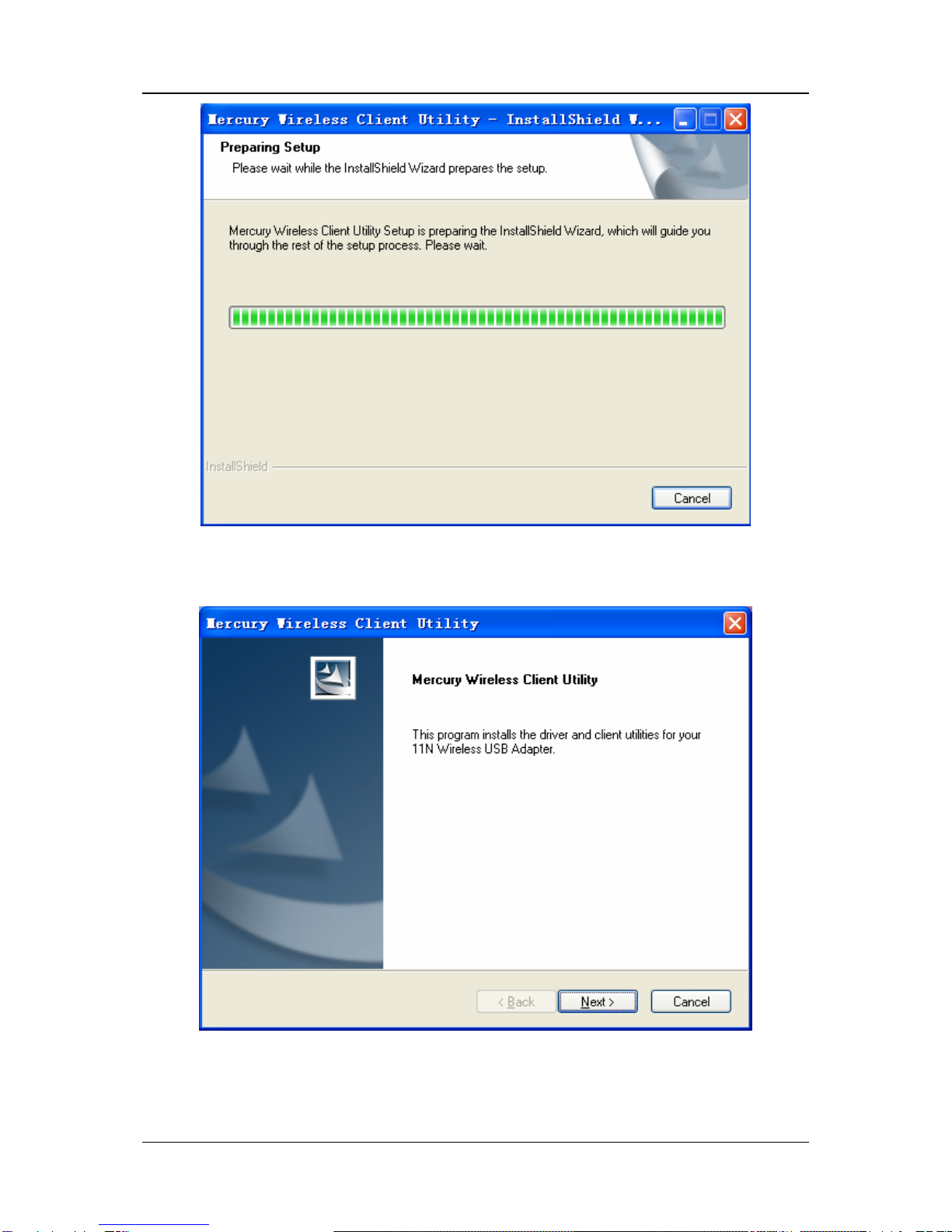
1. Insert the Resource CD into your CD-ROM drive, choose Network Adapter and open the
folder named MW150U. Then double-click Setup.exe to load the following screen.

Chapter 2 - Installation Guide
11N Wireless USB Adapter 4
Figure 2-1
2. Soon, Figure 2-2 will display after a moment. Click Next to continue.
Figure 2-2
3. After that, you should choose a Setup type. It is recommended that you select Install Client
Utilities and Driver. Select Install Driver Only to install driver only (shown in 5Figure 2-3).

Chapter 2 - Installation Guide
11N Wireless USB Adapter 5
Click Next to continue.
Figure 2-3
4. Click Browse to change the destination location for the software, then click Next in the screen
below (shown in 6Figure 2-4).
Figure 2-4

Chapter 2 - Installation Guide
11N Wireless USB Adapter 6
5. After that, select the program folder, you should create a new folder name or select one from
the Existing Folders list. It is recommended that you keep the default setting. Click Next to
continue the installation.
Figure 2-5
6. Choose configuration tool, if you are not sure, please leave it default. Then click Next to
continue.
Table des matières
Autres manuels Mercury Adaptateur