
Mega Video MPV-QE-SD Manuel utilisateur

001B0EQXZ1A5
Prime HDR
IR Bullet IP Camera
User’s Manual
Ver. 1.5
MPV-QE-SD & SH

1
Table of Contents
1. Overview................................................................................................................................2
1.1 Features......................................................................................................................2
1.2 Package Contents .......................................................................................................3
1.3 Dimensions..................................................................................................................4
1.4 microSD Card Slot / Factory Default Button.................................................................5
2. Camera Cabling.....................................................................................................................6
2.1 All-in-One Cable..........................................................................................................6
2.2 Connect Power............................................................................................................7
2.3 Connect Ethernet Cable...............................................................................................7
2.4Connect Alarm I/O.......................................................................................................7
2.5 Waterproof Cable Connectors .....................................................................................8
3. Installation.............................................................................................................................9
3.1 Ceiling / Wall Mounting................................................................................................9
4. System Requirements ........................................................................................................11
5. Access Camera ...................................................................................................................12
6. Setup Video Resolution......................................................................................................16
7. Configuration Files Export / Import ...................................................................................17
8. Tech Support Information ..................................................................................................18
8.1 Delete the Existing DCViewer....................................................................................18
8.2 Setup Internet Security..............................................................................................19
Appendix: Technical Specifications

2
1. Overview
The Prime HDR IR Bullet IP Camera is a high-end surveillance solution with
compact and easy set-up design. Supporting up to 3M real-time video and Quad
Streams Codec (H.264 Baseline/ Main / High Profile + MJPEG), the camera
offers supreme image quality while keeping efficient bandwidth for storage
management. Also, the camera is equipped with HDR function and provides 2
shutter WDR images, which is suitable for scenarios under extreme light
contrast or environments with changing lighting.
Software features, such as Privacy masks and ROI windows, further extend the
range of camera application. The built-in IR LED module emits sufficient infrared
lights to light up the area under surveillance without the help of any additional
lighting devices. The cable management bracket not only saves the time on
installation but also keeps the cables from sabotage. Furthermore, with the
international IP66 rating and weather-proof design, the Prime HDR IR Bullet IP
Camera can also perform stably in harsh environments.
1.1 Features
Multiple Progressive Scan CMOS Sensor Support 4M Resolution
Shutter HDR*
Low Latency Streaming
Low Power Consumption on Encoding
Quad Codec Support- H.264 Baseline / Main / High Profile / MJPEG
Quad Streams Support
3D Motion Compensated Noise Reduction (MCTF)
Text or Image Overlay and Privacy Masks
Smart Event Function-
Motion Detection / Network Failure Detection / Tampering Alarm / Periodical
Event / Manual Trigger / Audio Detection
True Day/Night Function (ICR)
IR LED Module (working distance up to 50 m)*
BNC Analog Output
microSD Card Support
Weatherproof (IP66 International)
Integrated Mounting Bracket with Cable Management
ONVIF Profile S Support
(*) Optional
3
1.2 Package Contents
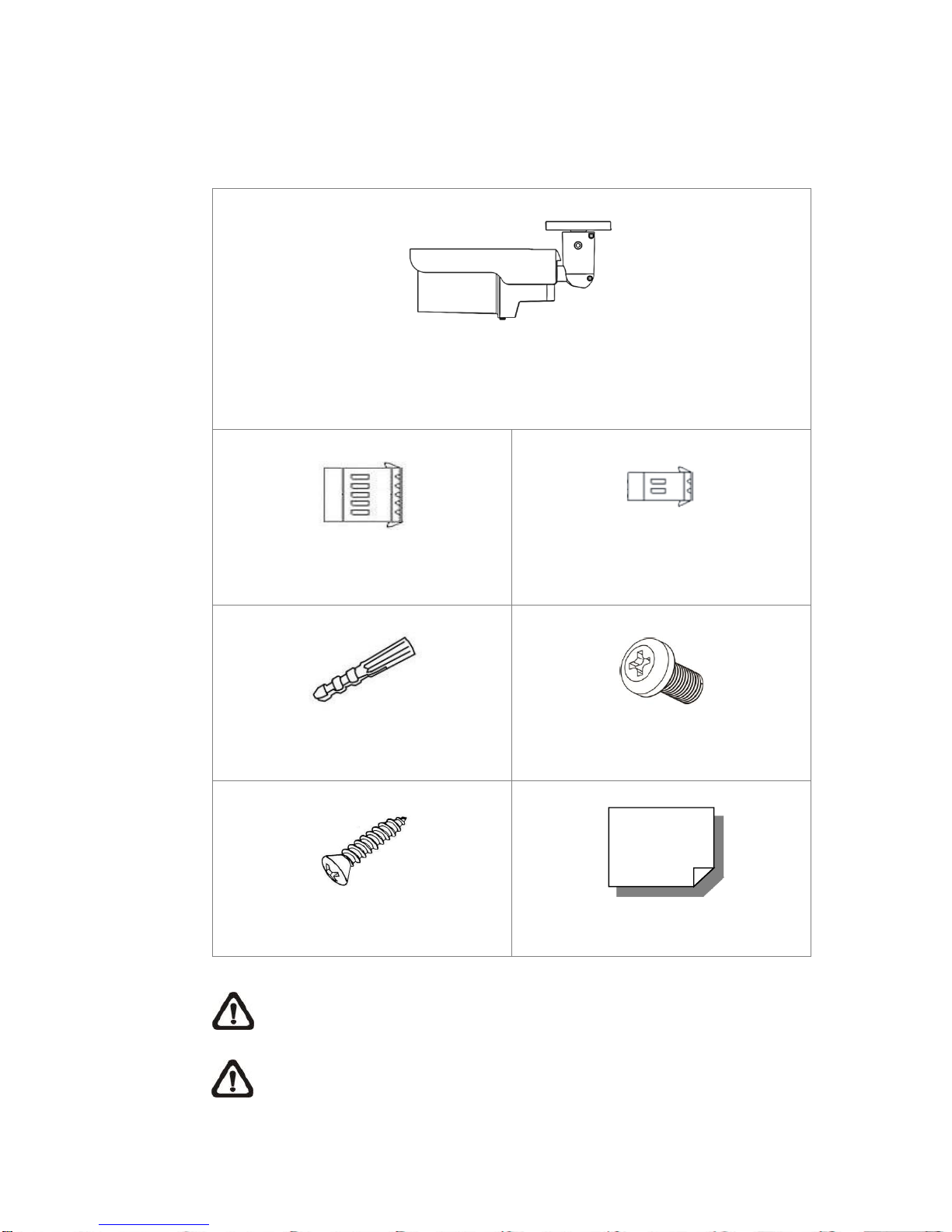
Please check the package containing the following items listed below.
Prime HDR IR Bullet IP Camera
(cable included)
5-Pin Alarm Terminal Block
2-Pin Power Terminal Block
Plastic Screw Anchor (x5)
M5 Standard Screw (x1)
M4 Self-Tapping Screw (x5)
Quick Guide
NOTE: Users MUST pre-drill and use plastic anchors before fastening
the supplied self-tapping screws on the wall.
NOTE: To purchase power adaptor, please contact the camera
manufacturer for further information.

4
1.3 Dimensions
The dimensions of the camera are shown below.

5
1.4 microSD Card Slot / Factory Default Button
The camera’s microSD card slot and factory default button are inside the front
housing. If users need to use them, the front housing must be opened. Follow
the steps below to reach microSD card slot and factory default button.
Step 1:
Loosen the screw on the camera housing but do not
detach it. Then separate the front housing from the
camera.
Step 2:
The positions of microSD card slot and default button are as shown below.
NOTE: It is not recommended to record with the microSD card for 24/7
continuously, as it may not be able to support long term continuous data
read/write. Please contact the manufacturer of the microSD card for
information regarding the reliability and life expectancy.
Step 3:
Install the front housing to the camera, and tighten the screw on the camera
housing.
6
2. Camera Cabling
Before users connect cables, make sure that all cables and the power adaptor
are placed in dry and well-waterproofed environments, e.g. waterproof boxes.
The purpose is to prevent moisture accumulation inside the camera and
moisture penetration into cables, which might lead to camera breakdown.
Please refer to the following sections to complete camera connection.
2.1 All-in-One Cable
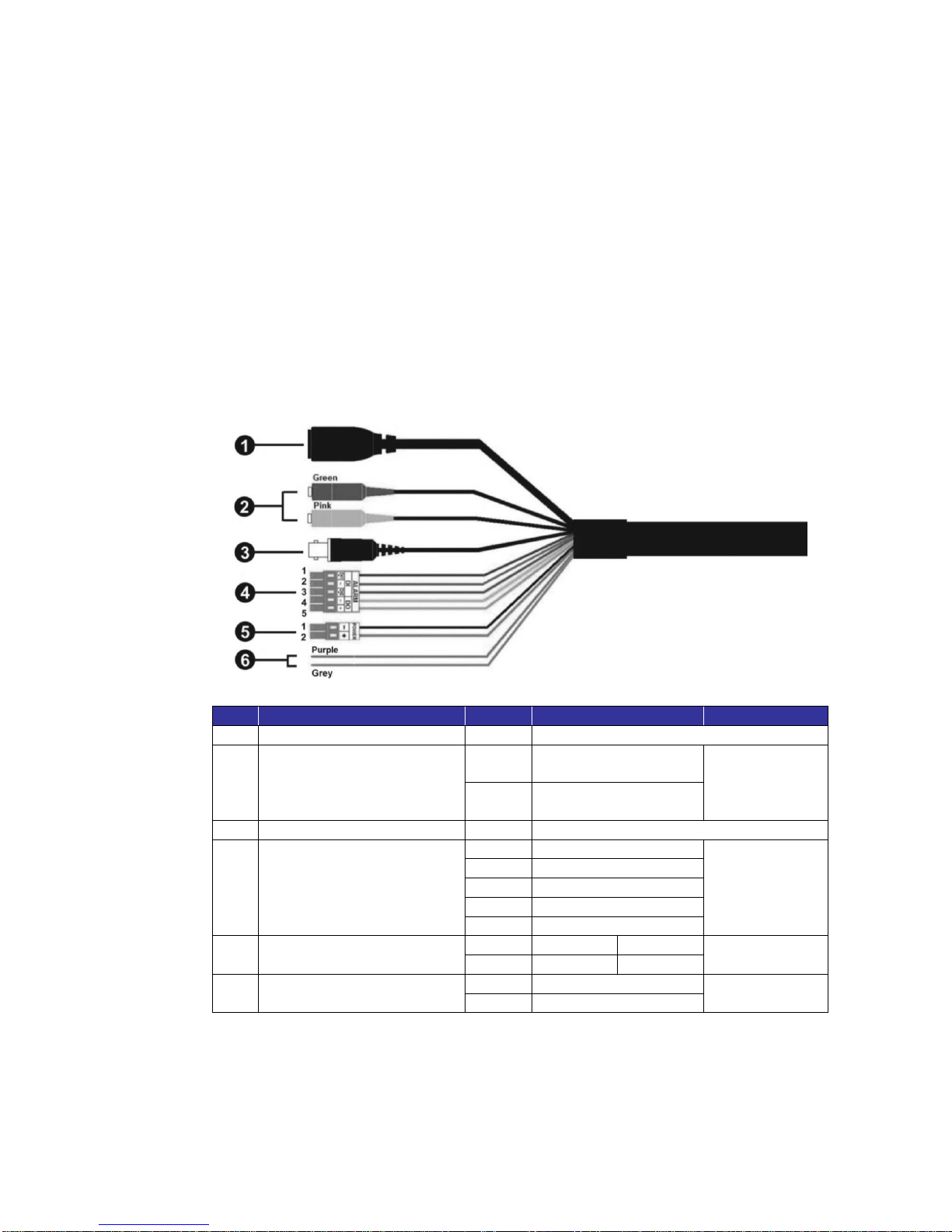
The diagram below shows the All-in-One cable of the camera. Definition for
each cable is also given as follows.
No
Cable
Pin
Definition
Remarks
1
RJ-45
-
For network and PoE connections
2
Audio I/O
Green
Audio Out / Mic Out
(Line Out)
Two-way audio
transmission
Pink
Audio In / Mic In
(Line In)
3
BNC
-
For analog video output
4
Alarm I/O
(5-pin Terminal Block)
1
Alarm In 2+
Alarm
connection
2
Alarm In -
3
Alarm In 1+
4
Alarm Out -
5
Alarm Out +
5
Power (DC 12V / AC 24V)
(2-pin Terminal Block)
1
DC 12V −
AC 24V 1
Power
connection
2
DC 12V +
AC 24V 2
6
RS-485
Purple
D-
RS-485
Connection
Grey
D+

7
2.2 Connect Power
For power connection, please use an AC 24V / DC 12V adaptor and connect it
to the 2-pin terminal block of the All-in-One cable and the power outlet.
Alternatively, users can power the camera by PoE if a Power Sourcing
Equipment (PSE) switch is available. Please refer to the section below for
Ethernet cable connection.
NOTE: If PoE is used, make sure PSE is in use in the network.
2.3 Connect Ethernet Cable
To have the best transmission quality, cable length shall not exceed 100 meters.
Connect one end of the Ethernet cable to the RJ-45 connector of the All-in-One
cable, and plug the other end of the cable to the network switch or PC.
NOTE: In some cases, Ethernet crossover cable might be needed when
connecting the camera directly to the PC.
Check the status of the link indicator and the activity indicator LEDs. If the LEDs
are unlit, please check the LAN connection.
Green Link Light indicates good network connection.
Orange Activity Light flashes for network activity indication.
2.4 Connect Alarm I/O
For alarm I/O connection, please connect alarm devices to the 5-pin terminal
block of the All-in-One cable.
NOTE: Do NOT connect external power supply to the alarm I/O
connector of the IP camera.

8
2.5 Waterproof Cable Connectors
Follow the steps below to waterproof the connectors of the All-in-One cable.
Step 1:
Connect the required devices to the
All-in-One cable and coat the joints with
silicone gel. There should be no gap
between the connectors and the cables.
For alarm I/O connector and power
connector, make sure the side with wires
attached is also sealed with silicone gel.
Step 2:
Seal the end of the rubber coating of the
All-in-One cable as indicated in the figure
on the right. Please use enough silicone
gel to fill in the hose and wrap around
each wires; otherwise, waterproof function
cannot be guaranteed.
9
3. Installation
Please read the instructions provided in this chapter thoroughly before installing
the camera.
3.1 Ceiling / Wall Mounting
The camera can be installed directly on a wall or ceiling with the integrated
2-axis adjustable Bracket Mount. Please note that the wall or ceiling must have
enough strength to support the camera.
Follow the steps below to install the camera.
Step 1:
Place the camera at the installation
location. On the ceiling / wall, mark the
position of the two screw holes of the
camera.
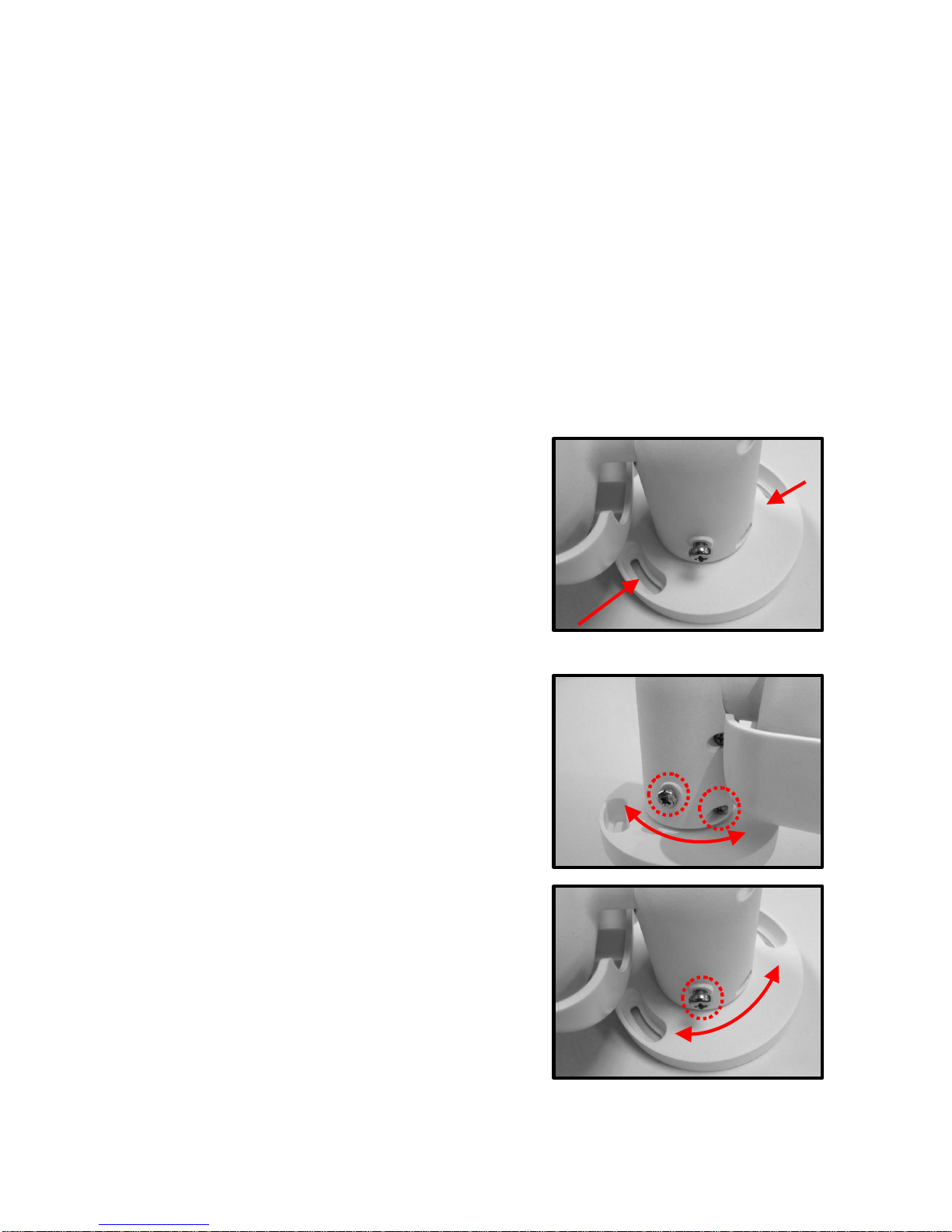
If the screw holes are blocked by the
camera body, loosen the three screws
shown in the right figures but do not
detach it. Then rotate the camera body to
reach the screw holes.
Ce manuel convient aux modèles suivants
1
Table des matières


