
MediaTech MT4160 Manuel utilisateur

User Manual
CINEMA HQ
HD MULTIMEDIA PLAYER & DVB-T TUNER IN ONE
MT4160

2
EN Index
Index ................................................................................................2
Introduction ..................................................................................3
Front panel.....................................................................................3
Rear panel ......................................................................................3
Remote control ............................................................................4
Hardware conguration............................................................5
Connecting tuner to a TV .........................................................5
Software Conguration.............................................................6
Startup Menu................................................................................6
Installation .....................................................................................6
Watching TV ..................................................................................8
Changing channels.....................................................................8
Using Electronic Program Guide (EPG)................................8
Channel Manager........................................................................9
Preference ....................................................................................10
PVR File Format ..........................................................................15
Setting...........................................................................................16
AV menu .......................................................................................20
GAME .............................................................................................20
Using USB storage.....................................................................21
Recording.....................................................................................22
Using timeshift function.........................................................23
Exploring Media.........................................................................23
Playing Movies ...........................................................................24
Playing Music..............................................................................24
Photo Slideshow........................................................................25
Record Manager.........................................................................25
Audio mode.................................................................................26
INFO button.................................................................................26
Troubleshooting ........................................................................27
Technical Specication............................................................28

3
EN
Introduction
Front panel
Rear panel
On/O Enter button Channel
down/up
Volume
down/up
CD ashcard
socket
USB Port
Open menu Display
TV Scart
for connection to the TV
Progressive Scan Video (Y Pb Pr)
Component Video (Y Cb Cr)
AC MainsHDMI
output
TV aerial
for an external TV aerial
RF Loop
through for an external device
Coaxial Digital
Audio
Down Mix Audio
2 Channel L/R
Composite
Video

4
EN Remote control 1. STANDBY On/O
2. Number Key pad
3. RECORD
4. EPG (Electronic Programme Guide)
5. MENU
6. Navigation keys (left, right, up, down)
7. VOL- (Volume Down) / VOL+ (Volume Up)
8. RED/GREEN/YELLOW/BLUE – interactive buttons / sub-
menu / Teletext Navigation
9. TTX (Teletext)
10. SUBTITLE
11. GOTO (goto desired mark when playing)
12. TV (enter TV menu)
13. ZOOM (set zoom in full-screen display)
14. DEVICE (access plugged devices)
15. STOP (stop program or movie playing)
16. PLAY/PAUSE (play movie or enable/disable timeshift)
17. INFO (display program information)
18. MUTE (enable/disable mute)
19. RECALL (return to previous menu)
20. AUDIO (audio mode operation)
21. EXIT (exit to full-screen display)
22. P+/P- (next/previous channel)
23. FAV (show favorite channel list)
24. TV/RADIO (switch between TV and Radio mode)
25. DIGEST (channel preview)
26. MEDIA (media operation)
27. PREV (previous chapter)
28. NEXT (next chapter)
29. FR (Fast rewind)
30. FF (fast forward)

5
EN
Hardware conguration
Connecting tuner to a TV
Connect tuner to your TV with SCART, HDMI, component or composite cable as shown below.
Note: Use only one type of connection!
AUDIO R
SPDIF SCART-TVANT IN LOOP UOT
AUDIO L CVBS
Pr Pb Y
HDMI
RED BLUE GREEN
TV
AUDIO RIGHT
ANTENNA
HDMI CABLE SCART CABLE
AC MAINS
AUDIO LEFT
VIDEO CVBS
COMPOSITE CABLE

6
EN Software Conguration
Startup Menu
If you rst time turn on tuner there will be shown “Init
Install” menu. Then with navigation keys setup major
options: OSD LANGUAGE, COUNTRY, TIME ZONE, LCN
(select LCN ON if your antenna requires power sup-
ply), then select START SEARCH and press OK to enable
channel autoscanning procedure.
Wait until scanning is nished. Device now will auto-
matically show rst channel from the list. Now tuner is
ready to work.
Installation
1. Press MENU button on the remote.
2. With UP/DOWN keys choose „Installation” menu,
press RIGHT to accept.
3. Use UP/DOWN to select proper submenu and press
OK.
4. Press EXIT to leave menu.

7
EN
Auto Channel Scanning (AutoSearch)
1. Select „Auto Search” option and press OK.
2. Using navigation keys to choose “Yes” option and
press OK to conrm.
Manual Channel Scanning
1. Choose „Manual Search” menu and press OK
2. Enter default password “0000” and press OK.
3. Select “Channel No.” to choose desired channel
number, next select “Frequency” – use key pad but-
tons to enter desired value. Next select “Bandwidth”
and then select “Start Search” and press OK to start
manual search.
8
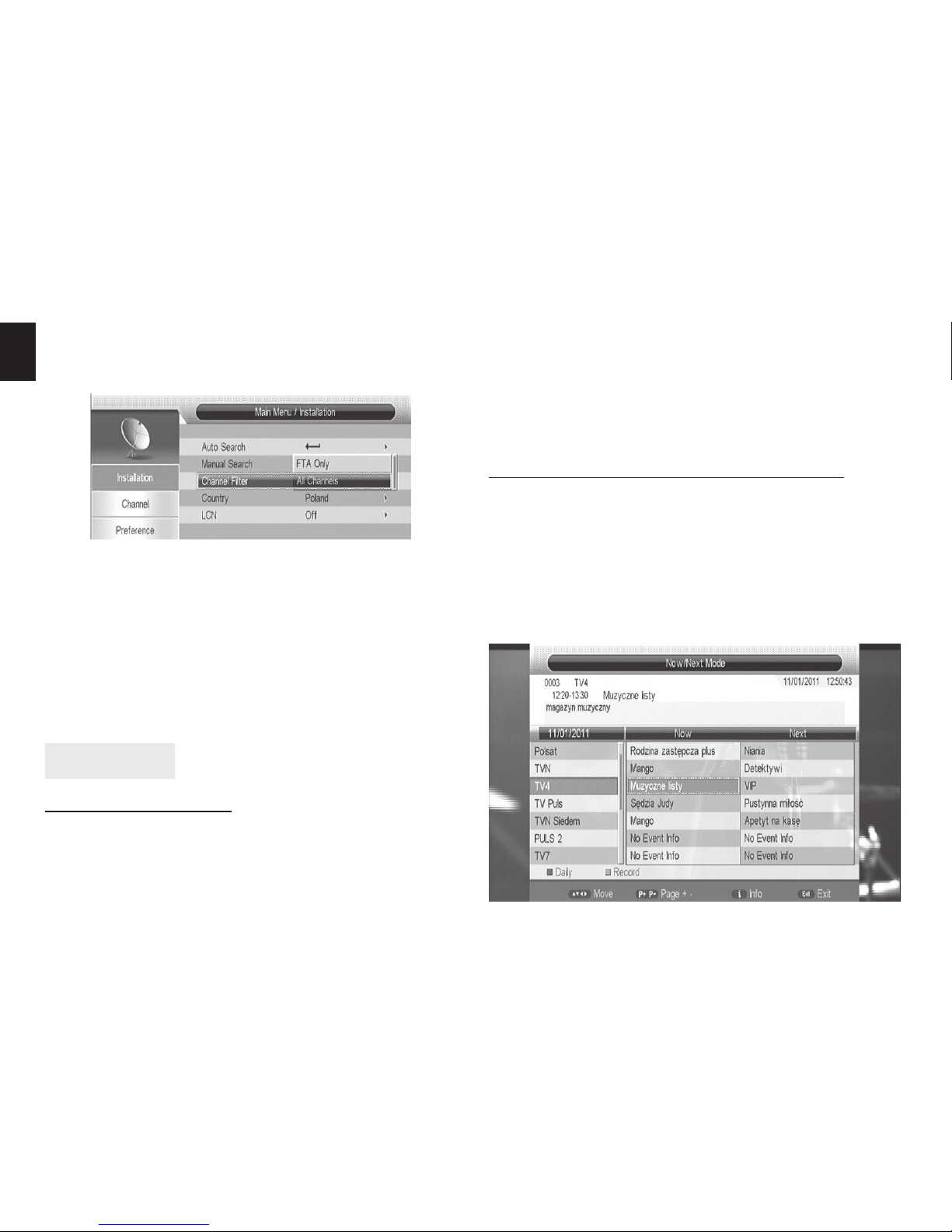
EN Channel lter
Choose „Channel Filter” to scan for all channels or only
for FTA channels.
Country
Use navigation keys to select country where you are
receiving DVB-T signal.
LCN
Select option “ON” if your antenna requires power sup-
ply +5V provided via antenna cable. If your antenna is
already powered or does not require power supply set
this option to “OFF”.
Watching TV
Changing channels
You can select the channel you wish to watch in 3 ways:
1. By pressing CH- / CH+ buttons on remote.
2. Enter channel number manually using numeric keys
on remote.
3. Choose channel from channel list on the menu.
When in Full-screen mode press OK button, channel
list will pop up. Use LEFT/RIGHT navigation keys to
switch channel list and then use UP/DOWN naviga-
tion keys to select channel and then press OK again
to conrm.
Using Electronic Program Guide (EPG)
1. Press EPG button on remote.
2. Use UP/DOWN keys to explore list of available chan-
nels. Use LEFT/RIGHT keys to navigate program list.
3. Press GREEN button to start recording selected pro-
gram, when prompted choose “Yes”to conrm .
4. Press RED button to switch list between “daily”,
”weekly”, “now/next” mode.

9
EN
5. Press INFO button to extend program description.
Press again to close info window.
Note! EPG information is available only for channels
that are broadcasted with EPG feature. Content and
available range of information may be dierent for
particular channels.
Note! Record option activated from EPG level is
available for current programs, for others you can
set “reminder” – when selected program begins a
message window will pop-up.
6. Press EXIT button to close EPG window.
Channel Manager
1. Press MENU button on remote to enter main menu.
2. Use UP/DOWN keys to highlight „Channel Manager”
option, next press RIGHT button to continue
3. Use UP/DOWN keys to select an item and press OK.
Now you can move up or down selected channel on
the list. Press OK again to put deselect channel.

10
EN 4. You can lock selected channel pressing RED button.
Enter password (default password is “0000”) and.
5. You can delete selected channel, press GREEN but-
ton. When exiting menu conrmation message will
appear – select YES and press OK.
6. You can tag selected channel to be skipped when
changing channels, press YELLOW button.
7. You can rename selected channel, press BLUE but-
ton.
8. Press EXIT to leave menu.
Favorite List
1. Press MENU button on remote to enter main menu.
2. Use UP/DOWN keys to highlight „Channel – Favorite
List” option, next press RIGHT button to continue
3. Use RED, GREEN, YELLOW and BLUE button to assign
selected channels into four dierent favorite chan-
nels list. Press EXIT when nished.
Preference
Properties will allow you to set general preferences.
1. Press MENU button on remote to enter main menu.
2. Use UP/DOWN keys to select „Preference” menu,
press RIGHT to continue.
3. Use UP/DOWN keys to select submenu and press OK.
4. To exit menu press EXIT button.
OSD Language
This option allows to change the on-screen display lan-
Table des matières
Autres manuels MediaTech Lecteur multimédia


