MaNima Technologies
8 Hastelweg 260B
5652CN Eindhoven
Here it is possible to change the name of the device, perform a
(factory) reset and to change the global dimming.
Here it is possible to change the name of the device, perform a
(factory)reset and to change the global dimming.
Here it is possible to change the name of the device, perform a
(factory)reset and to change the global dimming.
The update tab is used to keep the software version of the
MaNima Magnus up to date.
The Update tab is used to keep the Software version of the
MaNima Digital LED Interface up to date.
The Update tab is used to keep the Software version of the
MaNima Digital LED Interface up to date.
The Update tab is used to keep the Software version of the
MaNima Digital LED Interface up to date.
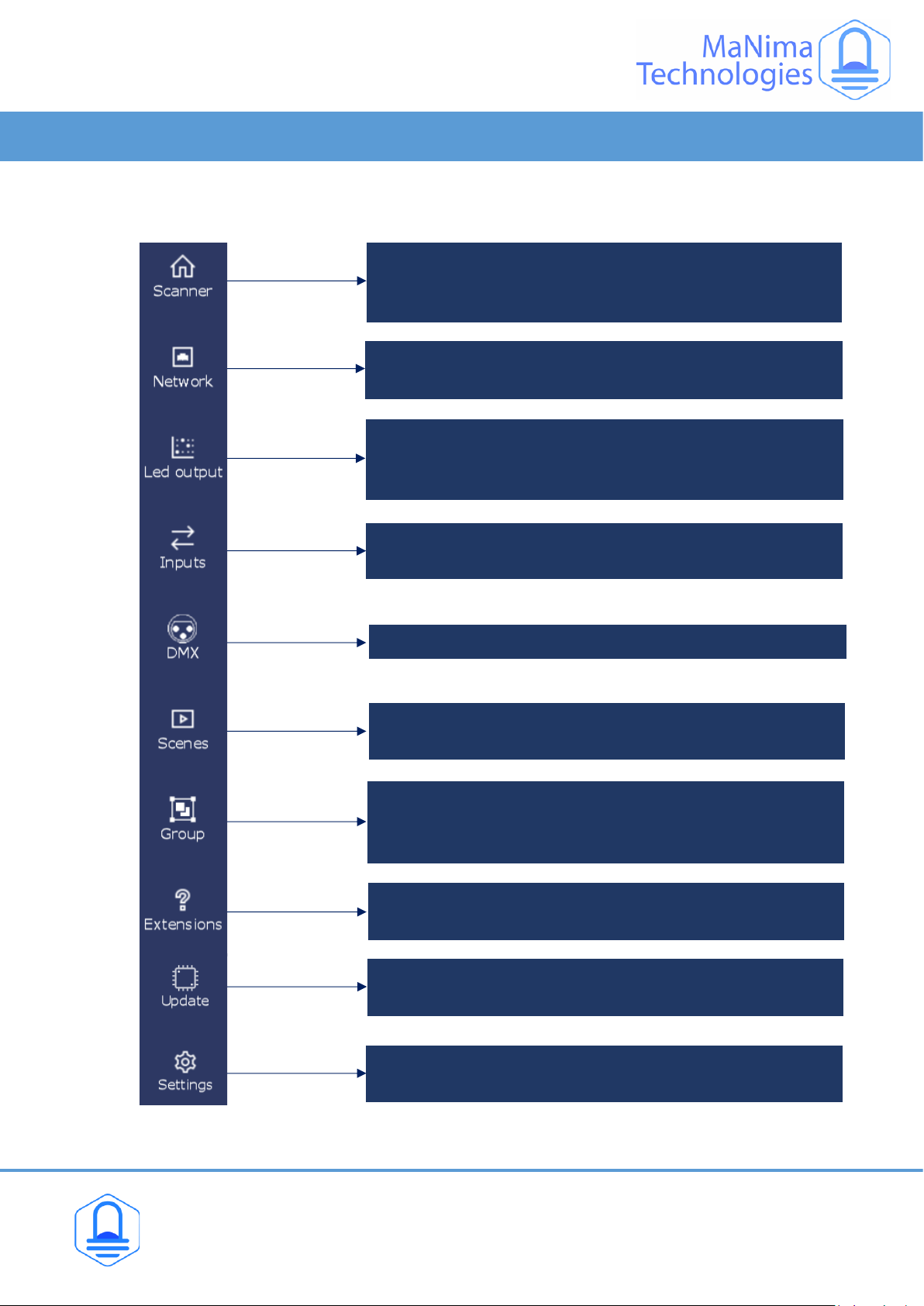
This tab is used to configure the analog and digital inputs of the
MaNima Magnus.
This tab is used to configure the Analog and Digital inputs of the
MaNima LED Interface
This tab is used to configure the Analog and Digital inputs of the
MaNima LED Interface
This tab is used to configure the Analog and Digital inputs of the
MaNima LED Interface
This tab is used to configure the analog and digital inputs of the
MaNima Magnus.
This tab is used to configure the Analog and Digital inputs of the
MaNima LED Interface
This tab is used to configure the Analog and Digital inputs of the
MaNima LED Interface
This tab is used to configure the Analog and Digital inputs of the
MaNima LED Interface
This tab is used to configure the analog and digital inputs of the
MaNima Magnus.
With the scenes tab the user can add .REC files to different
players. Recording is also done with this tab.
With the scenes tab the user can add .REC files to different
players. Recording is also done with this tab.
With the scenes tab the user can add .REC files to different
players. Recording is also done with this tab.
With the scenes tab the user can add .REC files to different
players. Recording is also done with this tab.
With the scenes tab the user can add .REC files to different
players. Recording is also done with this tab.
With the scenes tab the user can add .REC files to different
players. Recording is also done with this tab.
With the scenes tab the user can add .REC files to different
players. Recording is also done with this tab.
The DMX is used to configure DMX modes.
The DMX is used to configure DMX modes.
The DMX is used to configure DMX modes.
The DMX is used to configure DMX modes.
The DMX is used to configure DMX modes.
The DMX is used to configure DMX modes.
The DMX is used to configure DMX modes.
The DMX is used to configure DMX modes.
The DMX is used to configure DMX modes.
The DMX is used to configure DMX modes.
Mapping is the tab used to configure each port of the MaNima
Magnus. Universes can also be added, deleted and changed
here. Chipsets and colour sequences are also found here.
Mapping is the tab used to configure each port of the MaNima
LED Interface. universes can also be added, deleted and changed
here. Chipsets & colour sequences are also found here.
Mapping is the tab used to configure each port of the MaNima
LED Interface. universes can also be added, deleted and changed
here. Chipsets & colour sequences are also found here.
Mapping is the tab used to configure each port of the MaNima
LED Interface. universes can also be added, deleted and changed
here. Chipsets & colour sequences are also found here.
Mapping is the tab used to configure each port of the MaNima
Magnus. Universes can also be added, deleted and changed
here. Chipsets and colour sequences are also found here.
Mapping is the tab used to configure each port of the MaNima
LED Interface. universes can also be added, deleted and changed
here. Chipsets & colour sequences are also found here.
Mapping is the tab used to configure each port of the MaNima
LED Interface. universes can also be added, deleted and changed
here. Chipsets & colour sequences are also found here.
Mapping is the tab used to configure each port of the MaNima
LED Interface. universes can also be added, deleted and changed
here. Chipsets & colour sequences are also found here.
Network is the tab used to select DHCP and to configure IP-
addresses manually.
Network is the tab used to select DHCP and to configure IP-
addresses manually.
Network is the tab used to select DHCP and to configure IP-
addresses manually.
Network is the tab used to select DHCP and to configure IP-
addresses manually.
Network is the tab used to select DHCP and to configure IP-
addresses manually.
Network is the tab used to select DHCP and to configure IP-
addresses manually.
Network is the tab used to select DHCP and to configure IP-
addresses manually.
Network is the tab used to select DHCP and to configure IP-
addresses manually.
Network is the tab used to select DHCP and to configure IP-
addresses manually.
Network is the tab used to select DHCP and to configure IP-
addresses manually.
Network is the tab used to select DHCP and to configure IP-
addresses manually.
The MaNima Configurator- The UI (User Interface)
The MaNima Configurator- The UI (User Interface)
The MaNima Configurator- The UI (User Interface)
The MaNima Configurator- The UI (User Interface)
On the left side of the MC window there are multiple tabs which are used to
configure the MaNima Magnus. A short explanation is given to each tab below:
On the left side of The MC window there are multiple tabs which are used to
configure the MaNima LED Interface. A short explanation is given to each tab below:
On the left side of The MC window there are multiple tabs which are used to
configure the MaNima LED Interface. A short explanation is given to each tab below:
On the left side of The MC window there are multiple tabs which are used to
configure the MaNima LED Interface. A short explanation is given to each tab below:
On the left side of the MC window there are multiple tabs which are used to
configure the MaNima Magnus. A short explanation is given to each tab below:
On the left side of The MC window there are multiple tabs which are used to
configure the MaNima LED Interface. A short explanation is given to each tab below:
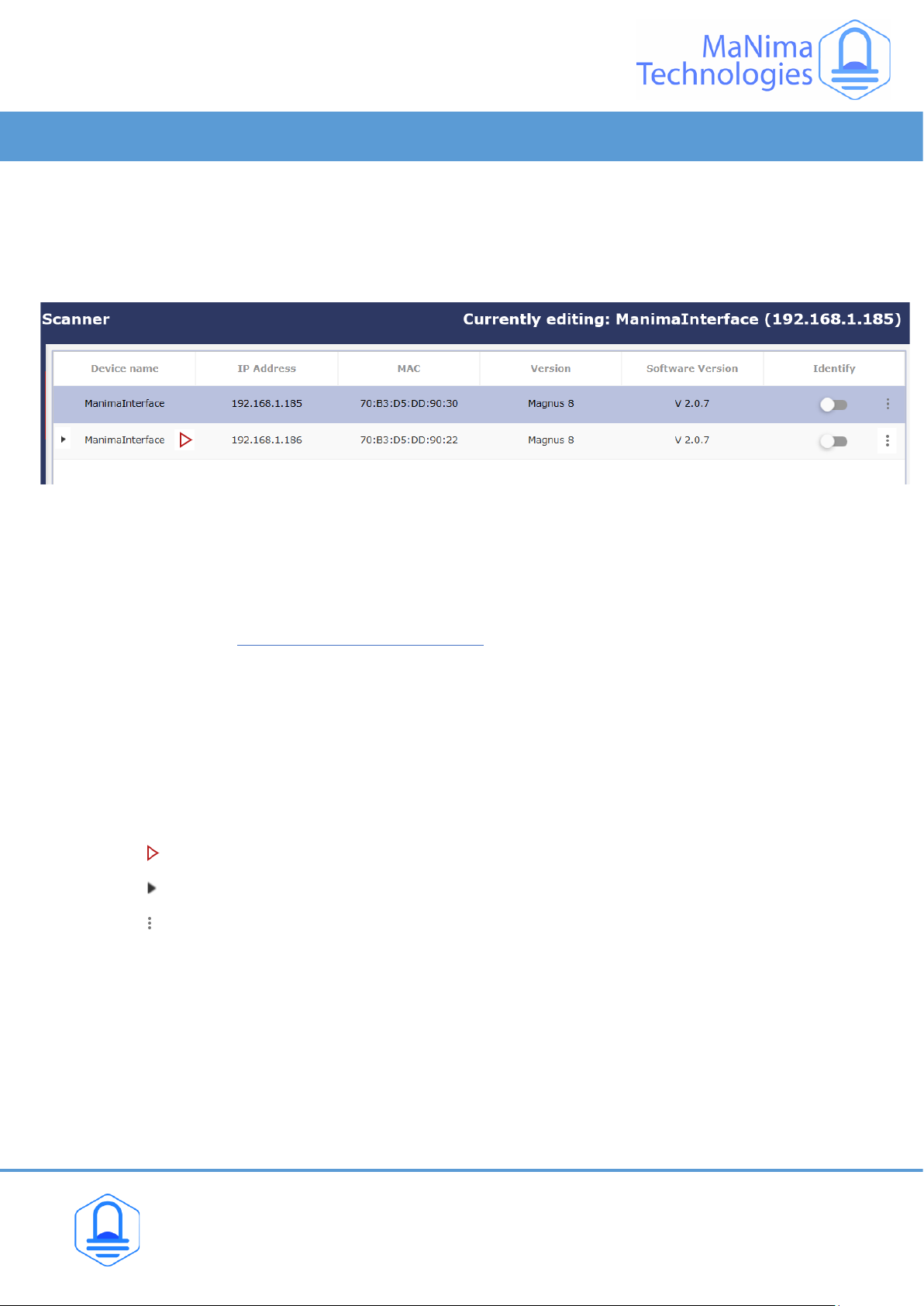
The scanner is the tab where the user can find and select the
different MaNima LED Interfaces that are connected to the same
network. This is also the homepage.
The scanner is the tab where the user can find and select the
different MaNima LED interfaces that are connected to the same
network. This is also the homepage.
The scanner is the tab where the user can find and select the
different MaNima LED interfaces that are connected to the same
network. This is also the homepage.
The scanner is the tab where the user can find and select the
different MaNima LED interfaces that are connected to the same
network. This is also the homepage.
Network is the tab used to select DHCP and to configure IP-
addresses manually.
The scanner is the tab where the user can find and select the
different MaNima LED Interfaces that are connected to the same
network. This is also the homepage.
The scanner is the tab where the user can find and select the
different MaNima LED interfaces that are connected to the same
network. This is also the homepage.
The scanner is the tab where the user can find and select the
different MaNima LED interfaces that are connected to the same
network. This is also the homepage.
The scanner is the tab where the user can find and select the
different MaNima LED interfaces that are connected to the same
network. This is also the homepage.
Network is the tab used to select DHCP and to configure IP-
addresses manually.
Use a group to make several interfaces work together. This is
used when using synchronised recording and synchronised
playback.
Use a group to make several interfaces work together. This is
used when using synchronised recording and synchronised
playback.
Use a group to make several interfaces work together. This is
used when using synchronised recording and synchronised
playback.
Use a group to make several interfaces work together. This is
used when using synchronised recording and synchronised
playback.
Use a group to make several interfaces work together. This is
used when using synchronised recording and synchronised
playback.
Extensions, such as the MaNima Pollux, can be added and
configured in this tab.
The Update tab is used to keep the Software version of the
MaNima Digital LED Interface up to date.
The Update tab is used to keep the Software version of the
MaNima Digital LED Interface up to date.
The Update tab is used to keep the Software version of the
MaNima Digital LED Interface up to date.
The MaNima Configurator-
ScannerExtensions, such as the MaNima Pollux, can be