
MAJORITY SCH-DVD-BLK Manuel

SCH-DVD-BLK
SCHOLARS
DVD PLAYER
Instructions Guide

Controls And Funcons���������������������������������������������� 1
What’s In The Box?��������������������������������������������������� 6
Support ���������������������������������������������������������������������7
Instrucons Guide ���������������������������������������������������� 8
Geng Started ��������������������������������������������������������� 8
DVD Operaon ���������������������������������������������������������� 9
USB Operaon ��������������������������������������������������������� 10
Playing JPEG/Picture CD discs and MP3 discs �����������11
System Set-up ���������������������������������������������������������� 13
Menu 1: General Set-up ������������������������������������������� 14
Menu 2: Audio Set-up ���������������������������������������������� 16
Menu 3: Dolby Digital Set-up ����������������������������������� 17
Menu 4: Video Set-up ���������������������������������������������� 18
Menu 5: Preference Set-up �������������������������������������� 19
Troubleshoong ������������������������������������������������������ 21
Specicaon������������������������������������������������������������ 22
Warranty ����������������������������������������������������������������� 22
Safety Informaon��������������������������������������������������� 23
Contents
Watch video tutorials and register
your product for a FREE 3-year warranty
at www.majorityradios.co.uk
YEAR
WARRANTY
1
Controls And Funcons
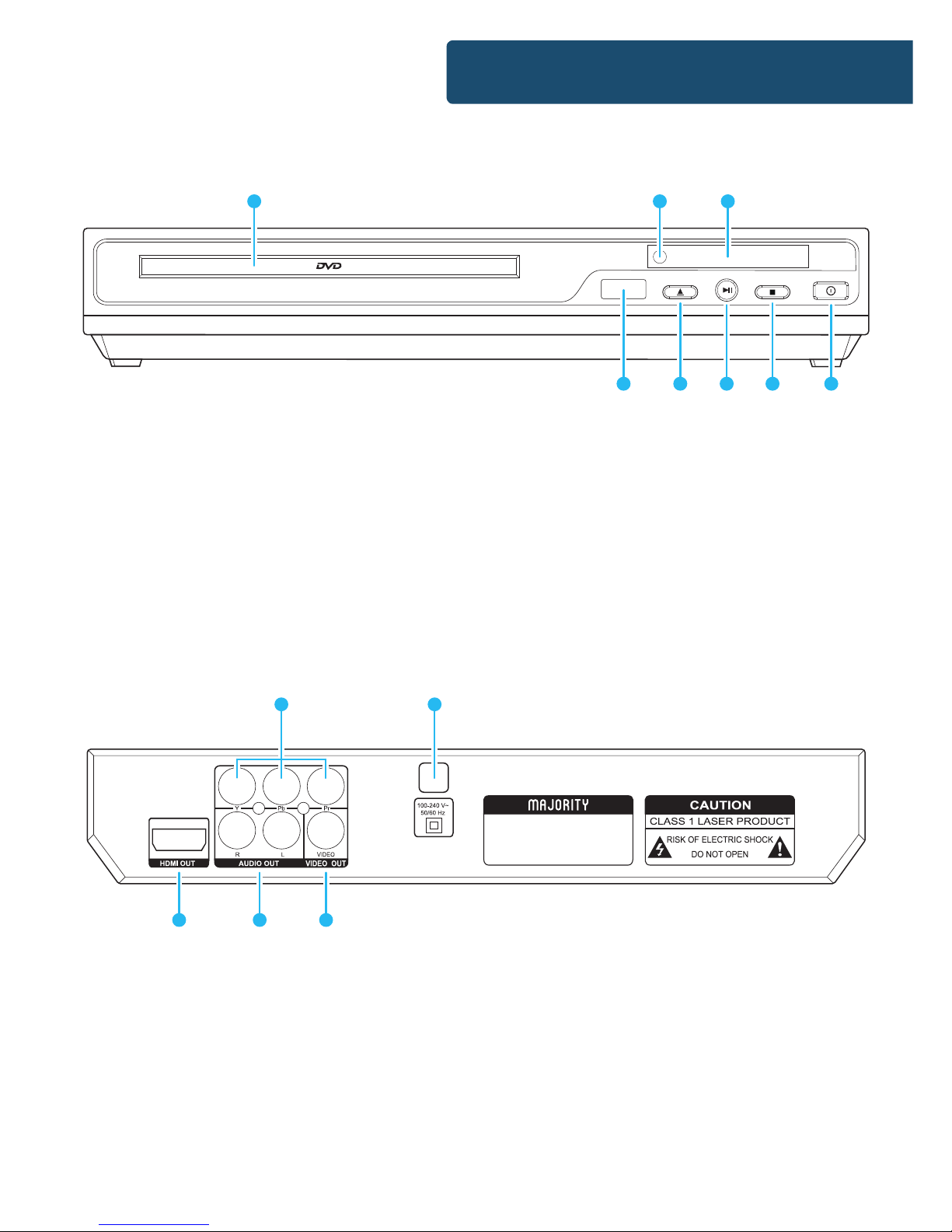
Rear Panel
Front Panel
OPEN/CLOSE
USB
PLAY/PAUSE STOP
POWER
1 2 3
4 5 6 7 8
9. (Y.Pb/Cb.Pr/Cr) Output
10. Power Cable Outlet
11. HDMI Output
12. 2 x Audio Output ports
13. Video Output
1. DVD Tray
2. Remote Sensor
3. Display
4. USB Port
5. Open/Close
6. Play/Pause
7. Stop
8. Power On/O
MODEL:SCH-DVD-BLK
POWER SOURCE:100-240V ~ 50/60HZ
POWER CONSUMPTION:≤15W
11 12 13
910

2
Controls And Funcons
Remote Control
1
2
3
4
5
6
7
8
9
10
13
12
14
16
18
11
15
17
20
21
22
23
26
25
27
29
30
33
32
34
36
38
31
35
37
19 39
24
28

3
1. POWER ON/OFF
Press to Power On, press again for
Standby mode.
2. OSD
Press for information of the disc to
display
3. STEP
Press to play picture by picture. Press
Play to return to normal playback.
4. DVD/USB
Press to switch between DVD and
USB play.
5. MUTE
Mute sound during playback
6. TITLE
When using DVDs, press to return to
the title menu.
7. LEFT (<)
Left direction within selection menu
8. SETUP
Press to get into Set Up menu
9. L/R
Use for VCD or CD discs. Press button
to select left or right channel, or
stereo
10. PREVIOUS (I<<)
In DVD mode, press to go to previous
chapter. With SVCD, VCD, CD, MP3
discs, press to go to previous track.
11. VOLUME DOWN (-)
Decrease volume
12. NEXT (>>I)
In DVD mode, press to go to next
chapter. With SVCD, VCD, CD, MP3
discs, press to go to next track.
13. PLAY/PAUSE
Press once to pause, press again to
play
14. VIDEO
Switch to video output mode (cvbs.
yuv.rgb)
15. PROGRAMME
If the disc has two or more tracks,
chapters, or titles, set up playing
order preference. Press the button to
then input the number of the track,
title or chapter. If the programmed
tracks are over 10, press ‘Next’ to
go on programming. Use the up/
down/left/right key to move the
cursor to ‘Start’. Press‘Enter’ to start
programmed play.
With MP3 discs, press the button to
enter ‘Directory-Play’ mode. Press
‘Programme’ again to enter le-list
mode.
16. REPEAT
Press repeatedly in DVD mode to
scroll through: repeat a title, chapter,
track or to the beginning. In SVCD,
VCD or CD mode: track repeat, all
repeat or repeat cancel.
17. PBC
VCD mode: Playback control
Controls And Funcons

4
18. LANGUAGE
Press to select on-screen display
language options
19. SUBTITLE
Press to begin showing subtitles
20. OPEN/CLOSE
Press to load and remove discs. Place
disc into tray with the title side facing
up. Press button again to close.
21. NUMBERS 0-9/10+
While playing DVD/VCD/CD/MP3
discs, use key to select desired track/
chapter in menu selection.
22. TIME
Press to manually set up the time on
the DVD player display unit
23. MENU
Enter menu settings in DVD mode
24. UP (^)
Up direction within selection menu
25. RIGHT (>)
Right direction within selection menu
26. ENTER
Conrm your selection
27. ZOOM
Press to zoom in, press again to zoom
out. Use arrow keys to move picture.
28. DOWN
Down direction within selection
menu
29. N/P
Press to switch the TV system
between NTSC and PAL.
30. REWIND
Press for rewind search
31. VOLUME UP (+)
Increase volume
32. FASTFORWARD
Press for quick forward search
33. STOP
Press to stop media. Press the Play/
Pause button to resume.
34. A-B
Press to repeat certain sections. Press
button on start point (A) and the end
point (B) to select section. Cancel by
pressing button a third time.
35. CLEAR
Press to clear input selections
36. SLOW
Press to select slow speed playing.
37. RETURN
Press to return to VCD menu.
38. RESET
Press to reset your DVD player
settings
39. ANGLE
Change angle in DVD mode
Controls And Funcons

5
Insert the batteries into the battery compartment. 2 x AAA
batteries are required.
Point the remote at the remote sensor in front of the player and
make sure there are no obstacles in the way between the remote
and the player. The distance between the remote and the sensor
must not exceed 3m.
To prevent damage to the remote control, please remove the
batteries when not in use for long periods of time.
Controls And Funcons
Remote Control Operation

OPEN/CLOSE
USB
PLAY/PAUSE STOP
POWER
1. Majority Scholars DVD Player
2. Remote Control
3. RCA AV cable
4. Instruction Manual
1. Majority Scholars DVD Player
2. Remote Control
3. RCA AV Cable
4. Instruction
Guide
6
Box Contents
What’s In The Box?

7
Thank you for your purchase of the Majority Scholars DVD player.
Please follow the guidance of the manual to set up your new
purchase and begin enjoying its features.
If you require further assistance with your new DVD player,
please contact our support team on the Majority website:
https://www.majorityradios.co.uk/support
Support
Support

8
Instrucons Guide
Setting Up
Connect the power plug of the DVD player to a wall outlet. The
power indicator and clock on the front panel will illuminate.
Follow the below guidance for cable connections to get your
DVD player set up:
Cable Connection Options:
1a. Connect a RCA cable between the 2 channel Audio Output
port and the RCA input on your TV.
1b. Connect a HDMI cable between the HDMI Output on the
back panel of the DVD player to the HDMI input on your TV.
1c. Connect a (Y Pb /Cb Pr /Cr) cable via the (Y/ Cb/Pb Cr/Pr)
Output of the DVD player to your TV (R/L/Video port and cable).
Getting Started
Table des matières
Autres manuels MAJORITY Lecteur DVD


