
Lucent Technologies MLS Manuel utilisateur

®
Understanding
Your Phone
Basic Phone
Functions
Using Features
(reverse side)
Feature & Programming
Codes (reverse side)
How to Use Your
ETR or MLS
Phone
with MERLIN LEGEND
555-670-151
COMCODE 108370362
Issue 1
April 1999
To order additional
ETR or MLS tray cards,
please call 800-457-1235
and reference document
number 555-670-151.
Copyright 1999
Lucent Technologies
All Rights Reserved

UnderstandingYour Phone
LINE All Telephones
BUTTONS
NNN-XXXX
Make/receive outside calls only.
Telephones with ICOM Buttons
ICOM Ring
Make/receive inside ringing calls
and receive inside voice-announced calls.
ICOM Voice
Make inside voice-announced
calls and receive inside ringing and voice-
announced calls.
ICOM Originate Only Make (not receive)
inside calls only.
Telephones with System Access
(SA) Buttons
SA buttons give you access to inside or
outside lines for making and/or receiving
calls. To make an outside call on an SA
button, first dial the dial-out code (usually
9) that your system manager supplies. No
dial-out code is necessary when you call
another extension.
SA Ring
Make/receive inside/outside
ringing calls and receive inside
voice-announced calls.
SA Voice Make/receive outside calls;
receive inside ringing and voice-announced
calls; make inside voice-announced calls.
SA Originate Make (not receive) inside
and outside calls only.

UnderstandingYour Phone
LINE Telephones with System Access
BUTTONS (SA) Buttons continued
Shared SA SSA
Make/answer calls for
co-workers or join conversations. Line is
shared with another co-worker(s). One
person has an SA button that is shared
with one or more others who have SSA
buttons corresponding to it. See Rings for
information about how calls ring at these
buttons.
Pool Make/receive outside calls only.
Use the dial-out code supplied by your
system manager.
LINE Steady red
BUTTON
The line you are using or will use when
LIGHTS
you lift the handset or press
Spkr
.
Steady green
The line is in use, or the feature
programmed onto the line button is on.
Flashing green
An incoming call is ringing on this line
button or a call you transferred is
returning to this line button
.
Fast-flashing green
You have put a call on hold on this line button.
Slow-flashing green
Someone else has put a call on hold on this
line button.
UnderstandingYour Phone
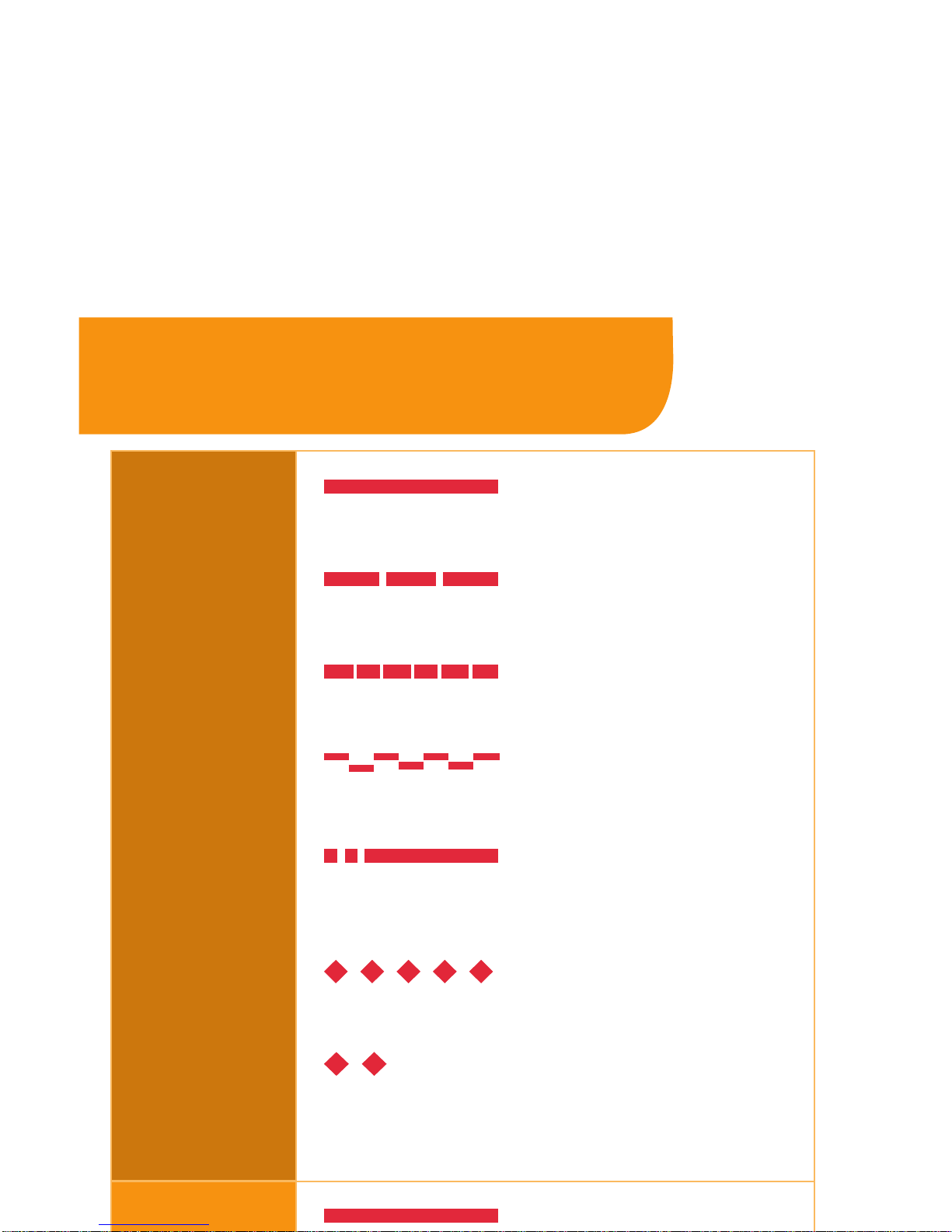
TONES
Dial tone (steady)
You can make a call.
Busy (slow repeating tone)
The phone you are calling is busy.
Fast busy (fast repeating tone)
No lines are available.
Error (alternating high-low tones)
You dialed or used a feature incorrectly.
Confirmation (double break in
dial tone followed by steady tone)
You used a feature correctly.
Callback (5 short beeps)
This call is receiving Callback treatment.
Call Waiting (1 or 2 beeps)
You have an inside (1 beep) or an
outside (2 beeps) call waiting.
RINGS
1 long ring
Inside call.
1 short ring and 1 long ring
Outside call.
1 long ring and 3 short rings
Outside call transferred, returning
transferred call, or returning Callback call.

Basic Phone Functions
MAKE
If you are using a headset, you must
A CALL
lift the handset to make or answer a
call and replace the handset to hang up.
To make an outside call:
•
Press the line button, then press
Spkr
,
or lift the handset.
If required, dial the outside line
code, usually
9
.
To make an inside call:
•
Press an
SA
or
ICOM
button.
•
Press
Spkr
or lift the handset.
•
Dial the extension.
ANSWER To answer an outside or inside call:
A CALL
•
Press
Spkr
or lift the handset.
To enable Hands-Free Answer
on Intercom:
•
Press
Mic/HFAI
which allows you to
respond to voice-signaled (not ringing)
intercom calls without having to lift
the handset or press any buttons.
USE
•
Press
Hold
.
THE HOLD
•
To retrieve a call from hold, while on
FEATURE the handset or speaker, press the line
button next to the fast-flashing ■
Green Light (a call you put on hold)
or the slow-flashing ■ Green Light (a
call put on hold at another extension).
While a call is on hold, your phone
beeps once each minute. The ETR
display briefly shows Call on Hold.

Basic Phone Functions
TRANSFER
Using the dialpad:
A CALL 1Press
Transfr
.
TO AN The system selects an
ICOM
or
SA
EXTENSION
button, and puts the call on hold.
2Dial the extension or outside number.
3Announce the call.
4Hang up.
To cancel or return to the call on hold,
press the button next to the flashing
■ Green Light
.
One-touch manual transfer:
1Press the programmed
AutoDial
button.
2Announce the call.
3Hang up.
One-touch auto transfers if
available:
•
Press the programmed
AutoDial
button.
TRANSFER 1Press
Feature
then the programmedA
A CALL TO
Direct Voice Mail
button,or select
A VOICE
DCVM
from the display.
MAILBOX 2Dial the extension number.
3Hang up.

Basic Phone Functions
MAKE A While connected to the first party:
CONFERENCE
1Press
Conf
.
CALL 2Connect with the next party.
3Press
Conf
again. Calls are now
conferenced.
Repeat steps to add up to a total of
2 outside and 2 inside connections.
To drop a participant:
1Press the programmed
ETR Drop
button.
2Press the line button used to connect
the party.
To put the conference on hold:
•
Press
Hold
.
To return to the conference:
•
Press any line button used to connect
a participant.
Do not press the programmed ETR Drop
button while the call is on hold.
To end the conference:
•
Hang up.
JOIN A A steady ■ Green Light on a line
CALL IN button indicates a call in progress on
PROGRESS another extension.
1Press the button next to
the ■ Green Light .
2Lift the handset or press
Spkr
.

Basic Phone Functions
FORWARD At your phone:
YOUR 1Press
Feature
3
3
or the
CALLS programmed
Forward
button.
2Dial the destination extension number
or, if allowed, the dial-out code,
outside number, and #.
At the destination extension:
1Press
Feature
3
4
.
2Dial the covering extension.
CANCEL
At your phone, to cancel...
FORWARDED
•Your own calls forwarding, press
CALLS
Feature
3
3
and your extension.
•All extensions forwarding to yours,
press Feature
3 4 .
•One extension forwarding to yours,
press
Feature
3 4 and the
forwarding extension number.
ADJUST
•
Adjust the ringer volume by pressing
THE
to increase or to decrease
VOLUME
while the phone is idle and the handset
is in its cradle.
•Adjust the speaker volume (while using
speaker) or handset volume (while
using handset) by pressing
to increase or to decrease.
ADJUST
THE
DISPLAY
•
Adjust display contrast by pressing
CONTRAST then to increase or
to decrease.
For ETR/MLS phones except
MLS-12D and MLS-34D.

Using Features
USE A To use a feature:
FEATURE
•
Press the programmed button;
CODE or press
Feature
and then the
feature code (see the following
pages) .
Features that dial numbers
automatically may need special
characters to allow for correct dialing
or system response.
•
Hold Inserts 1-5 sec. pause in dial
sequence. Multiple consecutive pauses
allowed.
P
displays.
•Conf Sends switchhook flash. Must
be first entry in sequence. Fdisplays.
•#Used to signal end of dialing
sequence or to separate grouped digits.
# displays.
PROGRAM To program features, extensions
A FEATURE and phone numbers:
BUTTON 1Label the button.
2Press
Feature
0
0
.
3Press the appropriate button.
4Dial the programming code (see the
following pages). If additional
numbers such as extensions are
needed, dial them too.
5To program another button, repeat
steps 1, 3, and 4; or exit by pressing
Feature
0
0
.

Feature&ProgrammingCodes
ACCOUNT + code +
CODE
AUTHORIZATION
+ code +
CODE
AUTO DIAL
Inside
+ extension
▼
Outside
+ number
▼
CALLBACK
Automatic Callback On
●
▲
Automatic Callback Off
●
▲
Selective Callback
CALL
Pick up call waiting call:
on:
●
WAITING ■
off:
●
CAMP-ON
▲
COVERAGE
Coverage Inside On
●
Coverage Inside Off
●
Buttons for covering calls:
▼
Primary Cover
+ sender's ext.
Secondary Cover
+ sender's ext.
Group Cover
+ sender's ext.
Buttons for sending calls:
▼
Coverage Off
Coverage VMS Off
(outside calls only)
◆
Display phones only.
■
Available only by using feature code.
▼
Must be programmed onto a line button.
●
U
se line button to program (turn on/off).
Setting not programmed onto line button.
▲
See your system manager for details.
Press , then... or Program a Button:
Ce manuel convient aux modèles suivants
1
Table des matières


