
LTE HEROSP001 Manuel utilisateur

HEROSP001
LTE smartphone
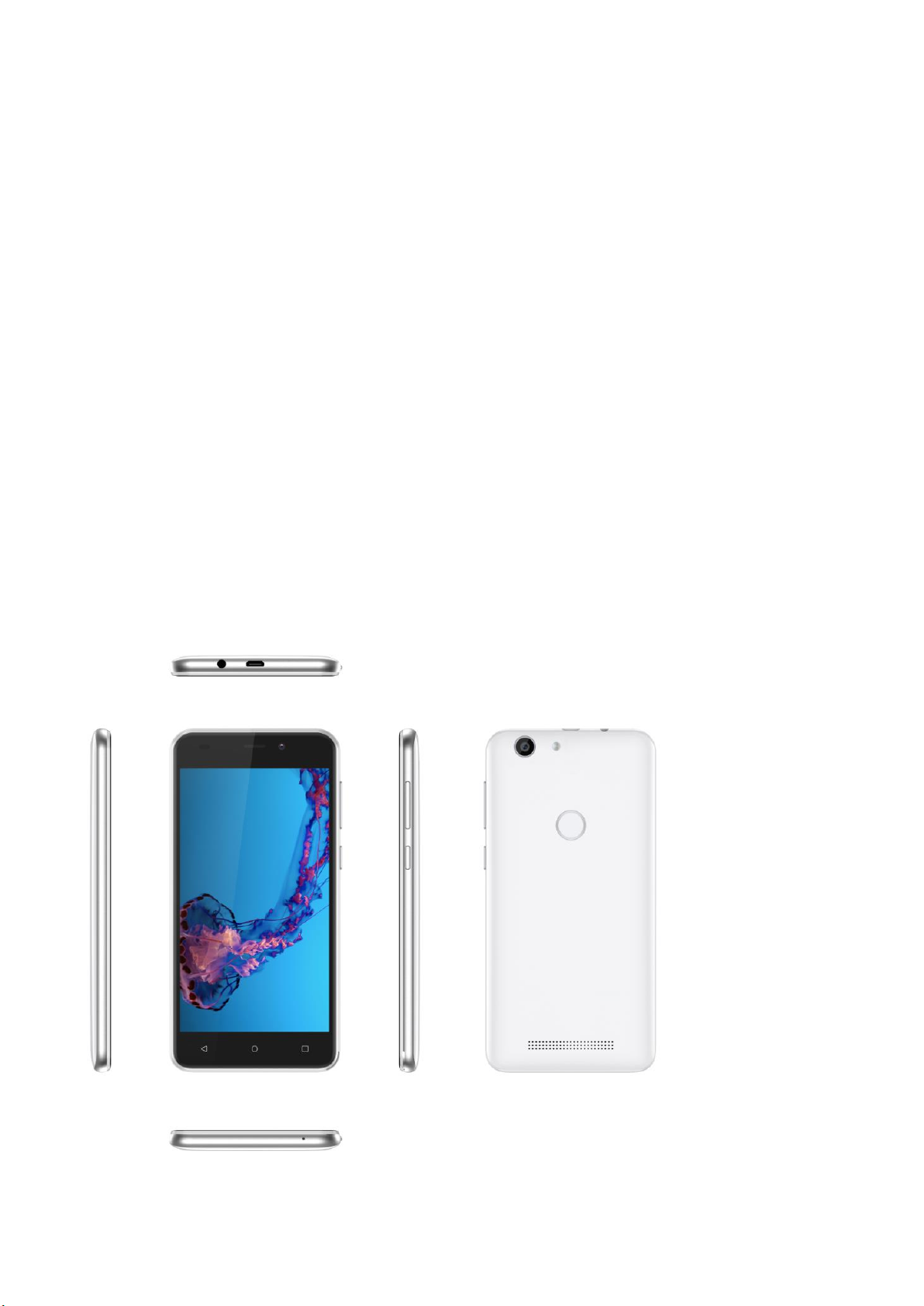
table of Contents
1. PRECAUTIONS...................................................................................................................................................................3
2. PARTS AND BUTTONS OF THE DEVICE................................................................................................................................4
3.TOUCH BUTTONS ...............................................................................................................................................................5
4. GETTING STARTED.............................................................................................................................................................5
5.HOME SCREEN...................................................................................................................................................................6
6.QUICK NOTIFICATION PANEL..............................................................................................................................................7
7. SETTINGS MENU ...............................................................................................................................................................8
8. INSERTING/REMOVING SIM CARDS.................................................................................................................................10
9. MAKING AND RECEIVING CALLS......................................................................................................................................11
10. ANSWERING AND REJECTING CALLS..............................................................................................................................12
11.Send message................................................................................................................................................................12
12. SOFTWARE KEYBOARD..................................................................................................................................................12
13. HOW TO CONNECT TO A COMPUTER.............................................................................................................................13
14. CONNECTION TO INTERNET...........................................................................................................................................14
15. MOBILE DATA AND INTERNET........................................................................................................................................15
16.BLUETOOTH...................................................................................................................................................................15
17. CAMERA .......................................................................................................................................................................15
18.Power “OFF”/ Restart...............................................................................................................................................17

1. PRECAUTIONS
1、On the Road
Using a device while driving is illegal in many countries. Please refrain from using yourmobile
while driving.
2、Near Sensitive Electronics or Medical Equipment
Don’t use your device near sensitive electronic equipment –particularly medical devices
such as pacemakers –as it could cause them to malfunction. It can also interfere with the
operationof fire detectors and other automatic-control equipment.
3、While Flying
Your device can cause interference with aircraft equipment. So it’s essential you follow
airline regulations. And if airline personnel ask you to switch off your device, or disable its
wireless functions, please do as they say.
4、At a Petrol Station
Don’t use your device at petrol stations. In fact, it’s always best to switch off whenever
you’re nearfuels, chemicals or explosives.
5、Making Repairs
Never take your device apart. Please leave that to the professionals. Unauthorised repairs
could break the terms of your warranty. Don’t use your device if the antenna is damaged, as
it could cause injury.
6、Around Children

Keep your mobile out of children’s reach. It should never be used as a toy as this is
hazardous.
7、Near Explosives
Turn off your device in or near areas where explosive materials are used. Always obey local
laws and turn off your device when requested.
8、Emergency Calls
To make an emergency call your device must be turned on and in an area where there’s
network coverage. Dial the national emergency number and press “Send”. Explain exactly
where you areand don’t hang up until help has arrived.
9、Working Temperature
The working temperature for the device is between 0 and 40 degree Celsius. Please don’t
use
the device outside the range. Using the device under too high or too low temperature might
cause problems.
At very high volume, prolonged listening to a mobile device can damage your hearing.
2. PARTS AND BUTTONS OF THE DEVICE
1、Front camera
2、Receiver
3、Touchscreen
4、Volume button
5、Power button
6、Earphone jack
7、Micro USB and charging port
8、Microphone
9、Rear camera
10、Flash
11、Speaker
3.TOUCH BUTTONS
The button moves back one step to the previous menu/page.
The button returns immediately to the main screen.
The button displays a menu of recently opened applications.(This interface adds a
“CLEAR ALL”button);
Long press into the Split screen interface(分屏)
4. GETTING STARTED
Installingthe micro-SIM Card
Insert SIM card on the right side of the phone,and the battery can not be disassembled
WARNING!
To avoid damage to the phone, do not use any other kind of SIM card, or any
non-standard micro-SIM card cut from a SIM card. You can get a standard
micro-SIM card from your service provider.
5.HOME SCREEN
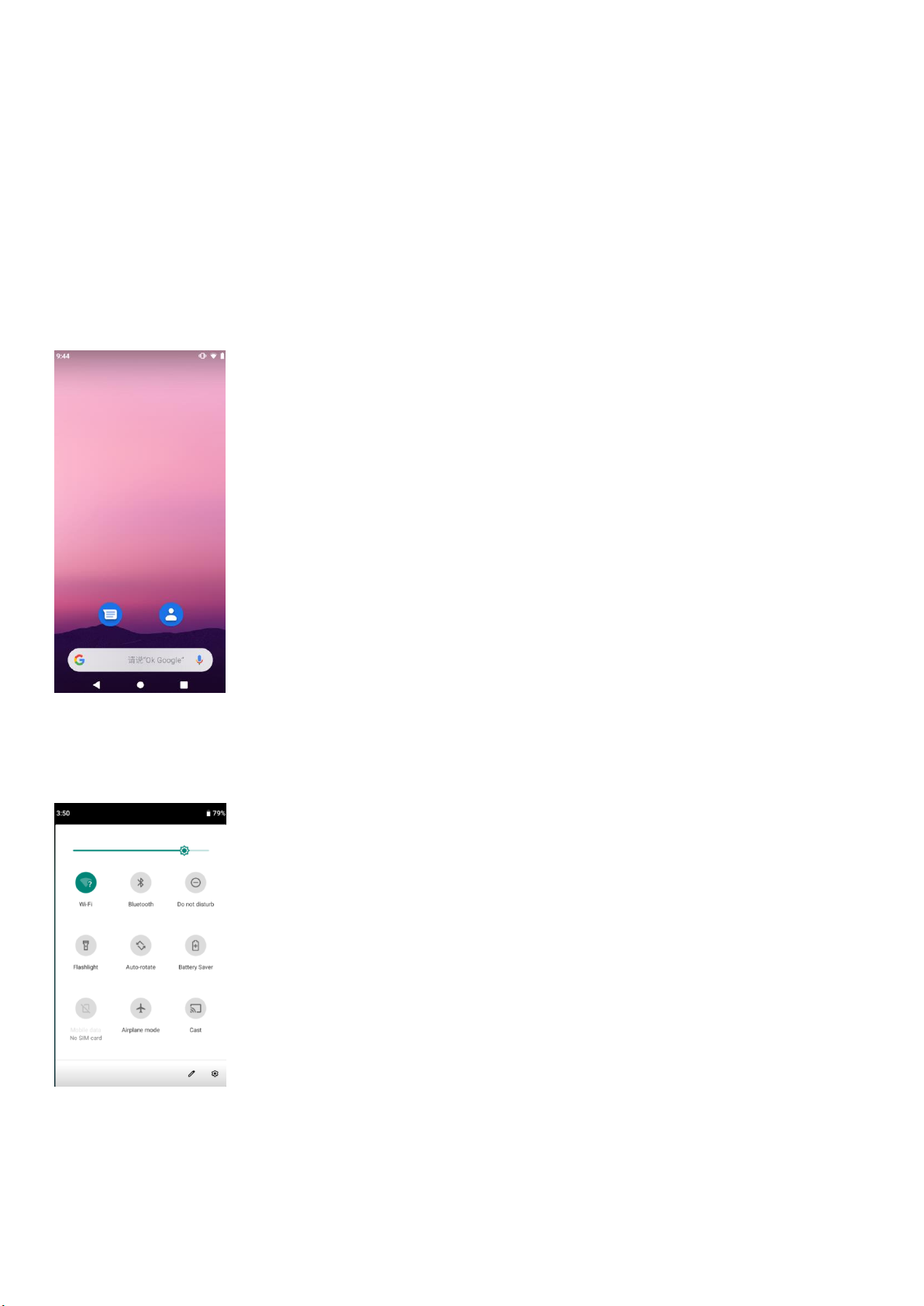
The home screen will look similar to the picture below. To switch between screens, simply
slide your finger left or right across the display.
The home screen contains shortcuts to your most-used applications and widgets.
The status bar displays system information, such as current time, wireless connectivity and
battery charge status.
6.QUICK NOTIFICATION PANEL
When you receive a notification you can quickly view it by following the below instructions.
Slide your finger from the top of the screen down to the center to access Notification Panel to
see your notifications.
Drag the notification menu down to display the second fast access menu, the menu willlook
similar to the below image.
Through this menu, it is possible to modify the functions such as brightness, auto rotation,
Wi-Fi, Bluetooth and more.

7. SETTINGS MENU
The settings menu allows you to adjust Tablet cellphone System Confguration.
1、Touch the “Settings” menu icon on the Application menu. The Settings menu
will open.
2、Touch a category title to view further options .
2.1. Network&Internet
• Wi-Fi –Connect to/disconnect from wireless networks, view connection status
•Moblie network - Insert SIM card and switch data network(2G/3G/4G)
• Data usage – Enable/disable mobile data, view current usage, set mobile data limit
(note: this function is available only on devices supplied with 3G card functionality)
•Hotspot & tethering - Including Usb tethering,Blutooth tethering and Wi-Fi hotspot.
•SIM cards - After inserting the SIM card to read the signal, it can be used and set related
information.
•Airplane - Turn on flight mode, the phone will be in no signal state.
2.2. Connected devices
• Bluetooth – Connect or disconnect Bluetooth devices .
•Connection preferences - Viewable Received Bluetooth Files
2.3. Apps & notifications
• Notifications –Adjust different notification settings
• Default app –A list of all apps downloaded and running

•App permissions - View app permissions
2.4. Battery- View power display and Settings
2.5.Display –This menu can set Brightness level, Night Light, Wallpaper, Sleep,etc .
2.6. Sound–Adjust the different audio settings such as ringtones
2.7.Storage –View your phone’s internal and external storage settings
2.8. DuraSpeed –“ON” / “OFF”
2.9. Security
•Security- There are four ways to lock the screen;
2.10. location
•location- Change approximate location detection, improve search results, GPS satellites .
2.11. Accounts
• Accounts – Add or remove email and Google accounts such as Gmail, Google.
2.12. Accessibility
•Accessibility - Set some accessibility features.
2.13.Digital Wellbeing and parental control
•Digital Wellbeing and parental control- Set the usage time or restrictions of the content in
the device to help children properly manage the use of the device.
2.14. Google
•Google - Google service
2.15. System
• Language and input – add to the dictionary, edit on-screen keyboard settings, vocal
search, etc.

•Gestures - Jump to camera:Press the power button twice to quickly turn on the camera
-Prevent ringing:Press the power button and the volume button at the same time. In any
ring mode, you can switch to the mode you chose before.
• Date and time – Set date, time zone, time, clock format etc.
•Backup– Backup and restore data, perform factory reset, etc.
• Reset options - Clear and reset data or records
If you want to reset the phone to factory settings and erase all materials, please press
Settings Backup and resetFactory data reset.
WARNING:
Factory Data Reset setting will delete ALL your data and system configuration as well as any
downloaded apps. Please use this function carefully.
•System updates - Check to update the system version
• About Phone – Displays information about your phone
8. INSERTING/REMOVING SIM CARDS
1、Use the supporting tools to take out the card on the right side of the phone, put it into the
SIM card and insert the card into the phone.
2、After inserting the SIM card, close the slot and wait a few minutes for your phone to display
Network information.
Inserting TF Card :
1、Use the matching tool to remove the card tray on the right side of the phone, insert the TF
Table des matières
Autres manuels LTE Téléphone portable


