
LRS LineShare 4.1 Manuel
Installation, Warranty and Service Information
Long Range Systems Inc.
4550 Excel Parkway, Suite 200
Addison, TX 75001
800.437.499 •www.pager.net
LineShare4.1
POWER
LineShare 4.1
O P E R AT O R ’ S G U I D E

Table Of Co te ts
Introduction to the LineShare 4.1 . . . . . . . . . . . . . . . . . . . . . . . . . . . . . . . . . . . 2
Before You Begin . . . . . . . . . . . . . . . . . . . . . . . . . . . . . . . . . . . . . . . . . . . . . . . . . . . . . 2
Important Notes . . . . . . . . . . . . . . . . . . . . . . . . . . . . . . . . . . . . . . . . . . . . . . . . . . . . . 2
Upacking the LineShare 4.1 . . . . . . . . . . . . . . . . . . . . . . . . . . . . . . . . . . . . . . . . 3
Ports on the LineShare 4.1 . . . . . . . . . . . . . . . . . . . . . . . . . . . . . . . . . . . . . . . . . 3
Placing the LineShare 4.1 . . . . . . . . . . . . . . . . . . . . . . . . . . . . . . . . . . . . . . . . . 4
Connecting the LineShare 4.1 . . . . . . . . . . . . . . . . . . . . . . . . . . . . . . . . . . . . . . 5
Installation on a Single Telephone Line . . . . . . . . . . . . . . . . . . . . . . . . . . . . . . . . . . . 5
Connecting the LineShare 4.1 to a DSL Phone Line . . . . . . . . . . . . . . . . . . . . . . . . . 5
Installation on a Telephone System . . . . . . . . . . . . . . . . . . . . . . . . . . . . . . . . . . . . . 6
Using the LineShare 4.1 . . . . . . . . . . . . . . . . . . . . . . . . . . . . . . . . . . . . . . . . . . 7
Standard Operation . . . . . . . . . . . . . . . . . . . . . . . . . . . . . . . . . . . . . . . . . . . . . . . . . . . 7
Special Operating Notes . . . . . . . . . . . . . . . . . . . . . . . . . . . . . . . . . . . . . . . . . . . . . . . 8
Answering Incoming Calls . . . . . . . . . . . . . . . . . . . . . . . . . . . . . . . . . . . . . . . . . . . . . 8
Retrieving Answering Machine Messages From a Remote Location . . . . . . . . . . . 9
Placing an Outbound Call . . . . . . . . . . . . . . . . . . . . . . . . . . . . . . . . . . . . . . . . . . . . . . 9
Receiving a Computer Call . . . . . . . . . . . . . . . . . . . . . . . . . . . . . . . . . . . . . . . . . . . . . 9
Dialing the Receiving Computer Through the Originating (Calling) Computer . . . 9
Distinctive Ring Service Compatibility . . . . . . . . . . . . . . . . . . . . . . . . . . . . . . . . . . . . 10
Remote Message Notification . . . . . . . . . . . . . . . . . . . . . . . . . . . . . . . . . . . . . . . . . . . 11
Troubleshooting . . . . . . . . . . . . . . . . . . . . . . . . . . . . . . . . . . . . . . . . . . . . . . . . 12
Regulatory Compliance Information . . . . . . . . . . . . . . . . . . . . . . . . . . . . . . . . . 14
Warranty . . . . . . . . . . . . . . . . . . . . . . . . . . . . . . . . . . . . . . . . . . . . . . . . . . . . . . . 16
Long Range Systems 1LineShare .1

Long Range Systems 2LineShare .1
INTRODUCTION TO THE LINESHARE 4.1
Before You Begin
This guide is designed to introduce you to the various installation and operational procedures for using the
LineShare 4.1.
Please read through this guide and select the installation procedures appropriate for your specific applica-
tion before attempting to connect or operate the LineShare 4.1.
Important Notes
According to standard industry practice surge protection is recommended for use with all electronic de-
vices. A surge suppressor and/or line conditioning should be used on the input power supply as well as the
connected telephone line.
Call Waiting: Fax machine and modem transmissions could be disrupted by the call waiting beep tone.
Call Forwarding: If Call Forwarding is activated the LineShare 4.1 cannot process calls on that line. We
recommend that you disconnect service for Call Forwarding.
Phone Company Voice Mail: This service is compatible with the LineShare 4.1 if used in conjunction with the
phone company's Distinctive Ring service (service activation required).
Introduction to the LineShare .1
Thank you for purchasing the LineShare 4.1. Data communications is very popular and the LineShare 4.1 al-
lows you to take advantage of this technology.
The LineShare 4.1 is a state-of-the-art Telephone Line Sharing device that eliminates extra dedicated tele-
phone lines used to operate a fax modem or other telephone devices.
The LineShare 4.1 quickly directs incoming telephone calls to one of three appropriate destinations typi-
cally a fax as well as a telephone and answering machine or any other telephone device that responds to a
standard phone company ring signal.
Please read through the rest of this guide to learn how to properly install and operate the LineShare 4.1.
Listed below are examples of various telephone devices that can be connected to the LineShare 4.1.
• Fax/modem • Call diverter
• Computer modem • Fluid storage system
• Facsimile • Point-of-sale terminal
• Answering Machine • Energy management system
• Telephone • Time and attendance
• Bulletin Board System (BBS) • Money order dispensing
• Credit Card Authorization • Remote diagnostic
• Security alarm and monitoring system • Flow monitoring system

UNPACKING THE LINESHARE 4.1
When you open the LineShare 4.1 box for the first time inspect the contents. In the box you should find the
items below.
If any of these items are missing or damaged contact the dealer where you purchased the unit or call Cus-
tomer Service at the number listed in the warranty section in the back of this manual.
The LineShare 4.1 is a single line telephone device that can be installed on any type of modular or non-mod-
ular system that consists of one or more lines with one or more phones. A modular system consists of phone
cables that can be connected and disconnected from a telephone device.
A non-modular system consists of cables that are hard-wired to the telephone device and cannot be dis-
connected from the equipment. A telephone installer may be required to install the LineShare 4.1 on a non-
modular system.
NOTE: Many offices have a KSU or PBX phone system. The LineShare 4.1 works with either of these
systems. Simply follow the appropriate installation instructions provided in "Installation on a
telephone system."
PORTS ON THE LINESHARE 4.1
The rear panel of the LineShare 4.1 includes five (5) modular ports and a power input port as shown:
1. Connect a single telephone line from a standard telephone (wall) jack to this port.
2. Connect a single line answering machine or integrated phone/answering machine to this port.
3. Depending on the installation a single line phone an integrated phone/answering machine mul-
tiple phones or a telephone system (KSU or PBX) can be connected to this port.
4. Connect your fax machine to the FAX port.
5. Connect your computer modem or computer's fax/modem to the AUX port.
The LineShare 4.1 will transfer all voice calls to the ANS. M. and PHONE ports simultaneously.
LineShare4.1
POWER
1 LineShare 4.1
1 Telephone Line Cord 1 AC Power Adapter
12VAC
500ma
LINE IN
ANS-M
PHONE
FAX
AUX
Long Range Systems 3LineShare .1

PLACING THE LINESHARE 4.1
The LineShare 4.1 can be placed on either a flat surface or mounted on a wall with the connected telephone
line cords above or below the unit. To mount on a wall follow these steps:
1. Mark the positions for 2 mounting screws (not supplied) on the wall. The positions should be
5 9/16" apart (vertically). Drill the 2 holes and then thread the screws into the wall. The screws
should extend 3/16". Do not over tighten the screws.
2. Align the keyholes on the back of the LineShare 4.1 with the 2 screws then push in and press
down to secure it to the wall.
Long Range Systems LineShare .1
CONNECTING THE LINESHARE 4.1
This section explains how to install the LineShare 4.1 in most phone configurations that appear in a home
or office. You can install the LineShare 4.1 into one of the following phone configurations:
• A single telephone line
• A telephone system
Installation procedures for each of these configurations are provided in the following sections.
To perform the installation procedures in the following sections you may need the following equipment:
• Telephone cables to connect the LineShare 4.1 to your telephone (wall) jack.
• Extension cables – required if the connecting equipment is not located near the LineShare 4.1
• Additional telephone cables – typically supplied with equipment by the manufacturer. You need ad-
ditional telephone cables for as many pieces of equipment manufacturer does not provide the re-
quired cables you can purchase them at a consumer electronic store.
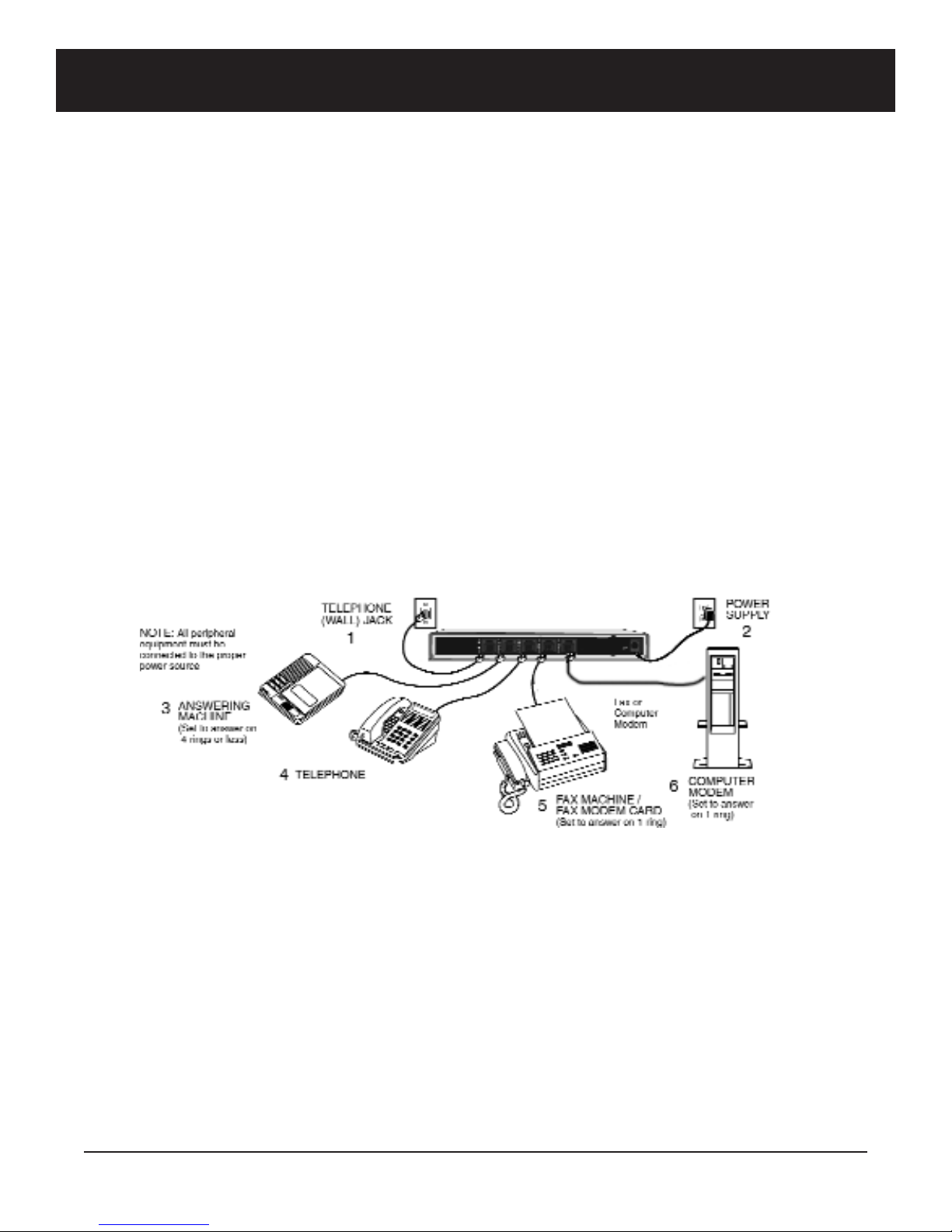
Installation on a Single Telephone Line
The following diagram shows a complete installation for a single phone line connection. While the connec-
tions to the telephone (wall) jack may be different for other types of phone systems the connections to the
LineShare 4.1 remain the same for all phone configurations.
1. Plug one end of a telephone line cord into the LINE-IN port on the LineShare 4.1. Plug the other
end of the modular line cord into the telephone (wall) jack.
2. Plug the small end of the AC power cord provided with the LineShare 4.1 into the power input port
labeled "12 VAC" on the LineShare 4.1. Plug the adapter into a standard AC outlet.
The green LED flashes rapidly for about 5 seconds when power is applied and then remains illu-
minated indicating it is ON.
3. To connect an answering machine plug one end of a telephone line cord into the ANS. M. port on
the LineShare 4.1.
4. To connect a phone plug one end of a telephone line cord into the PHONE port on the LineShare
4.1.
5. To connect a fax machine plug one end of a telephone line cord into the FAX port on the LineShare
4.1. Set the fax to answer on 1 ring.
6. To connect a telephone device such as a computer modem plug one end of a telephone line cord
into the AUX port on the LineShare 4.1.
Long Range Systems 5LineShare .1

Long Range Systems 6LineShare .1
NOTE: To connect a stand alone Caller ID device to the LineShare 4.1 simply plug the Caller ID into the
PHONE port and then plug your phone into the Caller ID.
NOTE: Caller ID is a service provided by your local telphone company. (service activation required.)
Connecting the LineShare .1 to a DSL Phone Line
It is unlikely that DSL filters will be needed for proper operation of the LineShare 4.1 The LineShare 4.1 in-
corporates filtering to prevent DSL signals from interfering with normal operation. If external DSL filters are
needed connect them as shown below. Most consumer electronic stores have DSL filters. Some telephone
companies also have DSL filters available.
1. Plug one end of the connected filter into the telephone (wall) jack.
2. Plug the other end into the LINE-IN port on the LineShare 4.1.
The filters keep the DSL signal from interfering with the operation of the LineShare 4.1.
Installation on a Telephone System
A telephone system is common in a medium or large office arrangement in which calls are coming in on 2
or more telephone lines and can be routed to any number of extensions. The system typically has features
like call holding music on hold conference calling and intercom paging.
The diagram shows telephone devices connected to the LineShare 4.1 for a telephone system; follow the
same procedures if you have a mini-telephone system in your home or small office.
All equipment on that line (telephone system fax computer modem and so on) must connect directly
to the LineShare 4.1.
For the LineShare 4.1 to operate properly it must be "in front" of the telephone system. In other words it must
connect directly to the incoming telephone line.
Connect the other equipment as previously shown. All equipment on that line (telephone system fax com-
puter modem and so on) must connect directly to the LineShare 4.1.
CAUTION: You should be familiar with telephone wiring to complete this installation. If you have
any questions or are not confident that you can complete this installation procedure,
contact the Customer Service Center in the "Warranty" section of this guide or a pro-
fessional installer for further instructions.
Do not plug the LineShare 4.1 into a telephone system phone jack. You may damage your phone system.

USING THE Li eShare 4.1
In this section there are special operating notes you should read before op-
erating the LineShare 4.1. This section follows an overview of the Line-
Share 4.1 standard operations and instructions for answering and
transferring your incoming calls.
Standard Operation
The LineShare 4.1 has 2 modes of operation Automatic mode and Semi-Au-
tomatic mode. The factory setting is the Automatic mode.
Automatic mode operation
When a call comes in the LineShare 4.1 answers the call on the first ring. During the next four seconds the
LineShare 4.1 listens for the following signals:
• A CNG tone (fax tone) or fax beep tone)
• An access code for the FAX port #11
• An access code for the AUX port #22
If the LineShare 4.1 detects CNG or the FAX port access code it transfers the call to the FAX port. If the Line-
Share 4.1 detects the AUX port access code it transfers the call to the AUX port.
After 4 seconds the call will be transferred to the PHONE and ANS. M. ports if tones are not detected.
If the LineShare 4.1 transfers an unanswered call to the FAX port it will automatically reduce the number of
rings to the telephones connected to the ANS. M. or PHONE ports to 2 rings to ensure optimum connect
time
Semi-Automatic Mode Operation
When a call comes in all the phones begin to ring (including extension phones and phones connected to
the PHONE and ANS. M. ports). The LineShare 4.1 allows 6 rings to the telephones before it automatically
transfers the call to the FAX port. If you or your answering machine answer the call before this transfer oc-
curs the LineShare 4.1 listens for the following signals:
• A CNG tone (fax tone) or (fax beep tone)
• An access code for the FAX port #11
• An access code for the AUX port #22
If the LineShare 4.1 detects CNG or the FAX port access code it transfers the call to the FAX port. If the Line-
Share 4.1 detects the AUX port access code it transfers the call to the AUX port.
If the LineShare 4.1 transfers an unanswered call on the AnsM or PHONE port to the FAX port. It will auto-
matically reduce the number of rings to your telephones to 2 rings to ensure optimum connect time.
The LineShare 4.1 will reset the ring count to 6 rings after 10 minutes of inactivity on the FAX port. You can
also manually reset the LineShare 4.1 to 6 rings by performing any of the following steps:
• Lift the receiver of any phone device on the line connected to the LineShare 4.1 and hang it up.
• Answer a call from any phone before the call is transferred to the FAX port.
• Place an outbound call from any phone connected on the line connected to the LineShare 4.1.
The default operating mode for the LineShare 4.1 is the Automatic mode.
Long Range Systems 7LineShare .1

Long Range Systems 8LineShare .1
To Return the LineShare .1 to the Automatic Mode, Perform the Following Steps:
1. Take the phone in the PHONE port off-hook
2. Press # *(3 beeps) 2 1 0 * (3 beeps) *(1 beep)
3. Hang up the phone
To Operate the LineShare .1 in the Semi-Automatic Mode, Perform the Following Steps:
1. Take the phone in the PHONE port off-hook
2. Press # * (3 beeps) 2 1 1 * (3 beeps) * (1 beep)
3. Hang up the phone
NOTE: Extension phones not connected directly to the LineShare 4.1 will ring only 1 time if the Line-
Share 4.1 is in the Automatic mode.
In the Semi-Automatic mode all phones will ring up to 6 times.
Special Operating Notes
Before operating the LineShare 4.1 be sure that you understand the following information concerning the
telephone equipment that is used with the LineShare 4.1.
Fax CNG tones: Most faxes send audible beep tones called CNG (CalliNG) tones. This tone is a distinct beep
that repeats every three (3) seconds. Once a fax has dialed the destination fax number it generates this tone
while waiting for the receiving fax to answer.
For best results callers should have your fax number programmed into their fax machine's "speed-dial"memory.
Beep Beep Beep
Not all faxes transmit this tone when they place a call. Most but not all faxes produce this tone through their
auto-dial feature speed-dial memory position or by the operator pressing the fax machine's start button
after the number is dialed.
Answering Incoming Calls
You can answer incoming calls from an extension phone or from a phone device con-
nected to the ANS. M. or PHONE port. You can then conduct the call normally for as long
as you like.
1. If after answering a call you hear silence on the line the call is likely coming from
a fax that does not produce a CNG tone. Simply transfer the call to the FAX port by
entering #11 from a tone phone.
2. To transfer a voice call to the FAX port press #11 from a tone phone.
3. To transfer a voice call to the AUX port press #22 from a tone phone.
4. In the Semi-Automatic mode if you hear a CNG tone or an access code for the FAX port after an-
swering a call simply hang up the phone after the fax has answered the line.
NOTE: The LineShare 4.1 cannot perform rotary/pulse dialing transfers in either the Automatic or Semi-
Automatic mode.

Answering Calls with an Answering Machine
If your answering machine answers a call from the ANS. M. port the caller can perform the following tasks:
• Record a voice message on the answering machine and/or
• Transfer their call to the FAX port
We recommend that you use your answering machine announcement message to pro-
vide callers with instructions for transferring their calls.
Following is a Sample Announcement Message That You May Wish To Use:
• " * Hello this is ________. If you wish to send a fax press #11 on your tone phone or leave a mes-
sage at the tone."
• * If the LineShare 4.1 is in the Semi-Automatic mode you should leave a four (4) second silent
period at the beginning of the outgoing message you use on your answering machine.
Retrieving Answering Machine Messages from a Remote Location
To disable the LineShare 4.1 and retrieve your answering machine messages (provided it has this capabil-
ity) follow these steps:
1. Dial your phone number and wait for the answering machine to answer the call.
2. After your answering machine answers the call press * on your tone phone.
3. Follow the remote retrieval procedures for your answering machine.
4. After retrieving your messages hang up. The LineShare 4.1 resets for the next call.
Placing an Outbound Call
You can place an outbound call from the PHONE port unless another port is in use. If another port is in use
you will hear a busy signal when you attempt to place a call. If the line is clear when the calling device goes
off-hook you receive a dial tone and can place the call normally.
During an outbound call you can also receive a transmission from someone that is ready to transmit.
To transfer this transmission to the FAX port during a conversation press # 11 from a tone phone.
Rotary/pulse transfers are not supported in the LineShare 4.1.
Picking up an extension phone not connected to the ANS. M. or PHONE port during a data or fax transmis-
sion may interrupt the call.)
Receiving a Computer Call
Unlike a fax call inbound computer calls do not produce identifying tones; they remain silent until another
modem answers the call. To receive a computer call to the AUX port instruct the caller to use one of the fol-
lowing methods. (In this example we use a modem.)
Dialing the Receiving Computer Through the Originating (Calling) Computer
To have the calling modem automatically "over dial" the AUX port access code and access the modem con-
nected to the LineShare 4.1 the caller must take into consideration whether the call is local or long distance.
Long Range Systems 9LineShare .1
Table des matières


