Lip TA100 Guide de l'utilisateur


Thank you for purchasing the
LIP WI-FI Phone.
Please read this quick start guide before using your phone. Save this
manual for later reference. Check our web site www.lip-wifi.com for the
latest updates and news.

Table of contents
1 Quick Start Guide
1.1 Fast forward
1.2 Check package contents
1.3 Charge the battery
1.4 Phone overview
1.5 Before you start using the phone
2 Using the phone
2.1 Making a call
2.2 Receiving calls
2.3 Dismissing an incoming call
2.4 Listing calls
2.5 Contacts
2.6 Instant messaging

© LUND IP PRODUCTS AB. WI-FI PHONE TA100
4© LUND IP PRODUCTS AB. WI-FI PHONE TA100 5
Designed in Lund – made for the World
LIP’s model TA100 allows you to chat and make free Internet calls or low cost regular calls.
It works wherever there is an open wireless broadband connection; ofces, residential areas,
airports, cafés, hotels and public hot spots. No laptop, headset or cables needed.
TA 100 is a small and light weight phone with high audio quality and an extraordinary talk time
and stand-by time. Smart navigation and a simple set-up make it easy to use and easy to set
up. All functions can be congured on your phone by the operator before delivery.
TA100 enables you to make encrypted calls over the radio link, handle your contacts and send
instant messages, beside the traditional functions of mobile phones.
The build-in WiFi includes all common features such as DHCP, authorization and encryption.
With its exible open source Linux platform LIP’s WiFi phones can be designed to t most VoIP
software and technical standards, as well as specic industrial design requirements.
LIP’s TA100 is the perfect product for the mobile generation with high demands for comfort,
exibility and low cost communication.

1Quick Start Guide
1.1 Fast forward
1.2 Check package contents
1.3 Charge the battery
1.4 Phone overview
1.5 Before you start using the phone

8
© LUND IP PRODUCTS AB. WI-FI PHONE TA100 9
Fast forward
1-2-3
Quick Start Guide - Fast forward
1Charge the battery
Connect the phone to your PC using the mini-USB cable included
in the package.
If the phone doesn’t start up, please press . It takes about
4h for the battery to become fully charged. You can use the phone
while charging it.

10
© LUND IP PRODUCTS AB. WI-FI PHONE TA100 11
2Basic setup
The phone already has the basic settings congured on delivery.
However, you need to adjust some settings.
Additional information on how to setup the phone is available in
the following chapters in this guide. You can nd more information
in the advanced manual on the LIP web site under the support
section.
www.lip-wifi.com
Quick Start Guide - Fast forward
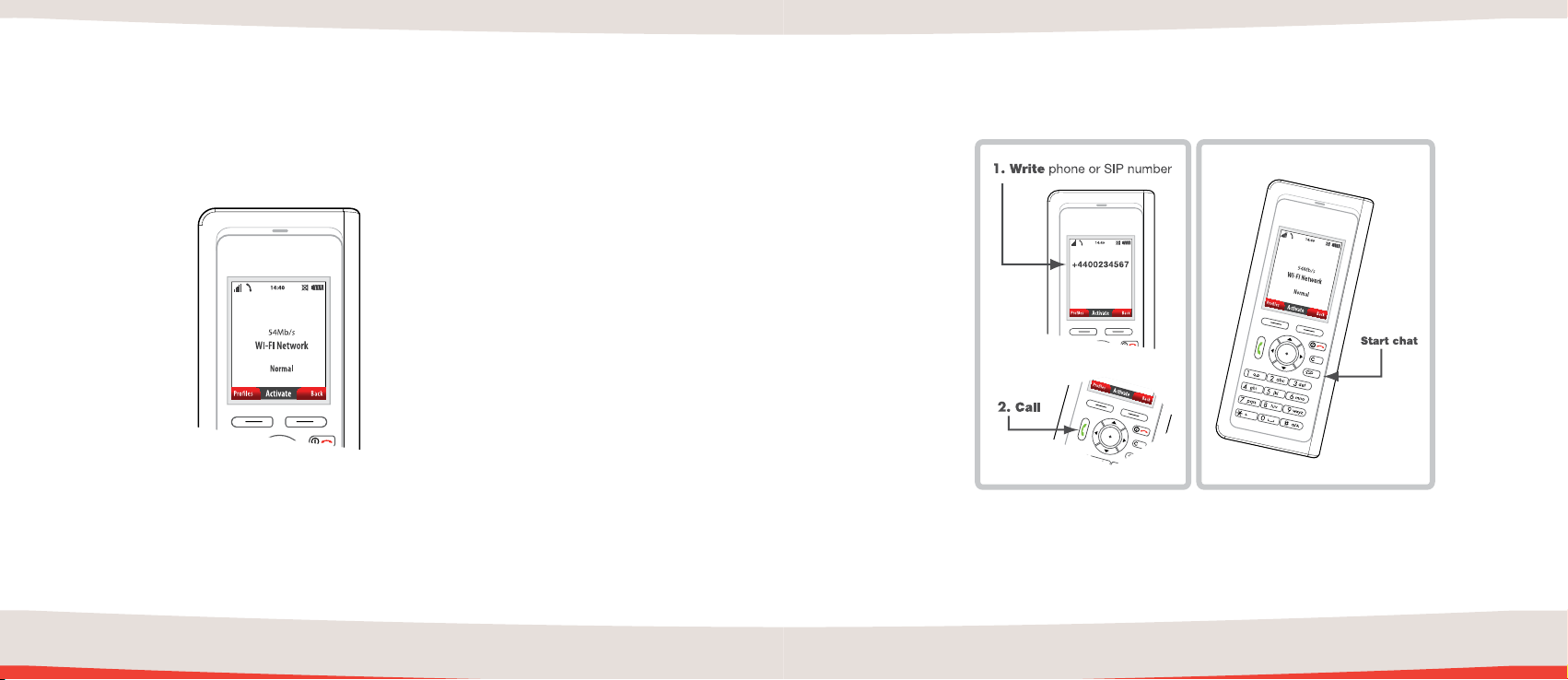
3Call or chat!
Enter the phone number you wish to call and press the green Call/
Answer Key. To initialize a SIP Chat, select chat from the main
menu and follow the instructions.

12
© LUND IP PRODUCTS AB. WI-FI PHONE TA100 13
1.2 Check package contents
Start by checking the contents of the package. This should con-
tain the following:
Quick Start Guide - Check package contents
If anything is missing, damaged or appears to be incorrect, please
contact your sales outlet before continuing.
1.3 Charge the battery
Installing the battery
Remove the battery cover on the back of the phone by press-
ing its center and sliding it to the right (looking at the back of the
phone).
1
2
3

14
© LUND IP PRODUCTS AB. WI-FI PHONE TA100 15
Insert the battery so that the connector on the battery meets the
connector on the phone. Attach the battery cover.
Charging with the mini USB cable
Connect the phone to your PC with the mini USB cable included
in the package. If you connect to a hub instead of directly to a
PC, make sure that the USB jack of the hub is powered.
Charging with the AC Power Adaptor/Charger
Connect the Charger included in the package to a power outlet,
then connect the phone to the Charger.
Note! Connect the Charger only to designated power sources/
outlets according to the markings on the product.
Quick Start Guide - Charge the battery
Irrespective of the charging method used, the phone should now
indicate that it is charging (Charging... is shown on the display)
followed by the startup screen. After a while the display shows
the Idle screen.
In the status eld the battery symbol should show that the phone
is charging.
Allow the battery to become fully charged before disconnecting it
from the Charger/PC/hub.
Note that after 10 seconds, the screen saver will switch off the
display. Pressing any key will activate the display again.

16
© LUND IP PRODUCTS AB. WI-FI PHONE TA100 17
Quick Start Guide - Charge the battery
Troubleshooting:
1. Nothing is shown on the display/the display is black:
There is probably no power from the outlet and/or the
Charger/your PC.
a) Make sure that the outlet is powered or that the PC
is powered on.
With Charger:
b) Check the Charger, make sure that the Charger is
connected at both the phone (mini USB connector) and
the Charger plug end.
c) Make sure that the Charger plug ts into the power
outlet.
With mini USB cable:
b) Check the cables, make sure that the mini USB
cable is connected at both the phone and the PC end.
c) If you use a hub instead of a PC, make sure that the
hub is turned on and is a powered hub. Try to connect
the USB connector to a PC instead of the hub.
2. No startup screen is shown. Instead, a pop-up mes-
sage says “Charging...”:
This is not a problem and occurs for example when
you unplug the Charger/mini USB cable at any end and
!
re-insert it again after just a few seconds.
3. The battery symbol does not show the phone
charging:
If the battery symbol is completely white, the phone
battery is already fully charged. If the battery symbol
shows the phone is not fully charged, the Charger/
mini USB cable might have become loose or damaged
at any end.
4. Phone starts up as normal but then turns off. Noth-
ing happens when a key is pressed:
The battery is not installed properly. Disconnect the
Charger/mini USB cable from the phone. Open the
battery compartment and re-insert the battery prop-
erly. Attach the battery cover carefully. Connect the
Charger/mini USB cable and try again. If this doesn’t
help, the battery might be malfunctioning. Contact
your sales outlet or service centre.
Table des matières