
LGL KYC Manuel utilisateur
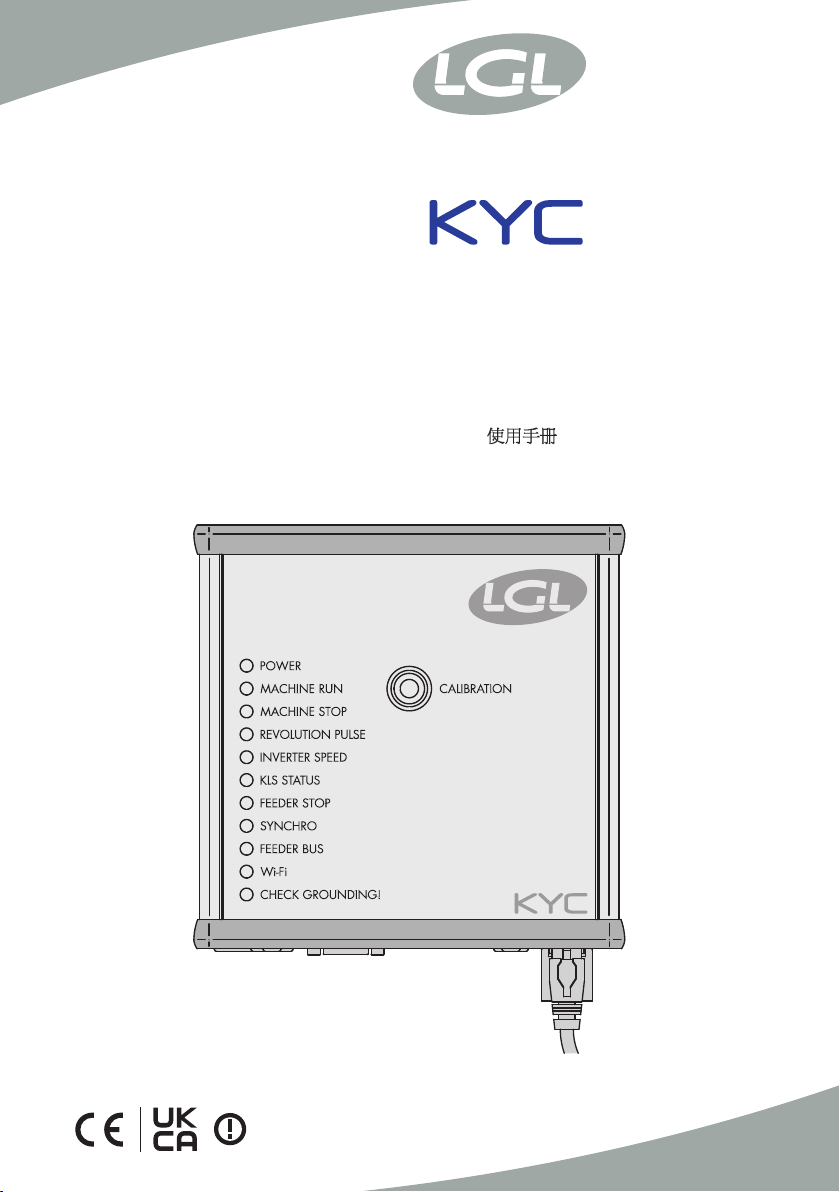
MANUALE DI ISTRUZIONE
INSTRUCTION MANUAL
NOTICE D'INSTRUCTION
BEDIENUNGSANLEITUNG
MANUAL DE INSTRUCCION
EL KİTABI
取扱説明書

TRADUZIONI DELLE ISTRUZIONI ORIGINALI.
TRANSLATION OF THE ORIGINAL INSTRUCTIONS.
TRADUCTIONS DES INSTRUCTIONS D’ORIGINE.
ÜBERSETZUNG DER ORIGINALANLEITUNGEN.
TRADUCCIÓN DE LAS INSTRUCCIONES ORIGINALES.
ORJİNAL TALİMATLARIN TERCÜMESİ.
֯⭘䈤᰾Ⲵ㘫䈁
Scope of supply: Design, manufacture and after sales service of yarn and weft
feeders, measuring winders, stands, creels and oil systems for textile machinery.

L.G.L. Electronics is gratified by your choice
and thanks you for the preference.
Doc. no.: MAN/KYC Rev. 8
ISSUED BY: Service
Manager
APPROVED BY: Technical
Manager
Date: 01/09/2019
Date: 01/09/2019
INSTRUCTION MANUAL

4
INDEX
1 General features 6
1.1 Introduction 6
1.2 KYC information LED 7
1.3 KYC Dip Switches 8
1.4 Steps to do to include the KYC in an infrastructure 9
1.5 WIFI mode: Ad hoc and Soft AP 13
2 Connection 14
2.1.1 Get connection with KYC throguh WIFI or LAN 14
2.1.2 Open KnittingGlobal software based upon JAVA 14
2.1 How to establish a connection between KYC and lap top 14
2.2 Create a shortcut to each knitting machine 15
2.3 Erase undesired feeders from visualization 16
3 Parameters 17
3.1 Feeders parameters 17
3.2 Attivo electronic brake settings: Tdes. dgr and tread dgr 20
3.3 List of parameters 22
4 KLS 23
4.1 KLS: automatic output stop motion system 23
4.2 Button for the learning procedure located on the KYC box 25
4.3 OYB SW Tmr 26
4.4 KLS FAST (Default value = 0) 27
4.5 KLSCm Delay (Default value = 86; min=20; max=100) 27
5 Alarms 28
5.1 Feeders alarms 28
6 Configuration 31
6.1 Machine configuration 31
6.2 Opening of an existing configuration 36

5
INDEX
7 YCM 39
7.1 YCM feature: YARN consumption 39
7.2 YCM table saving 42
7.3 Import the YARN consumption file into open office 43
7.4 Import the YARN consumption file into open office 45
7.5 YCM example 46
7.5.1 Create machine configuration 46
7.5.2 Get yarn consumption information 55
7.6 YARN consumption of belt driven feeders 62
7.6.1 Belt feeder 63
7.6.2 Belt sensor 65
8 Application close 69
8.1 Application close 69

6
1 GENERAL FEATURES
1.1 INTRODUCTION
The KYC is an interface between feeders and lap top.
It is connected to feeders through a communication cable. It has a wireless or a LAN connection
with lap top.
The Lap Top is required to have following features:
1. Internet Explorer, Chrome or Firefox.
2. Wireless or LAN connection.
3. JAVA (Free download from JAVA Web Site).
It takes power supply (24VAC – 35VDC) from LGL power box.

7
1 GENERAL FEATURES
1.2 KYC INFORMATION LED
LED
The KYC device has the following information LED:
1. POWER. It is simply connected to the 5 Volts logic power supply. It indicates that the KYC
is powered up.
2. MACHINE RUN. When this yellow LED is on, the machine runs. If it is off the machine is
standing.
3. MACHINE STOP. When this red LED turns on, it means that the KYC sends a stop signal to
the machine. Normally this led blinks once when the KYC stops the machine. The led does
not stay on because the KYC removes the stop signal, thus permitting the operator to turn
the machine.
4. REVOLUTION PULSE. This yellow LED makes a short lighting when the revolution input
sensor is detected (normally once each machine revolution).
5. INVERTER SPEED. This green LED light is proportional to the INVERTER SPEED (more light
means higher inverter speed).
6. KLS STATUS. This is a bicolor LED: when it is yellow it indicates that KLS function is ena-
bled, if it is red flashing it means that KLS function is disabled.
7. FEEDER STOP. This red LED indicates one or more feeder is in alarm condition.
8. SYNCHRO. This yellow LED flashes when the SYNCH output signal is driven (useful for
LGL technical service).
9. FEEDER BUS. This orange LED flashes when there is communication flowing on the feeders
bus (485 or CAN bus).
10. Wi-Fi. This is a bicolor LED : when it is yellow lighted it indicates that Wi-Fi connection is
ON. The LED will became orange for a while on each data packet received.
•when the Wi-Fi interface is in ad-hoc or soft ap mode, the LED will become soon yellow
after power-up and it will stay in that state anyway.
•When the Wi-Fi interface is in infrastructure mode, the LED will become yellow only after
that KYC has joined. The Access Point with the configured SSID. If said access point will
shut down, the yellow LED will turn off (with a delay of about 8-10 seconds).
11 . CHECK GROUNDING. This red LED will flash when KYC detects an excessive current
flowing into the RS485 ground wire. This normally means that feeders are not correctly
grounded.

8
1 GENERAL FEATURES
1.3 KYC DIP SWITCHES
KYC V2 has four DIP-SWITCHES
All DIP-SWITCH settings has effect only on the next device reset or power - up.
DS1
Software Upgrade forcing: when it is in OFF state (default configuration) the application
software will start. If it is in ON state, the boot loader will wait indefinitely for the software
upgrade and will prevent application software from running until a valid software is loaded.
DS2
Network interface selection: when it is OFF state the Wi-Fi interface is selected and the
wired Ethernet is disabled. When it is on, Ethernet interface is enabled and Wi-Fi is disabled.
DS3
Feeder bus selection: when it is in OFF state the communication is enabled on the RS485
BUS only and it is disabled on the CAN BUS. On the opposite, when it is in ON state, the CAN
BUS is enabled and RS485 is disabled.
DS4
Default network configuration: when it is in OFF state (default) the network configura-
tion is read from the SD card. When it is in ON state, the network configuration is forced to the
following one :
a. KYC has a static ip address of 169.254.0.1
b. KYC acts as a DHCP server assigning to the DHCP clients a pool from 169.254.0.5 up to
169.254.0.11
c. For the wireless side, the Wi-Fi mode is forced to be ad hoc and without data encryption;
moreover the SSID and the host name are both set to “KYC_DEFAULT”

9
1 GENERAL FEATURES
1.4 STEPS TO DO TO INCLUDE THE KYC IN AN INFRASTRUCTURE
Note: follow this procedure only in case you want to include the KYC in a company network.
After you have connected to the KYC ( in soft ap mode ) with the usual address : 169.254.0.1,
you have to select , from the “File” menu, the submenu “Options” ( like below ).
The program asks for a password :
Enter option1 password
and then press OK button.

10
After a while the “Setup Connect” menu will appear like below :
1 GENERAL FEATURES
Table des matières
Autres manuels LGL Équipement industriel


