
LG VK410 Manuel utilisateur

User GuideVK410 XXXXXXXXXX (1.0)
XX
This booklet is made from 98% post-consumer recycled paper.
This booklet is printed with soy ink. Printed in xxxxx
User Guide
VK410
VK410
Guía del
Usuario

Copyright©2014 LG Electronics, Inc. All rights reserved.
LG and the LG logo are registered trademarks of LG Corp.
All other trademarks are the property of their respective
owners.

1
Important Customer Information
Before you begin
Before reading this user guide and getting started, please review the
separate Product Safety and Warranty Information guide for important
product safety and warranty information about your device.

2
Important Customer Information...............................................1
Table of Contents .......................................................................2
The Basics ...................................................................................5
Tablet Overview .................................................................................................... 5
Help ....................................................................................................................... 8
Non-Removable Battery ...................................................................................... 9
Home Screen .......................................................................................................16
Notifications .......................................................................................................20
Plug & Pop ..........................................................................................................28
Capturing a Screenshot .....................................................................................28
Google Account Setup ......................................................................................29
Entering Text .......................................................................................................30
Connecting to Networks and Devices ................................... 33
Connecting to Networks and Devices ..............................................................33
Bluetooth .............................................................................................................34
SmartShare .........................................................................................................35
PC connections with a USB cable ....................................................................36
Web ........................................................................................... 38
Chrome ................................................................................................................38
Communication ....................................................................... 42
Contacts ..............................................................................................................42
Email ....................................................................................................................43
Gmail ...................................................................................................................45
Hangouts .............................................................................................................50
Entertainment .......................................................................... 52
Camera ................................................................................................................52
Video Camera ..................................................................................................... 57
Gallery .................................................................................................................60
Videos ...................................................................................................................61
Music ...................................................................................................................62
Play Store ............................................................................................................64
YouTube™ ............................................................................................................ 67
Table of Contents

3
Table of Contents
Tools .......................................................................................... 68
QPair ...................................................................................................................68
QSlide .................................................................................................................. 69
QuickMemo ......................................................................................................... 71
QuickRemote ...................................................................................................... 72
QuickTranslator .................................................................................................. 74
Voice Mate .......................................................................................................... 75
Alarm/Clock ........................................................................................................ 76
Calculator ............................................................................................................ 77
Calendar .............................................................................................................. 77
File Manager ....................................................................................................... 79
Maps ....................................................................................................................80
Weather ...............................................................................................................80
Voice Recorder ....................................................................................................81
Application Manager ..........................................................................................82
POLARIS Office 5 .............................................................................................83
Google+ ...............................................................................................................84
Voice Search .......................................................................................................84
Settings .................................................................................... 85
Specifications .........................................................................104
Safety Information ........................................................................................... 105
Safety .......................................................................................105
Care and Maintenance ..................................................................................... 108
Consumer Information on SAR ........................................................................117
Caution:
Avoid potential hearing loss ............................................................................. 118
TIA Safety Information .................................................................................... 120
FDA Consumer Update ................................................................................... 123
Driving ................................................................................................................ 131

4Table of Contents
Tablet software update ..........................................................132
Troubleshooting ......................................................................134
LIMITED WARRANTY STATEMENT ....................................135
Index ........................................................................................139
5
The Basics
Tablet Overview
Front View
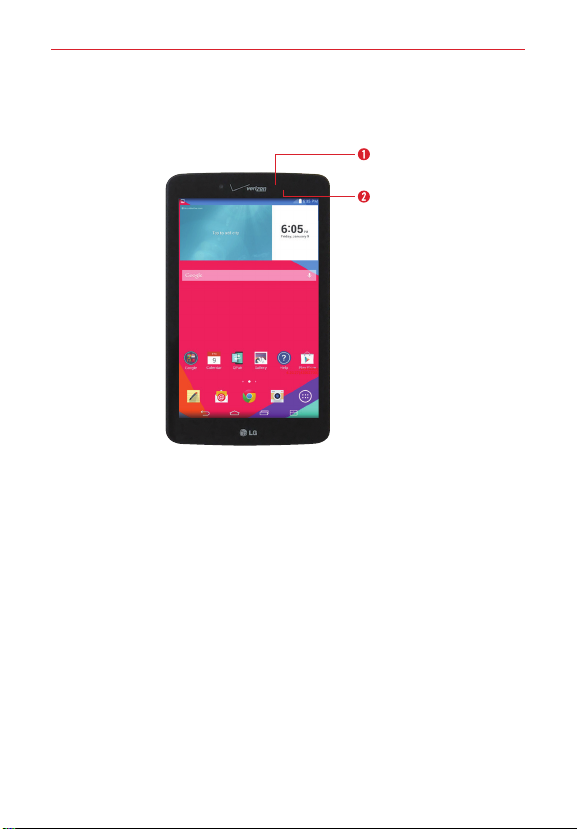
Ambient light
sensor
Front-facing camera
NOTES • All screen shots in this guide are simulated. Actual displays may vary.
• Instructions to perform tasks in this guide are based on the default settings and may
change depending on the mode and software version on your tablet.
1. Front-facing camera Use to take pictures and record videos of yourself.
You can also use this for video chatting. Keep it clean for optimal
performance.
2. Ambient light sensor Measures the surrounding light and adjusts the
LCD brightness to provide a vivid screen.
WARNING! Placing a heavy object on the tablet or sitting on it can damage the LCD and
touchscreen functions. Do not cover the ambient light sensor with a protective film.
This could cause the sensor to malfunction.
6The Basics
Rear View
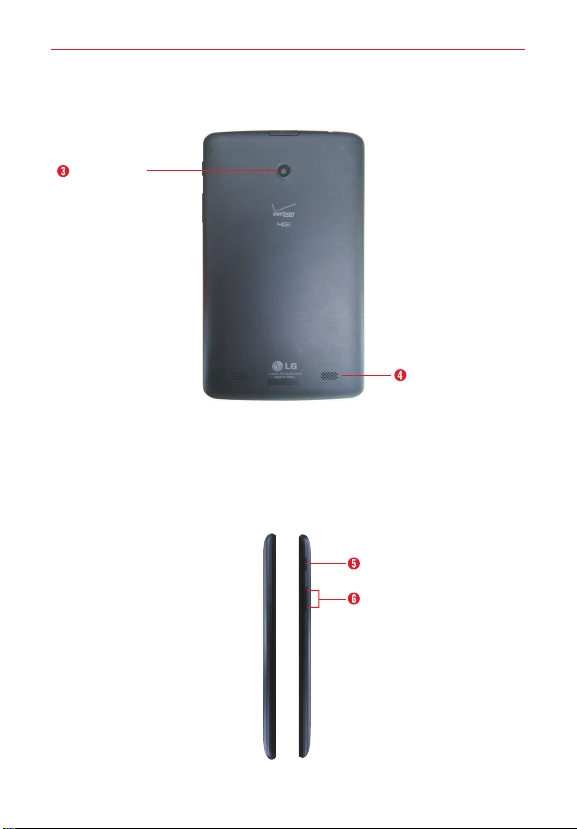
Rear-facing
camera
Speakers
3. Rear-facing camera Use to take photos and record videos. Keep it clean
for optimal performance.
4. Speakers Use to listen to the audio from the selected function (e.g.,
music, videos, sound clips, etc.).
Side Views
Volume keys
Power/Lock key

7
The Basics
5. Power/Lock key Press to lock/unlock the screen. Press and hold to turn
the tablet on/off, restart it, activate/deactivate airplane mode, and change
the sound settings.
6. Volume keys Allow you to adjust the media volumes. Press and hold
both keys at the same time to access the QuickMemo feature.
Top and Bottom Views
Infrared
(IR) LED
Microphone
SIM card /
microSD card slot
Headset
jack
Charging
port
Top Bottom
7. Headset jack Allows you to plug in an optional listening accessory, such
as headphones to listen to music.
8. Infrared (IR) LED Used as a sensor for the QuickRemote app.
9. SIM card / microSD card slot Allows you to insert your SIM card and a
microSD card. A valid SIM card is required to have access to the mobile
network. Insert a microSD card to store your personal data files (e.g.,
music, videos, photos, etc.).
10. Microphone Records your voice and is used for voice-activated
functions.
NOTE Make sure that the microphone is not blocked when recording a video or audio clip.
11. Charging port Allows you to connect the tablet and the USB Cable for
use with the Charger Adapter, your PC, or other compatible
accessories.
TIPS! • Tap the Menu key (touch key located at the bottom of the touchscreen)
whenever you open an application to check the options that are available for that app.
• If the device freezes up and stops working, press and hold the Power/Lock key (on
the right side of the tablet) for about 6 seconds until the screen turns off. Wait a few
seconds, then turn the tablet back on.
8The Basics
Home screen overview
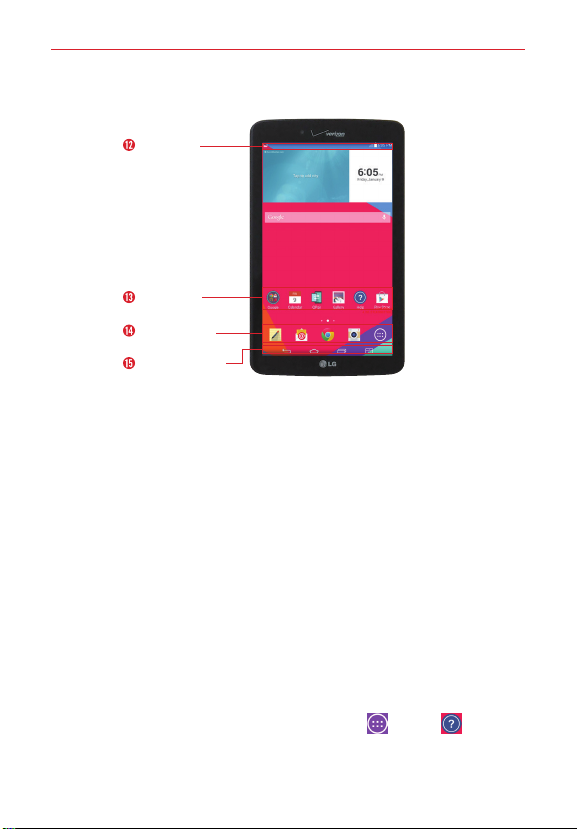
Application
icons
Quick Access
Bar
Touch keys bar
Status Bar
12. Status bar Shows device status information, including the time, Wi-Fi
signal strength, battery status, and notification icons.
13. Application icon Tap an icon (application, widget, folder, etc.) to open
and use it.
14. Quick Access Bar Provides quick one-touch access to the functions you
use most often. The icons in this bar display on all of the Home screen
canvases.
15. Touch keys bar Provide easy navigation anywhere you are in the
software. They are the Back key, the Home key, and the Menu key. The
keys on this bar can be changed (see the Display settings menu).
Help
The Help application allows you to quickly and conveniently view
information about your tablet, including basic definitions, How-to videos,
icon glossary, user guide, and more.
To access Help, from the Home screen, tap Apps > Help .
Table des matières
Autres manuels LG Comprimé

LG
LG LG-V500 Manuel utilisateur

LG
LG G Pad 8.0 V480 Manuel utilisateur

LG
LG LG-V909 Manuel utilisateur

LG
LG V500 Manuel utilisateur

LG
LG LG-UK410 Manuel utilisateur

LG
LG G Pad 10.1 Manuel utilisateur

LG
LG GPad 10.1 Manuel utilisateur

LG
LG LG-V940n Manuel utilisateur

LG
LG G Pad F 8.0 Manuel utilisateur

LG
LG G Pad 8.0 3G V490 Manuel utilisateur

LG
LG LG-V900 Manuel utilisateur

LG
LG V935 Manuel utilisateur

LG
LG V500 Manuel utilisateur

LG
LG GPad F 7.0 Fiche technique

LG
LG LG-V410 Manuel utilisateur

LG
LG GPad F2 8.0 Manuel utilisateur

LG
LG LG-V935 Manuel utilisateur

LG
LG LGV500.AAUSBK Manuel utilisateur

LG
LG Qua tab PX Manuel de service

LG
LG GPadF8.0 Manuel utilisateur


