
LG NC2000 Manuel utilisateur

OWNER’S MANUAL
DIGITAL SIGNAGE MEDIA
PLAYER
DIGITAL SIGNAGE MEDIA PLAYER MODEL
NC2000
www.lge.com
Please read this manual carefully before operating
your set and retain it for future reference.
ENGLISH

2
CONTENTS
Product Information
NC2000 Specications .............................4
General specifications ................................... 4
Multi I/O port .................................................. 4
Operational Specifications ............................ 4
NC2000 Components ...............................5
Basic Components ........................................ 5
Name and Functions of
Each Part (NC2000) .................................6
Back Panel .................................................... 6
How to Install
NC2000 Connection .................................7
SuperSign Solution
What is SuperSign? .................................8
Display .......................................................... 8
Media Player ................................................. 8
Software ........................................................ 8
SuperSign Player
SuperSign Player Settings .......................9
Log-in to Setting Menu .................................. 9
Network Settings ......................................... 10
Screen setting ............................................. 15
Password .................................................... 16
EWF ............................................................ 17
Initialize S/W ............................................... 18
Regional and Language Options Settings 19
Regional and Language Options Settings ... 19
SuperSign Player Functions ...................20
Signage Mode (Video Playback Mode) ....... 20
Tray Icon Description .................................. 21
Tray Icon Menu ........................................... 22
Viewing SuperSign Player Summary
Information .................................................. 22
SuperSign Manager
About SuperSign Manager .....................23
Product Information ..................................... 23
How to Install SuperSign Manager .........24
System Requirements ................................. 24
Installing the Program ................................. 25
Installing SuperSign Manager ..................... 26
Uninstalling the program ............................. 29
Starting SuperSign Manager ..................31
Starting SuperSign Manager ....................... 31
Logging In ................................................... 31
Selecting Players ........................................ 32
Setting Canvas ............................................ 33
Selecting Templates or Layouts .................. 34
SuperSign Manager Overview .................... 35
Contents Edit ..........................................36
Overview ..................................................... 36
Checking details .......................................... 37
Changing Layouts ....................................... 39
Changing Templates .................................... 40
Using Library ............................................... 41
Creating Contents ....................................... 44
Setting Timeline ........................................... 53
Distributing Completed Content .................. 55
Content Properties/Tool ............................... 57
Schedule ................................................62
Overview ..................................................... 62
Properties and Tool windows....................... 63
Setting schedules ........................................ 64
Copying Schedules ..................................... 65
Deleting Schedules ..................................... 66
Distributing Schedules ................................ 66
Management ..........................................67
Overview ..................................................... 67
Manage Functions ....................................... 68
Creating Tile Mode ...................................... 71
Other features ............................................. 74

3
Appendix
Frequently Asked Questions (FAQs) ......77
SuperSign Manager Menu List ...............79
File Menu .................................................... 79
Edit Menu .................................................... 79
View Menu ................................................... 79
Option Menu ................................................ 80
Setting Menu ............................................... 80
Help Menu ................................................... 80
Required Software and Codec Package
Installation ..............................................81
Required Software ...................................... 81
Codec Package Installation ......................... 82
Files Supported by SuperSign .................... 82
Microsoft Windows Embedded Standard
Limitations ..............................................83
Swap Displays ........................................84
SMTP Email Setting ...............................85

4
Dimensions 250 mm (W) x 43 mm (H) x 205mm (D) (only Set)
Weight 1.43 kg (only Set)
CPU Intel ATOM Processor 330 1.6 GHz(Dual Core), FSB 533 MHz
Chip Set Nvidia MCP7A-I ON
Main Memory DDR3 1066 1024 MB SODIMM type
Secondary Storage
Device SATA SSD 8 GB
O/S Windows Embedded Standard
General specifications
Resolution Maximum Resolution 1920 x 1080 @ 60 Hz
Recommended Resolution 1920 x 1080 @ 60 Hz
Power Rated Voltage AC 100-240 V~, 50 / 60 Hz, 1.2 A
Sound output Wattage RMS Audio Output 10 W + 10 W (R + L) : When connected to the monitor (Model Name : M4224C)
Operating Condition Sync (H/V) Video LED
Normal Mode On/On Active On
Deep Sleep Mode
(Set = Off) Off/Off Off Off
Operating Conditions Operating Conditions Temperature 5 ℃ to 35 ℃humidity 10 % to 80 %
Storage Conditions Temperature -20 ℃ to 60 ℃humidity 5 % to 95 %
Operational Specifications
Multi I/O port
Serial Port One external RS-232 Serial port
USB Port Hi-Speed USB 2.0 port 480 Mbps rate (x5)
LAN Port Realtek RTL8103E 10/100 Mbps Ethernet controller
VGA / HDMI Nvidia MCP7A-ION integrated Graphic chipset
4-in-1 Card Secure Digital (SD) / MultiMedia Card(MMC/MMC4.0) /
Memory Stick(MS/MS-Pro) / xD Memory Card
PCI Express Card Slot Supported
LINE OUT Supported
SPDIF
(Digital audio out)
5.1 Channel supported (Depend on source signal)
Attention
● The product specifications may change without prior notice to
improve the performance.
Product Information
NC2000 Specications

5
Basic Components
Product Information
NC2000 Components
NC2000 consists of the following components. Please check that these components are present prior to
installing.
Attention
● The illustration may differ from your product. Some of these items may change depending on circum-
stances.
NC2000
Setup Program/User Manual
screw x 2
6
Product Information
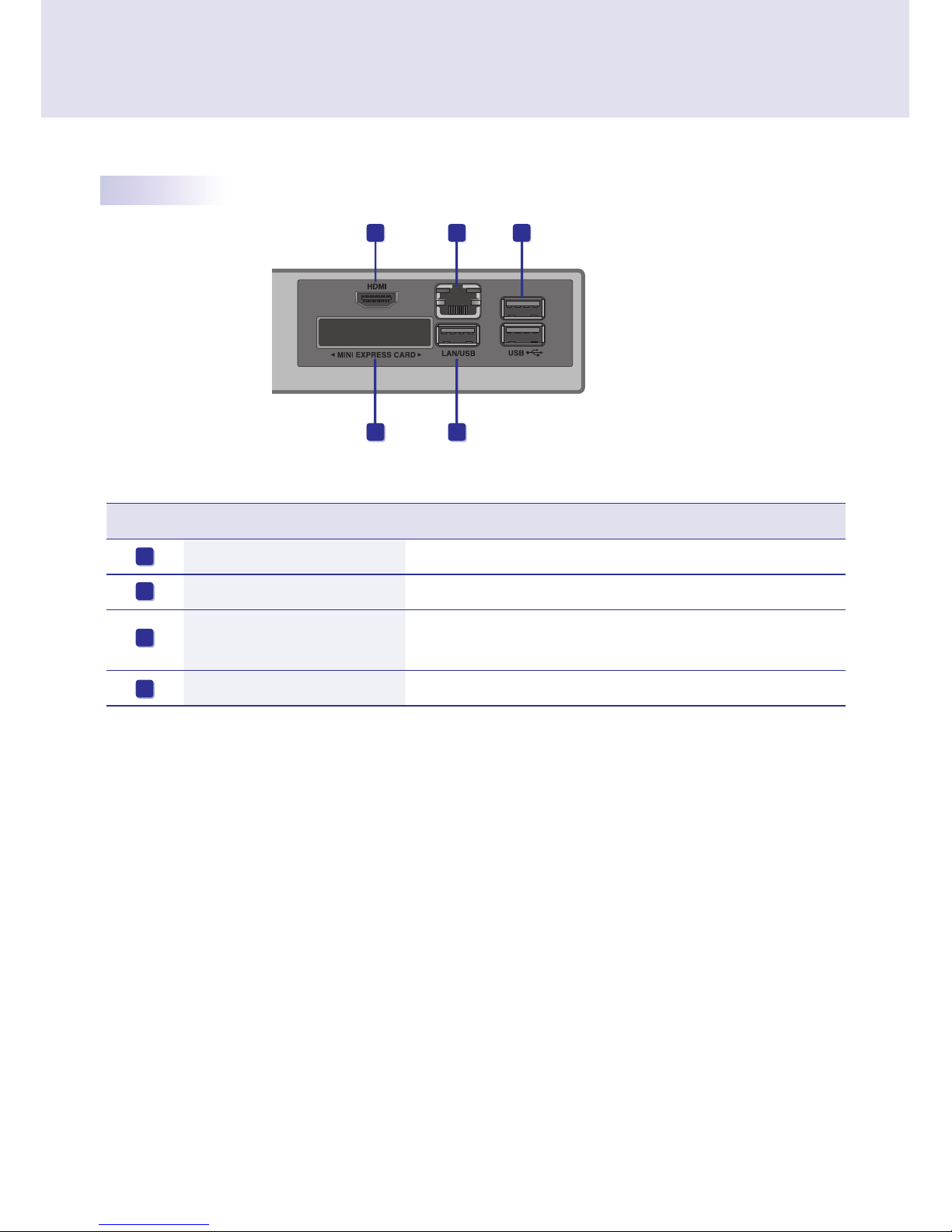
Back Panel
Number each screen Function Descriptions
HDMI Out For an HDMI-compatible monitor.
LAN Connector For a LAN cable.
USB In For USB-type devices, including memory, hard disk, CD-ROM, Key-
board, and mouse.
PCI MINI EXPRESS card slot Provided for PCI Mini Express Cards.
A
B
C
D
Name and Functions of Each Part (NC2000)
C
C
AB
D

7
1Remove the screw.
2Attach the Box Guide to the rail slots, and press it upward.
3Use screws to secure the player and the Box Guide as shown below.
NC2000 Connection
We recommend you to use the items provided with your NC2000 and follow our instructions for integrating
the product with your monitor in order to ensure the correct results.
Attention
● The monitor illustrations shown above to guide your integration may differ from your product.
How to Install

8
Display
Software
Component
LG SuperSign Solution
Display
Media player
Software
LG
SuperSign is a digital signage solution that was developed exclusively by LG Electronics. The LG SuperSign
solution offers display, media player (hardware and software), and management programs.
Display is connected to the media player and used to show advertising videos. SuperSign Solution supports most
LCD monitor display products supporting LG RS-232C protocols. The brightness, resolution, sound, and other
features of an LG RS-232C protocols-enabled monitor can be controlled by the SuperSign Manager software.
Media Player
SuperSign Solution's media player includes the NC2000 hardware as well as its software.
SuperSign Solution provides the SuperSign Manager software, an all-in-one management program that is
used to control the display and the media player, as well as create and distribute media.
What is SuperSign?
SuperSign Solution
● More information on SuperSign Manager is available in the SuperSign Manager section of this document.
● Digital Signage Solution is a network-based digital signage communication program. These new advertising
media can be used in various places such as commercial and public facilities, airports, and schools,
depending on the ad content and location characteristics.
Note
● Display types and their controllable range are listed in the Appendix to this document.
Note
Note

9
SuperSign Player
SuperSign Player
2Click Setting to display the password entry screen.
1To use the SuperSign Player setting menu, right click on the SuperSign Player ( ) icon located on
the Windows taskbar. Its pop-up menu will appear as shown below.
SuperSign Player can be customized for multiple users.
Log-in to Setting Menu
3Type in your password and click OK to view the <SuperSign Player Menu> as shown below.
SuperSign Player Settings
● The SuperSign Player's default password is set to "0000".
● You can change the password by yourself. For details on password setting, refer to Password of this document.
Note

10
SuperSign PlayerSuperSign Player
Network Settings
You can set the player IP (the IP of the NC2000 in which SuperSign Player software is installed) and the server
IP (the IP of the PC in which SuperSign Manager software is installed) in Network Settings.
NIC Setting
With NIC Setting option, you can select a network interface card from the list. This option is used when there are
more than one network card installed on your player.
● SuperSign Player will automatically detect a network
interface card available when the player is started.
Player IP setting
Player IP setting is for the NC2000 IP settings. It is set to Dynamic IP by default.
● With Dynamic IP enabled, the IP will be automatically
generated.
● With Static IP option, you can assign a specic IP for
NC2000 by yourself.
● The Player name is set to the MAC address of the
NC2000 network device by default. The user can change
it later.
● Click the Save button to save the settings.
Note
Autres manuels pour NC2000
2
Table des matières
Autres manuels LG Lecteur multimédia portable


