Lenovo IdeaCentre C240 Manuel utilisateur

Version 1.0
Machine type: 10113/6268 [C240]
10114/6269 [C245]
10137/F0A1 [C255]
2013.09
Lenovo
C2 Series
User Guide
31505516

Important Safety Information
Before using this manual, it is important that you read and understand all of the
related safety information for this product. Refer to the Safety and Warranty Guide
that you received with this product for the latest safety information. Reading and
understanding this safety information reduces the risk of personal injury or product
damage.
The interface and functions shown in this User Guide are provided for reference
only and may differ from actual product appearance. Product design and
specifications may be changed without notice.
Danger: Be aware of extremely hazardous or potentially lethal situations.
Attention: Be aware of possible damage to programs, devices, or data.
Note: Pay attention to this important information.
© Copyright Lenovo 2013. All rights reserved.
LIMITED AND RESTRICTED RIGHTS NOTICE: If data or software is delivered
pursuant a General Services Administration “GSA” contract, use, reproduction, or
disclosure is subject to restrictions set forth in Contract No. GS-35F-05925.


i
Contents
Contents
Important Safety Information
Using the Computer Hardware ................................................. 1
Front view of the computer.........................................................................2
Left and right views of the computer ..........................................................3
Rear view of the computer .........................................................................4
Computer stand .........................................................................................5
Basic connector instructions ......................................................................5
Connecting your computer.........................................................................6
Important information about using the computer ........................................7
Connecting to the Internet..........................................................................8
Wired keyboard (selected models only) ......................................................9
Using Windows 8.1 ................................................................... 11
Switching between the main Windows 8.1 interfaces ...............................12
The Charms Bar.......................................................................................12
Shutting down the computer....................................................................12
Switching between apps ..........................................................................13
Closing an app.........................................................................................13
Opening other system programs ..............................................................13
Windows Help and Support .....................................................................13
Using the Rescue System........................................................ 15
OneKey Recovery ....................................................................................16
Driver and Application Installation .............................................................17
Using the Software................................................................... 19
Lenovo Support .......................................................................................20

ii Contents
Troubleshooting and Confirming Setup ................................. 21
Troubleshooting Display Problems............................................................22
Troubleshooting Audio Problems ..............................................................23
Troubleshooting Software Problems .........................................................24
Troubleshooting Problems with Optical Drives and Hard Disks .................24
Special considerations for troubleshooting Windows ................................25
Windows Help and Support .....................................................................26
BIOS setup utility......................................................................................26
Performing Daily Maintenance Tasks ........................................................27
Hardware Replacement Guide ................................................ 29
Overview ..................................................................................................30
Replacing hardware .................................................................................33
Appendix. .................................................................................. 37
Declaration...............................................................................................37
Trademarks ..............................................................................................38
Energy Star Statement .............................................................................39
Enabling ErP compliance mode................................................................40

This chapter contains the following
topics:
Introduction to the computer hardware
Information on computer connections
Note: The descriptions in this chapter might be
different from what you see on your computer,
depending on the computer model and
configuration.
User Guide 1
Using the Computer Hardware

2User Guide
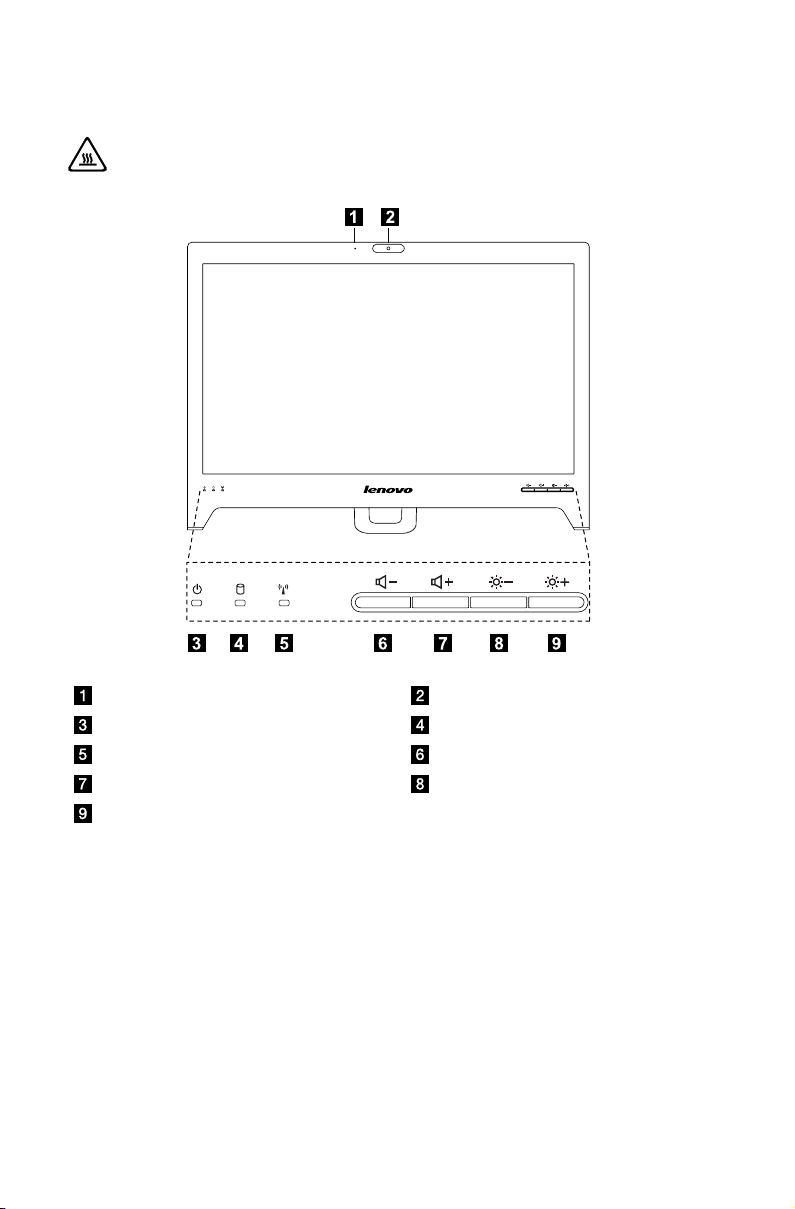
Front view of the computer
Attention: Be careful not to block any air vents on the computer. Blocked
air vents can cause overheating.
Built-in microphone Built-in camera
System Power On/Off indicator Hard disk drive indicator
WIFI status indicator Volume down
Volume up Brightness down
Brightness up

3
User Guide
Left and right views of the computer
Attention: Be sure not to block any air vents on the computer. Blocked
air vents may cause thermal problems.
12
3
5
4
6
Optical drive Memory card reader
USB 3.0 connectors
(selected models only)
Microphone connector
Headphone connector Power button

4User Guide
Rear view of the computer
1 2 34
5
Power connector HDMI-out connector
(selected models only)
USB 2.0 connectors
(selected models only)
Ethernet connector
Air vents

5
User Guide
Computer stand
15º
40º
Use the stand to position the display to your preference. It can be rotated 15º
forward and 40º backward.
Basic connector instructions
Note: Your computer may not have all of the connectors described in this
section.
Connector Description
Microphone Use this connector to attach a microphone to your
computer when you want to record sound or if you use
speech-recognition software.
Headphone Use this connector to attach headphones to your
computer when you want to listen to music or other
sounds without disturbing anyone.
USB connector Use this connector to attach a device that requires a USB
connection.
Ethernet connector Use this connector to attach the computer to an Ethernet-
type local area network.
HDMI connector
(optional)
Connects to the HDMI connector on your display or TV.
Memory card reader Use to view and share digital photos, music, and videos,
stored on a media card.
Power connector Connect to the power cable. The appearance of this
connector may vary.
Autres manuels pour IdeaCentre C240
2
Ce manuel convient aux modèles suivants
2
Table des matières