
Kinivo WID340 Manuel utilisateur
WID340
Dual Band Wireless N USB Adapter
User manual
© 2012 Kinivo LLC. All rights reserved.
Kinivo is a trademark of Kinivo LLC. Bluetooth word mark and the Bluetooth logo are registered trademarks of
Bluetooth SIG. All other trade names are registered trademarks of respective manufacturers. This manual may not
be copied in any media or form without the written consent of Kinivo LLC.
Kinivo Product Support
Online : http://support.kinivo.com
Email : support@kinivo.com
WID340

Kinivo WID340 Dual Band Wireless N USB Adapter
2
Table of Contents
Important Safety Instructions .................................................................................................................. 3
Product Overview ..................................................................................................................................... 3
1. Package Contents................................................................................................................................................................... 3
2. Features...................................................................................................................................................................................... 3
3. System Requirements ........................................................................................................................................................... 3
Operation ..................................................................................................................................................4
1. Windows Installation (XP, Vista, 7)..................................................................................................................................... 4
2. Windows 8/8.1 Installation.................................................................................................................................................. 5
3. Connecting to a wireless network (Windows 7).......................................................................................................... 7
4. Connecting to a wireless network (Windows 8/8.1) .................................................................................................. 9
5. Installing on Mac OS X (10.5 and newer)........................................................................................................................ 12
6. Installing on Linux (Kernel 2.6 and newer) .................................................................................................................... 15
Troubleshooting and FAQ......................................................................................................................... 16
Technical Specications ............................................................................................................................ 17
1. Hardware Features ................................................................................................................................................................. 17
2. Wireless Features..................................................................................................................................................................... 17
3. Other Information................................................................................................................................................................... 17
FCC Statement ........................................................................................................................................... 17
Warranty..................................................................................................................................................... 18
Online Support / Contact Us ..................................................................................................................... 19

3
Kinivo WID340 Dual Band Wireless N USB Adapter
Read all safety and operation instructions before installing and using your WID340 Wireless Adapter.
Warning: To reduce the risk of re or electric shock, do not expose this USB adapter to water or moisture.
Important Safety Instructions
1. Do not expose the WID340 to liquid, moisture or areas of high humidity.
2. Do not expose the WID340 to extremely high or low temperatures.
3. Do not attempt to open or modify the WID340 in any way.
4. Always dispose of the packaging and unit in accordance with the local regulations and in a responsible
manner.
5. To avoid electronic interference and/or compatible conicts, do not use the WID340 in any facilities where
posted notices instruct you to do so. For example: Aircraft, Military Base, Hospital or Health Care Facilities.
6. Keep away of re, water, and high voltage equipments.
7. Store the WID340 in a cool dry place.
Product Overview
WID340 is a 802.11n USB dongle that can allow you to connect to WiFi networks with speeds up to 150/300
Mbps (fully compatible with 802.11b/g) on 2.4GHz and 5GHz networks. It has a small form factor and can be
connected to any Windows, Linux or Mac computer via USB. WID340 has built-in antenna that enhances the
signal strength and throughput while consuming minimal power from the host computer.
Please refer to this manual for installation procedure and contact us at suppor[email protected] if you have any
questions or concerns.
1. Package Contents
WID340 Dual Band Wireless N USB Adapter
Software CD (contains driver and user manual)
2. Features
Dual band technology supports wireless 2.4GHz and 5GHz networks
Wireless N speeds up to 150/300Mbps. Please note that the actual throughput/speed will depend on
distance and other conditions.
Backward-compatible with 802.11b/g devices.
Wi security modes include WEP, WPA, WPA2, and WPS
Supports Ad-Hoc (Client to Client) and Infrastructure (AP to Client) modes.
3. System Requirements
Minimum computer requirements:
CD Drive (for driver installation). Alternatively the drivers and the manual can be downloaded from http://
support.kinivo.com
733MHz CPU or faster
64MB Memory or higher
Operating System
Windows XP or higher
Kinivo WID340 Dual Band Wireless N USB Adapter
4
Linux 2.6 or newer
Mac OS X 10.5 or newer
Operation
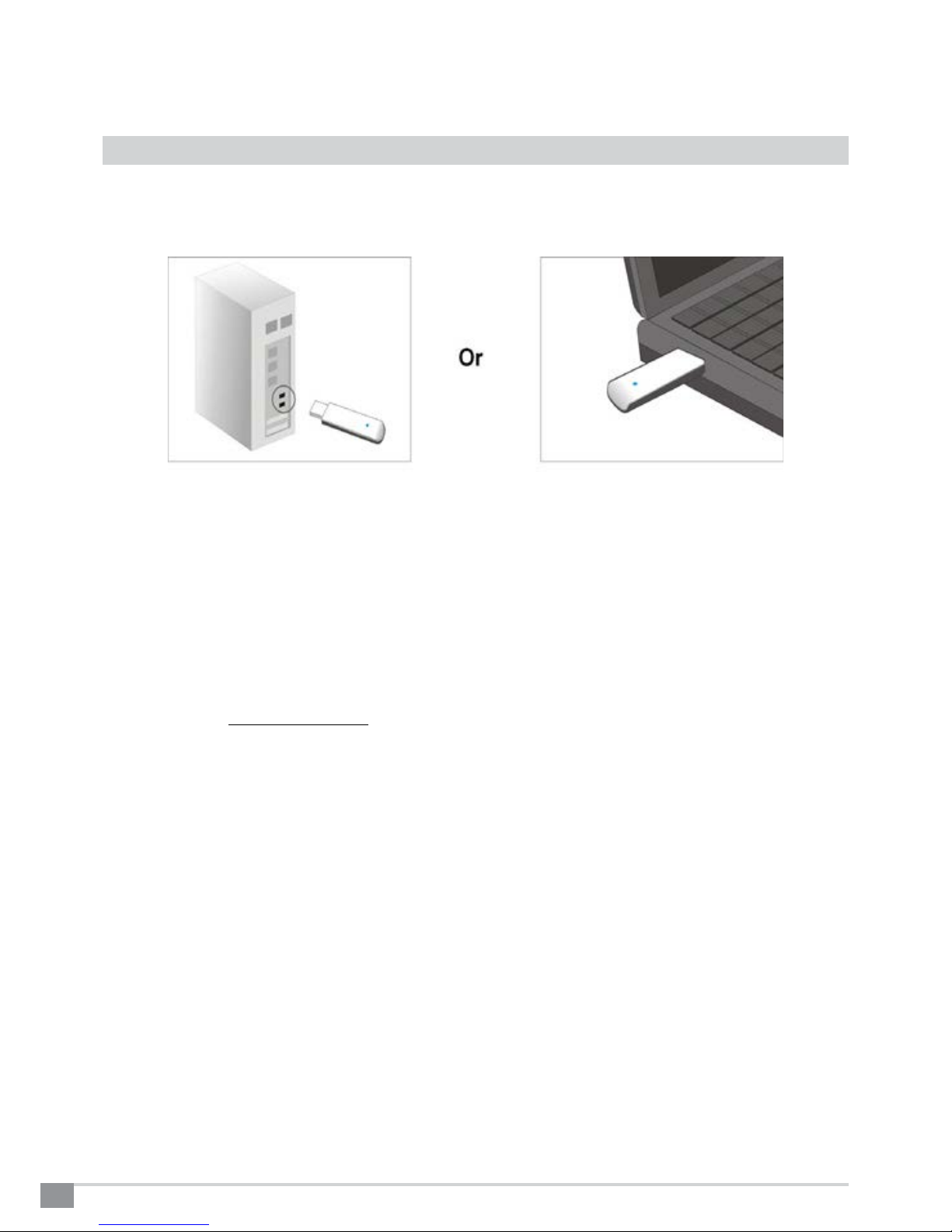
To use the WID340 Wireless-N USB Adapter, simply plug the device into an available USB slot on the computer
or laptop.
If the drivers have not been loaded previously, continue by installing the drivers for your respective operating
system (see the following sections).
Note: Under normal operation, the WID340 LED indicator will turn on when plugged in. When the adapter is in use,
the LED indicator will blink.
1. Windows Installation (XP, Vista, 7)
Note: You will be required to restart your computer after installing.
1. Insert the Kinivo Software CD and run the setup when prompted. Alternatively, you can download the
drivers from support.kinivo.com.
2. Click Install to start the installation process.
3. Accept the agreement and press Next.
4. Click Install to continue.
5. The installation process will happen. It may take several minutes depending on the speed of your
computer.
6. When the process is complete, select Yes, I want to restart my computer now. Then press Finish.
7. After the computer has restarted, the driver installation is complete.

5
Kinivo WID340 Dual Band Wireless N USB Adapter
2. Windows 8/8.1 Installation
Windows 8/8.1 will automatically install the drivers once the adapter is plugged in. Please note that the default
Microsoft drivers will only work for 2.4GHz networks and will not support 5GHz networks (no dual band support).
Please follow the steps below to use the adapter with 5GHz networks using the Ralink drivers:
1. Follow the Windows Installation steps for XP, Vista, 7 indicated in the previous section.
2. Open the Device Manager by pressing the Windows key + X, then pressing M. Alternatively, the Device
Manager can be found by using the start menu or through the control panel.
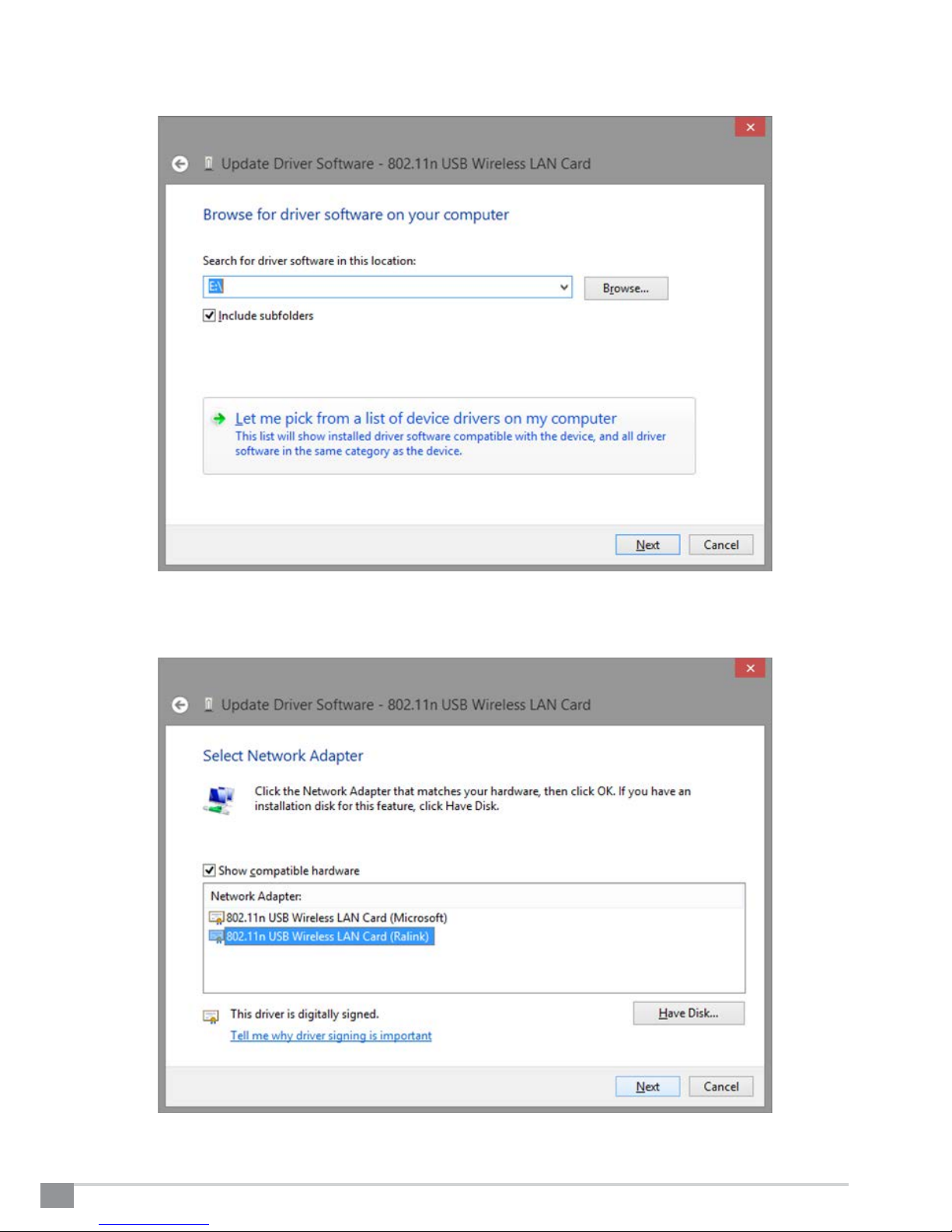
3. Expand the category Network adapters then right click 802.11n USB Wireless LAN Card from the list
then select Update Driver Software....
4. Click Browse my computer for driver software.
Kinivo WID340 Dual Band Wireless N USB Adapter
6
5. Click Let me pick from a list of device drivers on my computer.
6. Select 802.11n USB Wireless LAN Card (Ralink) from the list then click Next.

7
Kinivo WID340 Dual Band Wireless N USB Adapter
7. Click Close when the driver has been successfully updated. The driver installation is complete
3. Connecting to a wireless network (Windows 7)
1. To begin the connection process, locate the Wireless and Network status icon in the system tray in the
bottom right corner and left click the icon.
Alternatively, you can access the same menu by navigating to Control Panel > Network and Sharing Center >
Connect or Disconnect.

Kinivo WID340 Dual Band Wireless N USB Adapter
8
2. Select your wireless network from list by left clicking it, then press Connect
3. If prompted for a password, continue by entering your password and press OK.

9
Kinivo WID340 Dual Band Wireless N USB Adapter
4. After several moments, your computer will have connected to your wireless network.
4. Connecting to a wireless network (Windows 8/8.1)
1. To begin the connection process, locate the Wireless and Network status icon in the system tray in the
bottom right corner and left click the icon

Kinivo WID340 Dual Band Wireless N USB Adapter
10
2. Select your wireless network from list by left clicking it, then press Connect.
3. If prompted for a password, continue by entering your password and press OK.
Table des matières
Autres manuels Kinivo Adaptateur


