
KIIROO onyx2 Manuel utilisateur

MANUAL

1
The Onyx2 is to be used with the authorized FeelConnect app only.
Downloading any third-party applications to control or interact with Onyx2 that are not
mentioned above is done entirely at your own risk. In the event that a third-party appli-
cation is downloaded, and it damages either the device software or hardware or leads
to personal injury, neither KIIROO nor any of their partners will be held liable. In the event
that third-party applications are downloaded, the device warranty will be void.
FeelRobotics, FeelTechnology and KIIROO are constantly working to ensure their har-
dware and software are as secure as possible. We recommend updating your app and
device every time there is an update to the latest versions in order to guarantee your
safety.
Apple and the Apple logo are trademarks of Apple Inc., registered in the U.S. and other
countries. App Store is a service mark of Apple Inc., registered in the U.S. and other
countries.
Google Play and the Google Play logo are trademarks of Google Inc.
The Bluetooth® word mark and logos are registered trademarks owned by the Bluetooth
SIG, Inc. and any use of such marks by KIIROO is under license. Other trademarks and
trade names are those of their respective owners.

1. Set up your device
2. Using your device
3. Download the FeelConnect App
4. Modes
4.1 Bluetooth Mode
4.2 Automatic Mode
5. Services
6. Charging and LED indicator
6.1 Charging your device
6.2 LED Indicators
7. Handling and Lubrication
8. Cleaning
9. Disclaimer and Warning
10. Disposal Specications
11. Aftercare and Help
12. Onyx2.1 Hardware update
Table of Contents
2
3
4
5
6
7
8
9
10
11
12
13
14

1. Set up your device
1. Using the micro USB charger provided, charge your device until the light turns blue,
about 4-6 hours. We recommend charging the device fully prior to the rst use.
●
- The charging port can be found behind the Onyx2 under the rubber charging cover.
- Insert the micro USB into the small hole at the back of the Onyx2.
2. Go to www.kiiroo.com to create your user account.
(https://www.kiiroo.com/my-account/)
3. Once you have created an account, please go to:
(https://www.kiiroo.com/pages/register-your-device/)
to register your device and activate your one (1) year warranty.
4. Download the FeelConnect App to pair your device with your mobile phone.
android iphone
3

2. Using your device
1. Power on by pressing the multifunctional button at the bottom of the device and hold
for approximately 4 seconds.
●
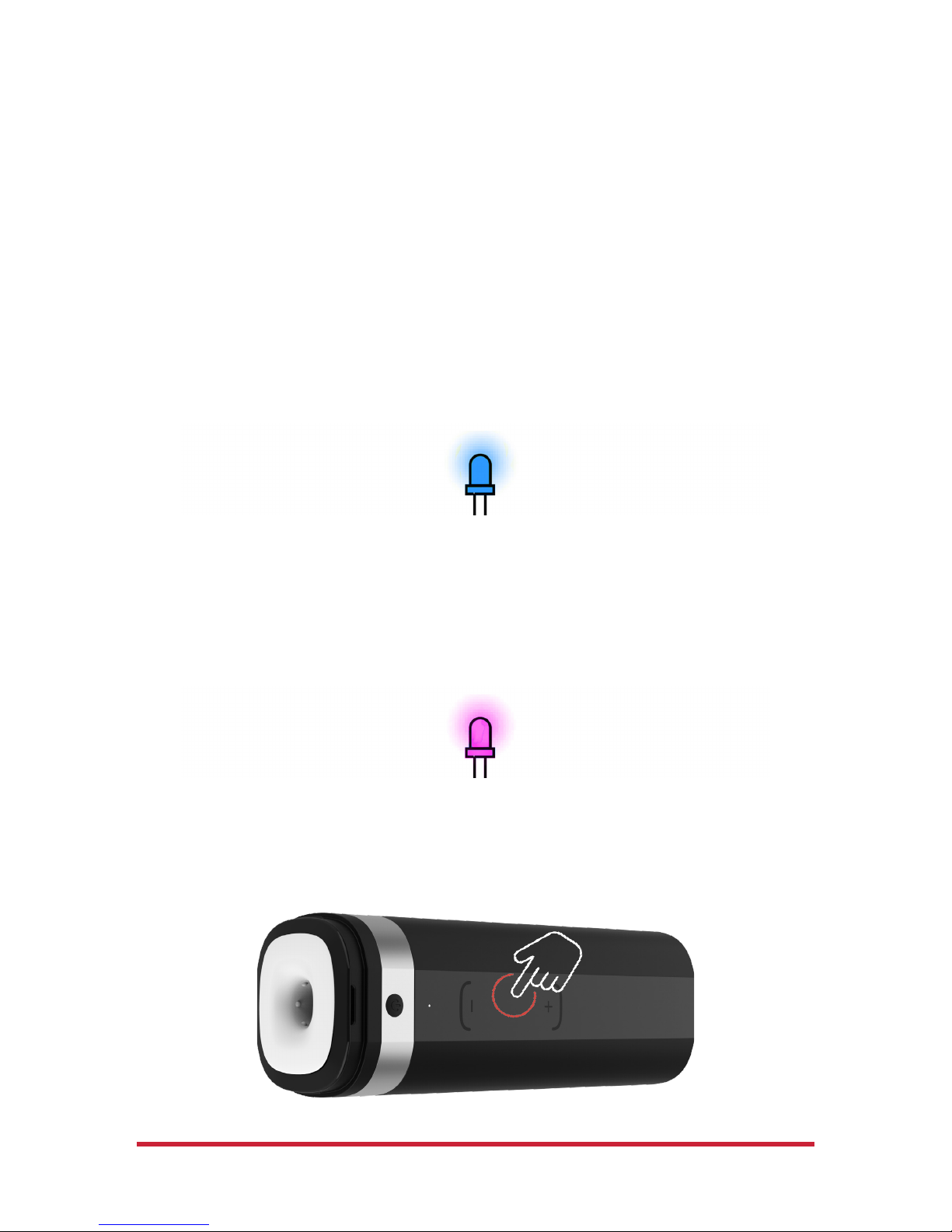
2. A solid blue color will show and the device is now in Bluetooth Mode (go to page 6).
3. Push the button once. The light will turn purple and now the device is in Manual
Mode (go to page 6).
4. To turn off the device, hold the multifunctional button for approximately 4 seconds
until the light goes off.
**Please note, Onyx2 is NOT waterproof.
4

3. Download the FeelConnect app
Please download the FeelConnect App on your mobile phone and follow the instructions
on how to pair your Onyx2 to the app.
The Onyx2 is to be used with the authorized FeelConnect app only.
Downloading any third-party applications to control or interact with Onyx2 that are not
mentioned above is done entirely at your own risk. In the event that a third-party appli-
cation is downloaded, and it damages either the device software or hardware or leads
to personal injury, neither KIIROO nor any of their partners will be held liable. In the event
that third-party applications are downloaded, the device warranty will be void.
FeelRobotics, FeelTechnology and KIIROO are constantly working to ensure their har-
dware and software are as secure as possible. We recommend updating your app and
device every time there is an update to the latest versions in order to guarantee your
safety.
android iphone
5
4. Modes
Onyx2 has two main modes; Bluetooth Mode & Manual Mode. To cycle through each
mode, click the single multifunctional button until you reach the mode of your choice.
Onyx2s default mode is Bluetooth Mode.
4.1 Bluetooth Mode; Indicated by a blue light.
To pair Onyx2 with content, follow the instructions on the FeelConnect App.
Go to FeelMe.com, click on “My Devices” in the top right corner, and scan the QR code to
connect to the content of your choice.
4.2 Manual Mode; indicated by a purple light.
Once the device is in Manual Mode, you can control the speed of the stroke by using the
trackpad located on the front of the device.
6

5. Services
Feel Your Lover
When paired online, the corresponding device(s) mimic intimacy in real-time from
anywhere in the world.
Feel Videos
The thrusting sensations of Onyx2 sync with the motions you see on the screen, ma-
king you feel like you are right there in the scene.
Feel Virtual Reality
Use Onyx2 in combination with VR glasses and Virtual Reality Porn. Experience high-
quality adult videos lmed in 180 and 360-degrees with 3D stereoscopic views.
Feel Webcam Models
Kiiroo’s webcam partners have a special interactive section on their website with hot
models ready to control your device.
Go to FeelMe.com to nd a variety of interactive content.
7

6. Charging and LED indicator
6.1 Charging
1. Insert the USB cable into the Onyx2s charging port. The charging port is located at
the back side of the Onyx2.
2. Insert the other end into a USB port. This can be in a computer or wall adapter
[Please note, wall adapter is NOT included in the box.]
3. Wait for the red LED light to blink slowly; this indicates that the Onyx2 is charging.
4. The LED light will glow solid blue when Onyx2 is fully charged.
5. When the battery is low, the LED indicator will prompt you to charge by flashing red
quickly. You will have approximately 5 minutes before Onyx2 disconnects from Blueto-
oth and turns off.
6. The LED indicator will blink blue-red-blue-red periodically if an update is available or if
something has gone wrong.
6.2 LED Indicator
(Blinking BLUE)Bluetooth mode; searching to connect.
(Solid BLUE) Bluetooth mode is connected.
(Solid PURPLE) Manual mode.
(solid BLUE) Fully charged.
(Blinking RED) Battery low.
(Blinking RED) When on charge.
(Blinking RED quickly) Battery is critically low- 5minutes until disconnect.
(Blinking BLUE/RED) Bootloader mode; Please update.
8

7. Handling and lubrication
Kiiroo recommends removing the Fleshlight™ SuperSkin™ sleeve from Onyx2 to apply
lubricant. Apply a generous amount of water-based lubricant inside the sleeve before
use.
●
Recommended:
1. Always use KIIROOlube™, Fleshlube™ or any other water-based lubricant.
2. Always use lubricant as it will prolong the lifespan of Onyx2s Fleshlight™
SuperSkin™ sleeve and give you the most comfortable experience.
Do not use:
1. Silicone or oil based lubricant as it will deteriorate the Fleshlight™ Super-
Skin™ sleeve of the Onyx2.
9
Table des matières


