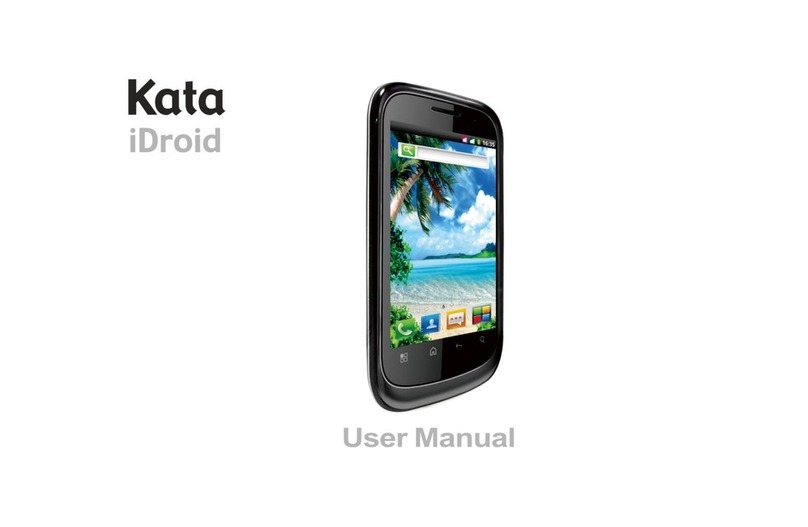
KATA C1 Manuel utilisateur

1
Mobile USER MANUAL
Brand:Kata
Model: C1

2
Table of Contents
Safety Information...................................................................................................................................................................3
Introduction .............................................................................................................................................................................4
Dual SIM Installation Guide ....................................................................................................................................................4
Call Functions .........................................................................................................................................................................4
Notifications Bar......................................................................................................................................................................6
Contacts..................................................................................................................................................................................7
Messaging...............................................................................................................................................................................9
Bluetooth & Wi-Fi..................................................................................................................................................................10
Downloads ............................................................................................................................................................................12
Internet Browser....................................................................................................................................................................13
Camera .................................................................................................................................................................................14
Gallery...................................................................................................................................................................................16
Music.....................................................................................................................................................................................17
FM Radio...............................................................................................................................................................................17
Sound Recorder....................................................................................................................................................................18
File Manager.........................................................................................................................................................................20
Calendar................................................................................................................................................................................20
Alarm Clock...........................................................................................................................................................................21
Settings.................................................................................................................................................................................22
Storage..................................................................................................................................................................................26

3
Safety Information
Please carefully read the terms below:
Use Safely
Do not use the phone in situations where it might cause danger.
Transportation Safety
Please observe all transportation laws and regulations.
Please drive with both hands on the wheel.
Hospital Safety
Please follow hospital rules and limitations.
Please turn off your mobile phone when near medical instruments.
Airport Safety
Remember to follow all airport and flight safety regulations.
Please do not use your phone during flight.
Chemical Warning
Do not use your mobile phone around fuels or chemicals.
Temperature Warning
Do not subject your phone to extreme temperature conditions.
Water Hazard
Your phone is not waterproof. Keep it away from water and liquids.
Emergency Calls
Make sure your mobile phone is switched on and in a service area. In home screen, tap the phone key and dial the
emergency number.
Accessories and Batteries
Use only Blu authorized batteries and accessories.
Information Backup
Remember to keep a written record of all important information.

4
Introduction
Dual SIM Installation Guide
Installation of the SIM Cards
Advisory: Please keep the SIM card out of the reach of children. The SIM card and its contact are easily damaged due to
scratching or bending. Please be cautious when carrying, installing or taking out the SIM card. BN: Contact your cellular
phone service provider directly to obtain the SIM card.
To insert SIM card:
1. Remove the rear cover. Insert the SIM card.
2. Insert the SD card. (For additional storage capacity)
3. Insert the battery, replace the rear cover, and power on.
Power On and Off
On - Please ensure the SIM card has been properly inserted into the phone. Long press the Power key to switch on the
phone.
Off - In standby mode, long press on Power key until an options menu appears. Select Power Off in the menu and confirm
Password Lock
You may set a screen unlock picture or a PIN code lock as a security measure. For further information regarding password
locks, password revision and other functions please enter the security settings of the phone.
Power On and Off
On - Please ensure the SIM card has been properly inserted into the phone. Long press the Power key to switch the phone
on.
Off - In standby mode, long press on Power key until an options menu appears. Select Power Off in the menu and confirm
in the pop-up prompt to switch off the phone.
Security
You may set a security lock feature as a security measure for the phone. For further information regarding password locks,
password revision and other functions please enter into the security option in system settings.
Call Functions
At the dial keyboard, enter the phone number and then click the dial key. If dialing an extension, you may click the dial pad
icon in the bottom of the screen to open the interface and enter the number of the extension. You may also press and hold
the 0 key to add a (+) sign when adding an international dialing prefix.

5
Call Logs
Every telephone number called and received will be saved in the phones call log. All numbers in the call log can be dialed
directly by clicking the dial icon on the screen. When the number appears on the list, click it to view details. To clear the call
logs, press the menu key and select delete. You may remove one or multiple calls.
Call Options
There are different options that can be used in the call log and dialing interface. You may press the menu key while in the
dial interface and adjust speed dial and call settings. In the call logs, you may press the search button to browse through
contacts list or set default contact resources.

6
Notifications Bar
The notification bar is located on the top of the screen which contains useful and important information regarding your
phone and the applications that are installed. On the notification bar, several icons will appear such as signal bar, battery
indicator, data indicator, Bluetooth and Wi-Fi. You may slide the notification bar down with your finger to display any
pending notifications or actions.
Notification Settings
The notification settings window provides shortcuts to different phone settings for quick access. Click on any of the shortcut
notification icons to power on or off.
Note: To remove pending notifications, drag down the notification bar and click the clear notification icon on the upper right
Pending Notifications
and Applications
Quick Notification
Settings
Clear Notification and
Quick Settings menu
buttons

7
hand part of the screen (3 horizontal lines). The notification settings menu is located by dragging down the notification bar
and is located on the upper right hand part of the screen next to the clear notification icon.
Contacts
Enter: Click on the applications menu and select contacts.
The default display is the phone contacts and SIM card contacts.
The contacts are organized alphabetically by default.
Click the Search icon to enter the contact search interface.
Any numbers or letters associated with any of the contacts saved in the list will be shown in the search results.
Add New Contact
Click the add contact icon (+) to add contact.
Add Contact
Search
menu

8
Select to save your contacts to your Google account, the phone or the SIM card.
You may enter different contact details which include adding a picture, name, telephone number, group, address,
and email among other options.
Click to finish and save contact.
Delete Contact
Click on the Contacts icon to enter the phonebook.
Click the menu key to access the Contacts menu.
Click on Delete Contact and scroll to select which contact(s) you wish to delete.
Note: You may also search for an individual contact in the phonebook. Once the contact is found click the contact name to
enter the contact profile, press the menu key to bring up the contact menu and select delete to eliminate from the
Contact information
entry field

9
phonebook.
Import / Export Contacts
The phone allows you to import and export contacts to synchronize information between different storage types that
include the SIM card, Gmail account and your phone.
To import or export contacts:
1. Press the Contacts icon to enter the phonebook.
2. Press the menu key and select Import / Export
3. Select the source you want to copy the contacts from. Once selected click next and select the destination where you
want the contact to be copied to then select the desired contacts to be copied.
Messaging
You may use this function to exchange text messages and multimedia messages with your family and friends. The
messages to and from the same contact or phone number will be saved into a single conversation so you may see the
entire message history conveniently.
Send an SMS
Application Menu »Messaging »New message (or shortcut icon)
Click the contact icon to enter text message recipient
Compose Text Message and click Send
Send an MMS
When creating message, the default message style is SMS. The message will automatically convert to MMS when adding
an attachment or when surpassing 10 pages of SMS messages.
Click the attachment icon in the messaging interface.
Click to add attachments and create an MMS message.

10
Bluetooth & Wi-Fi
Bluetooth is a short-range wireless communications technology that devices can use to exchange information and connect
to different types of devices which include headsets and other devices.
Power on Bluetooth
Settings »Bluetooth and select to power on Bluetooth.
The Bluetooth icon will appear in the notification bar. The Bluetooth will then start to scan for all devices within its
range and will display all available devices in a list.
In Bluetooth settings, all the devices found will displayed in a list.
Attachment and
Emoticon buttons
Text message entry field
Add Recipient
Table des matières
Autres manuels KATA Téléphone portable