Kaon AR3030W Manuel utilisateur

User Guide
AC1600 Whole Home Wi-Fi Mesh System
AR3030W

Contents
About This Guide
Product Overview
Product Specifications
Set Up Your AR3030W
Dashboard
Wi-Fi Settings
Guest Access
3
4
6
7
10
11
12
2
LED 13
LEDs 5
Common Setup Issues
Trouble shooting
14
16

Conventions
More Information
About This Guide
This guide provides a brief introduction to AR3030W Whole Home Mesh Wi-Fi System and the mobile app, as well as other
useful information.
Please note that features of AR3030W may vary slightly depending on the model and software version you have, and on
your location, language and internet service provider. All images, parameters and descriptions documented in this guide are
used for informational purposes only, and may change without notice. This publication may not be reproduced, in whole or
in part, without prior expressed written permission from KAONMEDIA Co., Ltd.
Copyright Statement
Convention Description
AR3030W It stands for AR3030W Whole Home Mesh Wi-Fi System.
Device It stands for AR3030W Whole Home Mesh Wi-Fi System.
Connected Device It stands for devices which are connected to your AR3030W Wi-Fi network.
KAON App It stands for KAON Smart Wi-Fi App
This format is used to highlight information of importance or special interest. Ignoring this type of note may result in
ineffective configuration, loss of data, or damage to your device.
This format indicates important information that helps you make better use of your device.
It stands for my dashboard menu.
It stands for mesh network menu.
It stands for tool menu.
For technical support and other information, please contact your sales representative or contact us by email.
www.kaonmedia.com I sales_support@kaonmedia.com
3

LED: 2.4G, 5G, ETH, MESH, POWER
Ethernet Ports: For connecting AR3030W to your home
gateway, the Ethernet outlet or other internet devices.
WPS Button: For creating a mesh network between
AR3030W devices
Reset Button: For resetting AR3030W to
factory default settings
Power Connector: For Connecting
AR3030W to the a power outlet via the
provided power adaptor
Product Overview
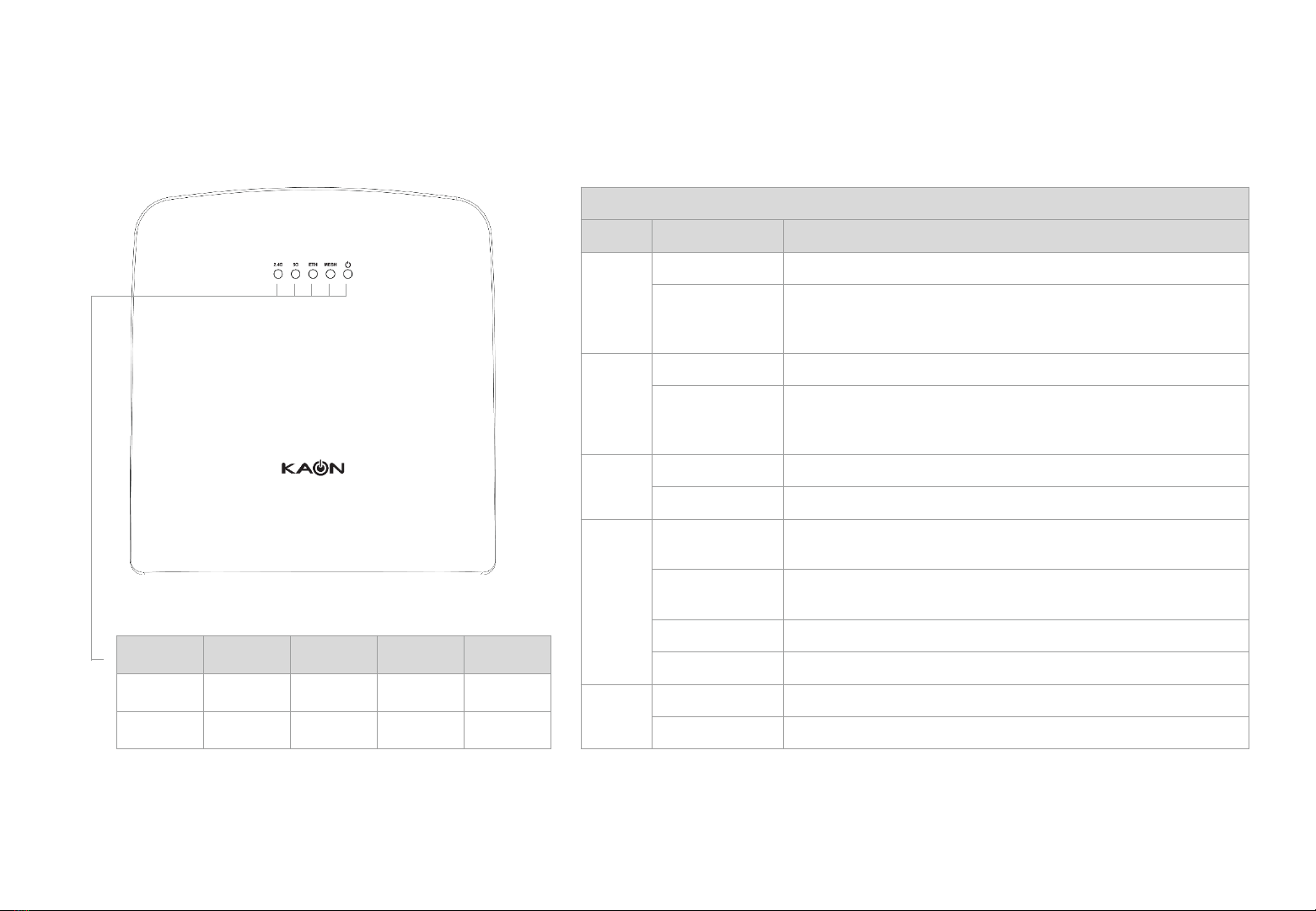
Each AR3030W has five (5) LEDs, two (2) RJ-45 Gigabit Ethernet LAN ports, WPS and RESET buttons and a Power
Connector. See the explanation below:
4

LEDs
Each AR3030W has five (5) LEDs that changes color according to its status. See the explanation below:
LED description
LED Color Description
2.4G
Green The 2.4GHz radio is operating.
Yellow
Case 1 : The Wi-Fi connection between AR3030Ws is weak.
Case 2 : The additional AR3030W is not connected to the
AR3030W connected to your home gateway.
5G
Green The 2.4GHz radio is operating.
Yellow
Case 1 : The Wi-Fi connection between AR3030Ws is weak.
Case 2 : The additional AR3030W is not connected to the
AR3030W connected to your home gateway.
ETH
Green The Ethernet device is connected to an Ethernet port
None The Ethernet device is not connected to AR3030W.
MESH
Blue The primary AR3030W connected to your home gateway
completes to create a mesh network.
Blinking Blue The primary AR3030W connected to your home gateway is
creating a mesh network.
Green The additional AR3030W(s) completes to create a mesh network.
Blinking Green The additional AR3030W(s) is creating a mesh network.
Power
Green AR3030W is ready.
Blinking Green AR3030W is initializing.
5
2.4G 5G ETH MESH POWER
Green Green Green Green Green
Yellow Yellow None Blue None

Product Specifications
6
General
Device Interfaces • Two 10/100/1000 Mbit Ethernet LAN ports • Pin-sized reset button
• WPS button • Power port
LEDs
• 2.4 GHz band uplink/downlink strength • Mesh Network
• 5 GHz band uplink/downlink strength • Power
• Ethernet
Antenna Type • Two internal antennas (Dual band)
Data Signal Rate • 2.4 GHz: up to 300 Mbps • 5 GHz; up to 1300 Mbps
Standards
• IEEE 802.11ac • IEEE 802.11n
• IEEE 802.11g • IEEE 802.11b
• IEEE 802.11a
Minimum Requirements
• Internet Explorer 10, Chrome 28.0
• iOS 11.0 or later, compatible with iPhone • Android 5.0 or later, compatible with Android phone
• Wireless network
Functionality
Security • WPA & WPA2 (Wi-Fi Protected Access) • WPS (Wi-Fi Protected Setup)
Advanced Features
• Web / Mobile setup wizard • Quality of Service (QoS)
• Seamless Roaming (multiple AP steering) • Air Time Fairness (ATF)
• Wi-Fi Multimedia (WMM) • AP Steering
• Smart Band Steering (Smart Connect) • Remote Diagnostics / Monitoring (TR-069, syslog)
• Wi-Fi Mesh
Physical
Dimensions • 156 x 147 x 71.4 mm (6.14 x 5.78 x 2.81 in)
Weight • 298 g
Power Adapter • Input: 100 to 240 V AC, 50/60 Hz • Output: 12 V, 1.5 A
Temperature • Operating: 0 to 40 °C (32 to 104 °F) • Non-Operating: -20 to 65 °C (-4 to 149 °F)
Humidity • Operating: 20% to 80% non-condensing • Non-Operating: 5% to 95% non-condensing
Certifications

Set Up Your AR3030W
Follow the steps below to set up your AR3030W Whole Home Wi-Fi.
1. Download the KAON Smart Wi-Fi app
Scan the unique QR code below to
download the KAON Smart Wi-Fi app.
Install the app on a compatible iOS or
Android smartphone.
2. Read the Terms of Service
Launch the app.Read and review the
Terms of Service carefully before using the
service. Clicking “I agree to the Terms of
Service" constitutes your acceptance and
agreement to be bound by the Terms of
Service.
Tap the Get Started button to set up
AR3030Wwith the app.
3. Connect your home gateway to AR3030W
Swipe to find an Extender icon shown in
purple color, then tap the icon.
7
Follow the step-by-step instructions on the
App to connect your home gateway to your
primary AR3030W. Then, tap the Next
button

4. Find and connect your AR3030W
Tap the Scan QR code button, and then
point the camera at the QR code on the
back or bottom of the device.
5. Choose your AR3030W
You can see a list of AR3030W(s)
connected to your phone or network after
connecting your phone to the AR3030W
successfully.
6. Log in with KAON AR3030WID
Enter your login information printed on a
label on the back or bottom of the AR3030W
to log in.
If the QR code is missing or you’re unable to
scan it, you can connect your phone to the
AR3030Wmanually. Tap the Set up
manually button to follow the step-by-step
instructions.
8
Set Up Your AR3030W
Follow the steps below to set up your AR3030W Whole Home Wi-Fi.
Find AR3030W, which turns into amaster
mode and shows in purple color, then tap
the icon.

7. Add more AR3030Ws
You can see the dashboard of the app after
setting up your Wi-Fi network successfully.
9. Create a mesh network
After scanning its QR code successfully, tap
Smart connect to create a mesh network
between your primary AR3030W and
additional AR3030W.
8. Connect your additional AR3030Ws
Just like the way you connected your
primary AR3030Wto your phone, point the
camera at the QR code on the back or
bottom of the device.
If you have more than one AR3030W device,
go to network on the top left-hand corner,
and tap icon to add more AR3030Ws one
by one on the dashboard of the app.
Set Up Your AR3030W
Follow the steps below to set up your AR3030W Whole Home Wi-Fi.
Wait a few minutes until all AR3030Ws
start to connect each other automatically,
and then repeat this method to set up
another AR3030W.
9

Dashboard
You can view the status of all the
AR3030W, real-time upload/download
speed, and connected devices per
AR3030W.
Manage your AR3030W(s)
Tap the AR3030Wicons on the home
screen to see details of the corresponding
AR3030Wunits.
Speed Test
Tap the Internet icon to run a speed test to
make sure you are getting the speeds you
are paying for.
Dashboard
After you successfully set up your AR3030W network and create a mesh network, you will see the dashboard of the KAON
app. Here you can view working status of all AR3030Ws, its network topology, and the connected devices per AR3030W.
You can see the Dashboard screen by
tapping the Home icon located on the
middle of the top.
10
You can change device names by tapping
the Edit icon, and see details of connected
devices by tapping the number above
Connected devices.
Download speed is the rate at which
internet content is transferred to your
AR3030W(s), whereas Upload speed is the
rate at which you can upload content to the
internet.
Table des matières
Autres manuels Kaon Point d'accès sans fil
Manuels Point d'accès sans fil populaires d'autres marques

D-Link
D-Link DWL-2100AP - AirPlus Xtreme G Manuel utilisateur

Ubiquiti
Ubiquiti NanoStation NSM2 Manuel utilisateur

Cisco
Cisco Aironet 1550 Series Manuel utilisateur

Aruba
Aruba IAP-335 Manuel utilisateur

Advantek Networks
Advantek Networks AWN-AP-54MR Manuel utilisateur

IP-COM
IP-COM AP355 Manuel utilisateur