
Kaiser Baas KBA03042 Manuel utilisateur
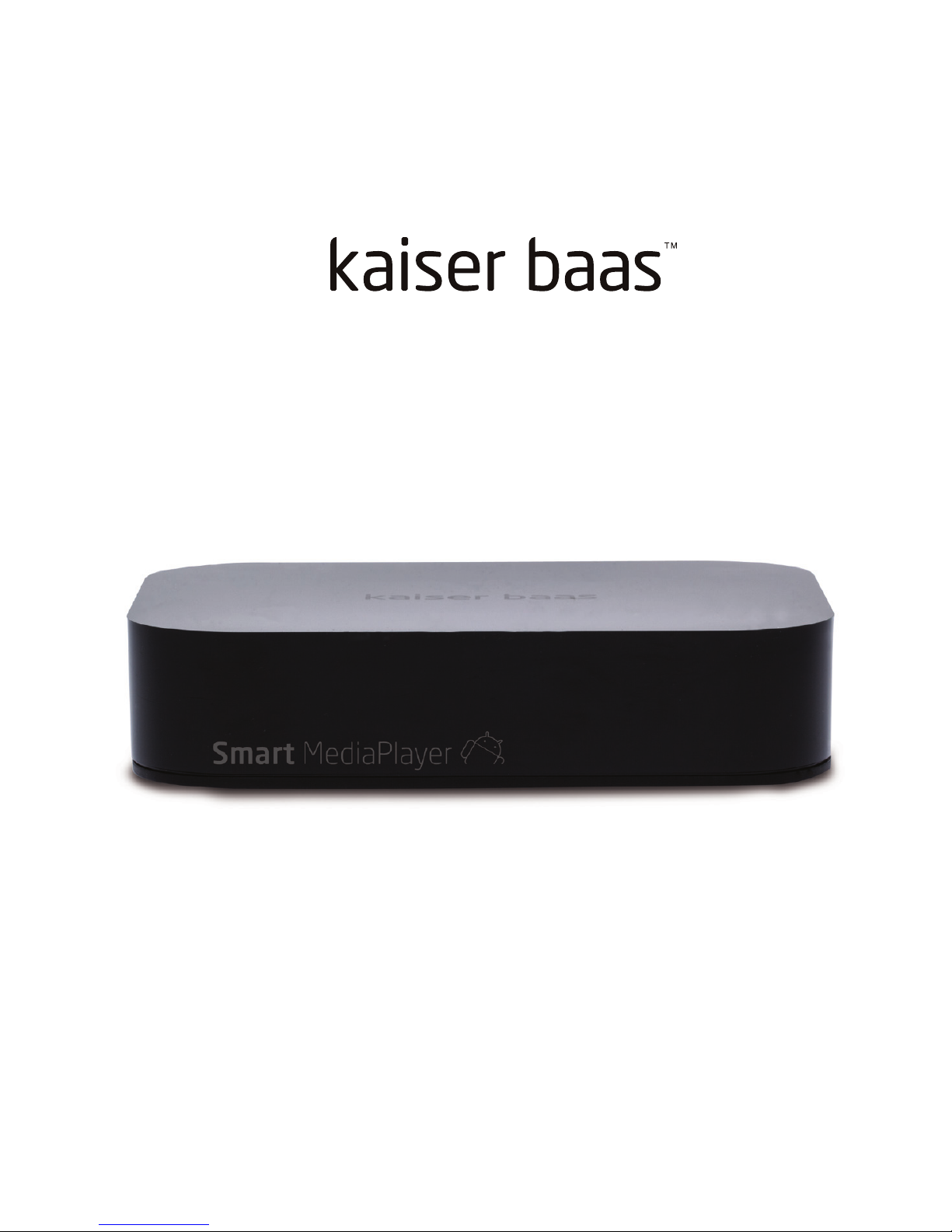
SMART MediaPlayer User Guide
User Guide - Manuel D’utilisation - Manuale d’istruzione - Manual de Usuario

3
Languages
English 3
French / Français 17
German / Deutsch 33
Italian / Italiano 49

2 3
/kaiserbaas
Get product updates:
www.kaiserbaas.com/updates
CONTENTS
Safety precautions
What’s in the box
Remote diagram
Product diagram
Connection guide
Using your Smart Media Player
Main menu interface
Connecting to the internet
Adjusting your settings
Connecting external devices
Specifications
Product specifications
Frequently Asked Questions
Contact us
4
5
6
7
8
9
10
12
13
13
14
14
15
16
English
English

Smart MediaPlayer User Guide
5
4
English
English
WHAT’S IN THE BOX
Please ensure the product package has all the following contents:
A
B
C
A
B
C
D
E
D
E
SAFETY PRECAUTIONS
Before using the Smart Media Player, please ensure you read and understand all the
safety precautions below.
Do not attempt to open the case or modify it in any way, as this will void your warranty.
Maintenance and repairs should only be performed by Kaiser Baas.
Keep the Smart Media Player away from water and other liquids. Do not use wet hands
when using the Smart Media Player as this may cause the unit to malfunction.
Keep the Smart Media Player away from direct sunlight and heat sources.
Smart Media Player may become slightly warm during use. This does not indicate
malfunction.
Do not place heavy objects on the Smart Media Player, as this may cause it to
malfunction.
Do not dispose of the unit via conventional domestic waste.
Use the supplied power supply; do not substitute for another power supply.
User guide
AV cable
Smart Media Player
Remote
Power supply

7
6
English
English
USB inputs 1&2
HDMI output
SD card input
Power/DC in
AV output
LAN input
S/PDIF, Optical output
PRODUCT DIAGRAMREMOTE DIAGRAM
HOME
STANDBY
NAVIGATION BUTONS
OK / ENTER
MOUSE MODE
BACK
TASK MANAGER
1
1
1
2
3
4
5
6
7
5
2
2
6
3
3
3
3
3
7
4
4
567
3 1
4 5 2 6 7
Left
Front
Right
Back

9
8
English
English
CONNECTION GUIDE
Connecting the Smart Media Player with an HDMI cable
Connecting the Smart Media Player with an AV cable
Optical Audio connection
with a S/PDIF cable
AV cable
HDMI cable (not included)
OR
AMP/ Home Theather
Optical Cable (not included)
USING YOUR SMART MEDIA PLAYER
Once you have connected the power supply, the Smart Media Player will automatically
begin to boot up. Allow a few minutes for the boot up process to complete. Once
completed, the following screen shot will appear. This is the main menu interface:
Use the directional buttons on the remote to highlight an option, press OK to select it.
You can also press the “Mouse” button to switch to Mouse Mode.
Tip: As most Smart apps are designed for a touch phone or tablet, you will need to
switch to mouse mode regularly to navigate through some apps. Some apps are purely
designed for touch screen and may not function at all.
The Smart Media Player’s operating system (OS) is Android Version: Jellybean 4.2. For
more information on how to use the Android OS, please visit www.android.com.
AMP HOME THEATER

11
10
English
English
MAIN MENU INTERFACE
Apps: Select to access the apps screen, where you can browse through apps and use
Play Store etc to access more apps or media.
Movies: Select to open the default movie player app “MX Player”. Here you can
browse your storage device or local drive to watch video files.
Music: Select to open the default music player app “Win amp”. Here you can browse
your storage device or local drive to play music files.
Photos: Select to open the default photo viewer app “Quick Pic”. Here you can browse
your storage device or local drive to view picture files.
Settings: Takes you to the Smart setup menu for accessing settings for the Smart
Media Player – including WiFi setup, languages, time/date and more.
For more information on how to use Android apps, please visit www.android.com
MAIN MENU INTERFACE
Below is a screenshot of the Android OS menu bar.
Reading in order from left to right are descriptions of the Android OS menu bar icons
Back: to go backwards one step (same function as on Remote)
Home: to return to the Main Interface menu (same function as on
Remote)
Task Bar: to view any apps running in the background. Tip: this is
useful for closing down apps running in the background
Screen Shot: capture a photo of the screen (Screen Shots are
stored in local memory://Pictures/Screenshots)
Volume Down: to adjust volume lower
Volume Up: to adjust volume higher
Power: to put the Smart Media Player on standby (same function as
on Remote)
More: for further options related to the application
These icons represent tasks or apps that may be running -
including email, wifi connection, clock, notifications and more.
For more information on how to use Android OS, please visit www.android.com

13
12
English
English
CONNECTING TO THE INTERNET
To connect the Smart Media Player to your internet connection you can connect a
LAN cable directly from your router to the LAN input port on the Smart Media Player,
or enter the “Settings” page from the main menu interface and select your WiFi
connection.
For more information on how to use the Android OS, please visit www.android.com
ADJUSTING YOUR SETTINGS
Use the directional buttons on the remote control to highlight an option, press OK to
select an option, follow the
prompts to make adjustments.
Tip: Switching to “mouse”
mode on the remote is useful to
select some options.
For more information on how to
use the Android OS, please visit
www.android.com
CONNECTING EXTERNAL DEVICES
There are various devices the Smart Media Player is compatible with. Most USB
keyboard, mouse, storage, webcam and joystick devices will be detected. To connect
an external device, simply plug it into one of the USB ports on the Smart Media Player.
After a few seconds, a window will pop up explaining if it has successfully connected.
For some devices you may be able to download an app to make your device compatible
with the Smart Media Player.
For more information on how to use the Android OS, please visit www.android.com

15
14
English
English
PRODUCT SPECIFICATIONS
SPECIFICATIONS
Video Format: AVI, MKV, TS, TP, MPG, WMV, M2TS, VOB, MOV, M4V, VOB, ISO, DAT, WMV, ASF, RM,
RMVB, FLV res 720p, 1080i, 1080p, BD-ISO DAT, MPG, MPEG (up to 720*576)
Video codec H.264, H.263, VC-1, MPEG, DIVX, VP8, VP6, AVS, SP, ASP, AVC, XviD, WMV, Real Video
Audio MP3, WMA, WAV, ACC, LPCM, FLAC, APE, DTS5.1 WAV, PCM/ADPCM, OGG Vorbis, AMR, Dolby
TrueHD, DTS-HD MA
Picture JPEG / BMP / PNG / GIF
Subtitles SRT, SMI, SSA, IDX/SUB, embedded subtitles on MKV/TP
File system FAT/FAT32/NTFS
Network SAMBA, uPnP, NFS
External drives Supports up to 4TB HDD
Video output HDMI, Composite
Video format NTSC, PAL, PAL-60
Processor Cortex A7 Dual Core 1.2Ghz
OS Smart 4.2 Jellybean
AV ports HDMI, Composite 3.5mm, S/PDIF
Ports 2x USB, SD Slot up to 32GB , Ethernet
WiFi 802.1.1b/g/n
IR Receive signals from remote control
Internal storage 4GB FAT/FAT32/NTFS
Console size 120 x 90 x 25mm
Power supply DC 5V, 2A
FREQUENTLY ASKED QUESTIONS
Q. There is no picture on the screen?
A. Ensure the power cable, AV and HDMI cable is connected correctly. Ensure your TV
source option is selected correctly to display the Smart Media Player. If there is still
no response, disconnect then re-connect the power cable.
Q. The Smart Media Player is not responding?
A. It may be loading various tasks. Access the taskbar via the Smart menu tab at
the bottom of the screen and close any apps not being used. If there is still no
change, disconnect then re-connect the power cable.
Q. Why can’t I play a selected file from my storage device?
A. Some codecs or file formats are not supported. Check the supported media table.
Also check if your storage device is formatted to a supported file system – check
the supported file system table.
Q. Why can’t I get to the option I’m trying to select with the remote?
A. Switch to “Mouse” mode for some apps to try and utilize its
functionality – keep in mind that some apps are purely designed for touch screen
operation and may not function at all on the Smart Media Player. You may want
to try connecting an external mouse, keyboard or joystick to achieve optimum
operation.
Q. Why is my Mac storage device not detected?
A. The Mac extended journaled format is not compatible with the Smart Media Player.
Use the Disk Utility on your Mac to reformat the storage device to FAT or FAT32.
Note: Keep in mind all your files will be lost when formatting and Kaiser Baas is not
responsible for lost or damaged files and data.

17
Français
16
English
FREQUENTLY ASKED QUESTIONS
Q. The Remote is not working?
A. Reduce the distance from the Smart Media Player or replace the battery.
CONTACT US
Need further assistance? Please visit:
www.kaiserbaas.com
Or email:
Ce manuel convient aux modèles suivants
1
Table des matières
Langues :
Autres manuels Kaiser Baas Lecteur multimédia


