
JPL Element X500 Manuel utilisateur

JPL-Element-X500
User Guide

Features:
• User changeable headband from single ear to dual ear
• Universal patented base with slot-in cartridge drawer to accept
Bluetooth or USB modules (Optional accessories - sold separately)
• DECT wireless technology level A
• Surround Shield™ noise cancelling microphone
• Sound Shield™ hearing protection
• Max100m(300)coverage
• Max 30 users in 50 square meters
• 6 hours talk time (stand by ~ 140 hours)
• Quick recharge time (60 to 90 mins)
• Volume contol on headset
• Boom arm adjustable through 270°
• In use / busy light indicator on speaker housing
• 50mm smooth protein leather ear cushion
• Headset weight 65g/80g
• Compatible with MS-Lync
• Patented design
• Full range of EHS cords available
• 24 Month repair or replacement warranty
Thisheadsetwillautoconguretoyourdeskphone.
The compatibility switch should be used in the alternative position, if no dial tone is heard in the headset
whenactive.Itwilltakeupto3minutesforthephoneandheadsettoestablishtheoptimumcallquality
withourAutoSetupfeature,ensuringthebestsound.Simplymakeatestexternalcallandtheheadset
willconguretotherequiredsettingsforyourphone.
IMPORTANT AUTO SET UP NOTICE
Helpful Setup Videos Found Here - https://www.jpltele.com/jpl-tutorials.aspx

What’s included
Base Unit
Monaural
Headband
Microphone
Boom Arm
Monaural
Headband
Switch Mode Power
Supply with Multi
Country Adapters &
Telephone Cord
Optional Accessories
Binaural
Headband
Bluetooth
Module
USB 2.0 Module and
USB Cable Type-A to Mini-B
JPL-DECT Lier Electronic Hook
Switch (EHS)
Type of lead varies
depending on phone model.
Please refer to EHS Guide
www.jpltele.com/ehs-cables
USB Cable Type-A to
Micro USB for optional
headset charging method
Microphone
Boom Arm

Attaching the headband
To attach the microphone boom
arm to the headband, align the
triangle shape on the microphone
boom arm with the triangle shape
on the headband and push to
clickintoplace.Themicrophone
boom arm will then rotate to your
requiredposition.
Detaching the headband
To detach the microphone boom arm from the
headband, gently push the microphone speaker from
insidetheearcushion.Thiswillpopthemicrophone
boomawayfromtheheadband.
DO NOT pull on the microphone boom
to remove it from the headband.
Align

Positioning the Microphone
30mm
Themicrophoneboomarmisexible,soyoucan
gently bend the boom and position it to suit the
curveofyourface.
The ideal position for the microphone is at the corner
ofthemouthapproximately30mm(2ngerwidth)
awayfromthemouth.
Microphone Boom Volume Control
Down Up
Mute
Mute /
Speaker Volume
HookOn/O
Answer / End
a call
In-use / busy
indicator
To change the speaker volume: roll the volume
switch towards the ‘plus’ sign to increase the
volume and roll the switch towards the ‘minus’
sign to reduce the volume and press the switch to
activatethemicrophonemutemode.

Connecting the Base Unit to your Desk Phone
DC Jack AUX Port
Handset Port
Telephone Port
• Plug the supplied telephone cord into the TEL port of the base unit
• Connect the other end of the telephone cord to the HEADSET port of the desk phone
Desk Phone with Headset Port
• On the desk phone, unplug the handset cable from the phone
• Plug the handset cable into the HANDSET port on the base unit
• Plug the telephone cord into the TEL port on the base unit and plug the other end of the
telephone cord into the HANDSET port on the desk phone
Compatibility Switch
• Select ‘1’ or ‘2’ until a dial tone is heard via the telephone connection
Desk Phone without Headset Port
Base Unit
Compatibility
Switch
This headset will auto congure to your desk phone.
The compatibility switch should be used in the alternative position, if no dial tone is heard in the headset
whenactive.Itwilltakeupto3minutesforthephoneandheadsettoestablishtheoptimumcallquality
withourAutoSetupfeature,ensuringthebestsound.Simplymakeatestexternalcallandtheheadset
willconguretotherequiredsettingsforyourphone.
IMPORTANT AUTO SET UP NOTICE
Helpful Setup Videos Found Here - https://www.jpltele.com/jpl-tutorials.aspx

Operating Instructions
Pairing a headset to the base unit:
1) Make sure there is no power to the base unit
2) Taketheheadsetothebaseunit
3) Hold the ‘mute button’ for 2-3 seconds until the blue indicator
lightontheheadsetstartstoash(IndicatingPairingMode)
4) Place the headset back on the base unit
5) Plug in the power cord to the base unit
6) Wait up to a minute and you should be able to hear an audible beep signifying the headset is
connected to the base unit
7) Testbytakingtheheadsetothebaseunit,whichshouldenabletheheadsettobe‘ohook’
(Greenphonelightactivated)andmakeatestcall.
Pairing a second headset to a base station:
1) Oneheadsetshouldalreadybepairedtothisbaseunit,ifsoitneedstobeturnedo
2) Toturntheheadseto,rstlytakeitothebaseunitandpressthecallaccept/rejectbuttonto
deactivate the green phone light on the base unit
3) Hold the call accept/reject button for 3 seconds, you should hear a short beep and then a longer
beepsignifyingtherstheadsetiso
4) Follow the steps in ‘Pairing a headset to a base unit’ above to connect the second headset
5) Oncethesecondheadsetisconnectedturntherstheadsetbackonwithashortpresstothecall
accept/reject button
6) Testtheheadsetsbycallingthephonesystemconnectedtothebaseunitandeachheadsetshouldring.
Please note: Pairing two headsets to one base unit allows each headset to answer the incoming call,
(amaximumofveheadsetscanbepairedtoonebaseunit)however,onlytheperson(therstto
answerthecall)willbeabletohearandinteractwiththecaller.
Mute
Please note: Your JPL-Element-X500 is supplied paired to the base unit straight out of the box.
However,ifaerchargingtheheadset,the‘GREEN’TELlightdoesn’tactivatewhentheheadsetis
removedfromthebaseunit,thenyoushouldfollowtheseinstructions.

Base Unit
Bluetooth
Pairing Button
PC/TEL
Selection
Microphone
Mute Button
Microphone
Volume
Compatibility
Switch
Mini ‘B’ USB/Bluetooth
Module Drawer
Bluetooth Button This function works when the Bluetooth module is inserted
PC/TEL Selection This function works when the USB cartridge is inserted
Microphone Mute Button Press to mute the call
Microphone Volume Yourheadsethasautomaticaudioconguration,(thiscantakeafew
minutes to settle) however, if required, you can adjust the volume
level for the speakers and microphone to suit
Compatibility Switch Select ‘1’ or ‘2’ until a dial tone is heard via the telephone connection
DC Jack Connect Power Adapter to DC Jack
AUX port ConnectionforHandsetLierorEHSAdapter(optionalextra)
Telephone Port Connect telephone cord to the headset port or handset port of a
telephone / base unit
Handset Port Plug Handset cord from the phone to Handset port
DC Jack AUX Port
Handset Port
Telephone Port
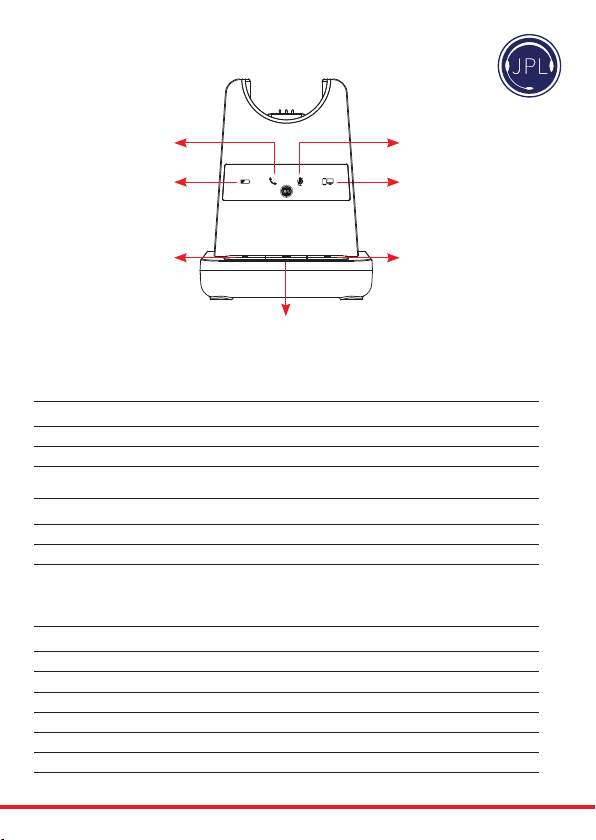
Microphone Mute Indicator
(Red Light)
PC/Bluetooth Indicator
(White Light)
Battery Charge Indicator
(Blue Light)
Telephone Indicator
(Green Light)
Bluetooth
Button
PC/TEL Selection
Microphone
Mute Button
Visual Indicator
Charging Status LED Status
Charging Battery Indicator: ‘Flashing’ 1 sec-ON, 1 sec-OFF
Fully Charged Battery Indicator: ‘ON’
LowBattery BatteryIndicator:‘Flashing’0.5sec-ON,0.5sec-OFF
Event LED Status
Press Microphone Mute Mute Indicator: ‘ON’
Press PC/TEL Selection PC/TEL Indicator - TEL: ‘OFF’ PC: ‘ON’
HookO SelectedModeIndicator:‘ON’
Audio Indicator
Event Sound Eect
Speaker / Microphone Volume Beep Sound ‘UP’ - High Tone, ‘DOWN’ - Low Tone
Max/Min Speaker Volume Double beep
Max/Min Microphone Volume Double Beep
Microphone Mute/Unmute Beep / Double Beep
MuteReminder Beep(every3seconds)
HookO/On DoubleBeep(HighTone/LowTone)
Low Battery Continuous beep in headset when battery is low
Base Unit

Trouble Shooting
1. Cannot hear a dial tone.
• CheckthePC/TELbutton.TELMute:PC/TELindicator–‘OFF’
• Pleasecheckthecableconnectionbetweenbaseunitandphone.
• Check that the power adapter is plugged in and has power
• Pleasecheckthecompatibilityswitch.Adjustcompatibilityswitchuntilyoucanhearthedialtone.
2. Microphone volume (TX) is low / dead.
• Makesurethatthemicrophone(TX)mutefunctionisdeactivated.
• Check the position of the boom arm and make sure that the microphone is placed as close as
possibletoyourmouth(approx.2ngersdistance).
• Adjustthemicrophone(TX)volumeonthebottomofbaseunit.
3. Buzzing sound on the headset
• Telephone may not be fully immune to the radio transmission between your headset and base
unit.Toovercomethisproblem,movethebaseunittoatleast30cm/12”awayfromthephone.
4. Headset echoes
• Adjustthetelephone’svolume.Ifnecessary,adjustyourmicrophonevolumeontheheadsettoa
lowersetting.
5. EHS doesn’t work with the telephone
• Makesurethetelephoneiscompatiblewiththewirelessheadset.RefertotheEHSguide.
6. Headset was working, but it has stopped.
• Headsetmayneedpairingtothebaseunitagain.Refertothe‘OperatingInstructions’
• Headsetbatterymaybedead.Returntheheadsettothecradleonthebaseunitforcharging.
- Your name
- Your phone number
- Your email address
- Phone number
-Region
- Fault with product
- Barcode serial number (found on the bottom of the base unit)
- Number of units
Wewillendeavourtorespondtoyouwithinthenextfullworkingday.
Helpful Setup Videos Found Here - https://www.jpltele.com/jpl-tutorials.aspx
Ce manuel convient aux modèles suivants
1
Table des matières
Autres manuels JPL casque

JPL
JPL Commander-2 Manuel utilisateur

JPL
JPL JPL-611-I Manuel utilisateur

JPL
JPL element Manuel utilisateur

JPL
JPL JPL-100M-USB Manuel utilisateur

JPL
JPL EHS-3 Manuel utilisateur

JPL
JPL Generic Manuel utilisateur

JPL
JPL JPL-502S-USB Manuel utilisateur

JPL
JPL JAC-PLUS-RJ11 Manuel utilisateur

JPL
JPL JAC PLUS RJ11 Manuel utilisateur

JPL
JPL Explore Manuel utilisateur


