Jetta JETBOOK 9060 Manuel utilisateur

On - Line Manual

The FCC wants you to know...
This equipment has been tested and found to comply with the limits for a Class B
digital device, pursuant to Part 15 of the FCC rules. These limits are designed to
provide reasonable protection against harmful interference in a residential
installation.
Any changes or modifications made to this equipment may void the user’s
authority to operate this equipment.
This equipment generates, uses, and can radiate radio frequency energy and, if
not installed and used in accordance with the instructions, may cause harmful
interference to radio communications. However, there is no guarantee that
interference will not occur in a particular installation. If this equipment does
cause harmful interference to radio or television reception, which can be
determined by turning the equipment off and on, the user is encouraged to try to
correct the interference by one or more of the following measures:
● Reorient or relocate the receiving antenna.
● Increase the separation between the equipment and receiver.
● Connect the equipment into an outlet on a circuit different from that to which the
receiver is connected.
● Consult the dealer or an experienced radio/TV technician for help.
● All external cables connecting to this basic unit must be shielded. For cables
connecting to PCMCIAcards, see the option manual or installation instructions.

Federal Communications Commission (FCC)
PART 68 Warning
This equipment complies with Part 68 of the FCC Rules. On the bottom of the
computer is a label that contains, among other information, the FCC Registration
Number and Ringer Equivalence Number (REN) for this equipment. You must,
upon request, provide this information to your telephone company.
FCC Part 68 Registration Number: 6CTTAI – 25876 – FB – E
REN: 0.8B
The REN is useful to determine the quantity of devices you may connect to your
telephone and still have all of those devices ring when your number is called. In
most, but not all areas, the sum of the REN’s of all devices should not exceed five
(5.0). To be certain of the number of devices you may connect to your line, as
determined by the REN, you should call your local telephone company to
determine the maximum REN for your calling area.
If your MODEM causes harm to the telephone network, the local Telephone
Company may discontinue your service temporarily. If possible, they will notify
you in advance. However, if advanced notice isn’t practical, you will be notified
as soon as possible. You will be informed of your right to file a complaint with the
FCC.
Your telephone company may make changes in its facilities, equipment,
operations, or procedures the could affect the proper functioning for your
equipment. If they do, you will be notified in advance to give you an opportunity
to maintain uninterrupted telephone service.
CANADIAN DOC NOTICE
This digital apparatus does not exceed the Class B limits for radio noise emissions
from digital apparatus as set out in the Radio Interference Regulation of the
Canadian Department of Communications.
"Le présent appareil numérique n’èmet pas de bruits radioélectriques dépassant
les limites applicables aux appareils numériques de la class B prescrites dans le
Règlement sur le brouillage radioélectrique édicté par le ministère des
Communications du Canada"

Macrovision License of Notice
This product incorporates copyright protection technology that is protected by
method claims of certain U.S. patents and other intellectual rights owned by
Macrovision Corporation, and other rights owners. Use of this copyright
protection technology must be authorized by Macrovision Corporation, and is
intended for home and other limited viewing uses only unless otherwise
authorized by Macrovision Corporation. Reverse engineering or disassembly is
prohibited.
Dolby License of Notice
Manufactured under license from Dolby Laboratories.

Chapter 1
Front with the display closed
Right side
Left side
Back side
Underside
Front with the display open
System window and LED control

Finding Your Way Around
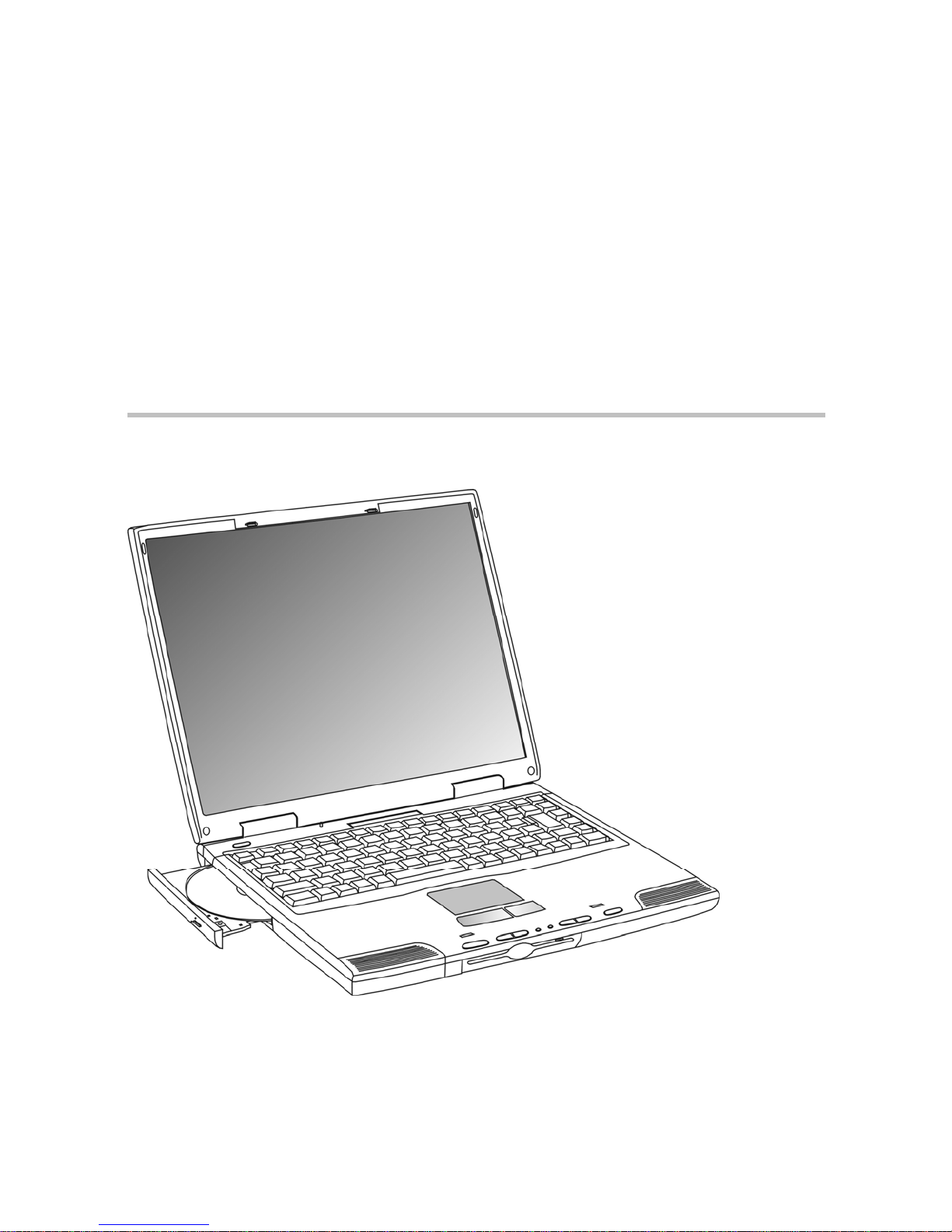
This chapter presents a "grand tour" of your computer with illustrations to guide
you along your way. It serves as a reference when you need to locate specific
parts of the computer.
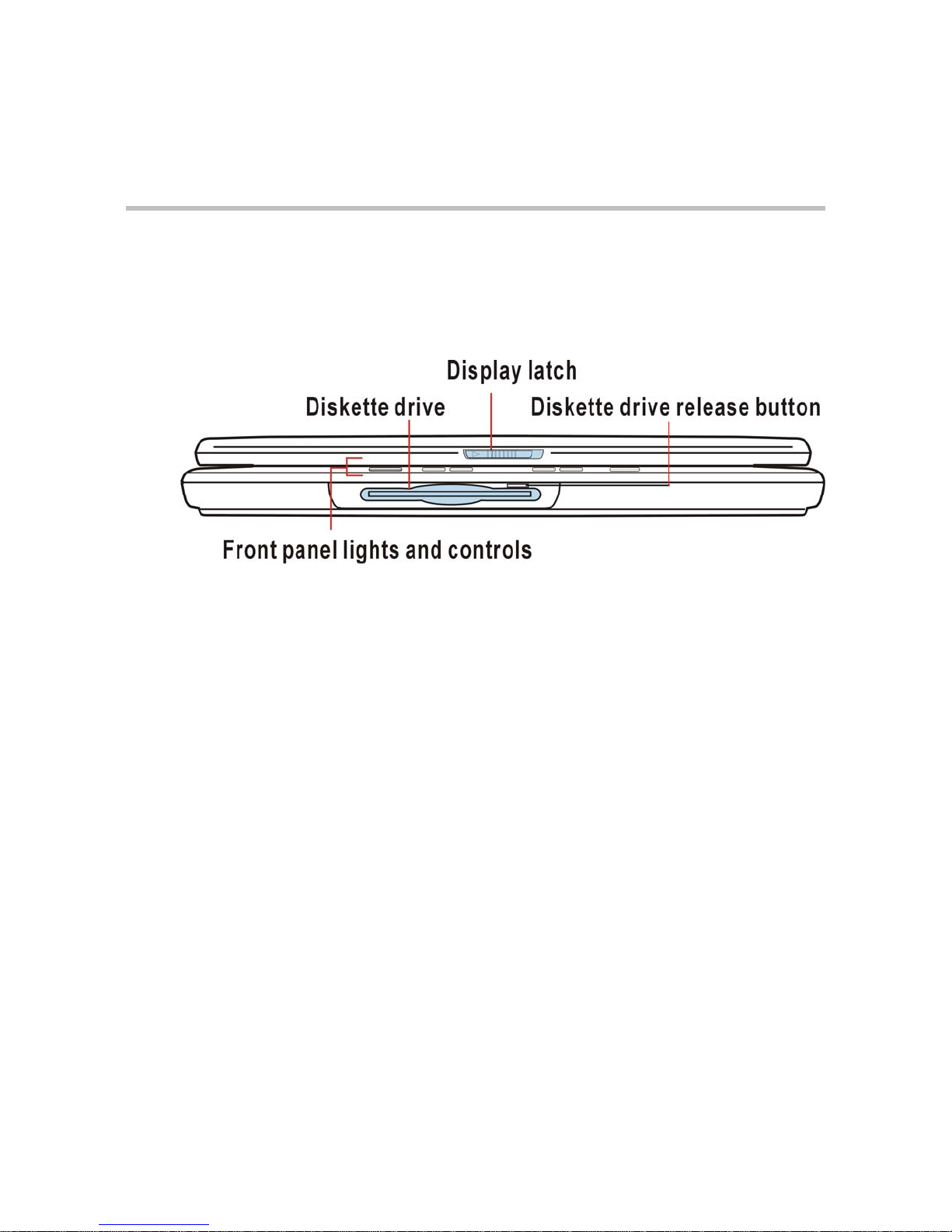
Front with the display closed
The Diskette drive allows you to use either high-density or double-density
3.5-inch diskettes.
The Display latch keeps the display panel closed and locked. To open the display
panel, slide the latch to the right and raise the panel.
The Diskette drive release button ejects a diskette from the diskette drive.
The Front panel lights provide information about various system functions. The
front panel controls perform several functions, depending on the position of the
AP/Lock/Audio CD.

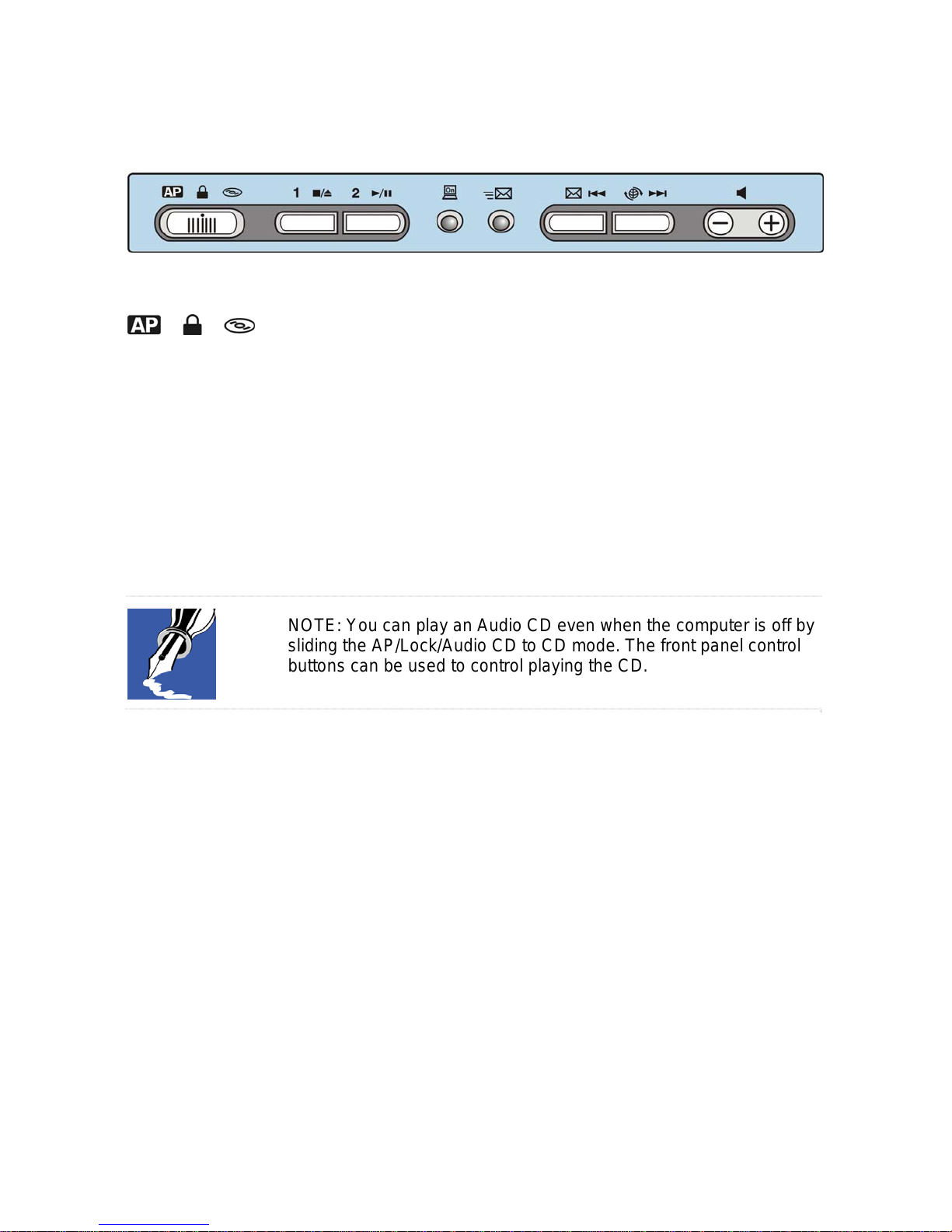
Front panel controls
AP/Lock/Audio CD
The AP/Lock/Audio CD has three different positions:
ϖWhen the switch is in AP mode, the buttons act as hot
keys and launch a predefined program of your choice.
ϖWhen the switch in Lock mode, the four front panel
control buttons (stop/eject, play/pause, previous track,
next track) are disabled.
ϖWhen the switch is in Audio CD mode, the front panel
buttons can control playing the CD. For more
information on using the front panel buttons to play a
CD.
NOTE: You can play an Audio CD even when the computer is off by
sliding the AP/Lock/Audio CD to CD mode. The front panel control
buttons can be used to control playing the CD.

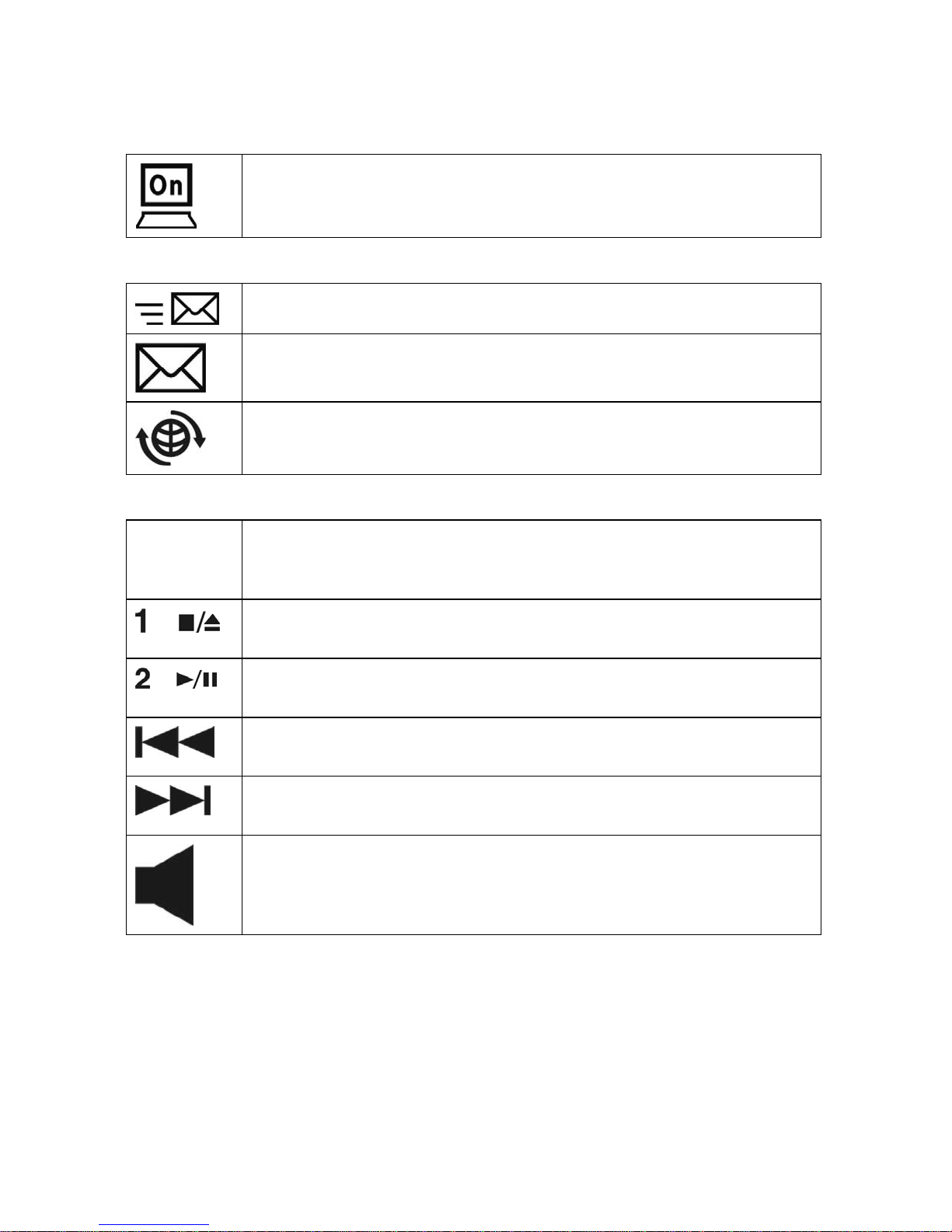
Power and battery indicator lights
The on/off light glows green when the computer is on, or when the
computer is off and the AP/Lock/Audio CD is set to CD.
Mail button
The link to New mail express.
The link to mail express.
The link to Internet express.
CD Player controls
With the computer off or no, slide the AP/Lock/Audio CD to the right to
enable the front panel CD player controls. In CD mode, the front panel
control buttons have the following functions:
The stop/eject button stops the disc if it is playing, or opens the CD-ROM
driver tray.
The play/pause button starts playing the current track in the CD-ROM
driver, or pauses a track that is already playing.
The previous track button returns to the beginning of the preceding track
(for CDs) on the disc.
The next track button skips to the beginning of the following track (for
CDs) on the disc.
The speaker volume control adjusts the stereo the speaker volume.
Press and hold the left side to decrease the volume until the desired
volume is reached. Press and hold the right side to increase the volume
until the volume is reached.

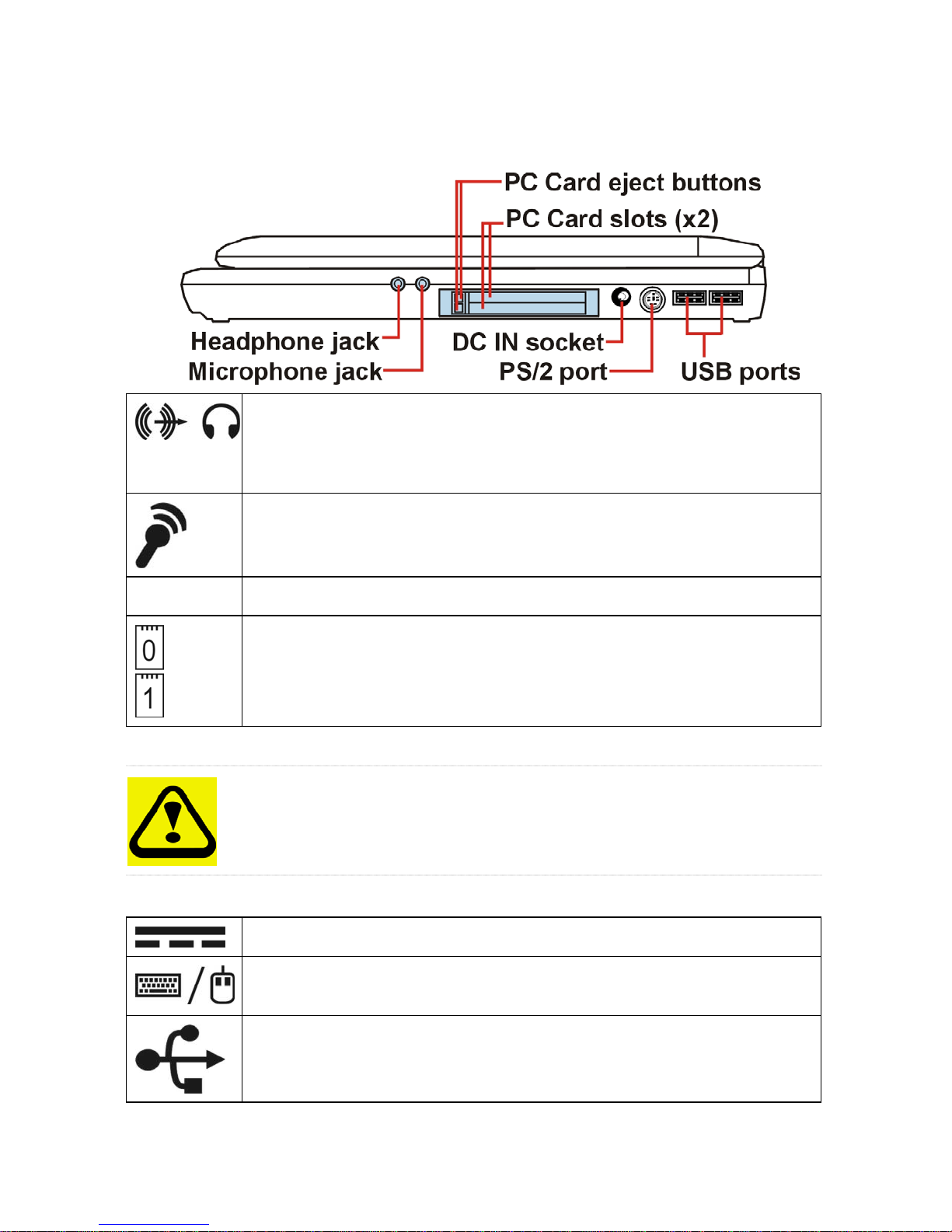
Right side
The 3.5 mm Headphone jack lets you connect stereo headphones or
other audio-output device, such as external speakers. Connecting
headphones or other devices to this jack automatically disables the
internal speakers.
The 3.5 mm Microphone jack lets you connect an external monaural
microphone or other audio-input device.
The PC Card eject buttons allow easy removal of PC Cards.
The two-stacked CardBus-ready PCMCIA-compatible PC Card slots
allow you to install additional devices. Each slot can accommodate a
Type II PC Card. Both slots are able to install a Type III PC Card.
CAUTION: Keep foreign objects out of the PC Card slots. A pin or
similar object that accidentally put into a slot can damage the
computer's circuitry.
The DC IN socket is where you plug in the AC adapter.
The PS/2TM port allows you to connect an optional PS/2 compatible
mouse or external keyboard..
The USB (Universal Serial Bus) ports allow you to connect USB
peripherals to your computer, such as a keyboard, pointing device or
monitor.

Left side
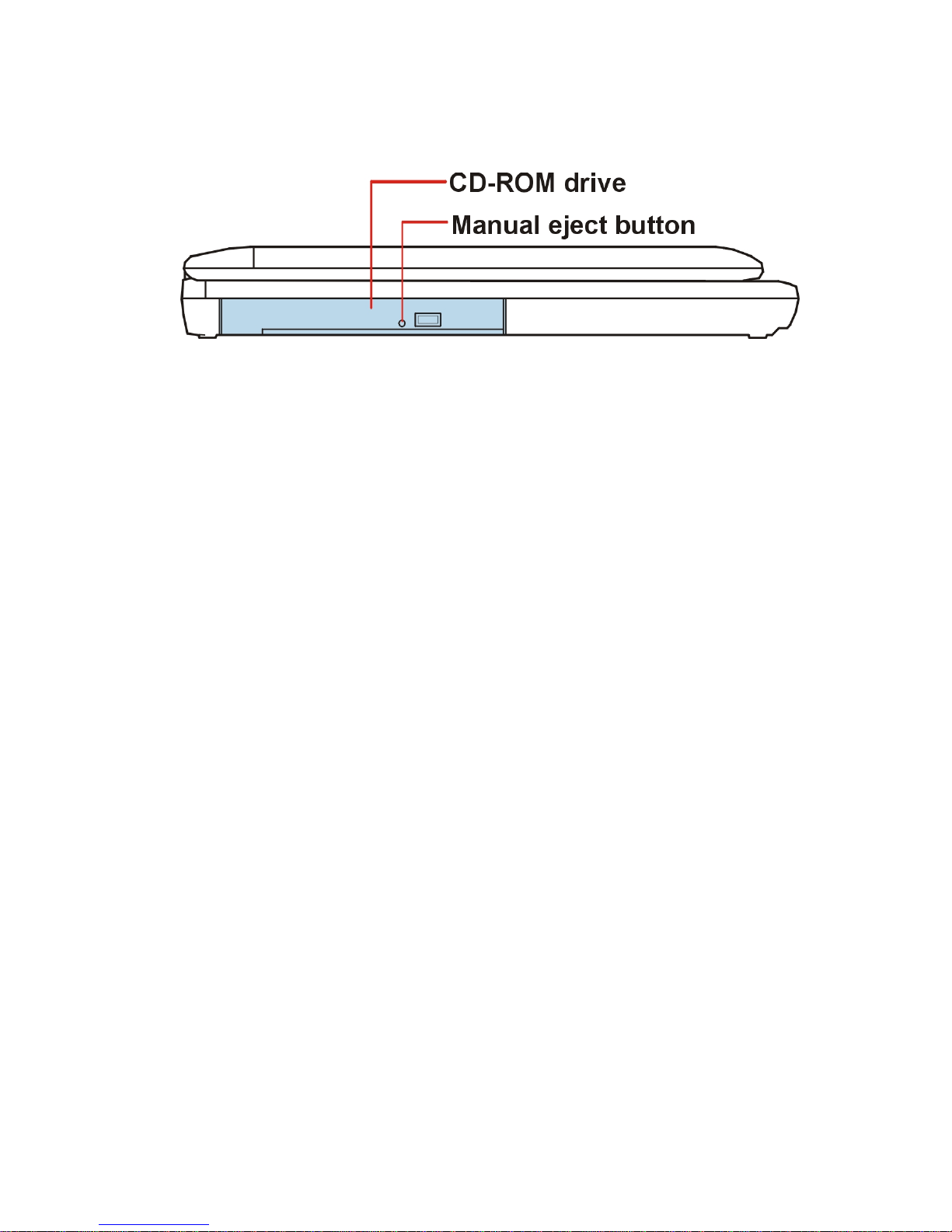
The manual eject button enables you to manually eject a disc from the CD-ROM
drive.
The CD-ROM drive allows you to install and run programs from application
CD-ROMs. You can also use it to play audio CDs.
Table des matières
Autres manuels Jetta Ordinateur portable