
iWantit IMKBCBK13 Manuel utilisateur

(Mini-tablet not included)
IMKBCBK13
instruction manual
Mini Tablet Keyboard Case
with Bluetooth® Technology
IMKBCBK13_IB_final_130520.indd 1 20/5/13 2:10 PM

Contents
Safety Warnings ................................................................................................................................ 3
Unpacking.......................................................................................................................................... 4
Product Overview............................................................................................................................. 5
Charging the Keyboard ................................................................................................................... 6
Switching On/O.............................................................................................................................. 7
Pairing the Keyboard ...................................................................................................................... 7
Using the Keyboard Case ................................................................................................................ 8
Function Keys .................................................................................................................................... 9
Shortcut Function Keys............................................................................................................................................ 9
Other Function Keys ...................................................................................................................... 10
Specications .................................................................................................................................. 11
IMKBCBK13_IB_final_130520.indd 2 20/5/13 2:10 PM

3
• Read all the instructions carefully before using the unit
and keep them for future reference.
• Retain the manual. If you pass the unit onto a third
party, make sure to include this manual.
Wireless Devices:
Before boarding any aircraft or packing a wireless device
in luggage that will be checked in, remove the batteries
from the wireless device.
Wireless devices can transmit radio frequency (RF)
energy, whenever batteries are installed and the wireless
device is turned on (If it has an On/O switch).
Battery-Powered Devices:
Improper use of batteries may result in battery uid
leakage, overheating, or explosion.
Released battery uid is corrosive and may be toxic. It can
cause skin and eye burns, and is harmful if swallowed.
Don’t disassemble the keyboard or remove any parts.
Don’t immerse the keyboard in water or any liquid.
Don’t use the keyboard close to heat sources or expose to
high temperatures.
Don’t use the keyboard where strong electromagnetic
waves are present. Strong electromagnetic waves will
cause damage to the keyboard.
Keep the keyboard away from direct sunlight, moisture,
dirt or abrasive chemical products (cleaning products
etc).
Safety Warnings
IMKBCBK13_IB_final_130520.indd 3 20/5/13 2:10 PM

4
Unpacking
Remove all packaging from the unit. Retain the packaging. If you dispose of it please do so
according to local regulations.
The following items are included:
Keyboard with Bluetooth® Wireless Technology
USB Charging Cable
Case
IMKBCBK13_IB_final_130520.indd 4 20/5/13 2:10 PM
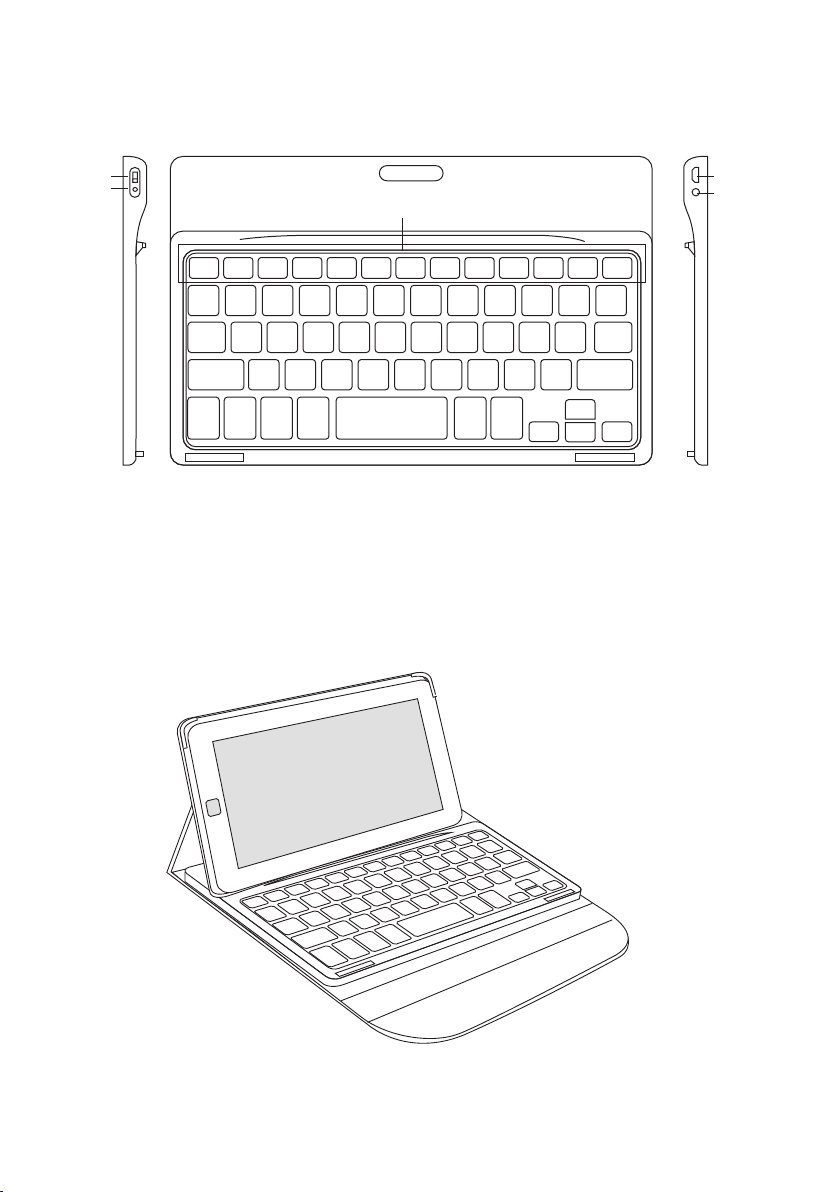
5
Product Overview
1. ON/OFF button
2. Pairing button
3. Function keys x13
4. Micro USB socket
5. LED indicator
1 4
25
3
IMKBCBK13_IB_final_130520.indd 5 20/5/13 2:10 PM

6
Charging the Keyboard
• Your keyboard will need charging before you can use it.
1. Connect the USB charging cable to the keyboard.
2. Connect the other end of the USB charging cable to a powered USB device.
3. The Red indicator light will switch on to show the keyboard is charging. It will be fully
charged in 4 hours. The indicator light will turn o when the keyboard is fully charged.
If the battery indicator starts to ash the battery power is getting low. Charge the keyboard
as shown above.
1 2
3
IMKBCBK13_IB_final_130520.indd 6 20/5/13 2:10 PM

7
Pairing the Keyboard
Switching On/O
1. Slide the Power Switch to ON.
The LED indicator light will ash once.
2. To switch the keyboard o slide the
Power Switch to OFF.
The keyboard will automatically power down
when it is not in use. To wake it up press any key.
Pair.ON/OFF
ENTER
Your keyboard can be paired to a mini-tablet.
1. Switch on your mini-tablet, and turn on the
device’s wireless function to connect using
Bluetooth® technology.
2. Switch the keyboard on.
3. Press the PAIRING button, the LED indicator light
will ash. The keyboard is now in pairing mode.
4. On your mini-tablet search for a new device with
Bluetooth® technology. Select the keyboard
with “Bluetooth®” technology in its identication
number (e.g.,“Bluetooth Keyboard”). You will
be asked to type in a code. Use the keyboard to
type in the code. Then press the ENTER key. Your
keyboard will now be paired with your mini-
tablet.
IMKBCBK13_IB_final_130520.indd 7 20/5/13 2:10 PM

8
Using the Keyboard Case
The case and keyboard are ridged to hold and support your mini-tablet.
Open the case
like this 1
3
2
IMKBCBK13_IB_final_130520.indd 8 20/5/13 2:10 PM

9
Function Keys
Shortcut Function Keys
The keyboard has 21 shortcut function keys* which can be used as shortcuts when using
the keyboard.
To access these functions, press the Fn Key and the desired function key together.
Press to return to the Home screen
Press to open up Search
Press to activate the On Screen Keyboard
Press to Copy text
Press to Remove the current selection and place it on the keyboard
Press to Paste text
Backward skip music/lms, hold to search backwards
Play/Pause music/lms
Forward skip music/lms, hold to search forwards
Mute sound
Decrease the Volume
Increase the Volume
Press to Lock the screen or put mini-tablet in sleep mode
IMKBCBK13_IB_final_130520.indd 9 20/5/13 2:10 PM

10
Other Function Keys
To access other function keys (highlighted in a dierent colour on the keyboard), press both
the “Fn” button and the desired function key*.
Example:
Fn N[[
* Some function keys may not be available depending on operating system.
IMKBCBK13_IB_final_130520.indd 10 20/5/13 2:10 PM
Table des matières
Autres manuels iWantit Clavier


