
Island Consulting WirieAP Guide de démarrage rapide

Firmware Upgrade Instructions
(1.2.0.7b3)

©2012 Island Consulting, Inc. All Rights Reserved. (Rev 1.1 (1.2.0.7b3)) 2
Contents
Introduction................................................................................3
Steps Involved........................................................................................................................................... 3
What is needed......................................................................................................................................... 3
Update Firmware........................................................................4
Step 1 –Prepare the Firmware File .......................................................................................................... 4
Step 2 –Remove The WirieAP Access Point from the Enclosure............................................................... 5
Step 3 –Connect the AC Adapter and Plug the Access Point into a 110/220V Power Source. ................ 8
Step 4 –Connect the Ethernet Cable to Your Computer and the Access Point. ...................................... 9
Step 5 –Access the Administrative Pages. ............................................................................................. 10
Step 6 –Update the Firmware................................................................................................................11
Step 7 –Re-install the Access Point into the Enclosure..........................................................................15

©2012 Island Consulting, Inc. All Rights Reserved. (Rev 1.1 (1.2.0.7b3)) 3
Introduction
We recommended installing the latest firmware when it is available. You will need The WirieAP
AC
Adapter and the short Ethernet Cable that were shipped to you when you purchased The WirieAP. The
process involves removing the Access Point portion (the white “box”) of The WirieAP from the enclosure,
upgrading the software on The WirieAP, and putting the Access Point back in The WirieAP. We have
outlined every step in detail.
All of your current settings on The WirieAP, including your network name/password, and all existing
Wireless Profiles stored on The WirieAP, will be retained after the upgrade.
Note: Do NOT attempt to update the firmware over a WiFi connection. If the wireless connection fails,
the WirieAP may become inoperable (“bricked”).
It is very important that you follow all the instructions in this manual carefully. Failure to do
so could result in The WirieAP no longer working (“bricked”) and having to be returned to us to
be repaired.
You can always find information about the latest firmware on our website at
www.thewirie.com/wiriedrivers.html. You can also see all changes included in the new firmware at the
same location.
Steps Involved
The following steps will be performed, and details are given below.
Downloading the Firmware from our website
Removal of The WirieAP Access Point
Connection of The WirieAP to your computer
Updating The WirieAP Firmware
Testing the updated firmware
Re-installing The WirieAP Access Point
What is needed
The following items are needed to complete The WirieAP firmware update.
The WirieAP –Confirm that The WirieAP is working correctly before beginning this process.
Firmware File –Please see the link that was emailed to you to download the new firmware.
The 110/220 AC Adapter that was shipped with The WirieAP
The short white Ethernet cable that was shipped with The WirieAP

©2012 Island Consulting, Inc. All Rights Reserved. (Rev 1.1 (1.2.0.7b3)) 4
Update Firmware
Step 1 –Prepare the Firmware File
Please visit the link that has been emailed you to download the firmware file. Please save the file to a
convenient location; we recommend your desktop.
Once the file has completed downloading to your desktop, you must “Unzip” the file:
Windows:
a. Right click on the downloaded file.
b. Select “Extract All…” on the menu.
c. When finished, a folder will be on your desktop called “TheWirieAP-V1.1”.
Mac:
a. Double click on the downloaded file.
b. When finished, a folder will be on your desktop called “TheWirieAP-V1.1”.

©2012 Island Consulting, Inc. All Rights Reserved. (Rev 1.1 (1.2.0.7b3)) 5
Step 2 –Remove The WirieAP Access Point from the Enclosure
1) Open the waterproof enclosure for The WirieAP.
2) Unplug the USB Cable at the top of the Access Point

©2012 Island Consulting, Inc. All Rights Reserved. (Rev 1.1 (1.2.0.7b3)) 6
3) Unplug the Access Point power cable from the cable entering the enclosure. One side of the
plug has a small tab to keep the plug connected. Press on this tab to release the two ends of the
plug.

©2012 Island Consulting, Inc. All Rights Reserved. (Rev 1.1 (1.2.0.7b3)) 7
4) Remove the Access Point from the enclosure.
5) Close the door to the waterproof enclosure. Be sure the wires are not pinched in the door when
you do this.

©2012 Island Consulting, Inc. All Rights Reserved. (Rev 1.1 (1.2.0.7b3)) 8
Step 3 –Connect the AC Adapter and Plug the Access Point into a 110/220V
Power Source.
1) Connect the AC Adapter that was shipped with The WirieAP. The plugs will only fit together one
way.
2) Plug the AC Adapter into an outlet. You should immediately see a blue power light illuminate.
©2012 Island Consulting, Inc. All Rights Reserved. (Rev 1.1 (1.2.0.7b3)) 9
Step 4 –Connect the Ethernet Cable to Your Computer and the Access Point.
1) Your laptop computer will have an Ethernet port on it. It is similar in shape to a standard
telephone plug, but slightly larger. Plug one end of the included white cable into your
computer.
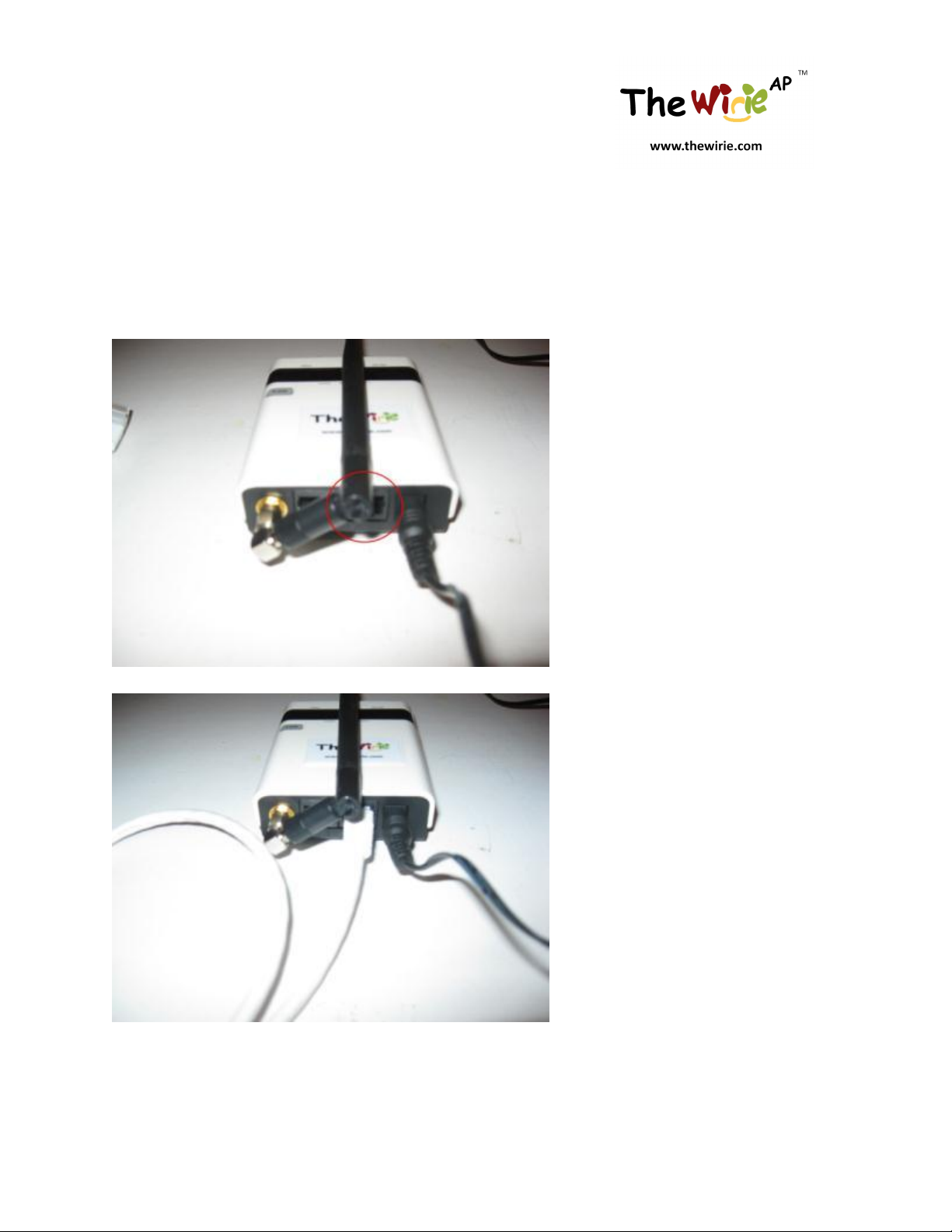
2) Plug the other end of the white Ethernet cable into the circled port on the Access Point shown
below. Use the port closest to the power plug when looking at the bottom of the Access Point.

©2012 Island Consulting, Inc. All Rights Reserved. (Rev 1.1 (1.2.0.7b3)) 10
Step 5 –Access the Administrative Pages.
1) Disconnect your WiFi card if it’s connected to any networks. Either turn off your WiFi card, or
use your Wireless Utility to disconnect from any active connections.Be sure you are not
connected to any networks, including The WirieAP, via your computer’s wireless card.
2) Open your web browser and access The WirieAP administrative pages (http://thewirieap or
http://10.100.100.1).
3) If prompted for a user name and password, please enter them (default is admin/admin).
Table des matières
Manuels Point d'accès sans fil populaires d'autres marques

D-Link
D-Link DWL-2100AP - AirPlus Xtreme G Manuel utilisateur

Ubiquiti
Ubiquiti NanoStation NSM2 Manuel utilisateur

Cisco
Cisco Aironet 1550 Series Manuel utilisateur

Aruba
Aruba IAP-335 Manuel utilisateur

Advantek Networks
Advantek Networks AWN-AP-54MR Manuel utilisateur

IP-COM
IP-COM AP355 Manuel utilisateur


