
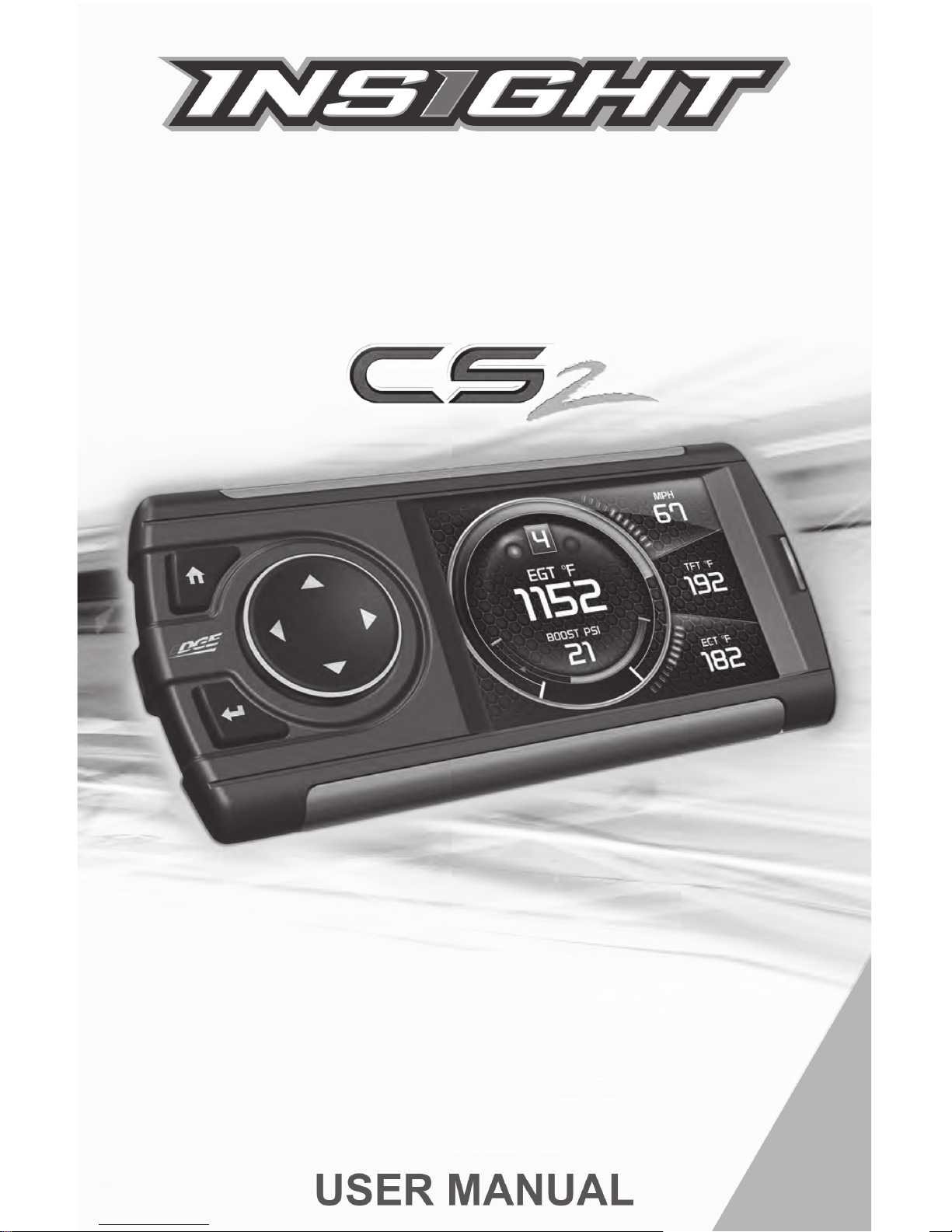
INSIGHT CS 2 Manuel utilisateur

4 Read Me
4 Safety Warning & Caution
5 Safety Guidelines
6 At a Glance
6 Physical Overview - The Display
7 Accessories
8 Button Icons
8 Common Terms
9 Navigating Menus
10 Getting Started
10 Download the Fusion Update Software
11 Using the Fusion Update Software
12 Cable Installation
12 Windshield Mount Installation
13 Installing the Display
14 Display Set Up
14 OEM Selection Menu
15 Changing the Default Background Image
16 ConguringtheHomeScreens
18 Individual Gauge Setup
20 Download and Install MyStyle Software
21 Adding Custom Background Images
22 Settings
22 Accessory Settings - Turbo Cool Down Setup
23 Vehicle Settings - Tire Size
24 Alert Settings
25 Sound Duration - Alerts
25 Backlight Autodim
26 Background Color
27 Menu Time out
27 Units
27 Factory Reset
28 Diagnostics
28 Read DTCs
29 Clear DTCs
29 Clear On Start
30 Manual DPF Regeneration
31 DPF Regeneration Explained
32 Injector Balance Rates
34 Performance Testing
34 0-60 & Quarter Mile
35 Horsepower
Table of Contents

36 Data Logging
36 Data Logging Explained
37 Retrieving Data Using MyStyle
38 Records
38 Records Explained
39 Help
39 HelpMenuExplained
40 Maintenance Manager
40 Turn on Maintenance Manager
41 Entering the Odometer Value
42 Setting the Alert Threshold
43 Customizing Maintenance Items
44 Mileage Coach
44 Mileage Coach Set Up
46 Additional Features
46 EFI Live™
46 Smarty-POD™
47 EAS 12V Power Kit
48 Appendix
48 Limited 1 Year Warranty
49 Important Information about your Vehicle’s Warranty
50 Commonly Used Acronyms
51 Trouble Shooting Guide
51 OEM EGT Locations - Diesel Trucks Only
4
Safety Warning & Caution
Read Me
Throughout this User Manual you will see important messages
regarding your safety or the protection of your vehicle. These
messages are designated by the words WARNING or CAUTION.
WARNING indicates a condition that may cause serious
injury or death to you, your passengers or others nearby.
Pay careful attention to these Warning messages, and always
comply with them. They could save a life.
CAUTION indicates a condition that could cause damage to
your vehicle. It is important to install and operate your
product in conformance with instructions in this Manual.
Caution alerts you to particularly important things that will
keep your vehicle operating properly.
The Edge Product you have purchased is a high-performance
product. As such, it does present some risks of which you should
be fully aware. Do not use this product until you have carefully
read the following safety information and the Owner Agreement.
NOTE: After the display has been installed, a warning screen
will appear (3) different times.
If you agree with the agreement, select Yes to continue.
Read Me
WARNING: Misuse of this
device could lead to a serious
accident. Do not use to break legal
speed limits. Before installing, read
and comply with all information in the
User Guide. Do you agree?

5
Safety Guidelines
1. Do not exceed legal speed limits on public roadways. Use any
enhanced speed capabilities of this product only in closed circuit,
legally sanctioned racing environments expressly for this purpose.
Loss of control from speeding on a public road could seriously
injure you, your passengers, or others on the roadway.
2. Do not operate the device while driving. Perform all adjust-
ments or changes while stopped. Changing a setting while under
way can interfere with your attention to roadway conditions.
3. “Stacking” performance-enhancing devices or other improper
installation can cause power train failure on the road. Other prod-
ucts may have features incompatible with your Edge device. Fol-
low all installation and operating instructions, and do not stack
products.
4.Somemodicationsmayaffectotherpartsofyourvehicle.For
example, if you remove/adjust the speed limiter in your vehicle, be
sure your tires and other components are rated for the increased
speeds they will have to withstand. Not doing so can lead to loss
of vehicle control. Modify the speed limiter only for use in closed
circuit, legally sanctioned racing environments, not for use on pub-
lic roadways.
WARNING - Misapplication or misuse of this product
could lead to a serious or fatal accident. Comply with all
safety information in this manual, and your vehicle owner’s
manual. Follow safety, installation and operating instruc-
tions in this User Manual to assure proper use.
Read Me

6
At a Glance
Physical Overview - The Display
At a Glance
HDMI
Port
Mount
Receiver
USB
Port
Ambient
Light
Sensor
Home
Enter
Up/Down
Left(Back)/Right(Forward)
Gauges
Level
Indicator
Alert Indicator Lights
Orange = Data Run
Red = Alert
Blue = Maint. Item Due
Green = Regen

7
At a Glance
Accessories
Windshield Mount
OBDII to HDMI cable
OBDII
EAS
HDMI
Suction
Cup
Cam
Lever
Dual-Tab
Mount
Mini USB Cable
Zip-Ties
Alcohol Wipe
Iso-
propyl
Adjustment
Nut

8At a Glance
Button Icons
Icon What it does
Gauge Screens - Enters Main Menu
Menus - Brings you back to the home screen
Gauge Screens -HighlightsPIDlocations
Menus - Selects menu options & closes text boxes
Home
Enter
Down
Gauge Screens - PID location navigation
Menus - Scrolling up
Up
Common Terms
PID - Parameter IDs
Term What it is
Data taken from a vehicle & viewed in a gauge
DPF - Diesel Particulate Filter Requiredonnewdieselstolteroutsoot
EAS - Expandable Accessory
System
Allows you to connect aftermarket sensors and
other devices such as turbo timers
ECM - Engine Control
Module
(aka ECU) A computer that controls various
sensors and engine components
TCM - Transmission Control
Module
(aka TCU) A computer that controls automatic
transmissions
PCM - Power Control
Module
(aka PCU) Combines and provides power for
the ECM and TCM
Left
Right
Gauge Screens - PID location navigation
Menus - Scrolling down
Gauge Screens - PID location navigation
Menus - Back to previous menu or option
Gauge Screens - PID location navigation
Menus - Brings you to next menu

9
At a Glance
Navigating Menus
STEP 1 -EntertheMainMenubypressingtheHomebutton.
STEP 2 - Use the Up/Down arrows to scroll through the menu
items.
STEP 3 - Press the
Enter button to select a
sub menu.
Main Menu
Screen Layout
Records
Data Logging
Diagnostics
Settings
Help
Background
Layout 1 - Master
Layout 2 - Needles
Screen Layout
STEP 4 - Press the left
arrow to return to the
previous screen.
Main Menu
Screen Layout
Records
Data Logging
Diagnostics
Settings
Help
STEP 5 -PresstheHome
button to return to the gauge
screen.

10
Download the Fusion Update Software
Getting Started
A computer with internet access is required:
STEP 1 - Go to www.edgeproducts.com
STEP 2 - Click the UPDATES tab, then DOWNLOAD.
STEP 3 - Open the FusionClientSetup.exele,thenclickRun.
STEP 4 - Click Next to begin.
STEP 5 - Choose a folder location, then click Next to continue.
STEP 6 - Click Nexttoconrmtheinstallation.
STEP 7 - Click the OK button if during the installation, the following
message appears:
“These drivers are not Windows Logo or WHQL veried. If you are
asked, please choose to install them anyway.”
STEP 8 - Click Close to exit once the installation is complete.
STEP 9 - Double click the Fusion Icon on your desktop.
STEP 10 - Click on the Create a New User option.
STEP 11 - Fill in the required information and click Save.
An e-mail containing your fusion password will be sent to the e-mail you
used in the form. Use this password to login into Fusion. (NOTE: The
password is case sensitive)
STEP 12 - Double click the Fusion Icon on your desktop.
STEP 13 - Plug the display into the computer using the USB cable.
STEP 14 - If asked, choose “Yes, this time only”, then click Next.
STEP 15 - Select Install the software automatically then Next.
STEP 16 - If you’re asked to “Continue Anyway” or “STOP instal-
lation” click Continue Anyway then click Next to complete the
hardware wizard.
Getting Started
Table des matières
Autres manuels INSIGHT Moniteur


