InHand EC900 Series Manuel utilisateur

EC900 User Manual
1. Product Introduaction
2. Device Configuration
2.1 Access the Gateway
2.2 User Account Management
2.2.1 Registered and delete account
2.2.2 Disable default account
2.3 Network Management
2.3.1 Static IP address setting
2.3.2 Dynamic IP address setting
2.4 System Management
2.4.1 Time setting
2.4.2 Time zone setting
2.5 View Free Disk Space
2.6 Shut Down
2.7 View Firmware Version
3. Development and Debugging
3.1 Serial Port
3.2 USB
3.3 HDMI
3.4 Cellular Network

1. Production Introduction
The EC900 series edge computer(EC900) is a high performance edge computer developed for
industrial IoT applications. With powerful edge computing capabilities, comprehensive security
protection and wireless services, EC900 can support device networking of up to 10,000 levels,
providing high-speed data channels in the true sense of device informatization. EThe EC900 is
2GB of RAM and 16GB of eMMC FLASH. Based on Debian, the EC900 provides a secondary
development platform with support for C/C++/Java/Python/.Net/JavaScript,etc, which is easy for users
to develop and port applications.The EC900 supports Secure Boot, TPM,etc, to ensure the security of
user software and data. In addition, the EC900 provides uninterrupted Internet access for machines
over ubiquitous the globally deployed LTE wireless network and a variety of broadband services.
2. Device Configuration
2.1 Access the Gateway
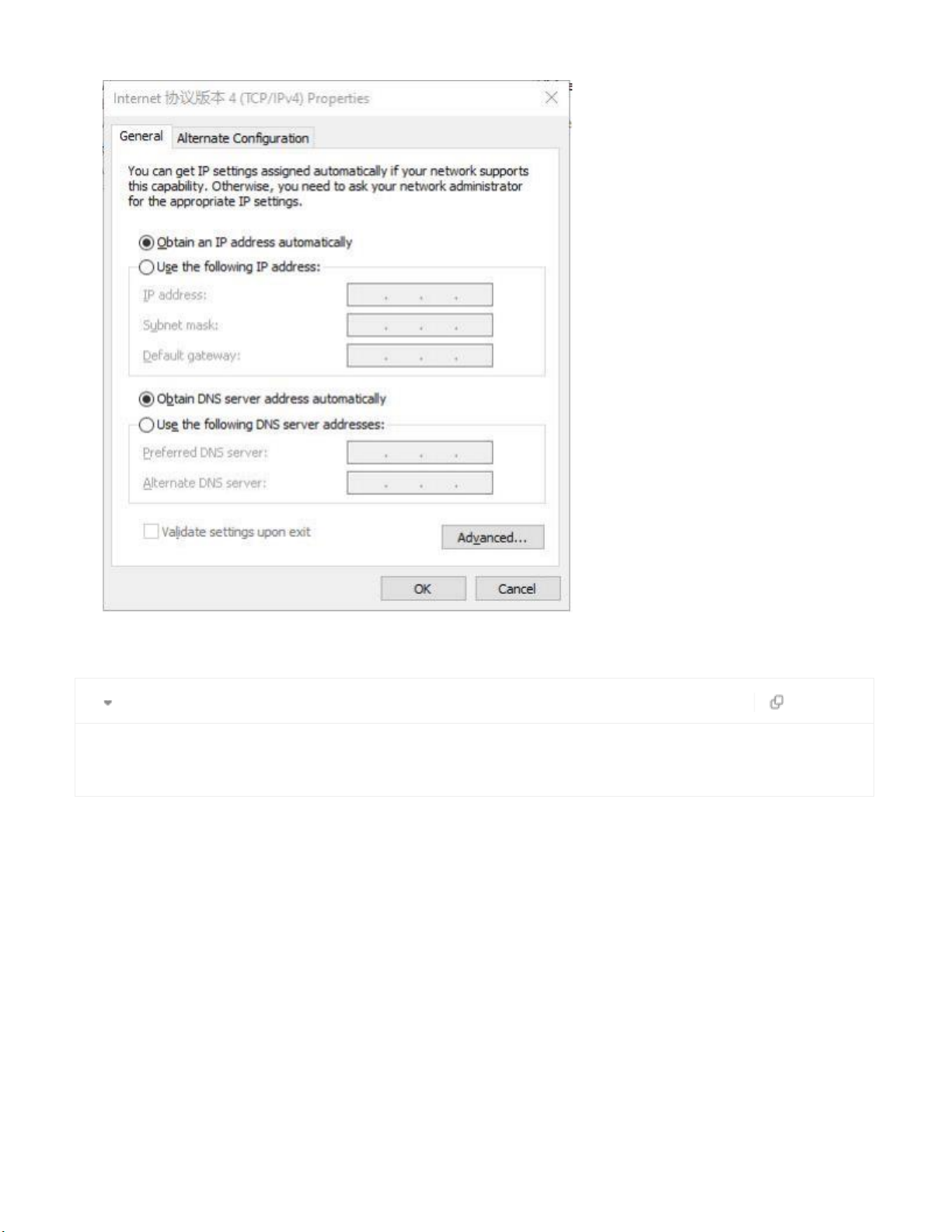
The default IP address of LAN1 port of EC900 is 192.168.3.100, and the default IP address of LAN2
port is 192. 168.4. 100. Set the IP address of PC in the same network segment with LAN1 port, select
"Use the following IP address", enter the IP address (default is 192. 168.3.2 - 192. 168.3.254 in any
value); subnet mask (default 255.255.255.0); default gateway (default 192.168.3.100) and DNS server
address, click <OK>.

Using SSH commands to access the EC900 ( Port 22 )
Plain Text copy
1 ssh edge@192 .168 .3 .100
Enter the SSH password. The default factory username is edge, and the password is
security@edge.

The factory setting of EC900 has created root by default, but it is not available to log in. If you need to
use the root account, please modify the system configuration manually. The edge user is in the sudo
user group, so you can use the sudo command to execute system-level commands.
Note: For security reasons, it is strongly recommended that you disable the default user and create
your own user account.
2.2 User Account Management
Use sudo -i (or sudo su) command to switch to the root account. For security reasons, do not operate all
commands under the root account (More about sudo commands, please visit
https://wiki.debian.org/sudo).
2.2.1 Registered and delete account
You can use the useradd and userdel commands to create and delete user accounts. Please refer to the
main page of these commands to set the access rights for the account. The following example shows

how to create a test user in a sudo group with a default login shell of bash and a home entry of
/home/test.
Plain Text copy
1
sudo useradd -m -G sudo -s /bin/bash test
To change the password for the user name(test), use the passwd command and enter the new password,
then confirm the change by re-entering the password as shown below.
Plain Text copy
1
sudo passwd test
2.2.1 Disable default account
Use the passwd command to lock the default user account so that users edge cannot log in.
Plain Text copy
1
2
sudo -i
passwd -l edge

Unlock user edge:
Plain Text copy
1
passwd -u edge
2.3 Network Management
Input cd /etc/network/interfaces .d command to change destination .
Plain Text copy
1
cd / etc/ network/ interfaces. d
Input sudo vim eth1 or sudo vim eth2 to edit the network configuration file. You can
configure the Ethernet port of the EC900 to use a static IP address or to obtain an IP address
dynamically(DHCP).
2.3.1 Static IP address setting
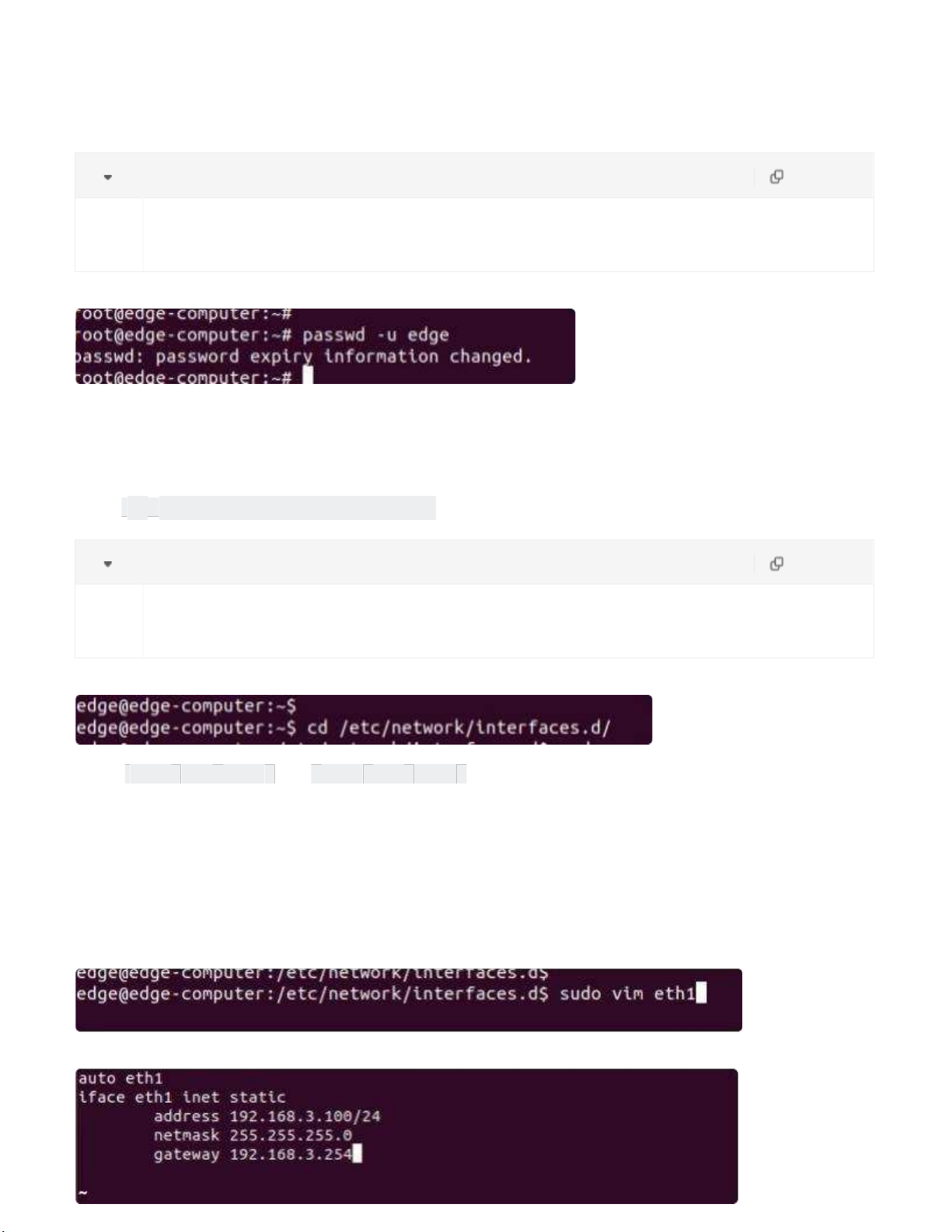
To set a static IP address for the eth1 port of the EC900, use the iface command to modify the default
grid gate, address, and network mask of the Ethernet port, as shown in the following figure.

2.3.2 Dynamic IP address setting
To configure one or two ports to request IP addresses dynamically, please use the dhcp option instead of
the static option in the iface command, as shown below.
2.4 System Management
2 4 1 Time setting
There are two kind of time of EC900 that can be set. One is the system time, the other is the RTC
(RealTime Clock) time saved by the EC900 hardware. Use the date command to query the current
system time or set a new time. Use the hwclock command to query the current RTC time or set a new
RTC time.
Use date MMDDhhmmYYYY command to set system time.
MM = Month
DD = Day
hhmm = Hour, minute. For example.
Plain Text copy
1
2
date
sudo date 112515192021

b . TZ=EST0EDT
c . TZ=EST0
Set the RTC time to system time using the following command .
Plain Text copy
1
2
sudo
sudo
hwclock
hwclock -w
More about time setting, please visit
https://www.debian.org/doc/manuals/system-administrator/ch-sysadmin-time.html
https://wiki.debian.org/DateTime
2.4.2 Time zone setting
There are two ways to configure the time zone of the EC900. One is to use the TZ environment variable,
the other is to use the /etc/localtime configuration file.
There are two ways to configure the time zone of the EC900. One is to use the TZ environment variable.
The other is to use the /etc/localtime configuration file.
●Use the TZ environment variable
TZ=<Value>HH[:MM[:SS]][daylight[HH[:MM[:SS]]][,start date[/starttime], enddate[/endtime]]] e.g.
Possible settings for the Eastern Time Zone in North America
a . TZ=EST5EDT

In the case a, the reference time is GMT, and the stored time values are correct worldwide. The
simple change in the TZ variable allows the local time to be printed correctly in any time zone.
In the case b, the reference time is Eastern Standard Time, and the only conversion performed is
daylight saving time(DST). Therefore, it is not necessary to adjust the hardware clock for daylight
saving time(DST) twice a year.
In the case c, the reference time is always the reported time. You can use this option if the
hardware clock on your machine automatically adjusts for daylight saving time(DST), or you want to
manually adjust the hardware time twice a year.
Plain Text copy
1
2
TZ=EST5EDT
export TZ
If you want the time zone setting to be valid after rebooting the EC900, please ensure including the
TZ setting in the /etc/rc.local file. The following table lists other possible values for the TZ
environment variable.

●Use the /etc/localtime
The local time zone is stored in the /etc/localtime file.
If the "TZ" environment variable is not set, the Glibc library will use the time zone configuration in
the /etc/localtime file.This file is a symbolic link to the /usr/share/zoneinfo/ file, please find a suitable
time zone information file and overwrite the original /etc/localtime file in the EC900, as shown in the
following figure.
Plain Text copy
1
2
3
ls -l /etc/localtime
sudo rm -rf /etc/localtime
sudo ln - s / usr/ share/ zoneinfo/ Asia/ Shanghai /etc/localtime
2.5 View Free Disk Space
To view the free disk drive space, use the df command with the - h option. The system will return the
amount of disk space by file system divided.
Plain Text copy
Autres manuels pour EC900 Series
1
Table des matières
Autres manuels InHand Ordinateur de bureau