InFocus LiteShow III Manuel utilisateur

LiteShow
Wireless Presentation Adapter
User’s Manual
010-0755-02
Date: March 17, 2011

2
Declaration of Conformity
Manufacturer: InFocus Corporation, 13190 SW 68th Parkway, Suite 200, Tigard, OR 97223-8368
We declare under our sole responsibility that the LiteShow wireless adapter conforms to the following directives and norms:
European Union : CE Standard
EN 300 328/EN 62311/EN 55022 CLASS B/EN 55024/EN 301 489-17/EN 301 489-1/EN 61000-3-2/EN 61000-3-3
/EN 61000-4-2/EN 61000-4-3/EN 61000-4-4/EN 61000-4-5/EN 61000-4-6/EN 61000-4-8/EN 61000-4-11/EN
60950-1/ICE 60950-1
U.S.A : FCC Standard
FCC 47 CFR Pact 15 Subpart C/ANSI C63.4-2003/FCC 47 CFR Part 15 Subpart B Class B/ANSI C63.4-2003/ICES-003
Canada : IC Standard
IC RSS-210/ICES-003 Issue 4
Australia : C-Tick Standard
AS/NZS 4268/CISPR 22 Class B/IEC 60950-1
Mexico : NOM & COFETEL Standard
NOM-001-SCFI-1993/NOM-121-SCT1-2008
The Agency/Regulatory Approval for the computer’s wireless adapter is solely the responsibility of the adapter manufacturer - not InFocus
Corporation.
Trademarks
InFocus, In Focus, INFOCUS (stylized), LiteShow and associated INFOCUS logos and designs, are either trademarks or registered trademarks of
InFocus Corporation in the United States and other countries. Apple and Macintosh are trademarks or registered trademarks of Apple Computer,
Inc. Microsoft and Windows are trademarks or registered trademarks of Microsoft Corporation. Other trademarks mentioned herein are the
property of their respective owners and are referenced for information only. Any reference does not imply affiliation, recommendation or
endorsement by or between the respective trademark owners and InFocus Corporation.
NOTE: This product is covered electrical and electronic equipment under the European Union’s Waste from Electrical and Electronic
Equipment (“WEEE”) Directive (2002/96/EC). The WEEE Directive requires that covered equipment be collected and managed
separately from typical household waste in all EU member states. Please follow the guidance of your local environmental authority
or ask the shop where you purchased the product for collection or recycling options.

3
FCC Warning
Note: This equipment has been tested and found to comply with the limits for a Class B digital device, pursuant to part 15 of the FCC Rules. These
limits are designed to provide reasonable protection against harmful interference in a residential installation. This equipment generates, uses and
can radiate radio frequency energy and, if not installed and used in accordance with the instructions, may cause harmful interference to radio
communications. However, there is no guarantee that interference will not occur in a particular installation. If this equipment does cause harmful
interference to radio or television reception, which can be determined by turning the equipment off and on, the user is encouraged to try to correct
the interference by one or more of the following measures:
--Reorient or relocate the receiving antenna.
--Increase the separation between the equipment and receiver.
--Connect the equipment into an outlet on a circuit different from that to which the receiver is connected.
--Consult the dealer or an experienced radio/TV technician for help.
CAUTION: The Part 15 radio device operates on a non-interference basis with other devices operating at its frequency. Any changes or
modification to said product not expressly approved could void the user's authority to operate this device.
FCC CAUTION: Any changes or modifications not expressly approved by the party responsible for compliance could void the user's authority to
operate this equipment. This device complies with Part 15 of the FCC Rules. Operation is subject to the following two conditions: (1) This device
may not cause harmful interference, and (2) this device must accept any interference received, including interference that may cause undesired
operation. The antenna(s) used for this transmitter must not be co-located or operating in conjunction with any other antenna or transmitter.
IMPORTANT NOTE: FCC Radiation Exposure Statement:
This equipment complies with FCC radiation exposure limits set forth for an uncontrolled environment. This equipment should be installed and
operated with a minimum distance of 2.5cm between the equipment and your body. Proper operation of this radio according to the instructions
found in this user's guide will result in user exposure that is substantially below the FCC recommended limits.
Do not touch or move antenna while the unit is transmitting or receiving.
Do not hold any component containing the radio such that the antenna is very close or touching any exposed parts of the body,
especially the face or eyes, while transmitting.
Do not operate a portable transmitter near unshielded blasting caps or in an explosive environment unless it is a type especially qualified
for such use.
Do not operate the radio or attempt to transmit data unless the antenna is connected: if not, the radio may be damaged.
Canada
This Class B digital apparatus complies with Canadian ICES-003.
Cet appareil numérique de la classe B est conforme à la norme NMB-003 du Canada.
This device complies with Class B Limits of Industry Canada. Operation is subject to the following conditions:
1) This device may not cause harmful interference, and 2) This device must accept any interference received, including interference that
may cause undesired operation. The device is certified to the requirements of RSS-139-1 and RSS-210 for 2.4-GHz spread spectrum
devices. The use of this device in a system operating either partially or completely outdoors may require the user to obtain a license for
the system according to the Canadian regulations. For further information, contact your local Industry Canada office.
Agency Approvals
FCC, CE, IC, C-Tick, NOM, COFETEL
Other specific Country Approvals may apply, see please product certification label.
InFocus reserves the right to alter product offerings and specifications at any time without notice.

4
Table of Contents
OVERVIEW..............................................................................................................................................................................6
Features ....................................................................................................................................................6
What’s in the Box .......................................................................................................................................6
INITIALSET‐UP.........................................................................................................................................................................7
WINDOWSCLIENTUTILITY.......................................................................................................................................................9
Launch Application......................................................................................................................................9
Application Control Panel...........................................................................................................................10
ProjectionModeTab................................................................................................................................................................................10
VideoModeTab .......................................................................................................................................................................................11
Menu Functions........................................................................................................................................12
ShowLoginCode......................................................................................................................................................................................12
ResetConnection.....................................................................................................................................................................................12
SearchServer...........................................................................................................................................................................................12
ProjectionQuality....................................................................................................................................................................................13
ProjectionSource.....................................................................................................................................................................................13
AutoChangePCResolution.....................................................................................................................................................................13
AutoProfileConnect................................................................................................................................................................................13
ConnectionProfile...................................................................................................................................................................................13
AutoWiFiConnect...................................................................................................................................................................................14
AutoPowerManager...............................................................................................................................................................................14
HideUI.....................................................................................................................................................................................................14
AdvancedScreenCapture........................................................................................................................................................................14
Repeat......................................................................................................................................................................................................14
MakePnSTo ken.......................................................................................................................................................................................15
CopyApplicationtoDesktop....................................................................................................................................................................15
About.......................................................................................................................................................................................................15
Exit...........................................................................................................................................................................................................15
WINDOWSMOBILEUTILITY...................................................................................................................................................16
Download From Device .............................................................................................................................16
Using MobiShow with a Smartphone...........................................................................................................17
Screen Projection: ....................................................................................................................................18
WirelessPresentation‐to‐Go....................................................................................................................................................................18
PhotoSlideshow......................................................................................................................................................................................19
MediaSender...........................................................................................................................................................................................19

5
MACCLIENTUTILITY..............................................................................................................................................................20
Launch Application....................................................................................................................................20
Application Control Panel...........................................................................................................................21
ProjectionModeTab................................................................................................................................................................................21
VideoModeTab .......................................................................................................................................................................................22
Menu Functions........................................................................................................................................23
WebManagement...................................................................................................................................................................................23
SearchServer...........................................................................................................................................................................................23
Repeat......................................................................................................................................................................................................23
Info...........................................................................................................................................................................................................23
About.......................................................................................................................................................................................................23
Exit...........................................................................................................................................................................................................23
WEBMANAGEMENT..............................................................................................................................................................24
Home Page ..............................................................................................................................................24
Download ................................................................................................................................................25
System Status ..........................................................................................................................................26
Moderator Control.....................................................................................................................................27
Admin......................................................................................................................................................28
Network Setup .........................................................................................................................................29
DHCPServerSetup...................................................................................................................................................................................29
WirelessSetup.........................................................................................................................................................................................29
WirelessClientSetup...............................................................................................................................................................................30
Gatekeeper..............................................................................................................................................................................................30
OSD Setup...............................................................................................................................................31
Projection Setup.......................................................................................................................................31
Change Password .....................................................................................................................................32
Reset to Default........................................................................................................................................32
Firmware Update......................................................................................................................................33
Reboot.....................................................................................................................................................34
Logout.....................................................................................................................................................34
APPENDIXA:SCREENIMAGEBACKGROUNDMAKER..............................................................................................................35
APPENDIXB:USINGPTGCONVERTER....................................................................................................................................38
APPENDIXC:LITESHOWPORTMAP.......................................................................................................................................39
APPENDIXD:CONFIGURINGLITESHOWFORSPECIFICENVIRONMENTS..................................................................................40

6
Overview
With the revolutionary Plug-and-Show wireless projection, QuadView, and wireless projection via
PDA, LiteShow makes all of your presentations and meetings more efficient and successful.
Features
Compatible with Windows 7, Vista, XP, Windows 2000, Windows Mobile 5/6, and Macintosh
(Mac) version 10.4 and above
Plug and Show! Just link your computer/Laptop to LiteShow (through WLAN or Ethernet);
plug the token into a USB port, and in seconds, your screen will be projected wirelessly to
your projector!
QuadView allows up to four computer or PDA screens to be projected on one projector at
the same time.
Web-based conference control
Session security login, wireless WEP/WPA key and Gatekeeper functions protect
presentation contents and maintain office network security.
Media playback feature supports music and video streaming. LiteShow can even handle
high-definition video.
What’s in the Box
LiteShow module
LiteShow USB token
Client Software:
oWindows, MAC, MobiShow for Smartphone
Applications:
oVAC.exe (For Audio Projection)
oVDD.exe (For Virtual Extended Screen – Windows XP/Vista only)
oIBmaker1201.exe (For changing the LiteShow Startup Screen)
oPtGConverter.exe (For MobiShow PtG function)
Power Adapter (DC +5V, 2.6A)
Antenna (2)
Power Cord
Mounting Screws
Quick Installation Guide with Warranty Card

7
Initial Set-up
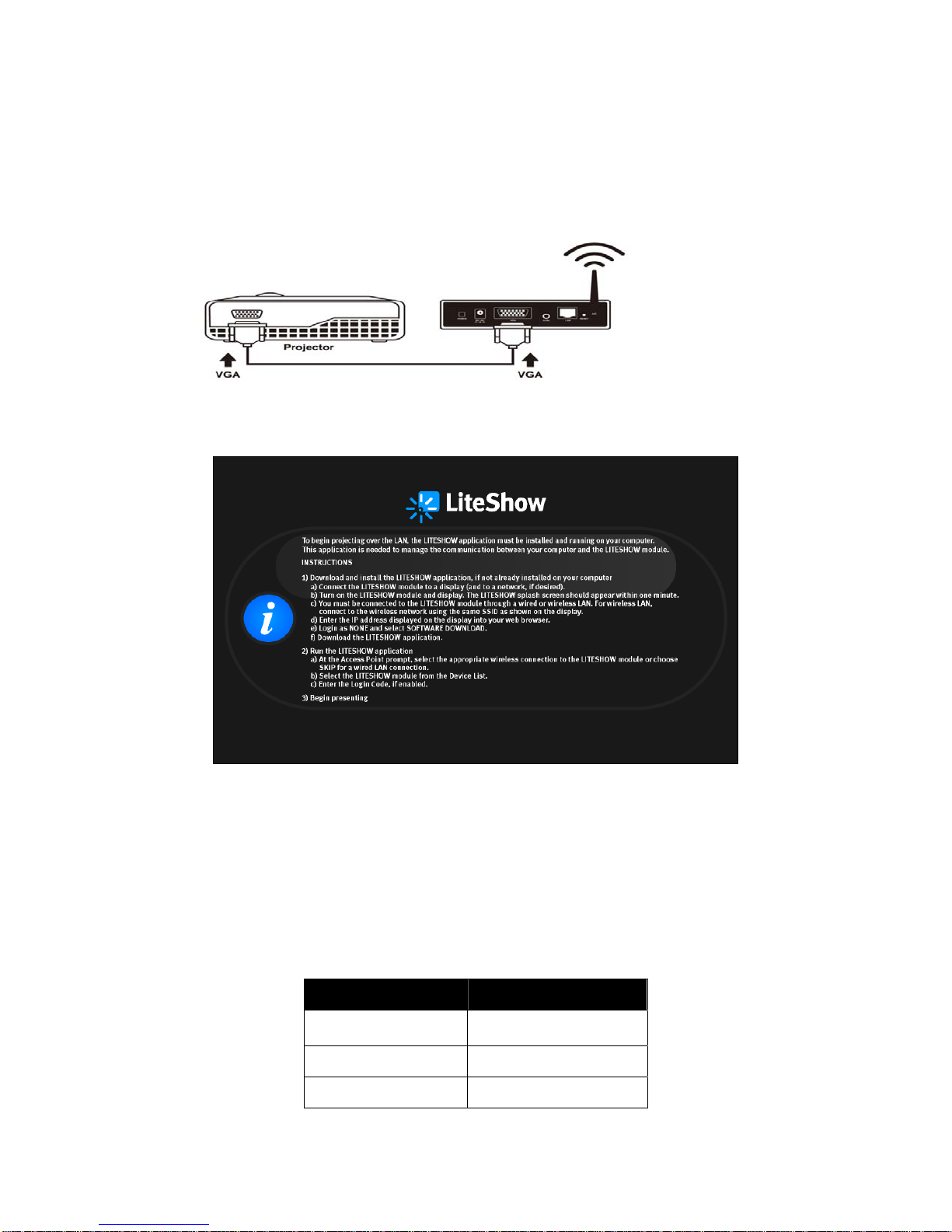
1) Connect power to LiteShow module, and connect a VGA cable from the projector to the
LiteShow VGA connector. If desired, audio can also be connected to the LiteShow Audio
connector.
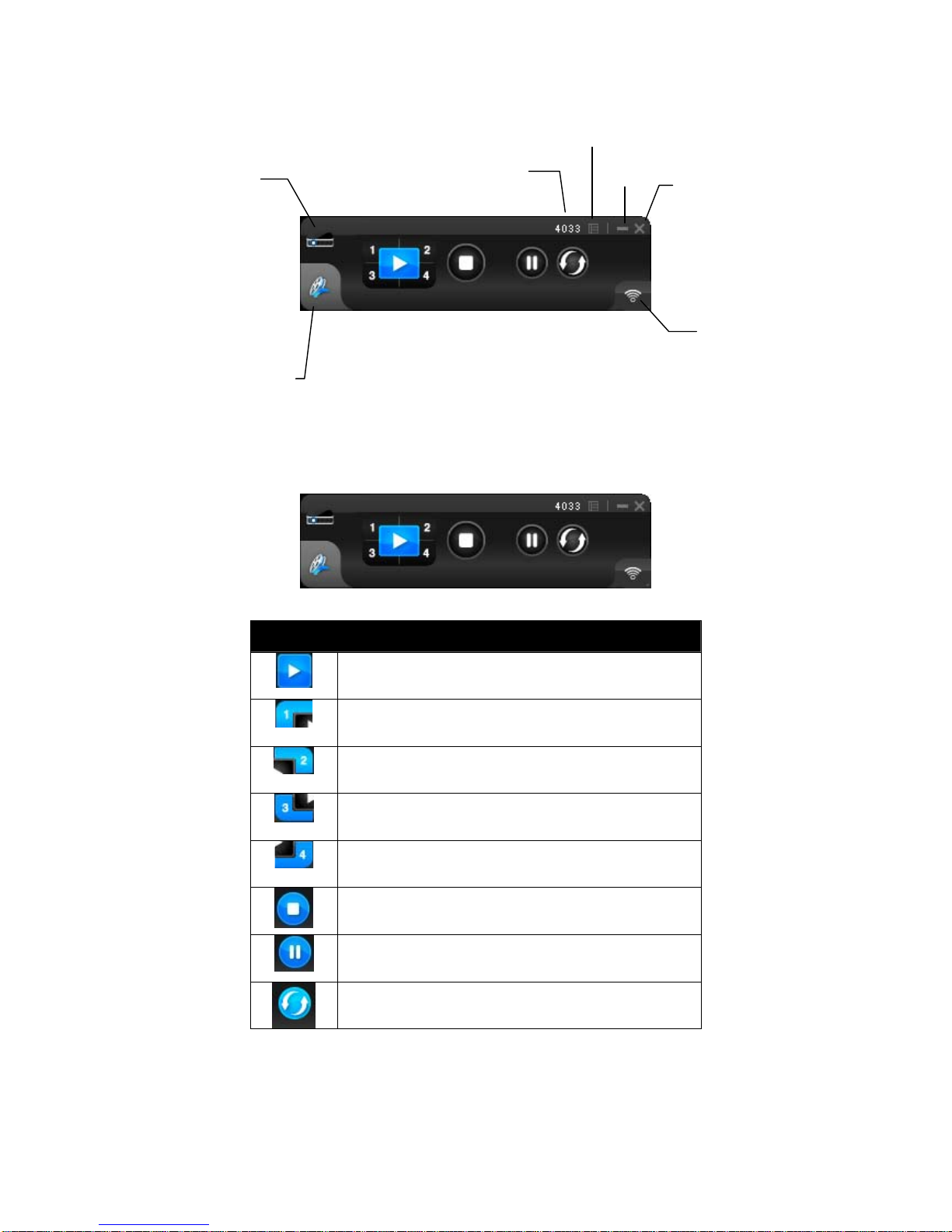
2) Turn on the projector and LiteShow module. Note: When the projector shows the instructions
below, LiteShow is ready for use.
3) Verify that your computer’s wireless connection is enabled and connect to the LiteShow
wireless network.
4) Open your browser. Although the LiteShow page should display automatically, you can also
enter the IP address displayed on the projector into your web browser. Note: The default IP
address of LiteShow is 192.168.100.10.
5) At the LiteShow Login screen, enter one of the following combinations to access the
downloadable client software:
Login Default Password
None
Not applicable – No
password required
Basic User basic
Admin User admin
Note: If the default password listed above does not work, contact your IT administrator.

8
6) Download the client software that corresponds to your operating system and click Run to
execute the installation program.
7) Once installation is complete, a LiteShow shortcut will appear on your Desktop.

9
Windows Client Utility
Launch Application
After you successfully download the LiteShow Windows client, follow the steps below to start the
program.
1) Click the LiteShow shortcut.
2) Select the network you want to project over, and then the LiteShow module you wish to use.
3) If the LiteShow module is found, a Login Code dialog box will be displayed on your projector.
4) Enter the Login Code visible on the projector and click OK. Your computer screen should
begin displaying automatically. Note: The Login Code can be turned off by your administrator.
If no Login Code is displayed, then the Login Code is not required. Click OK to proceed.

10
Application Control Panel
Projection Mode Tab
Projection Mode Controls
Full Screen projection
Project to Quadrant #1
Project to Quadrant #2
Project to Quadrant #3
Project to Quadrant #4
Stop projecting
Pause projecting
Refresh Feature
Status Indicator
Projection
Mode Tab
Video Mode
Tab
Login Code Close
Menu
Min/Max
Autres manuels pour LiteShow III
1
Table des matières
Autres manuels InFocus Adaptateur

InFocus
InFocus RJ12 Manuel utilisateur

InFocus
InFocus LiteShow network adapter Manuel utilisateur

InFocus
InFocus DisplayLink Manuel utilisateur

InFocus
InFocus LiteShow DP1200x M1 Manuel utilisateur

InFocus
InFocus LiteShow III Manuel utilisateur

InFocus
InFocus SIP2Phone Manuel utilisateur

InFocus
InFocus LITESHOW4 DB+ Manuel utilisateur