Ideon Audio Absolute Stream Manuel utilisateur

User Guide
v.1
Αbsolute Stream

2
© Ideon Audio, 2021 – absolute stream manual
Due to continuous research, Ideon Audio reserves the right to change specications without notice.
Reference Streamer/Music rendering engine
Absolute Stream
Introduction
Thank you and congratulations for
purchasing the Absolute Stream – one of
the best-sounding music servers currently
available.
If you are already an Ideon Audio equipment
owner, thank you for your continued trust in
our approach to music reproduction. We
hope you will soon enjoy the Absolute Suite (if
you aren’t already doing so!).
If you are a newcomer, we are thrilled to
welcome you on board to our Absolute
Suite!
Your Absolute Stream is an audiophile music server; it was designed from the ground up to
offer superlative sound, surpassing the sonics of the best commercially available streamers.
To achieve this, we equipped the Absolute Stream circuit with several audiophile features,
components, and proprietary circuits:
• Proprietary re-clocking platform: it uses a
hi-quality femto clock and is upgradable.
• Seriously over-engineered power supply:
◊ Proprietary, ultra-low esr, special
bypasspowerlterimproving
the transient current for the CPU
(spectacular sound improvement!)
◊ Huge main capacitor bank using low
esr, audiophile “silk” capacitors
◊ Hand-made audiophile transformer
◊ Proprietary,“no-noise”,rectication
active bridge topology which
eliminates noise from diodes
• Short signal paths without wiring
• Audiophile design & solid aluminium
construction
• Simplied,bare-bonesoperationavoids
internal noise-inducing circuits

3
www.ideonaudio.com
Playing your music with Absolute Stream
You can use your Absolute Stream with
any of the popular players such as Roon,
JRiver, etc. In general, you can connect
your Absolute Stream directly with anything,
supporting UPNP.
Absolute Stream is a Roon ready device. If
you wish to use Roon as your main player,
please jump to “Roon as Your Player”, after
the Ideon Settings section
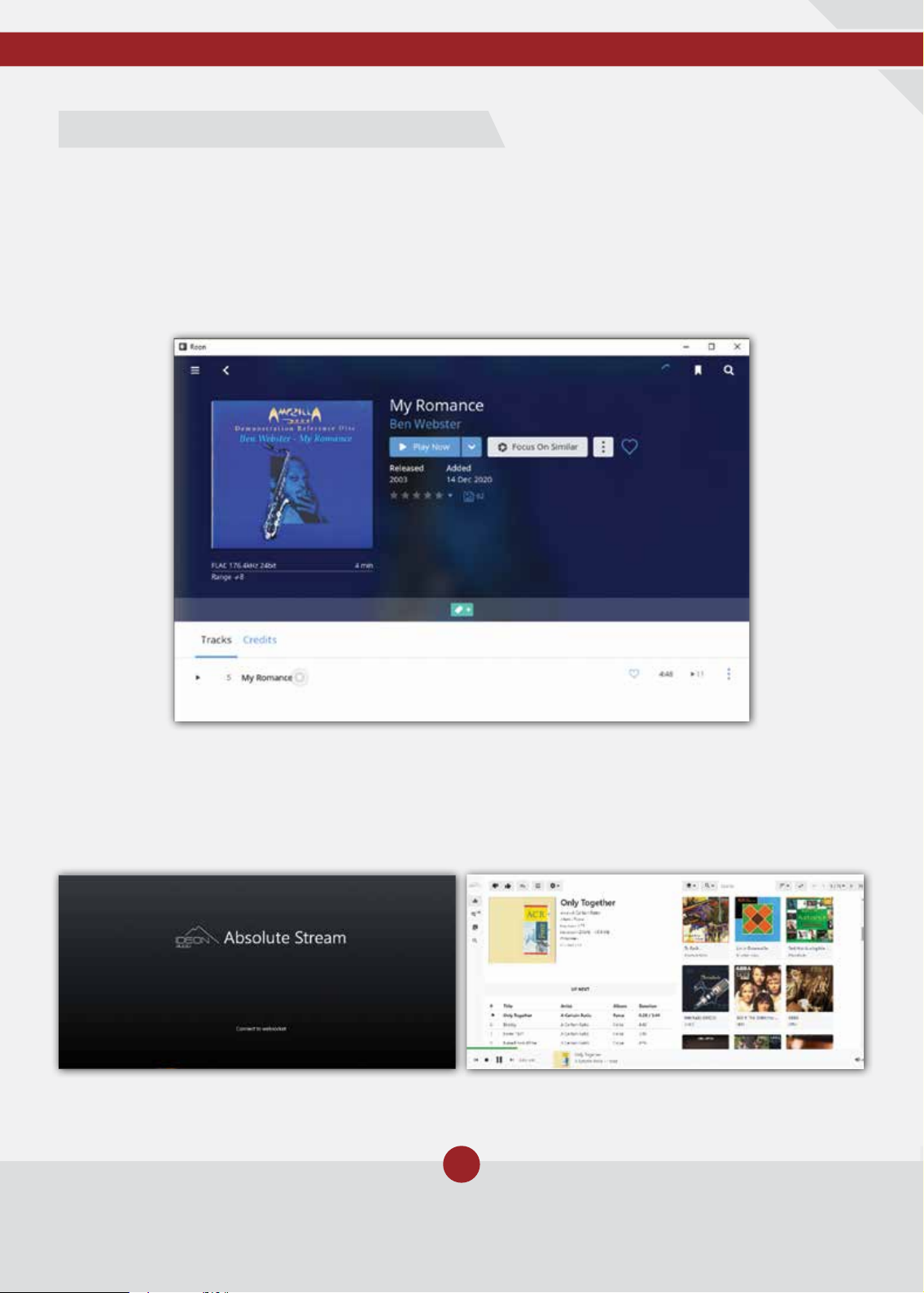
Additionally, with the Absolute Stream, we provide a full functionality music player
application. You can experiment with this Ideon Audio’s music player application. music
player program – the sound quality is excellent.
Selecting and playing specic tracks
Ideon Audio’s Music Playing Application

4
© Ideon Audio, 2021 – absolute stream manual
Due to continuous research, Ideon Audio reserves the right to change specications without notice.
Reference Streamer/Music rendering engine
Absolute Stream
Setting up your Absolute Stream
Setting up your Absolute Stream is very simple, nevertheless don’t forget that to set up and
use, you need to effectively connect it to your network.
On/Off button
Out to DAC LAN connection
USB Hard Disks
(music)
Stand by led
Please make the necessary connections in the order presented below.
Always connect the power cable last!
In the middle of the back plate you will see three (3) inputs marked LAN, HD1, HD2. Future
units may also have an HDMI port, for a screen to be connected.
• LAN port: connect your network’s LAN
cable to the LAN input.
• HD ports: if you have libraries stored on
external USB discs, please connect to
HD1, HD2 as applicable.
Back plate connections
Important
if you intend to play music through a USB Hard Disk or USB stick (i.e. not a Network Access Storage -
NAS) please opt for latest technology SSD, or USB HDD / sticks.
In the event of older mechanical discs, please use a dedicated PSU to power them (use of such an
external power supply for this kind of disks is highly recommended). Old technology external HDD
may introduce digital and mechanical noise and compromise the Stream’s internal power supply.
Currently, however, a NAS is the preferred solution.

5
www.ideonaudio.com
On the left side on the back plate you will see two USB “audio out” connections which
connect to the DAC:
• the left input is a pure signal; unless your
DAC needs 5V supply, this is the output
you should use
• the right input provides the signal with a
5V bus (clearly marked)
This output connects to your DAC. We recommend you use a good quality USB cable.
For owners of Ideon Audio devices: the output connects to the signal re-clocker (Absolute
Time, Master Time, 3R).
Finally, connect the power cord to the IEC input on the right side of the back plate and
then to the wall outlet. Ensure it is safely inserted. Press the switch to the “1” position turn the
device to stand-by mode. (The button on the front plate turns device on, and on stand-by.)
We recommend you leave the device in stand-by mode all the time.
Output connections to your DAC
Connecting to your network
Make sure that all of the above connections have been made with the right cables, in order
to connect your Absolute Stream to your network.
Press the power button on the front plate (off center left) to power on the Absolute Stream to
operating mode.
You are now ready to connect your Absolute Stream to your home network.
Important
Invest a moment to carefully complete these settings, they only need to be done once!
TherstthingtodoistondtheaddressyourrouterassignedtoyourAbsoluteStream(i.e.
your Stream’s IP address. IP addresses take the form 192.xxx.x.x). The two most common ways
tondthisIPaddressare,
a) Use an IP scanner app. Many are freely
available for download online
b) Connect to your home router and check
out the LAN connections: Ideon (Audio) is
the one you need. On the rare occasion
where the streamer does not specify
Ideon, simply choose the one that is most
likely.
Open your favorite browser on a desktop or laptop and type this IP address.
This launches the Ideon Player.
This takes you to the quick installation wizard and after a few simple steps, on the
“playback” screen.

6
© Ideon Audio, 2021 – absolute stream manual
Due to continuous research, Ideon Audio reserves the right to change specications without notice.
Reference Streamer/Music rendering engine
Absolute Stream
This simple wizard guides you through some basic selections like skin color and NAS
conguration,inordertomoveonwithsetupasseeninthefollowingscreens.
If you wish to set up your NAS now, please follow the instructions following (“setting up your
NAS” ).
If you do not wish to set it up now or you do not have a NAS, please click on “next” then
“nish”.Thiswilllandyouontheplaybackpage.Accordingly,skip“settingupyourNAS”.
AfteryourrstselectionsyouwillgetinformationaboutyourStream’sIPaddress(whichyou
may need in the future) and operational hints as shown in the following screen.
After the initial set-up you can also use the following address to connect to your Absolute
Stream:
• http://ideon if you are using Chrome, Edge, or Safari
• http://ideon.local for Firefox DuckDuckGo

7
www.ideonaudio.com
Setting up your NAS
Important
Invest a moment to carefully complete these settings, they only need to be done once!
A series of dialogue boxes will appear, including the skin color selection.
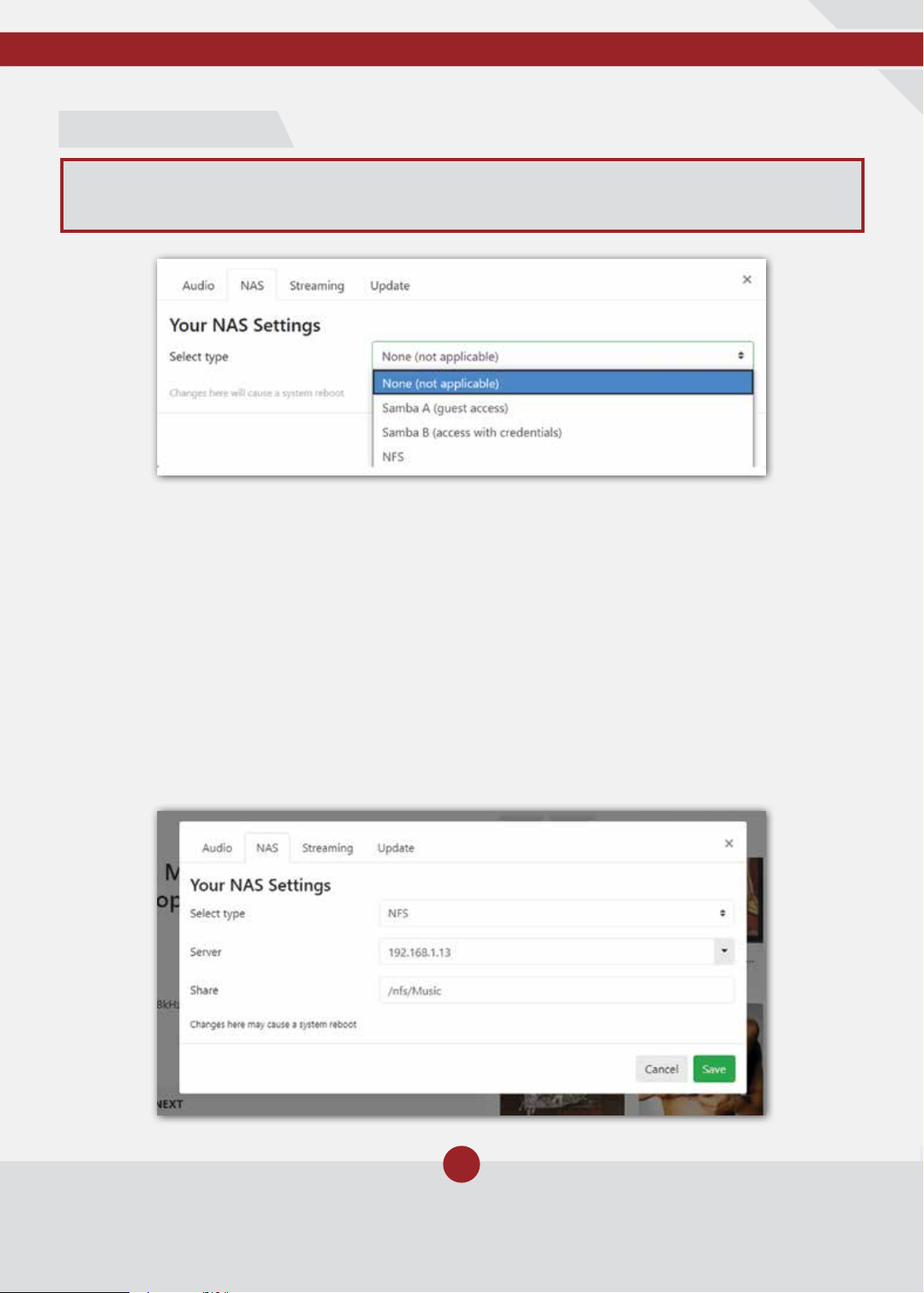
The next screen is “Your NAS settings”:
• Select type:
◊ Select NFS if your NAS is based on NFS
◊ select “samba A” if a guest (such as
a friend) is accessing your NAS or your
accessing a NAS without credentials
◊ select “samba B” if you are accessing
a NAS with credentials (username &
password)
◊ You also need to select your Samba
version (from 1.0 to 3.0). 1.0 is the most
common. You can refer to your NAS
for this if you don’t know it.
• NAS IP address: enter your NAS IP address
or its name
• Path: enter the NAS path to your music
• Username / password (only applicable if
you have selected “samba B”): enter the
appropriate your credentials
• Press Save

8
© Ideon Audio, 2021 – absolute stream manual
Due to continuous research, Ideon Audio reserves the right to change specications without notice.
Reference Streamer/Music rendering engine
Absolute Stream
This completes the NAS setup and after saving the settings you will be taken to the Playback
screen. Next step is to create your music library.
On the upper left of this is the main menu, i.e. Ideon logo, followed by the app’s four basic
functions:
Playback(whatisplayingnow&ahandy,quicksearcheld)
Queue (what you have selected to listen to – you can save this as a “playing list”)
Library (your music library with all its components including external ones you may have
access to – e.g. internet radio, etc)
Search (self-explanatory; search function using keywords and any parameter)
Playback is the application’s main screen for playing music (you may prefer to spend
time on another screen to operate your Stream).
Clicking on the Ideon logo on the upper left opens the main menu with options on
appearance, search tags and search results, etc.; our player is very versatile!
However, we recommend you keep the general settings on default for now until you are
more familiar with the program. So, it is time to create your music library.
The Absolute Stream’s Main Functions
Playback

9
www.ideonaudio.com
NAS users
On the Ideon menu click on Update Update library. The app will begin indexing your
library. Please wait until the indexing is complete, it may take some time depending on the
size of the library.
Non NAS users
Plug in your external HDD into one of the two USB inputs (please see the notice on HDDs,
above).
On the Ideon menu click on Update Update library. The app will begin indexing your
library. Please wait until the indexing is complete, it may take some time depending on the
size of the library.
Afterupdatedonenotication,Click on “close” and you are ready to go!
Now the playback screen will look like this:
The left half is the playing-now window (i.e. what is playing at any time) while the right side
containsalbumsofyourlibrary.Therst100willappear.ThedefaultsortingisAlbumArtist.
Sorting: You can, of course, opt for a different sorting using the icon to the right of the search
eld:
You can choose the search tag – or even, “any tag” – by clicking on the search icon:
Creating your music library and playing music

10
© Ideon Audio, 2021 – absolute stream manual
Due to continuous research, Ideon Audio reserves the right to change specications without notice.
Reference Streamer/Music rendering engine
Absolute Stream
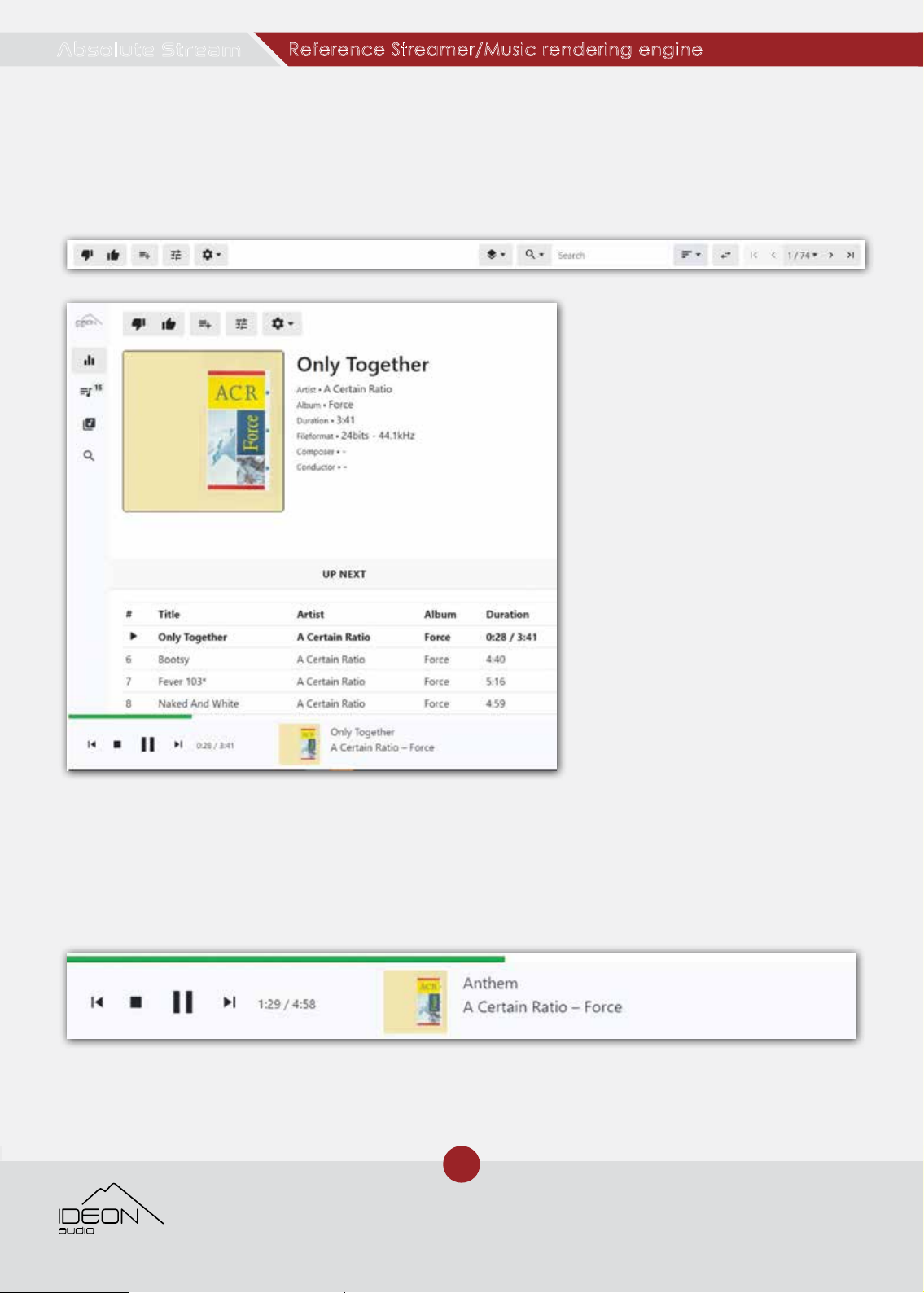
What is playing now appears on the left half on the screen, with all attendant info (i.e. tags,
metadata, artwork).
Right above the information is
a tags gearwheel. Clicking on
it allows you to choose what
information – i.e. tags – you wish
to see displayed next to the
artwork – assuming the tracks
have been tagged accordingly.
To the left of that icon, you have
a quick playback settings menu,
a + sign to add the current track
to a playlist (it will appear as the
last track) and a like or not. (TIP:
clicking on like allows you later
to create a playlist of “liked”
tracks.)
Sneak preview of what is coming: the four tracks that follow what is currently playing, “Next
in queue”, are listed below. (The list is empty if there are none.) Clicking on any of the listed
tracks, immediately loads it to the player, replacing the current one.
Onthebottomofthescreenyouwillndthestop/pauseplaycontrolandprogressbar.
Playing music: from Playback screen
Autres manuels pour Absolute Stream
1
Table des matières