Ideal Heating Halo Manuel utilisateur

i
d
e
a
l
h
e
a
t
i
n
g
.
c
o
m
H
a
l
o
H
e
a
t
&
S
y
s
t
e
m
2
-
Z
o
n
e
E
x
t
e
n
s
i
o
n
I
n
s
t
a
l
l
a
t
i
o
n
G
u
i
d
e
For use with

HALO HEAT & SYSTEM 2-ZONE EXTENSION INSTALLATION GUIDE
Product Code: 222145
2-Zone Extension kit for Halo Heat & System Wi-Fi or
Halo Heat & System RF.
Compatible with the following boilers: Logic Heat H,
Logic Heat H IE, Logic System S, Logic System S IE,
Logic+ Heat H, Logic+ System S, Logic Max Heat H,
Logic Max Heat H IE, Logic Max System S,
Logic Max System S IE Keston System, Vogue
System, Vogue GEN2 System, Vogue Max System,
Vogue Max System IE.
To install Halo with older boilers further details can
be found at idealheating.com
This installation guide is designed to work alongside
the installation guide from either the Halo Heat &
System RF (222141) or the Halo Heat & System Wi-Fi
(222143).
This guide will advise you on how to install and pair
the Halo control unit for Zone 2.
The Halo Heat & System 2-Zone Extension kit
must be installed by a competent person with
the appropriate safety qualifications. Please read
the instructions carefully. Failure to follow these
instructions can damage the product or cause a
hazardous condition.
These instructions are applicable to the Ideal Boiler
models stated and must not be used with any other
make or model of boiler. This product must be
installed to all applicable standards.
Halo Heat & System RF is a non-connected control
(control is via the Halo Heat & System unit only).
Halo Heat & System Wi-Fi is a wireless heating control
that is connected to the internet. You can download
the Halo app on Google Play or the Apple app store.
You will not have to pay to use the app.
For more information on the features in your Halo app
visit the Help section of the app or idealheating.com.
If you have purchased or are upgrading a Halo
Heat & System RF (non-connected control) you
can upgrade this to an internet heating control by
downloading the Halo app and following the steps
in the app to connect your Halo control. You will be
required to pay a connection fee to upgrade to
app-controlled heating.

A. KIT CONTENTS
i
d
e
a
l
h
e
a
t
i
n
g
.
c
o
m
H
a
l
o
H
e
a
t
&
S
y
s
t
e
m
2
-
Z
o
n
e
E
x
t
e
n
s
i
o
n
I
n
s
t
a
l
l
a
t
i
o
n
G
u
i
d
e
For use with
i
d
e
a
l
h
e
a
t
i
n
g
.
c
o
m
H
a
l
o
H
e
a
t
&
S
y
s
t
e
m
2
-
Z
o
n
e
E
x
t
e
n
s
i
o
n
U
s
e
r
G
u
i
d
e
For use with
1. Halo PRT display unit
4. Desk stand
2. PRT rear housing
5. Installation guide
7. 4x AA Batteries
3. Trim plate
6. User guide
8. Screws & Rawlplugs™

B. LOCATION
GUIDELINES
The Halo Heat & System 2-Zone
Extension uses wireless Zigbee
communication from the Smart
Interface to the Halo PRT up
to a maximum distance of 30
meters. Occasionally house
constructions and materials
can reduce this communication
range and it is advisable, where
possible, to try and avoid
directing communications
through metal frames or solid
concrete walls.
If the distance between the
Halo PRT and Smart Interface
is greater than 30 meters or the
install location is challenging,
consider using the Zigbee
Booster (UIN 221132), further
details available at
idealheating.com
1.2-1.5m
1. Mounted 1.2-1.5m above the floor 2. Not above a radiator/heat source
3. Not in direct sunlight 4. Away from any drafts
5. Not fitted behind curtains 6. Internal use only

C. SYSTEM OVERVIEW
This is a simplified diagram of how the Halo units, Smart Wiring Centre and Smart Interface communicate.
Some wiring and pipework has been omitted for clarity.
TOP TIP: For a robust signal between units, where possible, ensure
that the line of communication between the Smart Interface and
other units is not through any stone or metallic object.
HALO Zone 1
HALO Zone 2
Cylinder
with
cylinder
stat
Smart
Interface in
bracket
30m*
30m*
*solid and metallic objects will reduce maximum distance
System components
Pump
2-port
valves
Pipework
RF Connection
Wiring

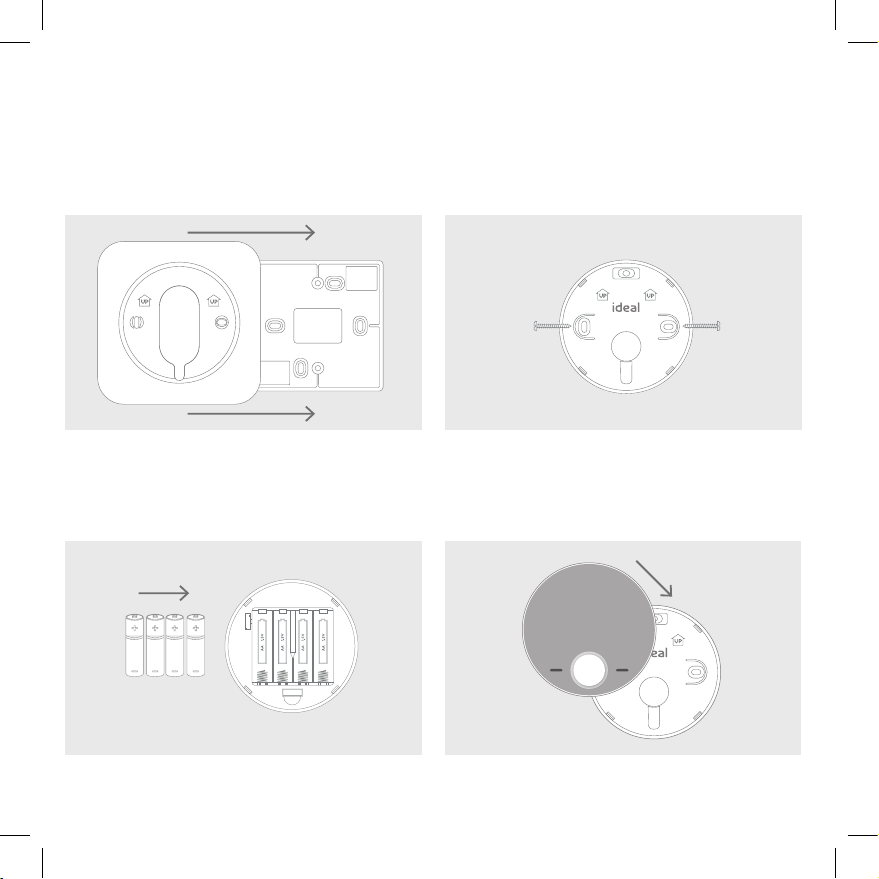
D. INSTALLING THE HALO PRT
The Halo can be either wall mounted or desk mounted.
WALL MOUNTING THE HALO
If there are any concerns regarding signal strength and location of the wall mounted PRT it is advisable to
pair the control and check the signal strength before fixing to the wall.
1. The Halo can be installed with or without the provided
trim plate.
3. Insert the 4 AA batteries provided into the front housing
of the Halo. Pay close attention that the orientation of the
batteries is as indicated in the housing.
4. Locate the front housing (display) in position
perpendicular to the rear housing and clip into place.
2.
If no trim plate is required, use the rear housing of the
Halo to position the unit on the wall, alternatively secure
rear housing to trim plate. Take care not to overtighten
the screws.

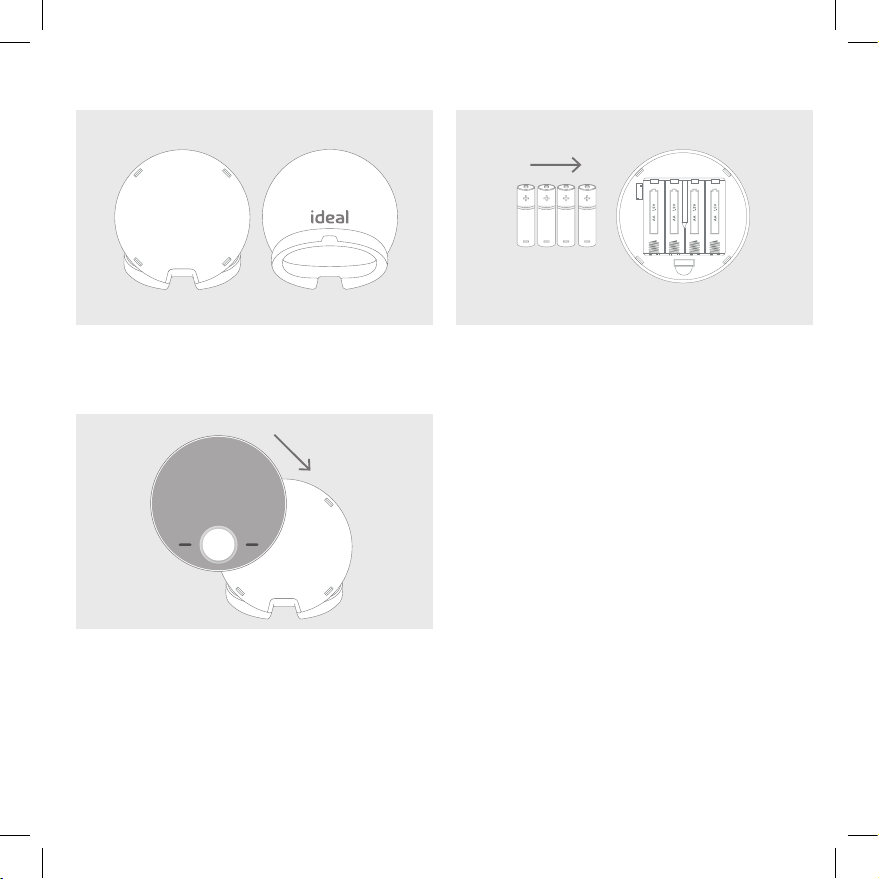
DESK MOUNTING THE HALO
1. The Halo has an integrated rear housing and desk stand.
3. Clip the combined rear housing and desk stand
into place.
2.
Insert the 4 AA batteries provided into the front housing
of the Halo. Pay close attention that the orientation of the
batteries is as indicated in the housing.

E. PAIRING OF THE HALO - ZONE 1
HEATING AND HOT WATER CONTROL
The Halo PRT controlling zone 1 will now
need to be paired with the Smart Interface
installed by the boiler. Ensure the Smart
Interface is still in pairing mode with the
Zigbee LED flashing red.
1. When the batteries are inserted, the Halo
PRT will power up automatically.
2. The device will prompt pairing with the
Smart Interface using an easy step-by-step
process.
3. Simply follow the on-screen guide to select
the type of boiler, Heat & System, and the
system type, Two zone heating and hot
water and Zone 1.
4. The Halo PRT screen will show “Pairing in
Progress”, then “Synchronisation in Progress”
and then “Pairing Complete” when the Halo
PRT has successfully connected to the Smart
Interface.
5. The device will automatically prompt set up
of the time and date.
6. There is the opportunity to add an installer
contact phone number into the device at
this stage, if not changed this will default to
the Ideal Heating Customer Service number.
7. The home screen will be displayed showing
the current and target temperature
and the temperature bar. The Zigbee
communication icon will also be visible on
the display.
Zigbee icon

E. PAIRING OF THE HALO - ZONE 2
The Halo PRT controlling zone 2 will now
need to be paired with the Smart Interface
installed by the boiler. Ensure the Smart
Interface is still in pairing mode with the
Zigbee LED flashing red.
1. When the batteries are inserted, the Halo
PRT will power up automatically.
2. The device will prompt pairing with the
Smart Interface using an easy step-by-step
process.
3. Simply follow the on-screen guide to select
the type of boiler, Heat & System, and the
system type, Two zone heating and hot
water and Zone 2.
4. The Halo PRT screen will show “Pairing
in Progress”, then “Synchronisation in
Progress” and then “Pairing Complete”
when the Halo PRT has successfully
connected to the Smart Interface.
The Date and Time are automatically
uploaded from Zone 1.
5. The home screen will be displayed showing
the current and target temperature and the
temperature bar.
The Zigbee communication icon will also be
visible on the display.
Zigbee icon

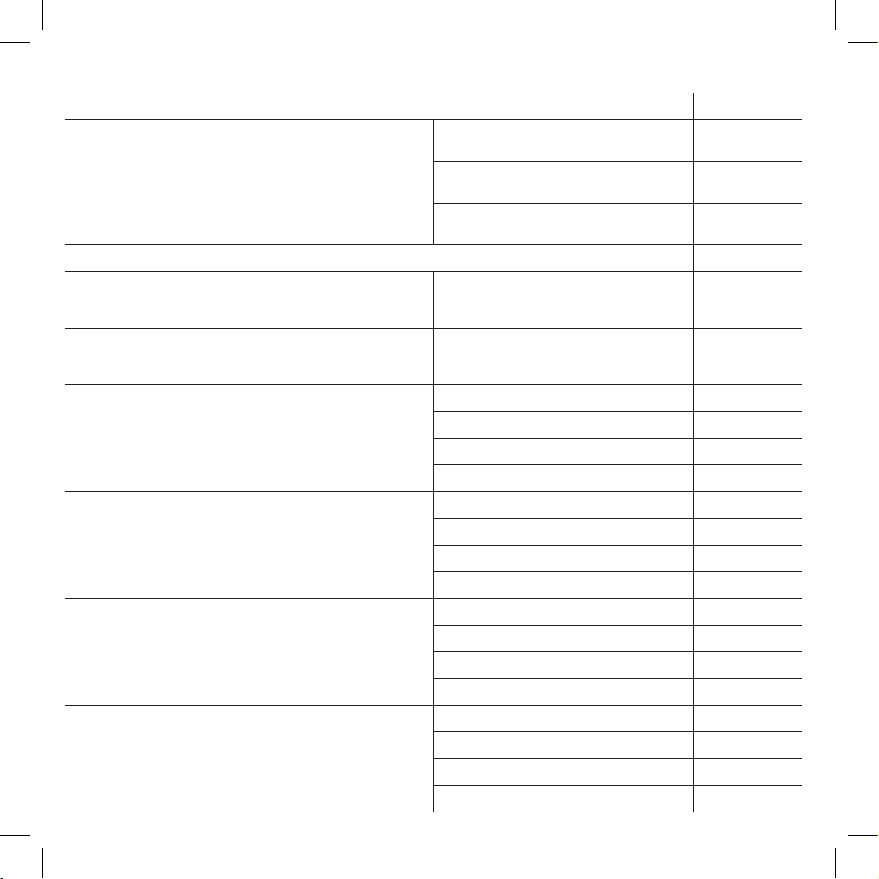
Description Zone 1
Use the “Identify” function to confirm successful pairing has
taken place. Short press on the Pair button on the Smart
Interface. Press Pair button again to exit “Identify” function.
Zigbee LED on Smart Interface
flashes green
Halo home screen flashes to indicate
successful pairing
Zigbee LED on Smart Wiring Centre
flashes green
Halo is positioned in the homeowners chosen location if desk mounted.
Check RSSI (Received Signal Strength Indication) of the Zigbee
wireless connection via support page on the PRT (access via the
menu).
Target RSSI between 0 and -65
and text green
Check RSSI (Received Signal Strength Indication) of the Zigbee
wireless connection and the Wi-Fi connection via the support
information in the Halo app. (Wi-Fi only)
Target RSSI between 0 and -65
and text green
On the Halo set the mode to AUTO then increase the
temperature to 30°C (repeat using Halo app if applicable).
Note: The boiler will only fire once the zone valve is in the
fully open position.
Flame icon ON
Heating zone on Smart Wiring Centre OFF
Boiler ON
Boiler LED on Smart Interface ON (Green)
On the Halo set the heating mode to AUTO then decrease
the temperature to 5°C (repeat using Halo app).
Flame OFF
Heating zone on Smart Wiring Centre OFF
Boiler OFF
Boiler LED on Smart Interface OFF
On the Halo set the hot water mode to ON
repeat using Halo app).
Note: The boiler will only fire once the zone valve is in the
fully open position.
Hot water ON (icon turns orange)
Hot water zone Smart Wiring Centre ON
Boiler ON
Boiler LED on Smart Interface ON (Green)
On the Halo set the hot water mode to OFF
(repeat using Halo app).
Hot water OFF (icon turns white)
Hot water zone Smart Wiring Centre OFF
Boiler OFF
Boiler LED on Smart Interface OFF
COMMISSIONING CHECKLIST When both Halo units are set up use this commissioning
checklist to check and complete the install
Autres manuels pour Halo
2
Table des matières
Autres manuels Ideal Heating Chauffage
Manuels Chauffage populaires d'autres marques

oventrop
oventrop Regucor Series Manuel utilisateur

Blaze King
Blaze King CLARITY CL2118.IPI.1 Manuel utilisateur

ELMEKO
ELMEKO ML 150 Manuel utilisateur

BN Thermic
BN Thermic 830T Manuel utilisateur

KING
KING K Series Mode d’emploi

Empire Comfort Systems
Empire Comfort Systems RH-50-5 Guide de démarrage rapide

Empire Heating Systems
Empire Heating Systems WCC65 Manuel utilisateur

Wetekom
Wetekom 92 86 43 Manuel utilisateur

Desa
Desa SPC170-F Manuel utilisateur

Watlow
Watlow Watrod Electric Tubular Heaters Manuel utilisateur

Haverland
Haverland ECO-DRY GPS Series Manuel de la liste des pièces

Stelpro
Stelpro ASILVC2060 Series Manuel utilisateur