ICON Inspire 5air Manuel utilisateur
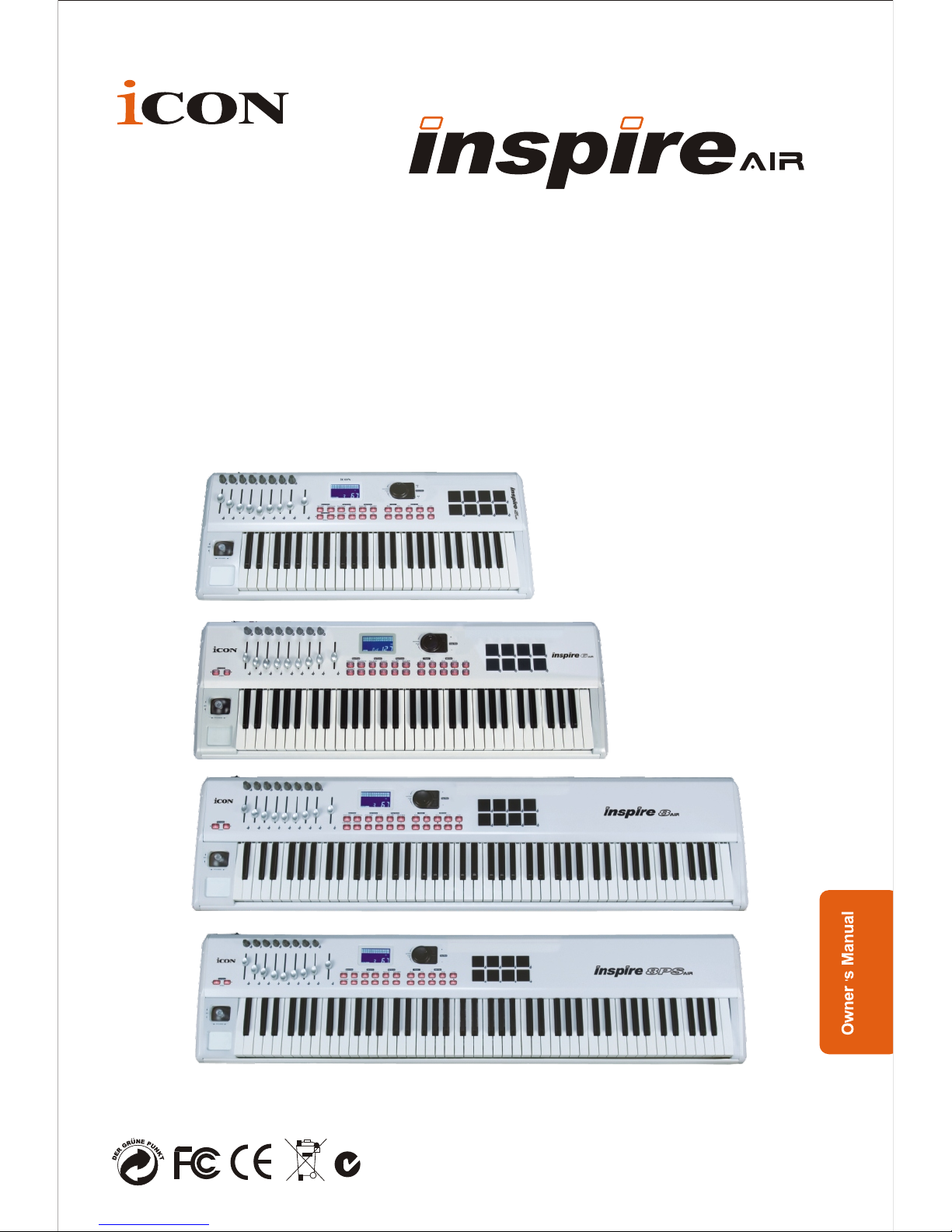
Inspire 5air / Inspire 6air / Inspire 8air
Advanced 49/61/88-Key velocity sensitive
semi-weighted action piano style keyswitch with
assignable "After touch" & Wireless MIDI Module
N16549
Inspire 8PSair
Advanced 88-Key velocity sensitive hammer action
piano style keyswitch with assignable "After touch"
& Wireless MIDI Module
1. Read this manual thoroughly before using this unit.
2. Keep this manual for future reference.
3. Take notice of and comply with all warnings included in the user's manual or
indicated on the appliance.
4. Follow all instructions included in this manual.
5. Do not expose this unit to rain or moisture. Avoid having water or other
liquids spilled on this unit.
6. When cleaning the cabinet or other parts of this appliance, use only a dry or
slightly damp soft cloth.
7. Do not block any ventilation openings or interfere with the proper ventilation
of this unit. Install in accordance with the manufacturer's instructions.
8. Do not use or store near any heat sources such as radiators, heat registers,
stoves, or other heat-producing appliances.
9. Do not interfere with the safety purpose of the polarized or grounding-type
plug. A polarized plug has two blades with one wider than the other. A
grounding-type plug has two blades and a third grounding prong. These are
designated for your safety. If the provided plug does not fit into your outlet,
consult an electrician.
10. Protect the power cord from being walked on or otherwise damaged by items
placed on or against them. Particular attention should be given to the plugs,
receptacles, and the point where the cord exits the appliance.
11. To avoid the risk of electrical shock, do not touch any exposed wiring while
the unit is in operation.
12. Only use attachments/accessories specified by the manufacturer.
13. Unplug this unit and all connected electrical equipment during lightning
storms or when left unused a long period of time.
Refer all servicing to qualified service personnel. Servicing is required when the
appliance has been damaged in any way or fails to operate normally.
WARNING: To reduce the risk of fire or electric shock, do not expose this
unit to rain or moisture
Important Safety Information

Section 1
Getting Started
Setup and connections (connecting other equipment)
Controller Features and Settings
Changing Octaves and Transposing the Keyboard
Setting Global Channels
Using and Setting Up Zones
Assigning Controllers to Different MIDI Channels
TM
Setting up AirMidi Wireless MIDI Function
Section 2
TM
Assigning MIDI functions with iMap
Section 3
Assigning MIDI Functions
Assigning MIDI Messages to Controllers
Setting the Minimum and Maximum values
MIDI Program Changes
TM
Installing iMap Software for MAC OSX
TM
Installing iMap Software for Windows
TM
Assigning MIDI functions with iMap
TM
iMap InSpire-air series controller software panel
Contents
1
Introduction
About This Manual
What's in the package
Four versions of InSpire air Series Keyboards
Features of InSpire air versions
Front Panel Layout
Control Button Layout
LCD Screen
Rear Panel Layout
2
3
3-4
5
6
8
9-10
11-13
14
15
16-18
19
2
7
25-26
27
28-29
19
20
20-21
22
22-24

Section 6
Advanced Use of InSpire-air
Templates
NRPNs
Controlling Multiple Devices
Section 7
Glossary of Terms
Section 8
Service Information
Section 9
Appendices
Appendix A - MIDI Implementation Chart
Appendix B - Useful MIDI Data Tables
Appendix C - General MIDI Controller Numbers(MIDI CC's)
Appendix D - Function Tables
Appendix E - Hexadecimal Conversion Chart
50
49
47-48
46
45
42-44
41
39
39-40
51
Section 4
Velocity and Pad Curves
Velocity Curves
Pad Curves
Assignable AfterTouch Feature
Section 5
Using with Connected Devices
Controlling the Transmission of MIDI Messages
Panic Mode
MIDI Machine Controlls
Lowpass Filter
Saving and Recalling your Settings
Setting Layers for Controllers
30-31
31-32
32
33-34
34
35
36
36
37-38
Contents

Introduction
Congratulations on purchasing your ICON InSpire-air series keyboard. The
management and employees of ICON are dedicated to producing quality
equipment and are pleased that you have selected one of our many fine
products. With proper care, we trust that your InSpire-air series keyboard will
provide years of trouble-free operation.
This manual is intended to introduce you to the features and specifications of
the InSpire-air series keyboard you have purchased and to guide you through
the proper set-up and use of this equipment. You will also find an enclosed
warranty card. Please fill it out and mail it in to receive online technical support
and updated information about this unit as well as other quality ICON products.
We recommend that you record your serial number in the space below for
future reference.
Welcome to ICON, and thank you for becoming part of our worldwide family!
1
Serial No.:
Purchased at:
Date of purchase:

As you have probably noticed in technical users manuals of all sorts, the
writing tends to be written by techies for techies to understand. While that is
all well and good, we feel that the primary users of this product will tend to
be musicians, and thus we have made every effort to write this manual with
musicians in mind. Much of the manual has been written by an actual, real-
life keyboard player – someone you will see quoted throughout the manual as
Michael. Of course, we needed a writer to actually clean that up a bit, and we
hope the result is a user's manual that you can easily use to get started,
quickly learn the technical features of InSpire-air series keyboard, and get on
to what you do best – creating and playing music.
Anywhere you see the quoted “Michael Says” you can find additional tips and
tricks that Michael learned when he was figuring out this keyboard. Use what
is helpful to you.
What's in the package?
InSpire air Master USB MIDI Controller
QuickStart Guide
Utilities / Driver CD / Users' Manual
USB cable
12VDC Power Supply
About This Manual
2
Features
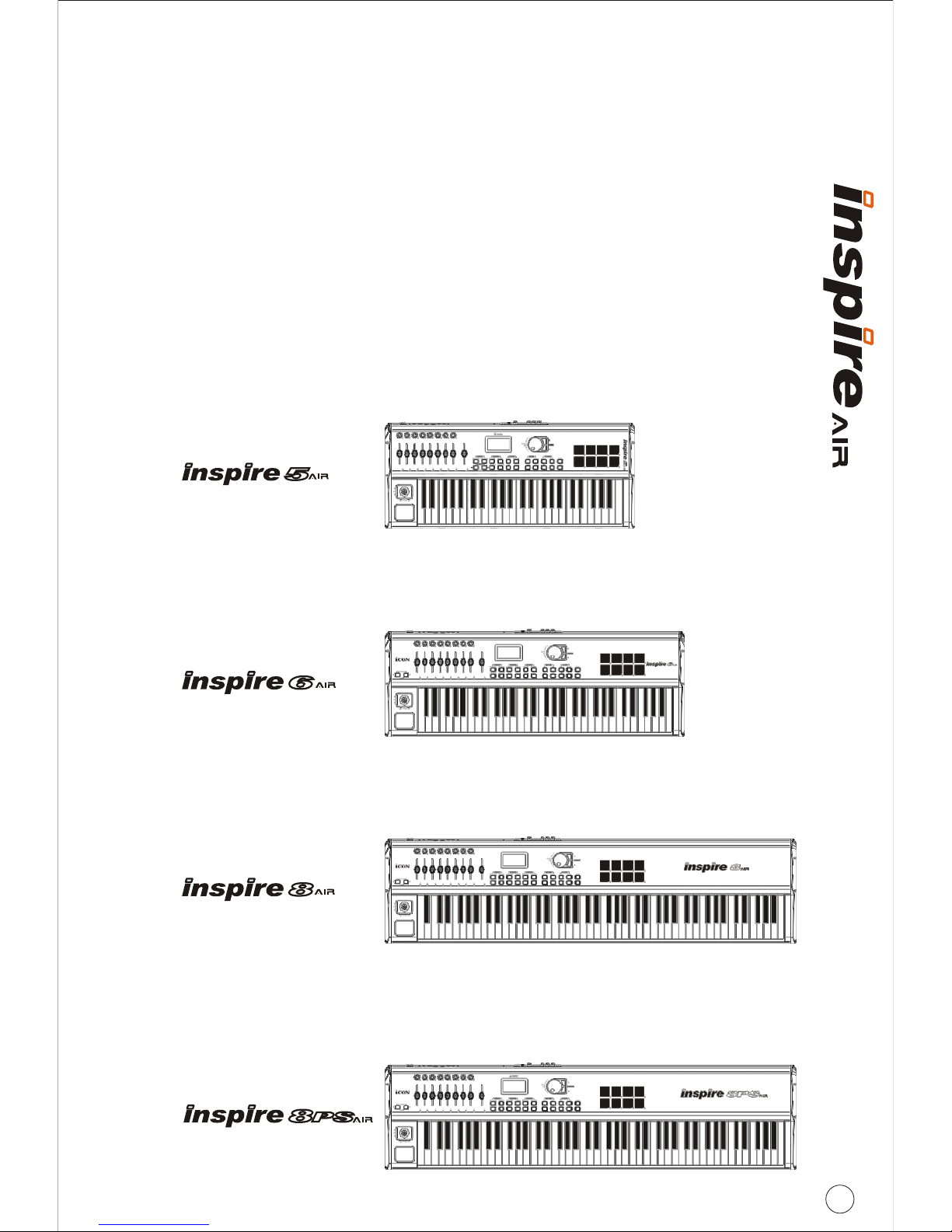
Four versions of InSpire-air series keyboards
This manual is written to include the features of the InSpire 5air, Inspire 6air,
InSpire 8air, and InSpire 8PSair. All four keyboards will operate the same except
where we have noted differences or exclusions for a particular model. The
primary difference between the four versions of inspire-air series keyboard is
fairly obvious, they differ in the number of keys. The InSpire 8PSair has a
notably different feel than the Inspire 8air with “Hammer Action” style keys
that gives it more of the feel of a piano.
3
Inspire 5air
49 Velocity sensitivity semi-weighted action piano style keys with assignable
“After touch” and wireless MIDI module
Inspire 6air
61 Velocity sensitivity semi-weighted action piano style keys with assignable
“After touch” and wireless MIDI module
Inspire 8air
88 Velocity sensitivity semi-weighted action piano style keys with assignable
“After touch” and wireless MIDI module
Inspire 8PSair
88 Hammer-action piano style keys with assignable “After touch” and
wireless MIDI module

4
X/Y touch pad
Combined pitch/modulation joystick
8 fully programmable trigger pads
9 fully programmable faders
8 fully programmable knobs
Multiple velocity curves available for selection
LCD display, backlit for easy control
Jog wheel shuttle for fast search and control
22 MIDI function buttons including 6 assignable transport buttons
20 non-volatile memory locations
Mackie Control protocol build-in
MIDI I/O, Sustain and Expression connectors
TM
“AirMIDI ” Wireless MIDI module build-in
Expansion slot for ICON's “Synth” series Synthesizer expansion card
Expansion slot for ICON's “Satellite” series USB audio expansion card
USB2.0 and USB bus-powered
Features
6
Front Panel Layout
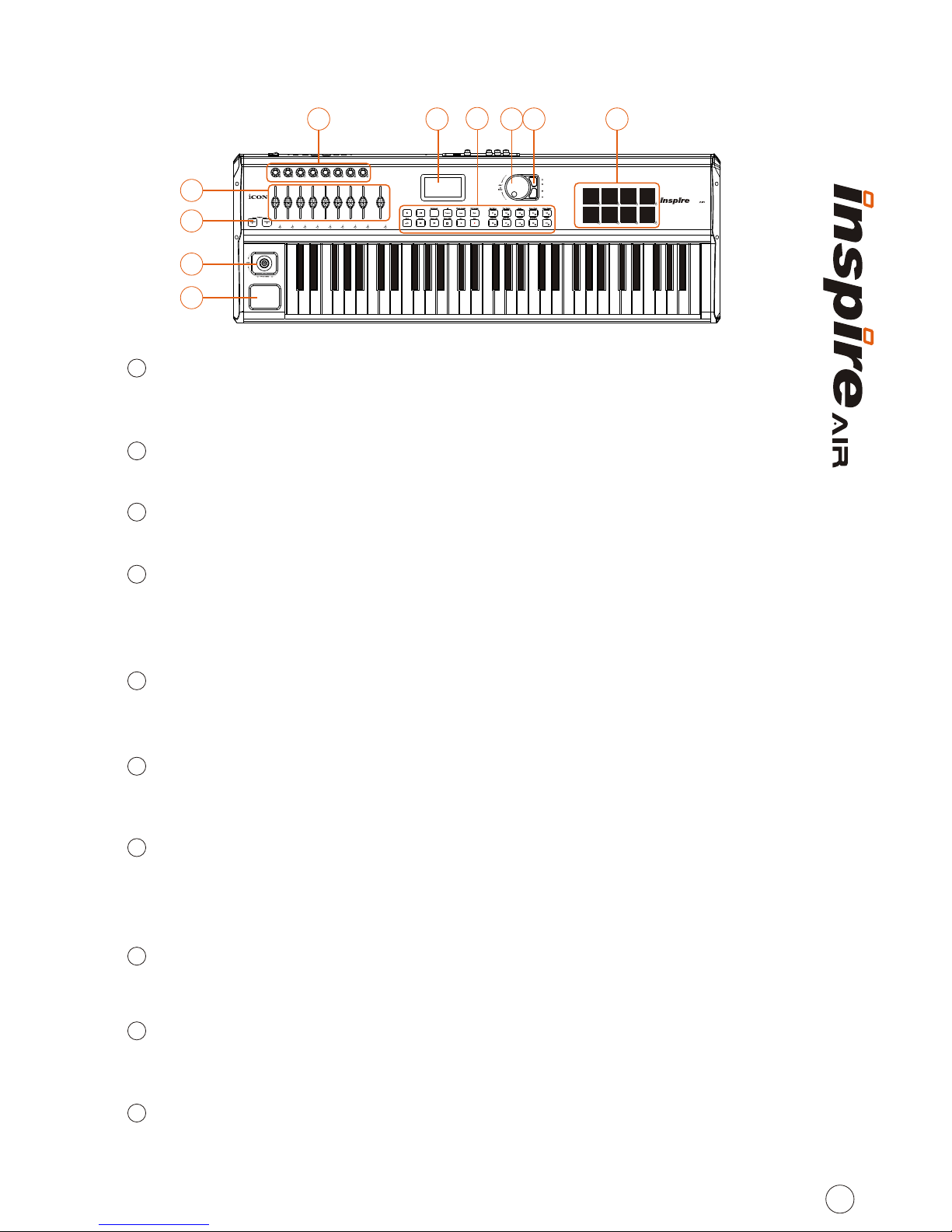
Faders
These nine programmable faders slide up and down to adjust linear MIDI
parameters such as volume.
Control Buttons
Control, set, and activate the many features of InSpire-air series keyboard.
LCD Screen
“Communication Central' for everything that happens on your keyboard.
Jogwheel
The jogwheel has both a rotary function and a button function. Turning the
jogwheel allows you to scroll through and select the options you wish to
change. Pressing the jogwheel acts as an “enter” key for InSpire-air.
Plus/Minus Keys
These keys are a substitute for the rotary function of the jogwheel. To scroll
towards higher numbers, use the “+” key. To scroll lower, use the “-” key.
Knobs
Eight programmable knobs turn to adjust linear MIDI parameters such as
stereo pan.
Pads
Eight velocity-sensitive pads can be programmed to control any on/off or
touch-sensitive functions, such as MIDI Machine Controls and percussion
sounds.
Transpose/Octave Buttons
Raises or lowers the pitches played on your keyboard. (Note: these buttons are
included in the “Control Buttons” section on the InSpire 5air).
Joystick
Programmable joystick to easily control functions such as pitch bend and
modulation.
X/Y Touch Pad
Like the mouse keypad on a laptop computer, the X/Y Pad allows you to
manipulate any software function that allows visual/tactile user control and
is enabled by the manufacturer.
1
2
3
4
5
6
7
8
2
347
9
10
1
10
5
5
6
8
9
Control Button Layout
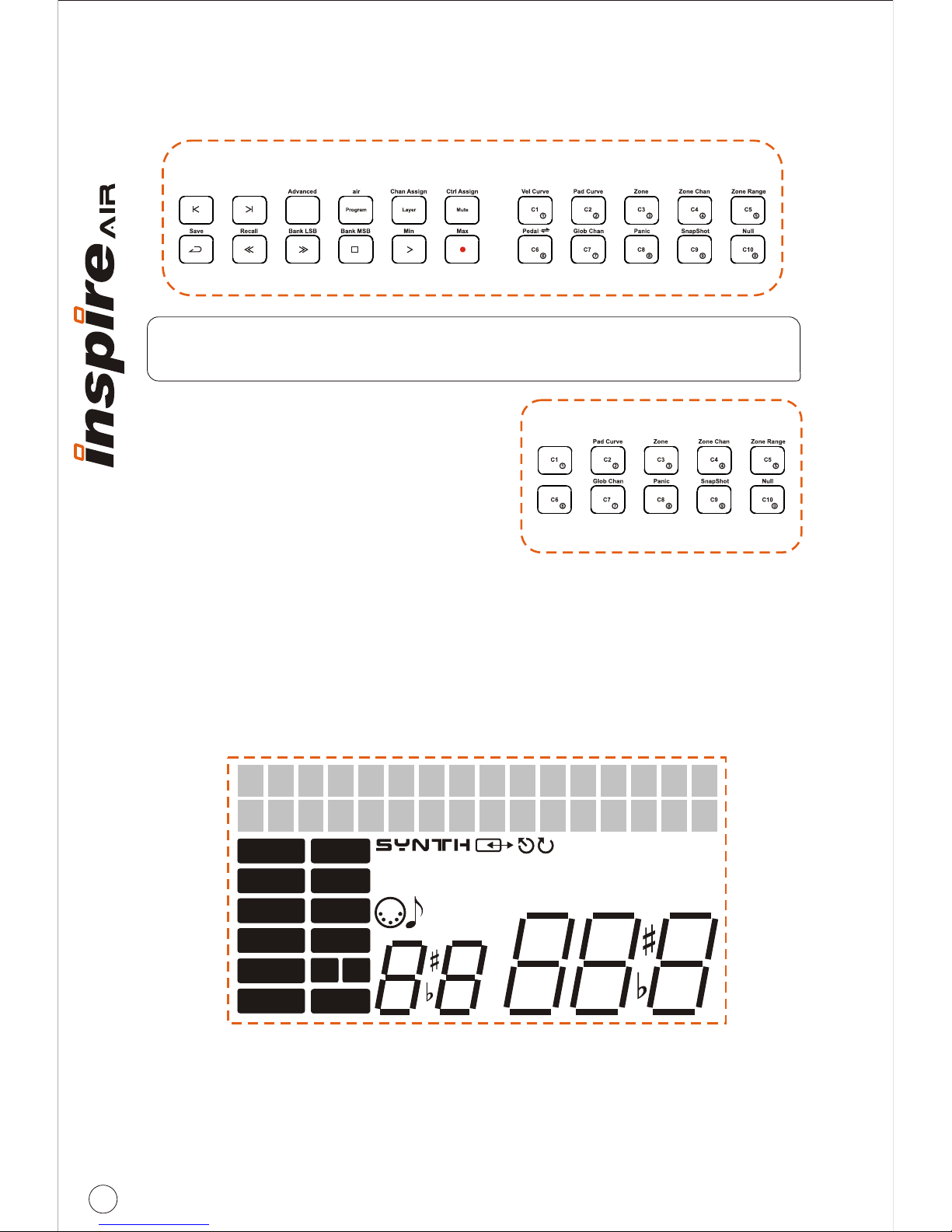
Selecting Control Buttons
Control buttons will light up when active or
selected. Pressing them again cause them
to go dark, or de-selects them.
Number Pad
InSpire-air series keyboard uses the same buttons C1-C10 as the numeric buttons
0-9. You can enter a value from 0 to 127 by simply pressing the individual numerals
to create the number you want. Press 1 for “One”, press 1 twice for “Eleven”, press
1 three times for “One Hundred and Eleven”.
Note: Control Buttons on InSpire 5air have a slightly different layout. Differences
are usually self-evident, but are also noted throughout this manual.
6
The LCD Screen
The LCD screen on your InSpire-air series keyboard is “communication central”
for everything that happens on it. The many various symbols and displays are
explained throughout this manual, but basically here are the different sections of
the LCD screen:
ZONE 1
ZONE 2
ZONE 3
ZONE 4
GRP A
GRP B
GRP C
GRP D
RANGE A
NULL
NRPN SNAPSHOT
PANIC
GLOB
CHAN
B
MUTE
LAY
123456
DEV. ID
VEL.CURVE PROG
TRANS CC
CHAN
GLOB
BANK LSB MINMSB
RECALL
ZONE
STORE OCT
MAX
F P V
Ce manuel convient aux modèles suivants
2
Table des matières
Autres manuels ICON Clavier électronique