
ICON I-DJ Manuel utilisateur

N16549
USB MIDI DJ Controller with
TM
OptiSen optical scratch wheels

Important Safety Instructions
1. Read these instructions.
2. Keep these instructions.
3. Heed all warnings.
4. Follow all instructions.
5. Do not use this apparatus near water.
6. Clean only with dry cloth.
7. Do not block any ventilation openings. Install in accordance with the manufacture’s
instructions.
8. Do not install near any heat sources such as radiators, heat registers, stoves, or other
apparatus (including amplifiers) that produce heat.
9. Only use attachments/accessories specified by the manufacturer.

Introduction
What's in the package
Features
Front Panel Layout
Side Panel Layout
Getting Started
Connecting your iDJ controller
TM
Installing iMap Software for Mac OSX
TM
Installing iMap Software for Windows
TM
Assigning MIDI functions with iMap
TM
iMap iDJ software panel
Services
Restore the factory default settings
Daisy chain your iDJ to other i-series controllers
Specifications
Contents
2
3-4
1
5
5-6
7
8-9
14
10-12
12
10
15
13
Introduction
Please write your serial number here for future reference:
Purchased at:
Date of purchase:
Thank you for purchasing the ICON iDJ USB MIDI DJ controller. We sincerely trust this
product will provide years of satisfactory service, but if anything is not to your complete
satisfaction, we will endeavor to make things right.
In these pages, you'll find a detailed description of the features of the iDJ, as well as a
guided tour through its front and side panels, step-by-step instructions for its setup and
use, and full specifications.
You'll also find a warranty card enclosed---please don't forget to fill it out and mail it so
that you can receive online technical support at: www.icon-global.com. And so we can
send you updated information about these and other ICON products in the future. As
with most electronic devices, we strongly recommend you retain the original packaging.
In the unlikely event the product must be returned for servicing, the original packaging
(or reasonable equivalent) is required.
With proper care and adequate air circulation, your iDJ will operate without any trouble
for many years. We recommend that you record your serial number in the space
provided below for future reference.
What's in the package?
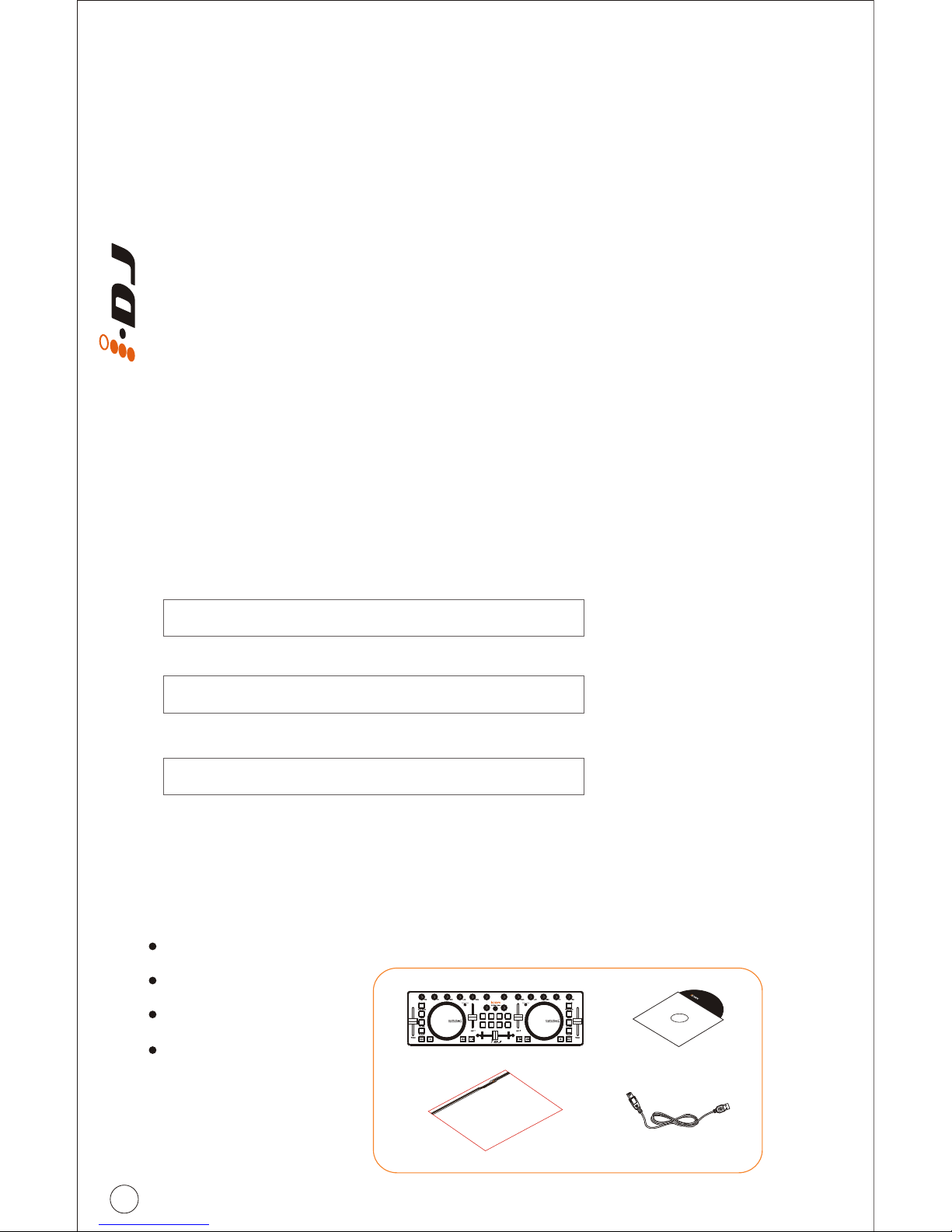
iDJ USB MIDI controller x 1
Software CD x 1
Quick Start Guide
USB2.0 Cable
1
Quick Start Guide USB2.0 Cable
Software CD
iDJ
2
Features
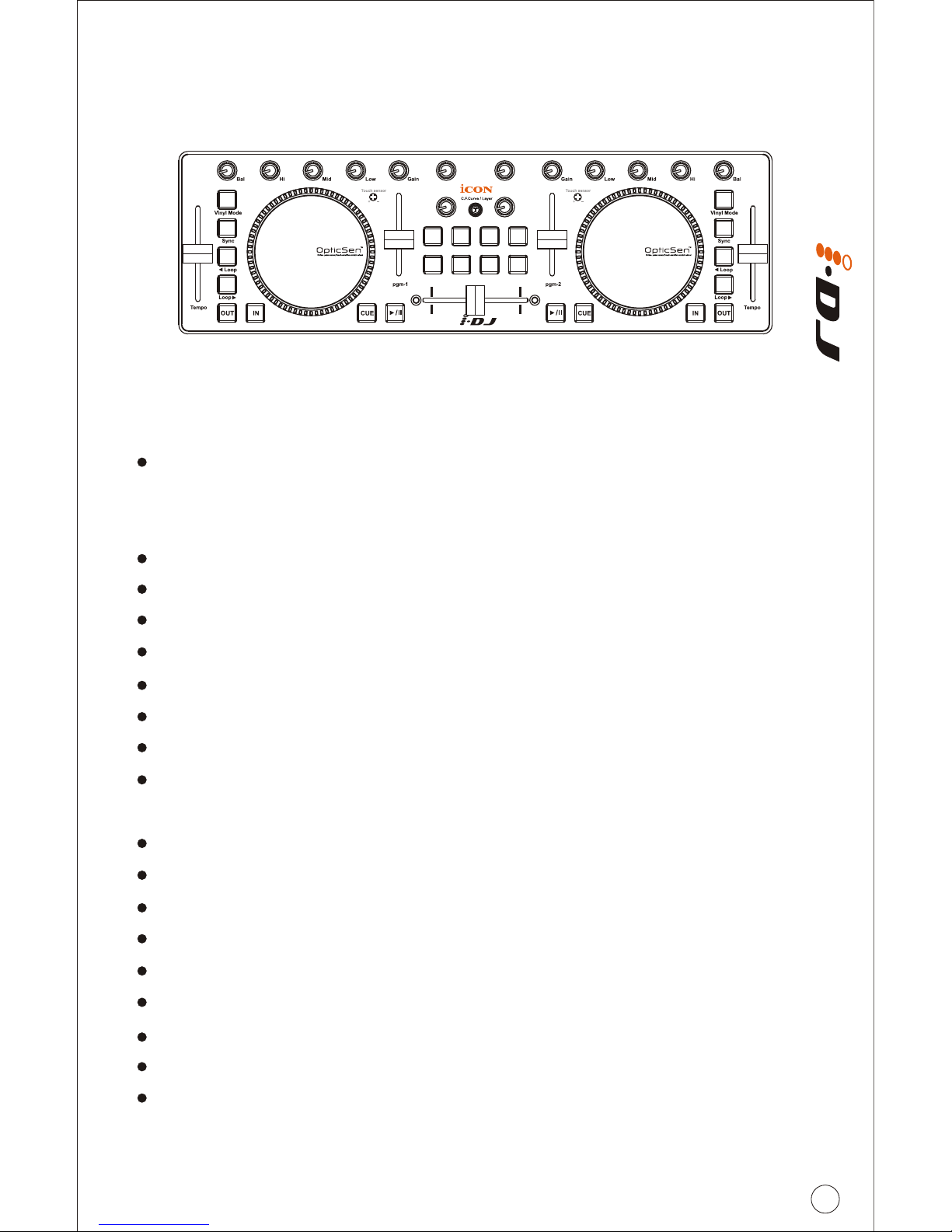
Touch-sensitive scratch wheels with high resolution pulse sensor
Touch sensor scratch wheel platters give high resolution to experiencing
an analog feel when scratching and mixing.
Touch wheel sensitivity adjustable
Vertical volume control faders
Vertical tempo control faders
Horizontal cross fader control
2x3-band EQ control knobs - Hi, Mid and Low (assignable)
Balance control knobs (assignable)
Gain control knobs (assignable)
8 assignable backlit buttons including "Vinyl Mode", "Sync", "Loop >",
"Loop <", "Out", "In" and "Cue".
4 extra assignable knobs for effect control
8 extra assignable backlit buttons
TM
iMap midi mapping software included for reassigning midi mapping
TM
Extremely compact and perfect match with MacBook
Class-compliant with Windows XP, Vista (32-bit), and Mac OS X
USB bus-powered
Available in black and white
Different colors aluminum cover is available (optional)
Custom laser-engraving service for aluminum cover is available at online
purchase (optional)
Main features include:

3
Front Panel Layout
Touch-sensitive scratch wheel with high resolution pulse sensor
The scratch wheel is constructed with high resolution pulse sensor with
touch-sensitive and non-sensitive elements. These together enable user
control functions such as “search”, “pitch bend”, “stop & go”, and
“scratch” etc. with high accuracy and effectively.
Scratch wheel touch sensitivity level control
Adjust the sensitivity of the scratch wheels for different environments and
users. Rotate it with a small screwdriver while touching the scratch wheel
until the backlight of the scratch wheel changes from blue to red.
Tempo fader
Adjust the tempo (playback speed) of each deck at your software.
Vinyl mode button
Press to activate the vinyl mode of each desk at your software.
Sync button
Press this button to activate the Auto-Sync function of each desk at your
software.
Loop control buttons (Loop<, Loop>, IN & OUT)
These buttons control the corresponding looping buttons found on each
desk at your software.
Transport buttons (CUE, Play/Pause)
Press to activate the CUE, Play/Pause functions of each desk at your
software.
Mixer knobs (Bal, Hi, Mid, Low & Gain)
These adjust the channel balance, gain, the high-frequency, mid-range,
low-frequency EQ settings of each desk at your software.
1
2
3
4
5
6
7
8
1
24
5
6 7
8
9
10 11
3
4
Front Panel Layout
Crossfader
This slider controls the crossfader at your software. Slide to control the
transition between songs. The crossfader curve setting is adjustable.
Please refer to the “C.F.Curve” button below for details.
C.F.Curve / Layer button
This is a multi functional button. It can be used to adjust the crossfader
curve, switching the layer from one to four or restore the iDJ to factory
default settings.
Adjust the crossfader curve
Activate the button (red light turns on) and slide the crossfader to your
preferred cross point. This would be your “A” cross point and “B” cross
point will be mirror symmetric. The section between your cross points “A”
& “B” is the center value.
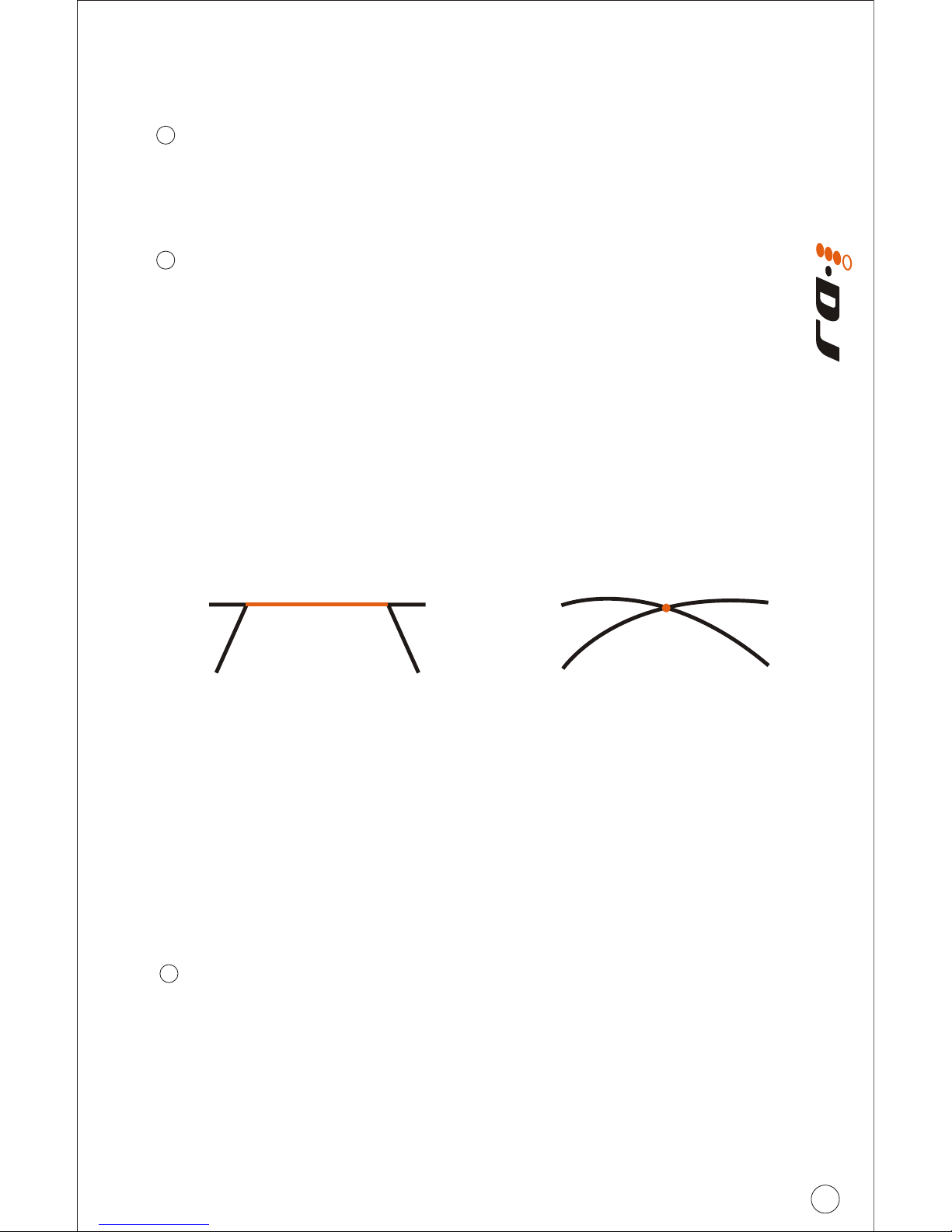
Tip: In general, a gentle curve is more suitable for long mixes (larger distance between A/B
as diagram A shown) and a sharp curve is more suitable for scratching (i.e. less distance
between A/B as diagram B shown).
Switching between the 4 layers
You may pre-map your iDJ to 4 layers with different midi mapping at each
layer. To switch between these layers, activate the Layer button and press
the 4 buttons below to change the layers from 1 to 4.
Restore iDJ to factory default
Press and hold the button for more than 3 seconds (all the iDJ lights will
flash one time), this will restore all iDJ settings to factory default values.
User defined buttons
These buttons are intended for user to self-define the usage. Please use
iMap software to assign their functions.
Tip: Except “Vinyl Mode”, “C.F.Curve”, “CUE” & “Play/Pause” buttons are not assignable,
all other buttons, sliders and knobs on your iDJ are assignable with the provided iMap
MIDI mapping software.
9
10
11
Diagram BDiagram A
Centre
(Centre) (Centre)
AB AB

5
Getting Started
Connecting your iDJ controller
Choose a USB port on your Mac/PC and insert the wide (flat) end of the USB
cable. Connect the cable's small jack end to the iDJ. Your Mac/PC should
automatically “detect” the new hardware and notify you that it is ready to
use.
Connect the iDJ to your Mac/PC via the USB port
1
Diagram 1 Diagram 2
Side Panel Layout
USB port (B-Type)
Functions as a MIDI port to your notebook (or computer) and compatible
software. Also provides power to your iDJ.
1
1
a
b
Esc F1 F2 F3 F4
F5
F6
F7 F8 F9 F10 F11 F12
Prtsc
sysrq
pause
Break Lns Del
Home
Pgup
PgDN
End
$
~
`
!
1
··
23456778 90
)
)
*—
-
+
=
#¥%*##
QWERTYUIOP{}|
ASDFGHJKL:
;
ZXCVBNM<>?
Tab
CapsLook
Shift
Ctrl Alt AltGr Ctrl
Backspace
[
]
|
Enter
Shift
intel

Setup your DJ software
Activate the ICON iDJ controller in your DAW or MIDI software using
“MIDI setup” or “MIDI devices”.
(Note: Every application does this a little different, so refer to your software user manual
for the settings.)
Import the preset template for the DJ software
To avoid all hassles to set the midi mapping for your DJ software. We
have created preset templates on some DJ software. By importing
this template to your DJ software, your iDJ is ready to use
immediately. These templates are stored on the CD with your
package under the “Templates” folder. Also, we will update and
create more templates for different DJ software. Please check our
official website for updates.
TM
(Note: You may reassign your midi mapping with the provided iMap software.
TM
(Refer to page 10 for "Assign the MIDI functions with "iMap " software")
2
3
6

TM
Installing iMap Software for MAC OSX
TM
Please follow the procedures below step-by-step to install your iMap
software to Mac OS X
1
2
3
Insert the Utility CD in your
CD-Rom and double click
“iSeries iMap” icon.
Turn on your MAC.
Diagram 1
Diagram 2
iMap “Device select” window
pop-up, click the device button
TM
accordingly to launch the iMap
software.
7
Table des matières
Autres manuels ICON Matériel de DJ


Manuels Matériel de DJ populaires d'autres marques


thomann
thomann Stairville DJ Lase 40-G MK-III Manuel utilisateur

Eagletone
Eagletone 6 Eyes Flower Manuel utilisateur

EuroLite
EuroLite FLD-1508 Manuel utilisateur

Technical Pro
Technical Pro LG8xSEA Manuel utilisateur

JB Systems
JB Systems Lounge Laser DMX Manuel utilisateur

Lightmaxx
Lightmaxx Vega Halo 90 Manuel utilisateur

Elation
Elation FUZE WASH Z350 Manuel utilisateur

Maverick
Maverick MK3 WASH Manuel utilisateur

Infinity
Infinity TF-260C7 Fresnel Manuel utilisateur

Chauvet
Chauvet EVE E-50Z Manuel utilisateur

Eliminator Lighting
Eliminator Lighting E 138 Manuel utilisateur

EuroLite
EuroLite Mini Multicolor LED Flashing Light SC Manuel utilisateur