i-MO Q3 Plus Manuel utilisateur

Smartphone
Quick Start Guide
Please Read Before Proceeding

1
Product Safety Information

2
What's in the Box
The phone packaging box should contain the following
items and accessories:
Phone, Battery, Power Adapter, Quick Start Guide and
USB cable.
Notices for the Use of Your Phone
Your phone should be treated with care. The following
suggestions can help you extend the life of your mobile
phone.
1)Place the mobile phone and their parts and components
out of reach of young children.
2)Keep the phone dry. Rain, humidity and all types of
liquids which contain minerals will corrode electronic
circuits.
3)Don’t touch the phone with wet hands when charging, it
will cause electric shock or damage the phone.
4)Avoid placing the device in high temperature
environments. High temperatures can shorten the life
of electronic devices, damage batteries, and warp or
melt certain plastics.
5)Avoid placing the device in a low temperature
environment. When the temperature rises, the phone
will produce water vapor that may damage electronic
circuits.
6)Avoid placing the phone in dusty, dirty places, otherwise
parts may be damaged.
7)Avoid placing the phone near a lit cigarette, open flame
or any heat source.
8)Do not drop, knock or shake the phone. Rough handling
can damage internal circuit boards.
9)Do not paint the phone. The paint may block
headphones, microphones or other removable parts,
and cause them not to work.
10)Use a clean, soft, dry cloth to clean the camera, light
sensor lenses. Prohibit the use of harmful chemicals
and cleaning agents to clean the phone.
11) Pacemaker manufacturers recommend that a
minimum separation of 15 cm be maintained between
a mobile phone and a pacemaker to avoid potential

3
interference with the pacemaker. To achieve this use
the phone on the opposite ear to your pacemaker and
do not carry it in a breast pocket.
12) Please consult your doctor and the device
manufacturer to determine if operation of your phone
may interfere with the operation of your medical
device.
13) Turn off your mobile phone or wireless device when in
a blasting area or in areas posted turn off “two-way
radios” or “electronic devices” to avoid interfering with
blasting operations.
14) There is a risk of explosion if battery is replaced with
an incorrect type. Dispose of used batteries according
to the instructions.

4
Getting to Know Your Phone
Earpiece
Camera
Headset Jack
Back key
Volume Keys
Power Key
Home key
Menu key
Camera
Camera Flash
Speaker
Touch Screen
Charging USB Port

5
Power Key
Press and hold to turn on or off Aeroplane mode,
enable Silent mode or Silent mode with Vibration,
disable Silent mode, Power off or Restart the phone.
Press to wake up or turn off the display.
Home Key
Touch to return to the home screen.
Touch and hold to open the Google Assistant for
Android (Go edition).
Menu Key
Touch to see recently used applications.
Back Key
Touch to go back to the previous screen.
Volume Keys
Press or hold to turn the volume up or down.
Before Getting Started
Removing the Back Cover
Installing the SIM Card

6
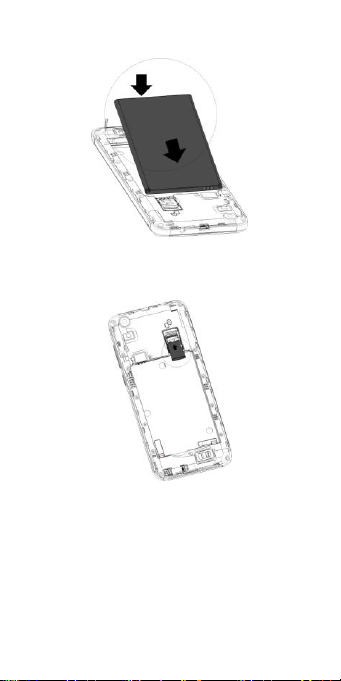
Installing the Battery
Installing a microSD Card (Not Included)
NOTE: Some applications may require a microSD card to
work normally or may store certain data on it. Therefore, it
is recommended that you keep a microSD card installed
and not remove or replace it randomly.

7
Basic Settings
Your service provider may default some device settings,
so you may not be able to change these settings.
Network & Internet
Wi-Fi
Swipe Wi-Fi to right to switch on WiFi.
Once it’s on, it will search for available WiFi networks
automatically. Check whether the network has a password.
Network without a password can be used directly, for
others you will need to enter the password to use.
Note:Wi-Fi will switch off automatically when the phone
is changed to flight mode, even if WiFi is on. Switch on
WiFi again when the device is in flight mode, then the WiFi
will work normally.
Connected devices
Bluetooth
Swipe Bluetooth to right to switch on
Bluetooth. The phone will search automatically for nearby
bluetooth devices.
Display
Display
a. Brightness level: Adjust the screen brightness
b. Wallpaper: The gallery and built-in wallpaper can be set
as standby and lock screen wallpaper.
c. Sleep: Adjust the time allowed before the screen goes
to sleep after inactivity.
d. Advanced
1. Auto-rotate screen: On, Off.
2. Font size: Set the font size of the system
3. Display size: Set the display size of the screen.
System

8
Languages & input
1) You can set up all the languages supported by the
phone.
2) Keyboard Settings: You can set virtual keyboard and
physical keyboard.
Backup
1) Back up Apps and apps data, Call history, Contacts,
Device settings, SMS to Google Drive.
Date and Time
1) Automatic date & time: Use date and time provided by
network.
2) Automatic time zone: Use time zone provided by
network.
3) Set date: Set the current date.
4) Set time: Set the current time.
5) Select time zone: Select Time Zone according to where
you are.
6) Use 24-hour format: ON/OFF
About phone
You can check the information onWireless Update, Status,
Legal information, Model & hardware, Android™ version,
Android security patch level, RAM, Baseband version,
Kernel version, Build number here.

9
Technical Specifications
•Network: GSM850/900/1800/1900
WCDMA900/2100 LTE B1/B3/B7/B20
•Display: 5”
•Memory: 8GB ROM+1GB RAM
•Camera: 5MP+5MP
•FM/MP3/MP4/GPS/WiFi/Bluetooth/G-Sensor
•Battery Capacity: 2000mAh Li-ion
(*):The storage capacity actually available in the unit's
internal memory may be less due to the preloaded
operating system and / or other pre- installed or configured
applications. Check the space actually available on your
computer.
FCC Statement
Changes or modifications not expressly approved by the
party responsible for compliance could void the user's
authority to operate the equipment.
This equipment has been tested and found to comply with
the limits for a Class B digital device, pursuant to Part 15
of the FCC Rules. These limits are designed to provide
reasonable pence in a residential instrotection against
harmful interferallation. This equipment generates uses
and can radiate radio frequency energy and, if not
installed and used in accordance with the instructions,
may cause harmful interference to radio communications.
However, there is no guarantee that interference will not
occur in a particular installation. If this equipment does
cause harmful interference to radio or television reception,
which can be determined by turning the equipment off and
on, the user is encouraged to try to correct the interference
by one or more of the following measures:
-- Reorient or relocate the receiving antenna.
-- Increase the separation between the equipment and
receiver.
Table des matières
Autres manuels i-MO Téléphone portable