Contents
1 Introduction...................................................................................................................................1
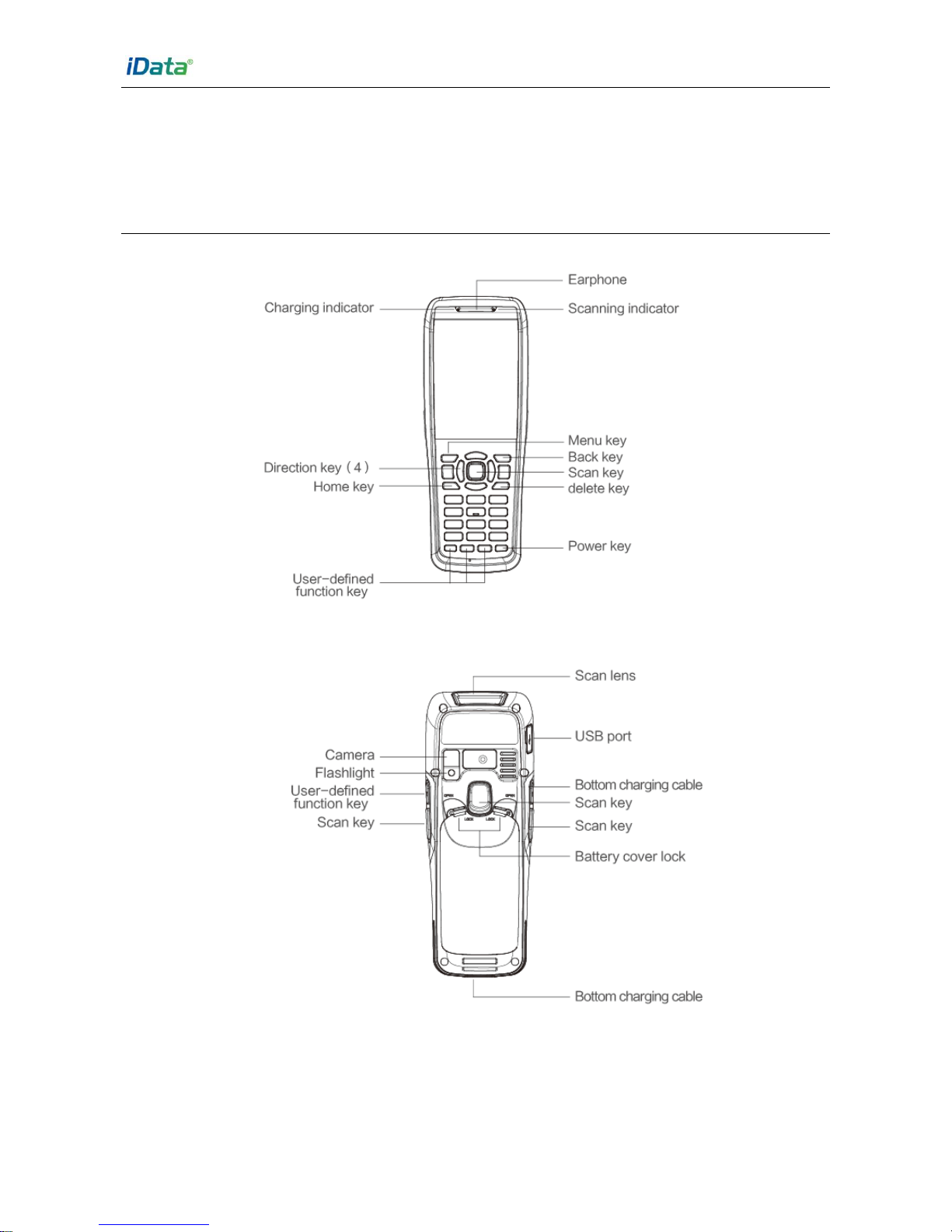
1.1 Overview.................................................................................................................................................... 1
1.2 Installing the Battery................................................................................................................................ 2
1.3 Removing the Battery.............................................................................................................................. 3
1.4 Installing a SIM Card ............................................................................................................................... 3
1.5 Inserting a TF Card.................................................................................................................................. 4
1.6 Charging.................................................................................................................................................... 5
2 Instructions on iData 60.............................................................................................................6
2.1 Powering On/Off the iData 60 ................................................................................................................ 6
2.2 Locking and Unlocking the iData 60...................................................................................................... 6
2.3 Keys of the iData 60................................................................................................................................. 6
2.4 Home Screen............................................................................................................................................ 7
2.5 Status Icons and Indicators..................................................................................................................... 8
2.6 Basic Settings........................................................................................................................................... 9
3 Call Function...............................................................................................................................14
3.1 Making a Call.......................................................................................................................................... 14
3.2 Contacts................................................................................................................................................... 14
3.3 SMS and MMS........................................................................................................................................ 15
3.4 Email ........................................................................................................................................................ 16
4. Network Connection and Connection Synchronization.................................................18
4.1 GPRS Data Connection........................................................................................................................ 18
4.2 Wi-Fi Network Connection.................................................................................................................... 19
4.3 Bluetooth.................................................................................................................................................. 19
4.4 GPS.......................................................................................................................................................... 21
4.5 Connecting the iData 60 to a PC Using USB Data Cable................................................................ 21
4.6 Synchronization...................................................................................................................................... 22
5. Enabling Barcode Scanning..................................................................................................23
6. Enabling the NFC Function....................................................................................................24
7 Managing iData 60.....................................................................................................................25
7.1 Installing Applications............................................................................................................................ 25
7.2 Uninstalling Applications ....................................................................................................................... 25
7.3 Managing Applications .......................................................................................................................... 25
8 Precautions and Troubleshooting.........................................................................................26
8.1 Precautions............................................................................................................................................. 26
8.2 Troubleshooting...................................................................................................................................... 27
Appendix .........................................................................................................................................30