
HunterDouglas PowerView Pebble Dessin dimensionnel

PRODUCT INFORMATION MANUAL
SECTION: 7E POWERVIEW GUIDE
POWERVIEW GUIDE
PEBBLE REMOTE
AND
APP SETUP &
OPERATION

TABLE OF CONTENTS
PowerView App Setup and OperationPowerView Pebble®Remote
Getting Started .............................. 3
Pairing Multiple Remotes to a Single Network ID ..... 4
Programming Mode Overview ................... 6
Selecting & De-Selecting Groups ................. 7
Joining a Shade to a Group ..................... 8
Removing a Shade From a Group................. 9
Setting a Favourite........................... 10
Product Operation:
Groups 1-6 ................................ 11
Product Operation:
ALL Button................................. 12
Product Operation:
Favourite Button ............................ 13
Product Operation:
Silhouette®and Pirouette®Shadings ............. 14
Product Operation:
Luminette® Privacy Shades .................... 15
Performing a Programming Reset ............... 16
Setting Limits .............................. 17
Duplicating a Remote......................... 18
Pairing a Repeater to a Network: Using a Remote.... 21
Battery Replacement ......................... 22
Mounting the PowerView Surface................ 23
Inserting the Remote Module into the Pebble®..... 24
Getting Started with the Hub ................... 26
Pairing a Hub to a Remote Network .............. 27
Creating a Network Using the PowerView App ...... 28
Pairing a Remote to a Hub Network .............. 29
Pairing a Repeater to a Network: Using the Hub ..... 30
Discover Shades ............................ 31
Edit Shade Information........................ 32
Assign Shade to a New Room .................. 33
Assign Shade to an Existing Room ............... 34
Create a Room ............................. 35
Shade Operation in a Room .................... 36
Delete a Room .............................. 37
Create a Room Scene ........................ 38
Create a Multiple Room Scene .................. 40
Shade Operation in a Scene.................... 41
Setting Up and Using Schedules ................ 42
Scheduling Scenes – Sunrise/Sunset............. 43
Enabling RemoteConnect...................... 44
Using RemoteConnect ........................ 46
Using Repeaters with the App .................. 47
Battery Life Indicator ......................... 48
Backing Up the Hub .......................... 49
Emailing a Hub Backup ....................... 50
Restoring a Hub Backup....................... 51
Adding a New Scene Controller ................. 53
Configuring Scenes in a Scene Controller.......... 54
Operating Scenes with the Scene Controller........ 56
PowerView Scene Controller
PowerView Help
Frequently Asked Questions .................... 57
Troubleshooting ............................. 62
© Copyright 2016 Hunter Douglas Limited [ABN 98 009 675 709]
® Luxaex, PowerView and Pebble are registered Trade Marks of Hunter Douglas • 03/2016

– 3 –
Remote Module
Manual Control Configurations
GETTING STARTED with the PowerView™ Pebble® Remote
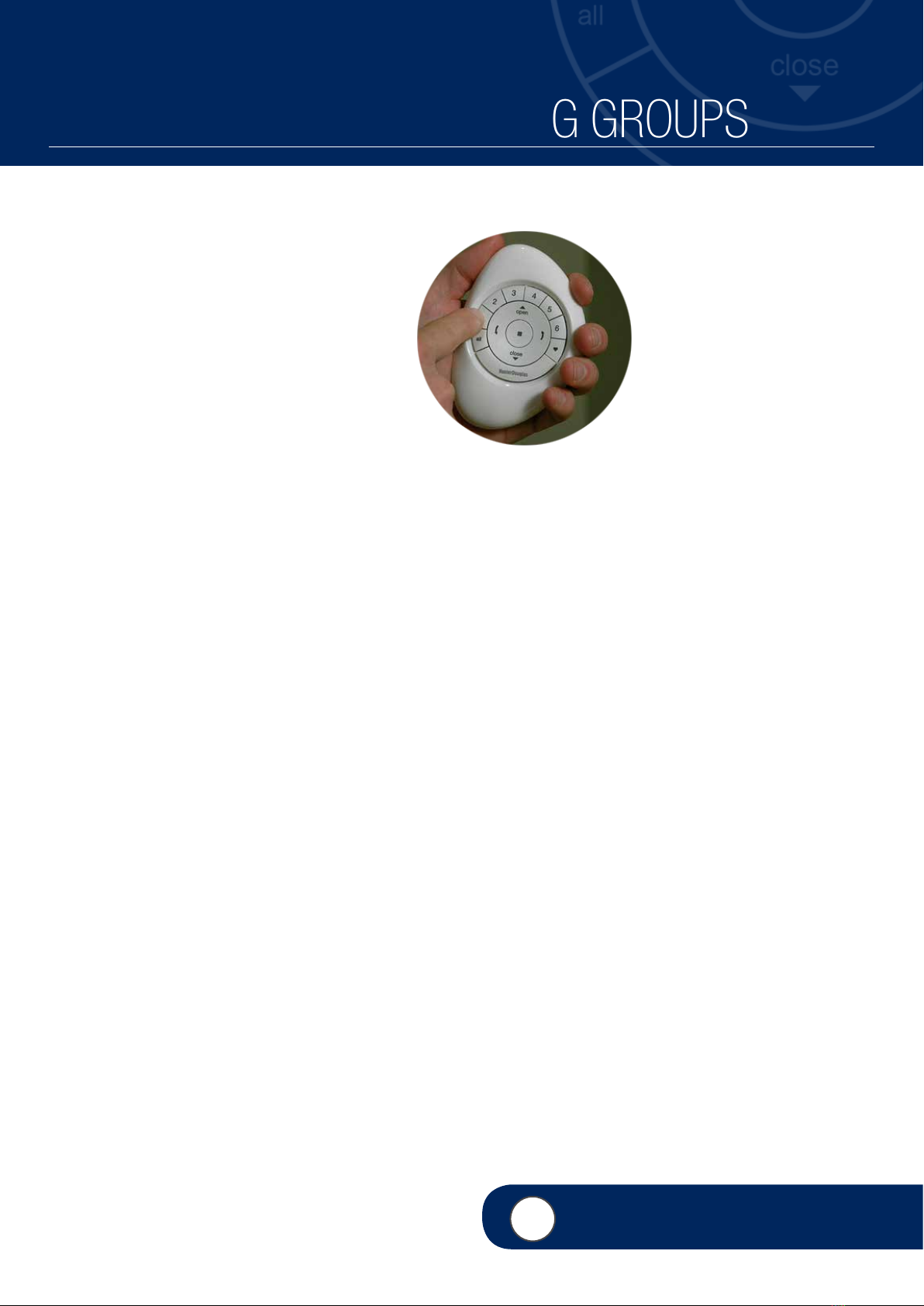
Groups (1-6)
Select or de-select Group
numbers for programming
or operation.
Stop
Stops shade in any position.
Also used to enter and exit
programming mode.
Vane Open/
Close Arrows
Operate vanes.
All
Operate all groups
simultaneously.
Open
Move shade to fully
open position.
Favourite
Default setting is 50%
open. Customise to
move shade to a custom
favourite position.
Close
Move shade to fully
closed position.
Key to Operation
Pirouette®Shadings Sihouette® Shadings Duette®Shades Luminette®Privacy Sheers
The manual control button, located on the headrail, is different depending on the product. See images for product examples.
4VIDEO INSTRUCTION

– 4 –
PAIRING MULTIPLE REMOTES to a Single Network ID
Each PowerView Remote comes with its own
unique Radio Frequency (Network) ID. If
multiple remotes (ie. PowerView Pebble®and/
or PowerView Surface remotes) will be used in
the home, it is necessary to establish a single
PowerView Shade Network ID for all remotes
before any window covering programming is
done. This is to ensure that if a PowerView
Hub, PowerView Scene Controller or PowerView
Repeater(s) will be used in the future, it can
be used to operate previously programmed
window coverings in the home and be used in
conjunction with all the remotes on a single,
unified network.
qSELECT the initial Network remote. This
will be the source remote from which a
unified PowerView Shade Network will be
established for the home.
NOTE: Because a unified network has not
yet been established, it does not matter
which available remote you choose to use to
create a PowerView Shade Network.
wSELECT the target remote.
eREMOVE the back cover on the target
remote.
rUsing a ball point pen, PRESS and HOLD
the recessed Reset button on the back of
the target remote for six seconds.
NOTE: The Group numbers (1-6) buttons
will flash twice on the press of the Reset
button, then again at six seconds.
tREINSTALL the back cover onto the
target remote.
y
PRESS and HOLD (Stop) on the source
remote, until indicator lights begin to blink.
NOTE: This puts the source remote in
Programming Mode. Indicator lights on the
source remote will continue to blink for 20
seconds following each set of commands,
allowing additional target remotes to
be networked.
q
e
w
r
ty
Source Target Target
Target
Target
Source
Target

– 5 –
4VIDEO INSTRUCTION
uWith the source remote in Programming
mode, PRESS and continue to HOLD
(Stop) on the target remote.
Complete steps 8 and 9 at the same time.
iPRESS and RELEASE (Stop) on the
source remote.
oRELEASE (Stop) on the target remote.
NOTE: The Group numbers (1-6) on the
target remote will flash twice to indicate that
it has been networked to the source remote.
1) PRESS and HOLD (Stop) on the source
remote until the indicator lights stop
blinking.
u io
1)
Target
Target
Source
Source

– 6 –
PROGRAMMING MODE OVERVIEW
In programming mode, you can set a variety
of functions, from joining a shade to a Group
to removing a shade from a Group, to setting
Favourite shade positions. You must activate
programming mode on the PowerView™ Pebble®
Remote to establish communication between the
remote and shade.
ENTER PROGRAMMING MODE
qPRESS and HOLD (Stop) for 6 seconds
until indicator lights blink on the PowerView
Pebble Remote.
wRELEASE (Stop).
NOTE: Indicator lights on the remote will
continue blinking for 20 seconds following
each set of commands allowing additional
shades to be programmed, if desired.
EXIT PROGRAMMING MODE
qTo EXIT programming mode, PRESS and
HOLD (Stop) until the indicator light
stops blinking.
wRELEASE (Stop).
NOTE: If no buttons are pressed on the
remote for 20 seconds, the remote will exit
programming mode. All settings performed
while in programming mode will be retained.
4VIDEO INSTRUCTION
q w
– 7 –
SELECTING & DE-SELECTING GROUPS
4VIDEO INSTRUCTION
Before operating a single window covering
you must first select its corresponding Group
number (1-6) or the ALL button. Multiple Groups
numbers can be selected for simultaneous
operation in any combination. Group numbers
can be selected or deselected. Like any Group
number, the All button can also be selected or
deselected; however, its selection will override
any active Group(s).
SELECTING A GROUP
qPRESS and RELEASE the Group number(s)
(1-6) of your choice.
NOTE: Selected Group numbers are
illuminated to indicate that they are active.
DE-SELECTING A GROUP
qPRESS and RELEASE the Group
number(s) (1-6) of your choice.
NOTE: Deselected Group numbers will
darken to indicate that they are no longer
active.
q

– 8 –
JOINING A SHADE TO A GROUP
Shades must be joined to a Group to operate. A
single shade can be joined to multiple Groups,
if desired.
qPRESS and HOLD (Stop) until
indicator lights blink on the PowerView™
Pebble®Remote.
wRELEASE (Stop).
ePRESS and RELEASE the desired Group
number (1-6) on the remote.
The selected group number will blink.
NOTE: Steps 4-6 must be completed within
5 seconds.
rPRESS and HOLD the manual control
button on the headrail.
tThen PRESS and RELEASE 5(Open) on
the remote.
The shade will jog to indicate it’s been
joined to the selected Group.
yRELEASE the manual control button.
NOTE: To join additional shades to the
same Group, repeat steps 4-6 for each
shade.
uPRESS and HOLD (Stop) on the remote
until the indicator lights stop blinking.
4VIDEO INSTRUCTION
q
e
w
r
yt

– 9 –
REMOVING A SHADE FROM A GROUP
Shades can be removed from a group, if desired.
qPRESS and HOLD (Stop) until indicator
lights blink on the PowerView™ Pebble®
Remote.
wRELEASE (Stop).
ePRESS and RELEASE the desired Group
number (1-6) on the remote.
The selected group number will blink.
NOTE: Steps 4-6 must be completed within
5 seconds.
rPRESS and HOLD the manual control
button on the headrail.
tThen PRESS and RELEASE6(Close) on
the remote.
The shade will jog to indicate it has been
removed from the selected Group.
yRELEASE the manual control button.
NOTE: To remove additional shades from
the same Group, repeat steps 4-6 for each
shade.
uPRESS and HOLD (Stop) on the remote
until the indicator lights stop blinking.
q
e
w
r
yt
4VIDEO INSTRUCTION

– 10 –
SETTING A FAVOURITE
All shades come from the factory with a default
Favourite position set at 50% open. If you prefer
a different shade position, you can create a
custom Favourite.
qUse the PowerView™ Pebble®Remote
to move all shades to a desired Favourite
position.
wPRESS and HOLD (Stop) until indicator
lights blink.
eRELEASE (Stop).
NOTE: Steps 4-6 must be completed within
5 seconds.
rPRESS and HOLD the manual control
button on the headrail.
tThen PRESS and RELEASE (Favourite)
on the remote.
The shade will jog to indicate the position
has been set as a Favourite.
yRELEASE the manual control button.
NOTE: To position additional shades, repeat
steps 4-6 for each shade.
uPRESS and HOLD (Stop) until the
indicator lights stop blinking.
q
e
w
r
yt
4VIDEO INSTRUCTION
Table des matières
Autres manuels HunterDouglas Télécommande

HunterDouglas
HunterDouglas PowerView Manuel utilisateur

HunterDouglas
HunterDouglas PowerView Pebble Manuel utilisateur

HunterDouglas
HunterDouglas PowerView Manuel utilisateur

HunterDouglas
HunterDouglas Platinum Manuel d'utilisation et d'entretien

HunterDouglas
HunterDouglas PowerView Manuel utilisateur

HunterDouglas
HunterDouglas PowerView Motorization Manuel utilisateur
Manuels Télécommande populaires d'autres marques

Panasonic
Panasonic EUR7622KB0 Manuel utilisateur

Bang & Olufsen
Bang & Olufsen Beo4 Manuel utilisateur

Sunwave Tech.
Sunwave Tech. RemoteComm SRC-7000 Manuel utilisateur

Multiplex
Multiplex PROFI TX 9 Manuel utilisateur

One Remote
One Remote RMB4 Manuel utilisateur

FUTABA
FUTABA 9ZAP - PART2 Manuel utilisateur


