
Huion Keydial mini Manuel utilisateur

Keydial mini
Contents
Product Overview ...................................................... 2
Introduction ......................................................... 2
Accessories ......................................................... 2
Connection .......................................................... 4
Driver Installation ..................................................... 7
Windows ........................................................... 7
mac ............................................................. 10
Driver ............................................................. 13
Driver Interface Overview ............................................... 13
Keydial Setting ...................................................... 15
Keys Function Setting .................................................. 16
Dial Setting ........................................................ 21
Driver Setting ....................................................... 25
1 / 29
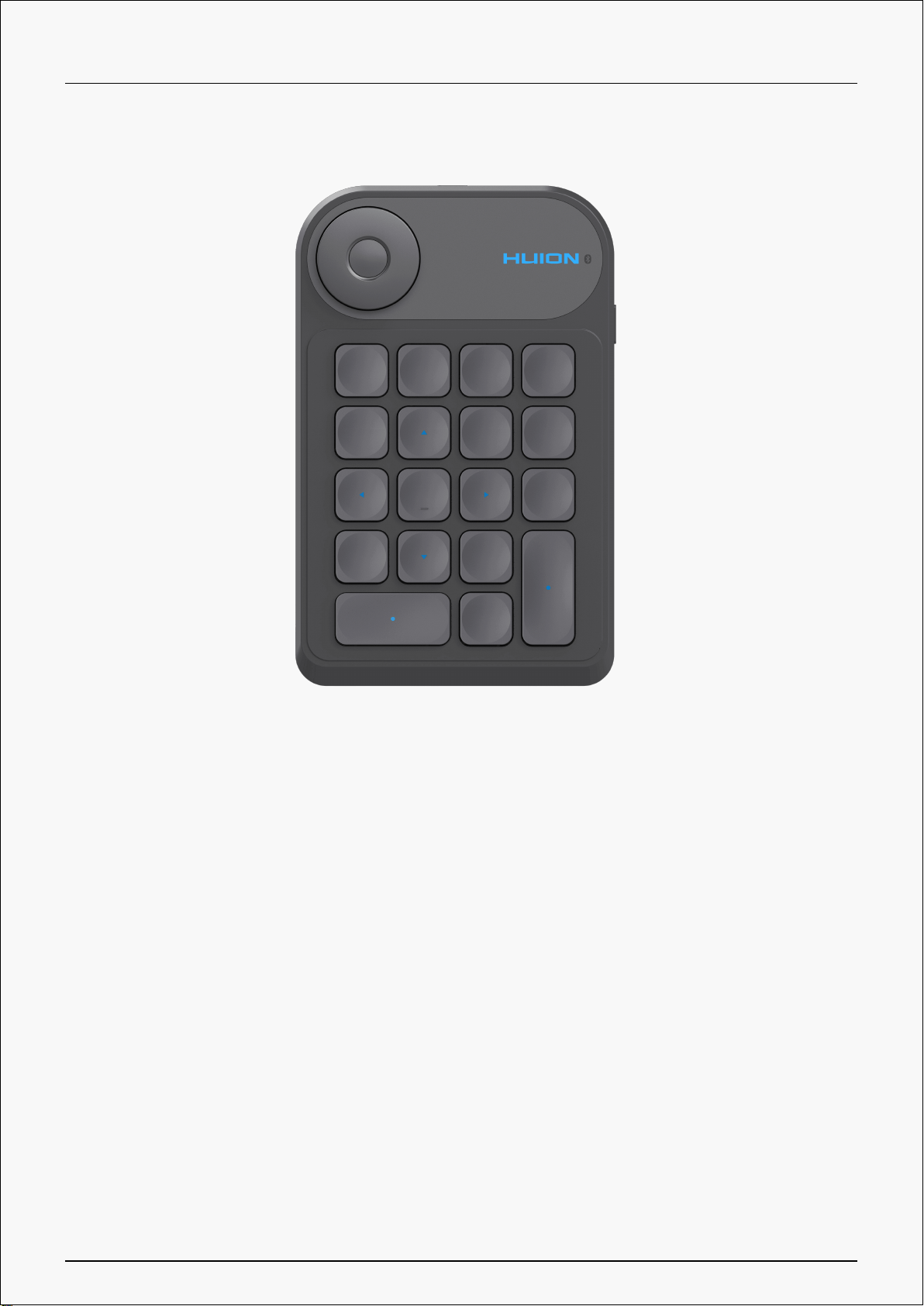
Keydial mini
Product Overview
Introduction
Thanks for choosing HUION Keydial mini.
Keydial mini belongs to Huion keydial series and can be used with pen tablets, pen displays
and other drawing products, supporting Bluetooth connection. It can be operated flexibly with
one single hand.
To better know and use this product, please read this user manual carefully.
Note: The pictures in the User Manual are for reference only and may be subject to change
depending on the operating system as well as the driver version. A change in design or
specification may also occur without notice.
2 / 29
Keydial mini
Accessories
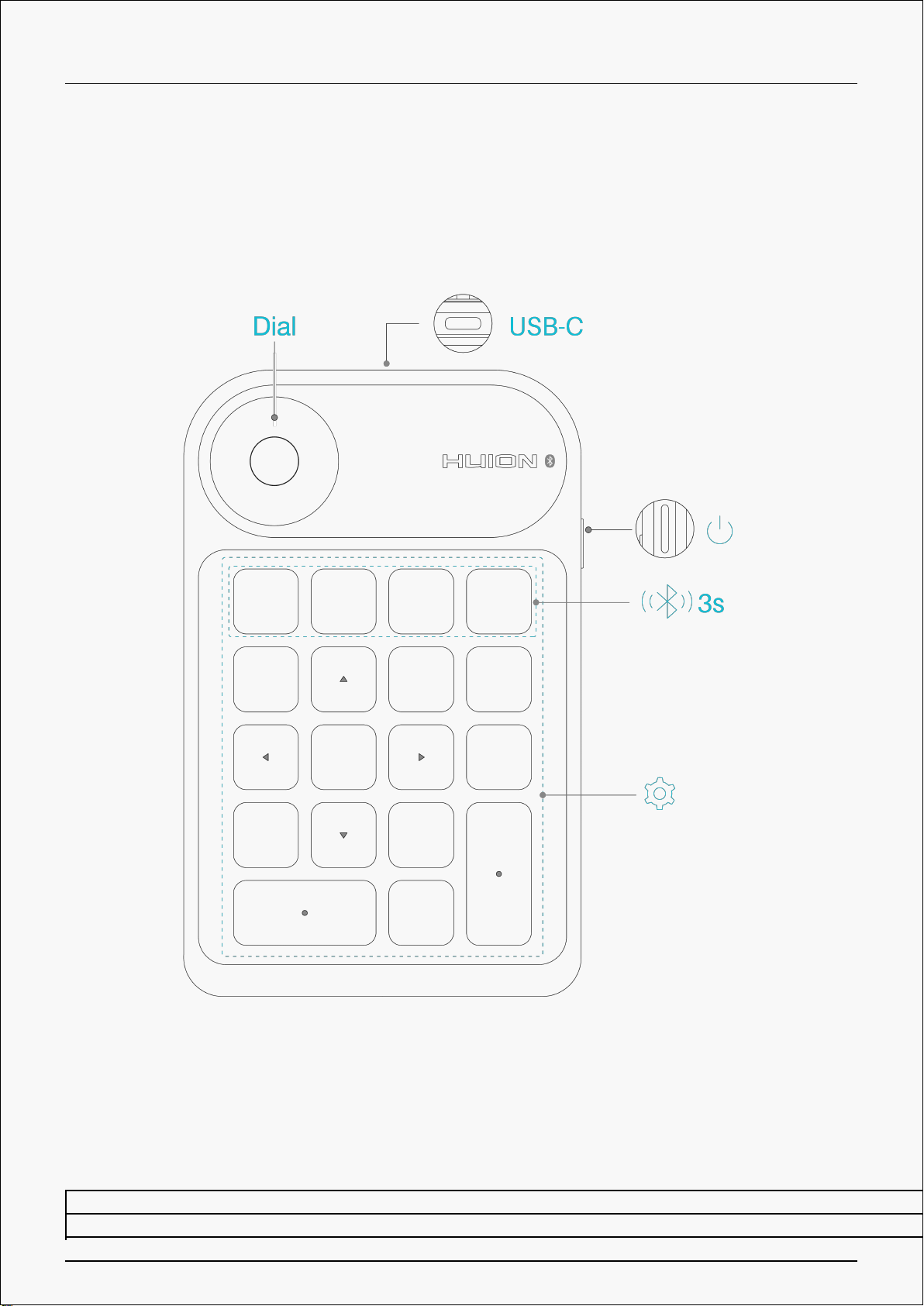
Please see the detailed product introduction.
Indicator Light
While connecting, you can judge the working status of the product by observing the color of
the light.
State of Light Function Description
Flash blue light Bluetooth waiting for pairing
3 / 29

Keydial mini
Blue light Working
Flash red light Low battery
Red light Charging
Green light Fully charged
Light off ① Sleep state (You can wake it up by pressing any key)
② Off state
Accessories
Connection
The one-handed keyboard can be connected to a computer or mobile device with USB-C cable
or Bluetooth.
Wired Connection
① Take out the USB cable from the package, and then connect Keydial mini to your computer;
② Please download the Keydial Driver from our website: Driver-Keydial mini;
③ Open the driver interface, and the device picture will be displayed on the interface,
indicating that the one-handed keyboard is successfully connected to the computer. Now you
can start to use the one-handed keyboard.
4 / 29

Keydial mini
Bluetooth connection
① Enable Bluetooth on your computer or mobile device;
② Download _Driver-Keydial mini from our official website with your computer or download
HuionKeydial APP with your mobile device.
③ Press the Power button on your Keydial mini to start the one-handed keyboard (If no
Bluetooth connection request is detected within 3 minutes, the one-handed keyboard will shut
down automatically)
④ Find out and connect the Bluetooth (Keydial mini-xxx) of the one-handed keyboard on your
computer or mobile device according to system prompts.
5 / 29


Keydial mini
① Enable Bluetooth on your computer or mobile device;
② Press the Power button on your Keydial mini to start the one-handed keyboard;
③ At the same time, press the Forced Bluetooth Pairing key on the one-handed keyboard and
hold for 3s until the status light flashes, indicating that the device enters Forced Pairing
mode;
④ Find and connect the Bluetooth of the one-handed keyboard (Keydial mini-xxx) on your
computer or mobile device according to system prompt.
Driver Installation
Windows
How to Install the Driver on Windows Device
Notice:
7 / 29

Keydial mini
① Before installing the driver, please close all graphic software and antivirus programs. The
note (“HuionTabletCore.exe” failed to launch!) below appears only on devices with Windows
OS, indicating that the driver is blocked by antivirus programs or drawing applications.
② Please make sure your computer operating system is Windows 7 or later.
③ Open the driver and a picture of Keydial mini will appear, indicating that the one-handed
keyboard is successfully connected to your computer. Now you can use your keyboard.
④If the connection fails, please restart the driver or your computer.
Note: The keyboard cannot work once the driver is uninstalled or deleted. In this case please
click Driver-Keydial mini to reinstall a driver, and your keyboard will restore to its default
settings.
Driver Installation
1. Connect the pen display to your computer.
2. Choose the correct driver for your device from our website:Driver-Keydial mini.
3. Click Driver-Keydial mini to download it.
4. Double-click the driver and click “OK” to proceed.
5. Check the box to agree with the User Agreement and click “Install Now”.
8 / 29

Keydial mini
6. After the installation has been completed, click on “Try it now”.
7. A picture of Keydial mini will appear on the driver interface to indicate a successful
connection. Now you can use your keyboard.
9 / 29

Keydial mini
mac
How to Install the Driver on Mac Device
Notice:
1. Please make sure your computer operating system is macOS 10.12 or later.
2. Open the driver and a picture of Keydial mini will appear, indicating that the keyboard is
successfully connected to your computer. Now you can use your keyboard.
3. If the connection fails, please restart the driver or your computer. For more information,
please refer to Troubleshooting. See section
Note: The keyboard cannot work once the driver is uninstalled or deleted. In this case please
click Driver-Keydial mini to reinstall a driver, and your keyboard will restore to its default
settings.
Driver Installation
1. Connect the keyboard to your computer.
2. Choose the correct driver for your device from our website: Driver-Keydial mini
10 / 29
Table des matières
Autres manuels Huion Clavier


