
HTC VIVE Manuel utilisateur

VIVE Wireless Adapter User Guide

Contents
Introduction
About VIVE Wireless Adapter 4
System requirements 4
Components 5
Inside the box
Available packages 6
Setting up your computer
Installing the PCIe WiGig card 9
Connecting the wireless link box to your computer 10
Setting up your headset
VIVE Pro series 11
VIVE Cosmos series 18
VIVE 29
Pairing and changing settings
VIVE Cosmos/VIVE Pro 2 35
VIVE/VIVE Pro/VIVE Pro Eye 36
Power bank
Connecting VIVE Wireless Adapter to the power bank 38
Charging the power bank 40
Checking the power bank status 41
Multiuser VR environments
Setup requirements 42
Setting up a wireless multiuser VR environment 43
Solutions and FAQs
PCIe WiGig card and wireless link box 47
Wireless adapter 48
VIVE and VIVE Pro series 48
VIVE Cosmos series 50
Information and support
Information, support, and assistance 54
Trademarks and copyrights
2 Contents
About this guide
The following symbols indicate useful and important information.
Notes provide details on setup, answers to common questions, and information on what to do
in specific situations.
Tips provide supplemental information or alternative methods you may find helpful for
particular steps or procedures.
Important notes provide information needed to complete certain tasks or configure specific
settings or features.
Warnings provide critical information for avoiding potential problems or preventing damage to
hardware.
Information contained in this guide may be outdated. For the most up-to-date information,
including the latest version of this guide, visit VIVE Support.
Before using this product, carefully review VIVE safety information and follow all product safety
and operating instructions provided at https://www.vive.com/legal/.
3 About this guide

Introduction
About VIVE Wireless Adapter
Freeing you from restrictive cabling, VIVE Wireless Adapter attaches to your headset and
wirelessly receives VR data from your computer.
Powered by Intel®WiGig®, VIVE Wireless Adapter offers a fast, responsive, near-zero latency VR
experience for maximum performance. VIVE Wireless Adapter is lightweight, easy to set up, and
comes with a powerful easy-swap battery so you can explore the full virtual range of VIVE™, VIVE
Pro series, and VIVE Cosmos series headsets.
System requirements
To use VIVE Wireless Adapter, your computer must meet the following system requirements:
Item Recommended requirements
Computer type Desktop computer with available PCIe slot
Processor Intel Core™i5-4590/AMD FX™8350 equivalent
or later
GPU NVIDIA®GeForce®GTX 1070/Quadro P5000
equivalent or better, AMD Radeon™Vega 56
equivalent or later VR Ready graphics card
RAM 8 GB or more
Operating system Windows®10
4 Introduction

Item Recommended requirements
SteamVR app (for VIVE/VIVE Pro/VIVE
Cosmos series)
Version 1533664367 or later
§VIVE Wireless Adapter supports a maximum resolution of 3264 x 1632 at a 90 Hz refresh rate
when used with VIVE Pro 2.
§VR software titles may have additional requirements. Performance may vary.
Components
Component Description
1. LED Turns on when the headset is powered on
2. Pair button Pairs the wireless adapter with the wireless link box
3. USB power port Connects the wireless adapter to the power bank via the power
bank charging cable
4. Headset cable port Connects the wireless adapter to VIVE Pro/VIVE Cosmos
series via the short headset cable
5. HDMI port
Connects the wireless adapter to VIVE via the 3-in-1 short
cable
6. USB port
7. Headset power port
5 Introduction

Inside the box
Available packages
VIVE Wireless Adapter is available in a variety of package combinations, depending on your
headset type and region.
Wireless Adapter Full Pack
The VIVE Wireless Adapter Full Pack is an all-in-one package that contains all the wireless
adapter accessories required for the VIVE Pro and VIVE Cosmos series.
In-box items
1. VIVE Wireless Adapter (with attached cradle
for the VIVE Pro and VIVE Cosmos series)
7. Wireless link box clip
2. Thin velcro pad (for the VIVE Cosmos series) 8. Short headset cable
3. Head pad (for the VIVE Cosmos series) 9. 21-watt QC 3.0 power bank (model 148DUT)
4. Head pad (for the VIVE Pro series) 10. Power bank holder
6 Inside the box

In-box items
5. PCIe WiGig®card 11. Power bank connector cable
6. Wireless link box 12. Power bank charging cable
Wireless Adapter for VIVE
This package contains all the wireless adapter accessories required for the first-generation VIVE
headset.
In-box items
1. VIVE Wireless Adapter (with attached cradle
for VIVE)
6. 18-watt QC 3.0 power bank (model
99H2036400)
2. 3-in-1 short cable 7. Power bank holder
3. PCIe WiGig®card 8. Power bank connector cable
4. Wireless link box 9. Power bank charging cable
5. Wireless link box clip -
The 18-watt power bank can be used with the first-generation VIVE, VIVE Pro, and VIVE Pro
Eye headsets.
7 Inside the box
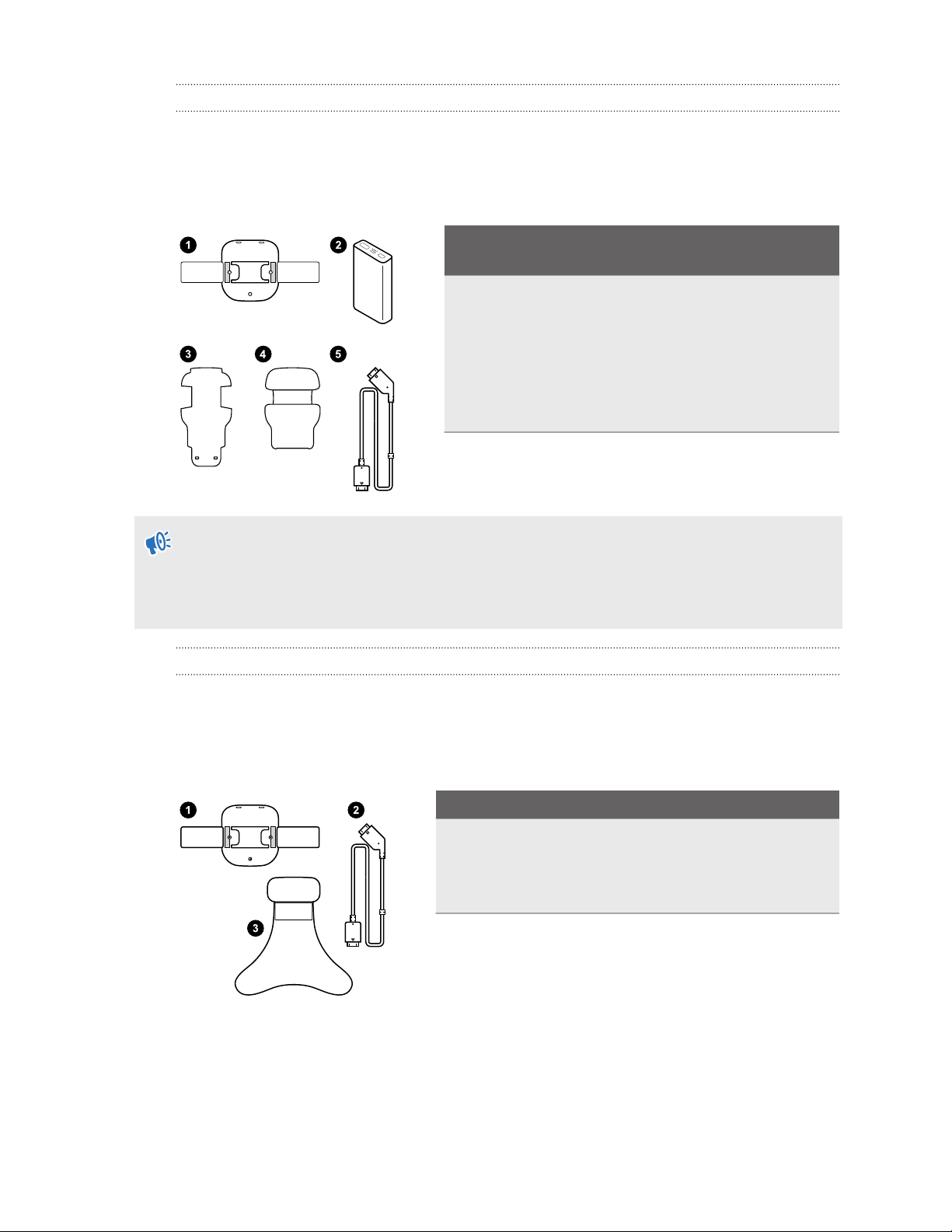
VIVE Cosmos Wireless Adapter Attachment Kit
This kit contains replacement accessories so the Wireless Adapter for VIVE package can be
used with the VIVE Cosmos series.
Replace the respective items from the Wireless Adapter for VIVE package with the following
items:
Replacement accessories for the VIVE Cosmos
series
1. Cradle
2. 21-watt QC 3.0 power bank (model 148DUT)
3. Thin velcro pad
4. Head pad
5. Short headset cable
§The VIVE Cosmos series and VIVE Pro 2 are only compatible with the 21-watt power bank.
Avoid using third-party power banks.
§The 21-watt power bank can also be used with VIVE, VIVE Pro, and VIVE Pro Eye.
VIVE Pro Wireless Adapter Attachment Kit
This kit contains replacement accessories so the Wireless Adapter for VIVE package can be
used with VIVE Pro and VIVE Pro Eye.
Replace the respective items from the Wireless Adapter for VIVE package with the following
items:
Replacement accessories for VIVE Pro/VIVE Pro Eye
1. Cradle
2. Short headset cable
3. Head pad
8 Inside the box

Setting up your computer
Installing the PCIe WiGig card
Expansion cards such as PCIe cards contain sensitive circuitry and components. Please handle
your PCIe WiGig®card with care.
To avoid possible damage from static electricity, adhere to the following precautions when
handling the card:
§Before installing the card, shut down your computer and unplug the power cable.
§Let the computer cool for a few minutes before removing its cover.
§Wear a grounded wrist strap when handling the card and hold the card by the edges to avoid
touching any sensitive components. If you don't a grounded wrist strap, touch a safely
grounded surface before handling the card.
§Store the card in an anti-static bag if you remove it from the motherboard.
1. Remove the computer cover.
2. Insert the PCIe WiGig®card in an available PCIe slot on your motherboard.
3. Securely reattach the computer cover and reconnect the power cable.
9 Setting up your computer

Connecting the wireless link box to your computer
After installing the PCIe WiGig®card in your computer, connect the wireless link box to the card.
1. Connect the wireless link box to the PCIe WiGig®card installed in your computer and turn
the cable connector clockwise to secure it.
2. Flip open the base of the clip and attach the clip to the top of the computer monitor.
3. Attach the wireless link box to the top of the clip and turn the fastener to secure it.
§Mount the link box at least 125 cm (4 ft) from the ground and approximately 150 cm (5 ft)
from the play area.
§Make sure the wireless link box is facing the play area and that there's a clear line of sight
between you and the wireless link box.
§Adjust the wireless link box according to user needs (for example, higher for taller users) or
the conditions of the play area (for example, multiuser VR environments).
10 Setting up your computer
Autres manuels pour VIVE
11
Table des matières
Autres manuels HTC Adaptateur


