HEAD Los Angeles Manuel utilisateur

SMARTWATCH
USER MANUAL
Los Angeles
Version 05.2021

2HEAD Smartwatch User Manual
CONTENTS
3 First Steps
4 Navigation
4 Quick Use
5 Settings Menu
5 Functions
5 Push Message
5 Phone / Call History
5 Bluetooth Phone
6 Message
6 SMS Notification
6 Frequently Used Contacts
6 Fitness Data
6 Sports Modes
7 Heart Rate
7 ECG
7 Blood Pressure
7 Blood Oxygen
7 Remote Music
7 Sleep Monitor
8 Stopwatch
8 Weather
8 Find Mobile Phone
8 Meteorology
8 Breathing
8 Massager
8 Female Assistants
9 Functions
9 Find your Smartwatch
9 Remote Camera
9 Data Synchronization
9 Dial Standby
9 Do Not Disturb
9 Daily Alarm Clock
10 Sedentary Reminder
10 Drink Water Reminder
10 Dial Push
10 Firmware / Update
10 Unbind your Smartwatch
11 Menu Style
11 Settings
11 Connect via Bluetooth
11 Bind Audio Call
12 FAQ and Tips
12 Waterproofness
12 User Help
13 Warranty
13 License

3HEAD Smartwatch User Manual
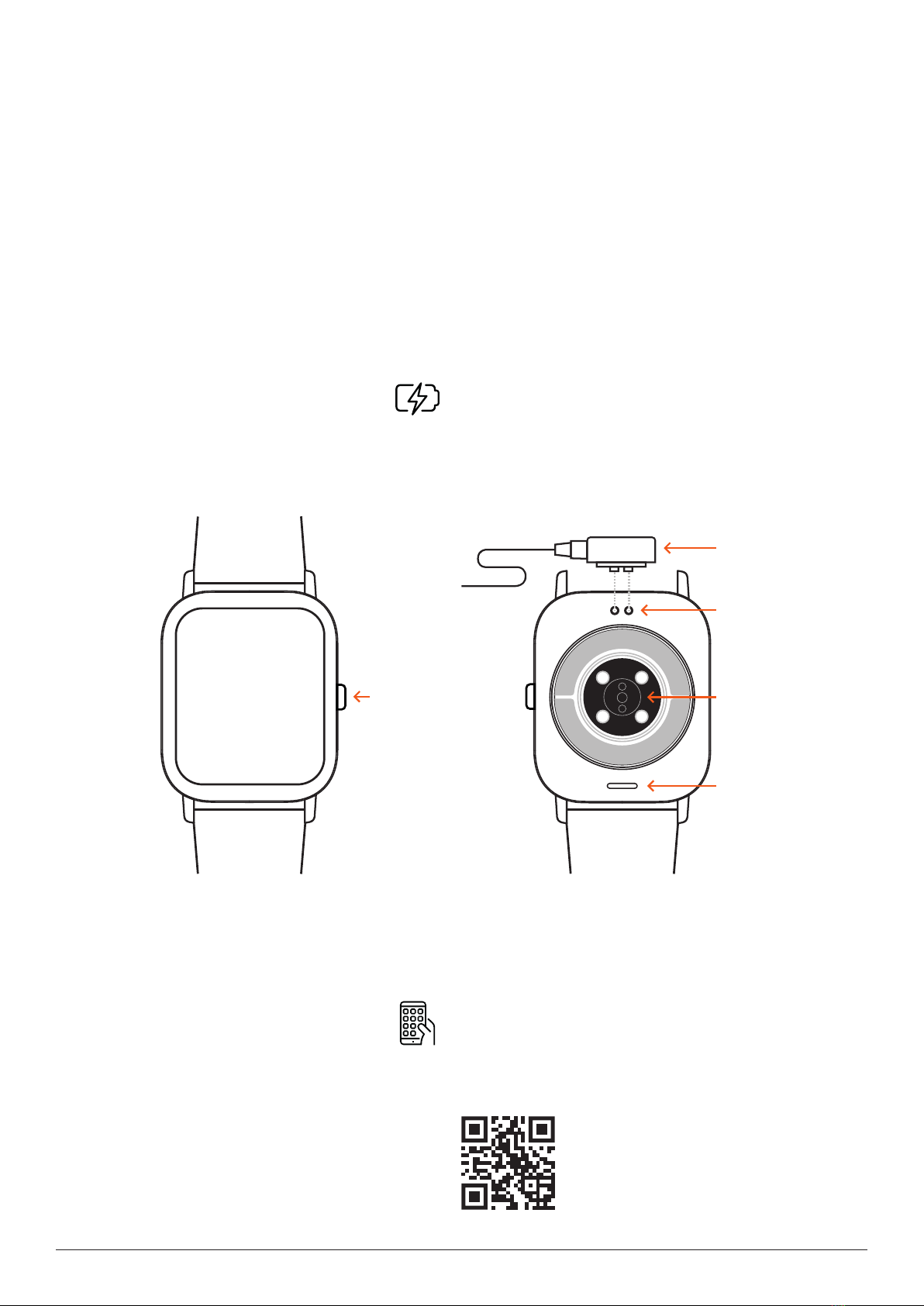
DISPLAY BUTTON
CONNECTORS
CHARGING CABLE
SENSORS
SPEAKER
Press the Button for some seconds to start your smart-
watch. If you want to switch off your smartwatch, also press
the button for a few seconds and confirm the shutdown.
On the dial interface, short press to turn on the screen and
turn off the screen / one key on the function interface
to return to the main dial. Long press button and choose ”√”
to shut down your smartwatch.
Charging Instructions
You may have to charge the smartwatch at the beginning if
the battery is empty. Use the USB charging cable as shown
below. The charging time is approx. 2 hours.
Download HEAD Watches App
Go to www.headwatches.com/app from your smartphone and
download the app. Alternatively, you can also scan this QR
code with your smartphone or search for ”HEAD WATCHES“ in
Apple App Store oder Google Play Store.
FIRST STEPS

4HEAD Smartwatch User Manual
DIAL
Start Screen
Control Center
Functions Menu
Push Messages Step Counter Interface Heart Rate Sleep Monitor
Navigate through your smartwatch
Depending on the direction you swipe, you can access other
areas of your smartwatch. With one click on the button you
always come back to the start screen.
Quick Use Functions
• Swipe left to enter the step counter interface, swipe down
to view the number of steps, distance, and calorie con-
sumption of the day.
• Swipe left again to enter the heart rate test and sleep
record.
• Scroll down to enter control center for brightness adjust-
ment, weather, do not disturb mode, settings, call Blue-
tooth switch, check version and Bluetooth address.
• Swipe right to enter the message notification (used after
connecting to Bluetooth).
• Swipe up to enter the menu interface, and slide up and
down to find the corresponding function.
• Long press the dial interface to slide to switch dials, and
then touch to set successfully.
NAVIGATION

5HEAD Smartwatch User Manual
Control Center
On the start screen (dial) slide down to open the settings
menu interface:
Power display, Bluetooth connection status, time display,
week
• The first icon can debug brightness adjustment
• The second icon, the weather and temperature of the day
(connected to app)
• The third icon, do not disturb mode. Turn on „Do not
disturb“ only for message information, but not for phone
audio
• The fourth icon, Quick Use function setting
• The fifth icon, turn on or off Bluetooth for audio calls
• The sixth icon, about
You can also make some settings directly in the app.
Push Message
When the smartwatch is connected to the app and the noti-
fication permission is turned on, the new messages received
in the notification bar of the mobile phone will be pushed
to the watch. A total of 10 messages can be saved, and the
messages received after 10 messages will be overwritten one
by one. Slide to the bottom and press the delete icon to clear
all message records.
Phone / Call History
When the phone is not connected to the Bluetooth call, enter
the phone, you can turn on/off the Bluetooth phone.
When the Bluetooth phone is turned on, it will prompt you to
pair + Bluetooth name + the last four digits of the Bluetooth
address. After the Bluetooth connection is successful, you
can use the watch to use it.
Bluetooth Phone Answering/Hanging Up
Call record, can save the record of connected and dialed
calls. (It can save more than 50 call records, and it will be
automatically overwritten when 128 records are full. Click any
call record to call back). Dial the keyboard, you can enter the
phone number to make a call.
SETTINGS MENU
FUNCTIONS

6HEAD Smartwatch User Manual
Message
The smartwatch is successfully connected to the app, the
corresponding notification authority in the mobile phone
system is opened, and the mobile phone information can be
synchronized with the smartwatch.
Call notification: Turn on the call reminder in the personal
application (profile) . When the phone receives the call re-
minder, the watch will light up and vibrate.
Notification
The SMS notification is enabled in the personal application
(profile). When one or more SMS messages are received on
the mobile phone, the watch will receive one or more SMS
reminders at the same time.
Other application message notifications: Turn on the corre-
sponding application message notification switch in personal
applications, such as WhatsApp, Outlook, Facebook and other
applications. When the mobile terminal receives one/multiple
application message notifications, the watch terminal will
receive one/multiple corresponding message reminders at
the same time notice.
Frequently Used Contacts
You can connect to the app. In the device of the app select
frequently used contacts and add contacts (up to 20 contacts can
be added), which can be synchronized to the watch, and the watch
can display up to 20 contacts.
Fitness Data
The fitness data is turned on by default. Swipe the watch to the
right to enter the fitness data interface, and slide it down to
display the current steps, distance, and calories of the watch. The
data is cleared at 12 o‘clock in the morning every day.
Sports Modes
Select the corresponding exercise mode and click the start
button on the screen to enter the corresponding exercise
mode; click the start button of the exercise being calculated
to pause the exercise, click the end button to end the exerci-
se and save the data.
The exercise data can be saved when the exercise time is
greater than 1 minute; when the exercise is saved under
this condition, it will prompt „Too little data to save“. (After
exiting, exercise data can only save step data)
FUNCTIONS

7HEAD Smartwatch User Manual
Heart Rate
Put the smartwatch on your wrist (left/right) correctly, enter
the heart rate menu, you can measure the heart rate value in
a single time, the data will be output in 10 seconds, and the
measurement will be completed in 10-20 seconds.
ECG (Electrocardiogram)
Put the smartwatch on your wrist correctly, enter the ECG
menu (need to open the app „ECG monitor“ interface), you
can measure the ECG value in a single time, the data is
output in 10 seconds, and the measurement is completed in
10-20 seconds. A single ECG can be saved in the app synchro-
nously, this function needs to be connected to the app to
use.
Blood Pressure
Put the smartwatch on your wrist correctly, enter the blood
pressure menu, you can measure a single blood pressure
value, the data is output in 10 seconds, and the measurement
is completed in 10-20 seconds.
Blood Oxygen
Wear the smartwatch correctly on your wrist, enter the blood
oxygen menu, you can measure a single blood oxygen value,
the data is output in 10 seconds, and the measurement is
completed in 10-20 seconds.
Remote Music
Connecting to the app, you can control the phone‘s music/
start/pause/previous/next song, and the speaker sound appe-
ars on the phone.
Connect the call Bluetooth, you can control the phone music/
start/pause/previous/next song, and the speaker sound appe-
ars on the watch.
Sleep Monitor
Sleep monitoring time period: 18:00 in the evening to 10:00
the next day, the watch generates data. After exiting the
sleep monitoring, the sleep data on the watch can be syn-
chronized to the app for viewing after connecting to the app.
FUNCTIONS

8HEAD Smartwatch User Manual
Stopwatch
Click the stopwatch to enter the timing interface, and you
can record the time at a time.
Weather
After the smartwatch is connected to the app and the data is
synchronized, the weather information of the day will be di-
splayed when the smartwatch terminal clicks on the weather,
and the weather conditions can be displayed in Celsius and
Fahrenheit.
Find Mobile Phone
After the smartwatch is connected to the app, click to find
the phone on the watch side, and the phone will vibrate or
ring tones.
Meteorology
Click on the weather on the smartwatch side to display the
day‘s ultraviolet (UV), atmospheric pressure, and altitude
conditions.
Breathing
There are three modes of breathing: slow, moderate, and
fast, which can be selected. You can breathe according to the
mode selected by the user. You can select 1, 2, and 3 minutes
to measure the breathing data. Select 1, 2, and 3 minutes to
automatically end the breathing measuring.
Massager
Click the green button to start the massage, and the watch
is in vibration state, click the red button to end the massage
state.
Female Assistants
Record the status of women‘s menstrual period, and you can
view the data of the last month end time, the length of the
menstrual period, and the number of days between menstru-
al periods on the app.
FUNCTIONS

9HEAD Smartwatch User Manual
Find your Smartwatch
The watch is successfully bound with the app. Click to find
the watch on the mobile app and the watch will vibrate once
when the screen is on.
Camera
Tap the camera to wake up the watch device‘s camera mode,
tap the camera button to take a photo, and the picture will
be automatically saved to the phone system album.
Data Synchronization
The watch is successfully connected to the app, and the
watch data can be synchronized to the app.
Dial Standby
Open: Wear the watch correctly on your wrist. When you turn
on the hand-up button, when you lift your wrist to look at the
watch, the watch will automatically brighten the screen.
Close: Wear the watch correctly on your wrist. When the
hand-up button is turned off, when the wrist is raised up to
look at the watch, the watch is in a black screen, and you
need to press the power button to turn on the screen.
Do Not Disturb Mode
In the app go to Device > More, set the start to end time, such
as: 12:00 to 14:00 noon for the do not disturb mode, during
this time there will be no phone calls and message sound
reminders on the watch.
Daily Alarm Clock
New alarm: In the app in the app Device > More, set the start
to end time, the alarm can be set only once or repeatedly
select the date (week) setting, and the alarm can be turned
on/off.
Delete alarm: Select and hold a set alarm clock and swipe to
the right to delete the set alarm.
FUNCTIONS

10HEAD Smartwatch User Manual
Movement Reminder
Set the start to end time period and the sedentary time
interval (minutes) in the app, click to enter the repeat setting
only once or select the sedentary reminder date (week).
When the sedentary time is reached, the watch will vibrate
and there will be a sedentary icon.
Drink Water Reminder
Set the start to end time period and frequency (minutes) in
the app, click to enter the repeat setting, select the drinking
reminder date (week), check the drinking reminder and save
it. When the reminder time for drinking water arrives, the
watch will vibrate and there will be a drink icon.
Dial Design
Push an existing watch face: Connect to the app, go to Device
> Dial Push > Select Dial, and make sure to replace it with this
dial. After the dial is synchronized, the watch will automati-
cally restart and then automatically connect to the app.
Custom watch face: Connect to the app, select in Device > Dial
Push > (Dials with pen icons belong to custom dials) Custo-
mize Dial Settings > Select a custom background. After the
dial is synchronized, the watch will automatically restart and
then automatically connect to the app.
Firmware version
Display the version of the watch, and users can choose to
upgrade the firmware version.
Unbind
Connect the watch to the app, unbind in the device, click OK
and unbind, the IOS system needs to go to the phone settings
to ignore the Bluetooth device.
FUNCTIONS
Autres manuels pour Los Angeles
1
Table des matières
Autres manuels HEAD Montre